
Backups & Storage
Home backup 3-2-1: NAS, cloud, and USB rotation
3-2-1 is the simplest backup rule that still survives ransomware, fire, and accidental deletes: three copies, on two different storage types, with one copy offsite. A NAS alone fails that rule by itself.
3-2-1 backup model
Reference images and diagrams. Click any image to view full resolution.
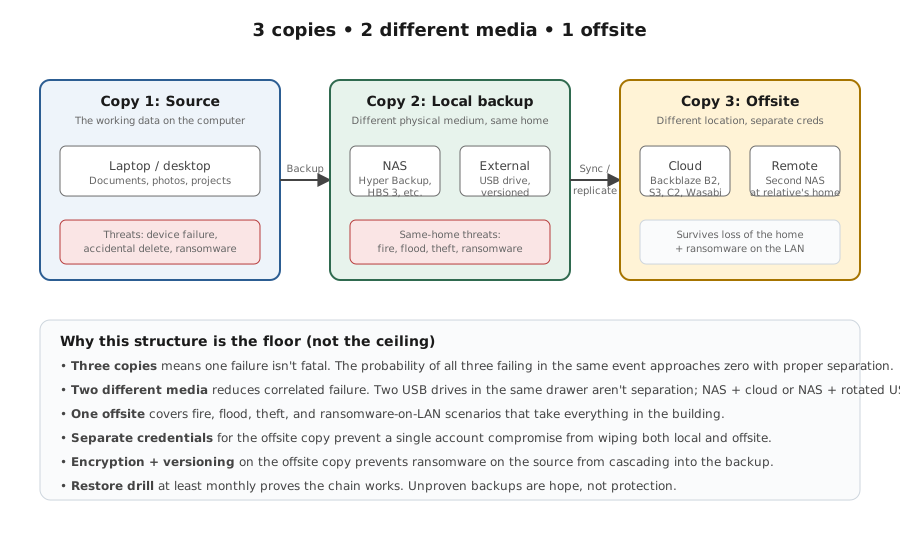
Who this is for
For home operators who already have at least one backup of important data and want to upgrade to a real 3-2-1 plan that survives ransomware, fire, theft, and accidental delete.
Outcome
A working three-copy backup plan with the data inventoried, the three copies identified (working / local / offsite), two distinct storage media in use, a verified monthly restore drill, and ransomware-resistant offsite handling.
Required inputs
- An inventory of irreplaceable data categories (photos, documents, project files, password exports, device configs) with current size and growth estimate.
- Decisions on the local backup target (NAS share, external USB, or both) and the offsite target (cloud backup, rotated USB, or both).
- Credentials for the cloud account or storage drive, kept in a password manager separate from the backup config files themselves.
Step-by-step procedure
Inventory and tier what you're protecting
Do: Tier 1 (irreplaceable — protect with all three copies + immutable): photos/videos, documents, financial/legal/tax records, password-manager export, 2FA recovery codes/seeds, BitLocker recovery keys, SSH/GPG keys, email archives, creative project files. Tier 2 (reproducible — a local copy is usually enough, skip or cold-tier the cloud leg): media libraries, OS + apps, game libraries, rebuildable Docker appdata.
Expected result: A short, concrete list where each Tier 1 item names a folder/library + approximate size, and bulky reproducible data is consciously kept out of metered cloud.
If not: If the list balloons to 'everything on the laptop', split it: the backup math (and the cloud bill) only works when Tier 1 is small and Tier 2 isn't paying cloud rates.
Confirm the working copy is healthy
Do: Open each inventoried location and confirm the files are where you think they are; check for any sync errors on cloud-synced folders.
Expected result: Every inventoried location opens, file counts/sizes match expectation, and no sync errors are pending.
If not: Resolve sync errors and broken paths before designing the backup; a backup of broken state is not useful.
Set up the local copy (Copy 2)
Do: Configure automated backup from the working device(s) to a NAS share, an external USB drive, or both. Verify the first run completes and exclude system-managed paths that backup software handles separately.
Expected result: The first local backup completes without errors and the destination shows recent activity.
If not: Check destination space, permissions, and backup-software logs before adding more sources.
Set up the offsite copy (Copy 3) — and pick the provider with eyes open
Do: Configure a versioned offsite target with different credentials from any local copy. 2026 options: Backblaze B2 (~$6.95/TB/mo, Object Lock for immutability, free egress via Cloudflare) paired with restic/Kopia; Backblaze Personal (~$99/yr unlimited, but directly-attached storage only — not a NAS); Wasabi (cheap but 90-day minimum retention, $7.99/TB since 2026-07-01); AWS Glacier Deep Archive (~$1/TB to store, but slow + costly to retrieve); Synology C2 (note the C2 → C2 OneStorage migration — new legacy plans blocked after 2026-06-22, auto-conversion from 2026-12-22). A rotated USB drive kept at a different building also counts.
Expected result: The first offsite backup completes, keeps versioned history, and uses credentials distinct from the local copy.
If not: If the offsite shares credentials/MFA with the local copy, a single account compromise can take both — separate them now. If it's a sync folder rather than a versioned backup, it doesn't count as the offsite leg.
Make one copy immutable or offline (the +1 in 3-2-1-1-0)
Do: Ransomware deletes reachable backups first, so make at least one copy unchangeable: enable Object Lock with a retention period on the cloud bucket (B2/S3), or immutable snapshots on the NAS (Synology DSM 7.3+ Immutable Snapshots — formerly WriteOnce, rebranded with a mandatory protection-period model in DSM 7.3 March 2026; QNAP WORM on QuTS hero), or keep a rotated USB drive physically disconnected (air-gapped) between backups.
Expected result: One copy cannot be altered or deleted for its retention window — confirmed by attempting a delete and being refused.
If not: If every copy is online and deletable with your normal credentials, you have 3-2-1 but not the ransomware-resistant '+1'. Add Object Lock, an immutable snapshot, or an air-gapped USB.
Prove restore from each copy — and verify the data, not just the job
Do: Pick one harmless file. Restore it from the local copy to a temporary folder and open it; repeat from the offsite copy. For repo-based tools, run an integrity check that re-reads data (`restic check --read-data-subset=10%` or `kopia snapshot verify`). For databases/VMs, confirm you're restoring a dump or snapshot, not live-copied files. Document the steps.
Expected result: Both restores produce a working file, the integrity check passes, and the steps are recorded.
If not: If restore or the integrity check fails, stop using that backup for new data; fix it or switch tools. A backup that only ever 'completes' but never restores is not a backup.
Schedule monthly restore drills and review
Do: Add a monthly calendar reminder to restore one file from each copy and check that retention/versioning still satisfies the plan (e.g., 90+ days of history).
Expected result: Every month, both copies produce a successful restore and retention covers the agreed window.
If not: If a drill fails, treat it as a backup outage; fix before the next data change.
3-2-1 status snapshot
| Data category | Working copy location | Local backup target | Offsite backup target | Media types | Last restore drill | Retention window |
|---|---|---|---|---|---|---|
| Photos | Phone + NAS photos share | NAS snapshot / versioned backup | Cloud backup with versioning | NAS + cloud | Monthly | 90 days versioned |
| Documents | Laptop OneDrive/Drive folder | Laptop > NAS via backup tool | Cloud backup or rotated USB at work/family | NAS + cloud OR NAS + USB | Monthly | 30+ days versioned |
| Password vault export | Password manager (not in plain files) | Encrypted export to NAS share | Encrypted export to cloud / USB | NAS + cloud | Quarterly | Last 3 exports kept |
Commands and settings paths
Local backup status
Backup software dashboard (Hyper Backup, Borg, restic, Time Machine, File History, etc.)
Where: On the source device or NAS that runs the backup job.
Expected: Most recent job status is success; job log shows files transferred and no errors.
Failure means: If the dashboard shows old success or recent failures, the local copy is stale or broken.
Safe next step: Re-run the job, check destination space and permissions, and investigate any error logs before assuming the schedule is fine.
Offsite backup status
Cloud backup dashboard (Backblaze, Arq, iDrive, vendor cloud) or rotated-USB backup tool
Where: In the offsite backup tool's UI on a trusted device.
Expected: The most recent job finished successfully and the storage account is in good standing (paid, not over quota).
Failure means: An offsite copy that has not run in days/weeks is not protecting current data.
Safe next step: Check the account status first (billing, quota, credentials), then re-run the job.
Confirm immutability is actually SET (not just available)
B2: `b2 get-file-info` / S3 `get-object-retention` shows a retention or legal hold; Synology: a WriteOnce shared folder shows Immutable/Append-only + retention; QNAP: a WORM folder on QuTS hero set to Manual Lock. Then try to delete a locked object and confirm it's refused.
Where: Cloud CLI/console or the NAS storage UI; deletion test from a client.
Expected: The object/snapshot reports an active lock with an expiry, and a delete attempt is refused.
Failure means: An Object-Lock-capable bucket with no retention applied is NOT immutable — ransomware with your creds can still delete it.
Safe next step: Apply a retention period / legal hold (B2) or enable the immutable lock + retention on the snapshot/share (Synology/QNAP), then re-test the delete.
Verify the backup data actually reads back (not just that the job ran)
restic: `restic check --read-data-subset=10%` then `restic restore <id> --include <file> --target /tmp/test`; Kopia: `kopia snapshot verify --verify-files-percent=10` then `kopia snapshot mount <id> /mnt`; Synology: Hyper Backup > task > Backup Verification.
Where: On the device/NAS that owns the repo, or a trusted restore host.
Expected: Integrity check passes and the restored test file opens correctly.
Failure means: 'ciphertext verification failed' or a check error means the repo is damaged or tampered — and a default `check` alone does not re-read file data.
Safe next step: Restore from another copy; investigate the failing repo before trusting it for new data.
Confirm a 'copy' isn't really just a sync
Check whether the offsite target keeps independent point-in-time versions with retention, or just mirrors current state (`rclone sync` mirrors deletions; OneDrive/Drive roll back only ~30 days).
Where: In the backup/sync tool's settings and version history.
Expected: The offsite copy retains versioned history (ideally 90+ days) that a source-side delete/encrypt cannot immediately overwrite.
Failure means: If deleting/encrypting a source file removes or overwrites it offsite too, that target is a sync, not a backup.
Safe next step: Switch the offsite leg to a versioned/immutable backup (an Object-Lock bucket via restic/Kopia, or a versioned vendor backup), not a sync folder.
Evidence to record
- Date and size of the most recent successful local backup; date and size of the most recent successful offsite backup.
- Date and outcome of the most recent restore drill for each copy.
- Storage media types in use (NAS / USB / cloud) and confirmation they are at least two distinct types.
- Retention window for each copy (e.g., 30 days versioned local, 90 days versioned offsite).
Common mistakes
- Counting RAID or Unraid parity as a backup — it survives a disk failure, not deletion, ransomware, a controller failure, or fire. It's availability, not a copy.
- Keeping both 'copies' on the same NAS pool — one pool failure or one ransomware hit takes out both. Two copies must be on genuinely different media/locations.
- Letting the 'offsite' copy be a live sync (OneDrive/Drive/Dropbox) — ransomware and accidental deletes propagate through sync and overwrite the clean cloud copy. Sync is availability, not backup.
- The backup job shows green but the destination isn't immutable — an attacker with NAS or cloud credentials just deletes the backups first (the standard 2025-2026 ransomware playbook). You need WORM/Object-Lock/append-only or an offline copy.
- Never running a restore drill — an untested backup is a gamble; do a real restore at least quarterly. 'Schedule is green' is not proof.
- Using the same password/credentials across all backup targets — one credential compromise unlocks every copy. Use distinct creds, and keep the backup target off the domain.
- Wasabi early-delete fees — Pay-as-you-go bills every object for a 90-day minimum even if you delete sooner; high-churn backups cost more than the sticker (and the Pay-as-You-Go rate rose to $7.99/TB across all regions on 2026-07-01).
- Glacier / Deep Archive retrieval shock — cheap to store (~$1/TB) but ~$0.02/GB retrieval + ~$0.09/GB egress and a 12-48h wait at the worst possible moment.
- Assuming Backblaze Personal backs up a NAS — it only backs up directly-attached storage, and it ages out versions of a USB drive not reconnected within 30 days.
- Backing up a running database or VM by copying its live files — you get a corrupt, unrestorable backup. Dump it, or stop/snapshot first.
- Storing the encryption passphrase/keys only inside the encrypted backup (or only in the same cloud account) — keep recovery material (BitLocker keys, 2FA seeds, repo passphrase) backed up separately.
- Treating the cloud account itself as durable — if your password DB and its 2FA both live only in one cloud account, a lockout loses both. Keep an offline copy of recovery material.
Stop points
- Stop before deleting original files when only the first backup run has completed — wait for at least one successful restore drill from that copy.
- Stop before exposing the backup destination publicly (port-forwarded NAS, public bucket) to make remote restore easier — use VPN-style access (Tailscale) or the vendor UI instead.
- Stop before calling a plan '3-2-1' until you've confirmed one copy is genuinely offsite with different credentials AND one copy is immutable/air-gapped (the 3-2-1-1-0 '+1') — and verify the lock is actually set, not just available.
- Stop before trusting a cloud copy that's really a sync folder — if ransomware on the source would propagate to it, it doesn't satisfy the offsite leg.
- Stop before churning lots of data into Wasabi or a cold cloud tier without checking minimum-retention and retrieval/egress costs — the bill or the restore time can surprise you when it matters most.
Last reviewed
2026-05-06
Source-backed checks
HomeTechOps turns official docs and conservative safety rules into a shorter runbook. These links are the source trail for the page direction.
Did this solve your problem?
Your answer helps us improve this page.
No account or personal details. We store the page, answer, optional reason and day with a 90-day retention period. A random reference in this browser prevents repeat votes. Feedback privacy
Planning a purchase?
We keep a source-backed, price-free comparison so you can buy once and right. No star ratings, every spec cited.
Synology vs UGREEN vs DIY NAS in 2026 →Get the deal & firmware alerts
Home Stack Field Notes: NAS deals, firmware changes worth acting on, restore-test reminders, and new decision guides — plus the capacity & backup sizing cheatsheets from our calculators. Unsubscribe anytime.
Subscribe on beehiiv