
Mac
Mac can't see NAS or printer after Tahoe or macOS 27 update
Check Local Network permission, Bonjour discovery, VPN routing, and direct reachability when a NAS or printer disappears after a macOS update.
Start here: Grant the permission
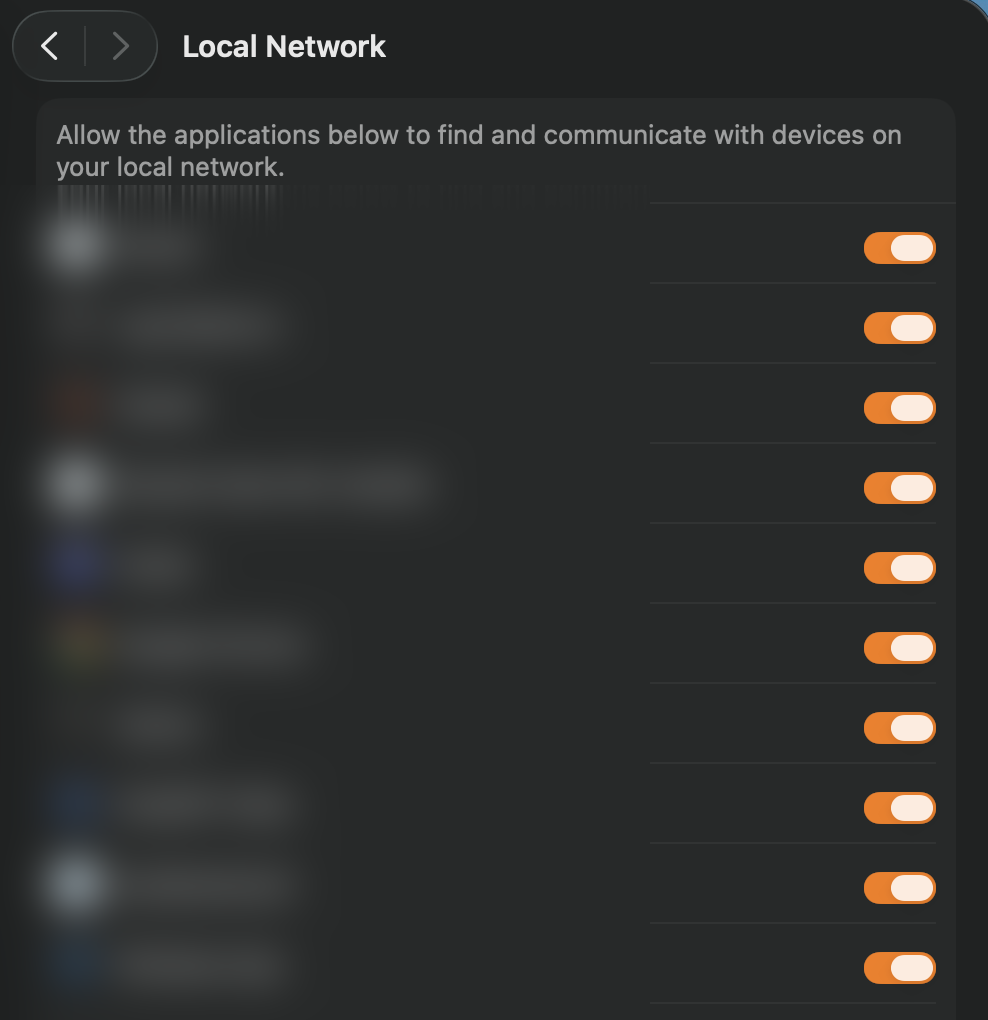
Privacy & Security → Local Network → toggle the failing app ON.
Problem summary
If a NAS or printer disappears after a macOS update, separate device reachability from Bonjour discovery and per-app Local Network permission. Check the app's switch in System Settings, connect by IP from Finder to test the device, then compare discovery with `dns-sd`. A direct IP can bypass a discovery failure, but Apple says it does not bypass a denied Local Network permission for the affected app.
Open Privacy & Security → Local Network and check the app's toggle.
dns-sd -B _smb._tcp
The app that can't find devices is listed and ON.
Disabling the firewall entirely instead of just the 'block all incoming' option.
Layer path
Step-by-step runbook
Start here. Do each check in order, compare it to the expected result, and stop when the evidence explains the failure or the safe stop point applies.
Grant the permission
Check: Privacy & Security → Local Network → toggle the failing app ON.
Expected result: The app can issue mDNS queries again.
If not: If the app isn't listed, relaunch it and trigger discovery to prompt.
Prove reachability
Check: Connect by IP with `smb://<NAS-IP>` and add the printer by IP.
Expected result: You confirm the device is reachable and get working access now.
If not: If IP fails, switch to the reachability branch (VPN/subnet/NAS).
Clear network blockers
Check: Disconnect a full-tunnel VPN; turn off firewall 'Block all incoming'.
Expected result: LAN traffic and discovery responses are no longer suppressed.
If not: If devices are cross-subnet, plan mDNS reflection or keep using IP.
Verify discovery system-wide
Check: Run `the "Browse for SMB file shares via Bonjour" command below` / `_ipp._tcp`.
Expected result: Devices appear, confirming mDNS works at the OS level.
If not: If they appear here but not in an app, check its permission and configuration.
Re-test and settle
Check: Relaunch the app / reopen Finder's Network section.
Expected result: Devices are visible and connect without an IP.
If not: If discovery still fails, try a manual address only when the affected app has Local Network access.
Did this solve your problem?
Your answer helps us improve this page.
No account or personal details. We store the page, answer, optional reason and day with a 90-day retention period. A random reference in this browser prevents repeat votes. Feedback privacy
Decision tree
If: Connect-by-IP works but the app/Finder can't discover the device.
Then: Device reachability works for Finder; the app may have a permission, discovery, or configuration failure.
Action: Check the app's Local Network switch and compare `dns-sd` before changing anything else.
If: Even connect-by-IP fails and a full-tunnel VPN is active.
Then: The VPN is routing LAN traffic away from the local network.
Action: Disconnect the VPN or enable local-LAN/split-tunnel access, then retry.
If: Connect-by-IP fails, no VPN, device on a different subnet/VLAN.
Then: mDNS can't cross subnets and routing may be blocked between VLANs.
Action: Use IP directly, and enable mDNS reflection/repeater on the router if cross-subnet discovery is needed.
If: `dns-sd` shows nothing and firewall 'Block all incoming' is on.
Then: The firewall is suppressing discovery responses.
Action: Turn off 'Block all incoming connections' (keep the firewall on otherwise) and retest.
If: No client (not just this Mac) can reach the NAS/printer.
Then: The device's service is off (SMB disabled, printer offline) — not a Mac problem.
Action: Fix the NAS share/printer service; confirm the device is healthy.
Evidence table
| Symptom | Evidence to collect | Likely layer | Next action |
|---|---|---|---|
| NAS/printer vanished right after the Tahoe update. | Privacy & Security → Local Network shows the app off/missing. | A switch that is off is a denial; absence is not proof of an update reset. | Toggle a listed app on; if absent, trigger its LAN action and collect details for its developer. |
| App can't discover, but `smb://<IP>` connects. | Connect-by-IP succeeds; `dns-sd` works system-wide. | Finder reachability works; affected app needs separate diagnosis. | Check the app's Local Network switch, manual address option, and own settings. |
| Nothing local is reachable while VPN is on. | Disconnecting the VPN restores access. | Full-tunnel VPN routing LAN traffic away. | Enable local-LAN access / split-tunnel, or disconnect. |
| Device on guest/IoT VLAN never appears. | Same device reachable by IP from the Mac's subnet only via routing. | Cross-subnet mDNS not reflected. | Connect by IP; enable mDNS reflection on the router. |
| `dns-sd` lists nothing for any service. | Firewall 'Block all incoming connections' is enabled. | Firewall suppressing discovery. | Disable that single option; keep the firewall on. |
Commands and settings paths
Browse for SMB file shares via Bonjour
dns-sd -B _smb._tcpWhere: Terminal on the Mac (Ctrl-C to stop).
Expected: Lists NAS/file-share services as they're discovered on the LAN.
Failure means: Nothing appears if the service is not advertising or mDNS cannot reach it.
Safe next step: If Terminal can discover it, test the affected app's permission and own settings.
Browse for network printers via Bonjour
dns-sd -B _ipp._tcpWhere: Terminal on the Mac (Ctrl-C to stop).
Expected: Lists AirPrint/IPP printers as they advertise themselves.
Failure means: Empty list means the printer isn't advertising or mDNS is blocked.
Safe next step: Add the printer by IP as a robust fallback.
Connect to the NAS by address (discovery bypass)
Finder → Go → Connect to Server → smb://<NAS-IP>Where: Finder on the Mac.
Expected: Mounts the share in Finder, proving that Finder can reach the NAS without browsing.
Failure means: If this fails too, investigate VPN, subnet, firewall, and NAS service first.
Safe next step: If it works, check the affected app's permission and discovery separately; direct IP does not bypass a denial.
Resolve a specific advertised service
dns-sd -L <ServiceName> _smb._tcp localWhere: Terminal on the Mac, using a name from the browse list.
Expected: Shows the host and port behind a discovered service.
Failure means: If it can't resolve, the advertisement is incomplete or stale.
Safe next step: Connect by IP and check the device's service configuration.
Hardware and platform boundary
Change only when
- Enable mDNS reflection (Avahi reflector or your router/UniFi's mDNS option) if you deliberately keep NAS/printers on a separate VLAN and want cross-subnet discovery.
- Set static IPs or DHCP reservations for the NAS and printer so the connect-by-IP fallback stays stable and you don't depend on discovery.
Evidence that matters
- A router that supports mDNS reflection/repeater across VLANs if you segment your network.
- Stable device addressing (reservations) so manual connect-by-IP is reliable.
- Devices that correctly advertise their services (SMB, AirPrint/IPP) on the same subnet as the Mac.
Evidence that does not matter
- Reinstalling printer drivers before isolating permission, discovery, and reachability.
- The Mac's Wi-Fi generation — discovery is a permission/mDNS issue, not bandwidth.
- Factory-resetting the NAS before checking the Local Network permission.
Avoid
- Disabling the firewall entirely instead of just the 'block all incoming' option.
- Leaving a full-tunnel VPN on and concluding the device is broken.
- Relying on Bonjour discovery across VLANs without a reflector — use IP instead.
The Local Network permission list
Reference images and diagrams. Click any image to view full resolution.
Related tool/checklist
Use the linked tool when you need a guided plan from your exact symptoms instead of a static checklist.
NAS setup plannerRelated problems
Last reviewed
2026-09-18 · Reviewed by HomeTechOps. Rechecked 2026-09-18 against Apple's TN3179. Separates Finder reachability, Bonjour discovery, and the affected app's own permission. Direct IP is conditional on permission and an update is not treated as proof that a grant reset.
Sources/assumptions
- Applies to Tahoe and macOS 27; Local Network privacy is per-app, and a temporal link to an update alone does not prove a reset of permission (rechecked 2026-09-18).
- Discovery uses Bonjour/mDNS; cross-subnet/VLAN discovery requires mDNS reflection on the network, which is outside the Mac's control.
- Commands (`dns-sd`, Connect to Server) follow Apple's documented behaviour; NAS/printer menu labels vary by vendor.
- macOS 27.0 Golden Gate (build 26A428) shipped 2026-09-14 and installs on Apple silicon Macs only — Intel Macs stay on Tahoe. The diagnostic sequence on this page is unchanged. Named Tahoe point-release bugs are tagged still-applies / Tahoe-only / unknown, and Time Machine over AFP no longer works on 27 (checked 2026-09-15).
Source-backed checks
HomeTechOps turns official docs and conservative safety rules into a shorter runbook. These links are the source trail for the page direction.
Planning a purchase?
We keep a source-backed, price-free comparison so you can buy once and right. No star ratings, every spec cited.
Synology vs UGREEN vs DIY NAS in 2026 →Get the deal & firmware alerts
Home Stack Field Notes: NAS deals, firmware changes worth acting on, restore-test reminders, and new decision guides — plus the capacity & backup sizing cheatsheets from our calculators. Unsubscribe anytime.
Subscribe on beehiiv