
Mac
External display not detected on Mac after update
Why an external monitor stopped working after a macOS Tahoe (26) or macOS 27 update — power-cycle the dock, force Detect Displays, and swap the cable.
Start here: Power-cycle the chain
Unplug monitor and dock ~45s; reconnect monitor first, dock next, Mac last.
Problem summary
I'm here because my external monitor stopped working after a macOS update — it's black, says 'no signal', or just doesn't show up in Displays settings, even though it worked before. On macOS Tahoe this is usually a handshake or dock-negotiation problem the update knocked loose, sometimes a known point-release regression, and occasionally a cable. This page works through it in order — power-cycle, force Detect Displays, swap the cable, bypass the dock — so you fix the actual break instead of buying a monitor you don't need.
Power-cycle the monitor and dock (unplug ~45s), reconnect the Mac last.
sw_vers
A clean handshake restores most 'worked yesterday' cases.
Buying a new monitor before a direct-connection test with a known-good cable.
Layer path
Step-by-step runbook
Start here. Do each check in order, compare it to the expected result, and stop when the evidence explains the failure or the safe stop point applies.
Power-cycle the chain
Check: Unplug monitor and dock ~45s; reconnect monitor first, dock next, Mac last.
Expected result: A fresh handshake restores most post-update cases.
If not: If nothing, the signal path is broken — isolate it.
Force detection
Check: Hold Option in Displays settings and click Detect Displays.
Expected result: macOS re-scans and may pick up the missed display.
If not: If detection finds nothing, bypass the dock next.
Isolate the dock
Check: Connect the monitor directly to the Mac with a known-good cable.
Expected result: You learn whether the dock, the cable, or the Mac/monitor is at fault.
If not: Works direct → fix the dock; fails direct → swap the cable.
Match version and cable
Check: Check `the "Read the macOS version against known regressions" command below` for the 26.4/26.4.1 fixes; confirm the cable carries video.
Expected result: A known regression or a charge-only cable is ruled in or out.
If not: Update if behind; replace a non-video cable.
Restart with the display attached
Check: Reboot with the monitor connected (direct if possible), then re-verify.
Expected result: Boot-time enumeration sticks where a hot-plug didn't.
If not: If still absent, test a second monitor/port and check the chip's limit.
Did this solve your problem?
Your answer helps us improve this page.
No account or personal details. We store the page, answer, optional reason and day with a 90-day retention period. A random reference in this browser prevents repeat votes. Feedback privacy
Decision tree
If: Display works connected directly but not through the dock.
Then: Dock display-negotiation fault, not the Mac or monitor.
Action: Power-cycle and update the dock firmware; let the dock handle negotiation.
If: No picture even direct, with a known-good video cable.
Then: Monitor input/port or Mac port fault, or wrong cable mode.
Action: Test a second monitor and a second port; confirm DP Alt Mode support.
If: Symptom matches the 26.4/26.4.1 display regression and you're behind.
Then: A known macOS point-release display/dock bug.
Action: Update to the current point release, which carries the fixes.
If: A DisplayLink dock shows nothing.
Then: DisplayLink Manager lacks Screen Recording permission, or the old kext is in use.
Action: Grant Screen Recording to DisplayLink Manager and use the manager app, not the legacy driver.
If: Only the third display fails; one and two work.
Then: The chip's external-display controller limit.
Action: Accept the limit or add a DisplayLink output; don't keep troubleshooting a non-fault.
Evidence table
| Symptom | Evidence to collect | Likely layer | Next action |
|---|---|---|---|
| Monitor black/'no signal' after the update. | Power-cycle + Detect Displays restores it. | Handshake knocked loose by the update. | Power-cycle, Detect Displays, and restart with it attached. |
| Works direct, fails through the dock. | Direct connection lights up; dock doesn't. | Dock negotiation/firmware. | Power-cycle + firmware-update the dock. |
| Nothing appears even directly. | Known-good video cable + correct input still dark. | Cable mode, monitor input, or Mac port. | Swap cable, test second monitor/port. |
| Third monitor specifically won't work. | One/two displays work; chip is at its documented limit. | Per-chip external-display ceiling. | Use DisplayLink or accept the limit. |
| DisplayLink dock shows no picture. | DisplayLink Manager has no Screen Recording permission. | DisplayLink permission/driver. | Grant Screen Recording; use the manager app. |
Commands and settings paths
Read the macOS version against known regressions
sw_versWhere: Terminal on the Mac.
Expected: Shows the exact point release to compare with the 26.4/26.4.1 display bugs.
Failure means: An older release with the matching symptom may be the known regression.
Safe next step: Update to the latest point release; otherwise treat as hardware.
Force a display re-scan
System Settings → Displays → hold Option → Detect DisplaysWhere: Displays settings on the Mac.
Expected: macOS re-enumerates outputs and can pick up a missed monitor.
Failure means: If it finds nothing, there's no signal path to enumerate.
Safe next step: Bypass the dock and verify the cable/port.
List displays the system currently sees
system_profiler SPDisplaysDataTypeWhere: Terminal on the Mac.
Expected: Reports the displays and resolutions macOS currently recognises.
Failure means: If an attached monitor is absent here, the OS isn't getting the signal.
Safe next step: Reseat/direct-connect and re-run to confirm the chain.
Power-cycle sequence for the display chain
Unplug monitor + dock from power ~45s, reconnect monitor first, then dock, Mac lastWhere: At the desk (physical step), then re-open Displays settings.
Expected: The link renegotiates from scratch, clearing most post-update black screens.
Failure means: If it still doesn't appear, the fault is cable/port/dock, not the handshake.
Safe next step: Move to a direct connection and a known-good cable.
Hardware and platform boundary
Change only when
- Buy a DisplayLink dock only if you genuinely need more displays than your chip supports — it's the one path that exceeds the hardware limit.
- Replace an old dock whose firmware can't negotiate displays reliably on current macOS, rather than a working monitor.
Evidence that matters
- A video-capable cable (DisplayPort Alt Mode / certified Thunderbolt) matched to the monitor's input.
- A dock with current macOS firmware that handles display negotiation itself.
- Your chip's documented external-display count — buy displays/docks within it (or DisplayLink beyond it).
Evidence that does not matter
- Monitor brand/model when the real fault is a charge-only cable or a dock.
- Top-end Thunderbolt 5 bandwidth for a single 4K display that TB4/USB-C already drives.
- Adding more dock ports expecting more displays — ports aren't display controllers.
Avoid
- Buying a new monitor before a direct-connection test with a known-good cable.
- Charge-only or non-DP-Alt-Mode USB-C cables for video.
- Expecting a standard (non-DisplayLink) dock to exceed the chip's display limit.
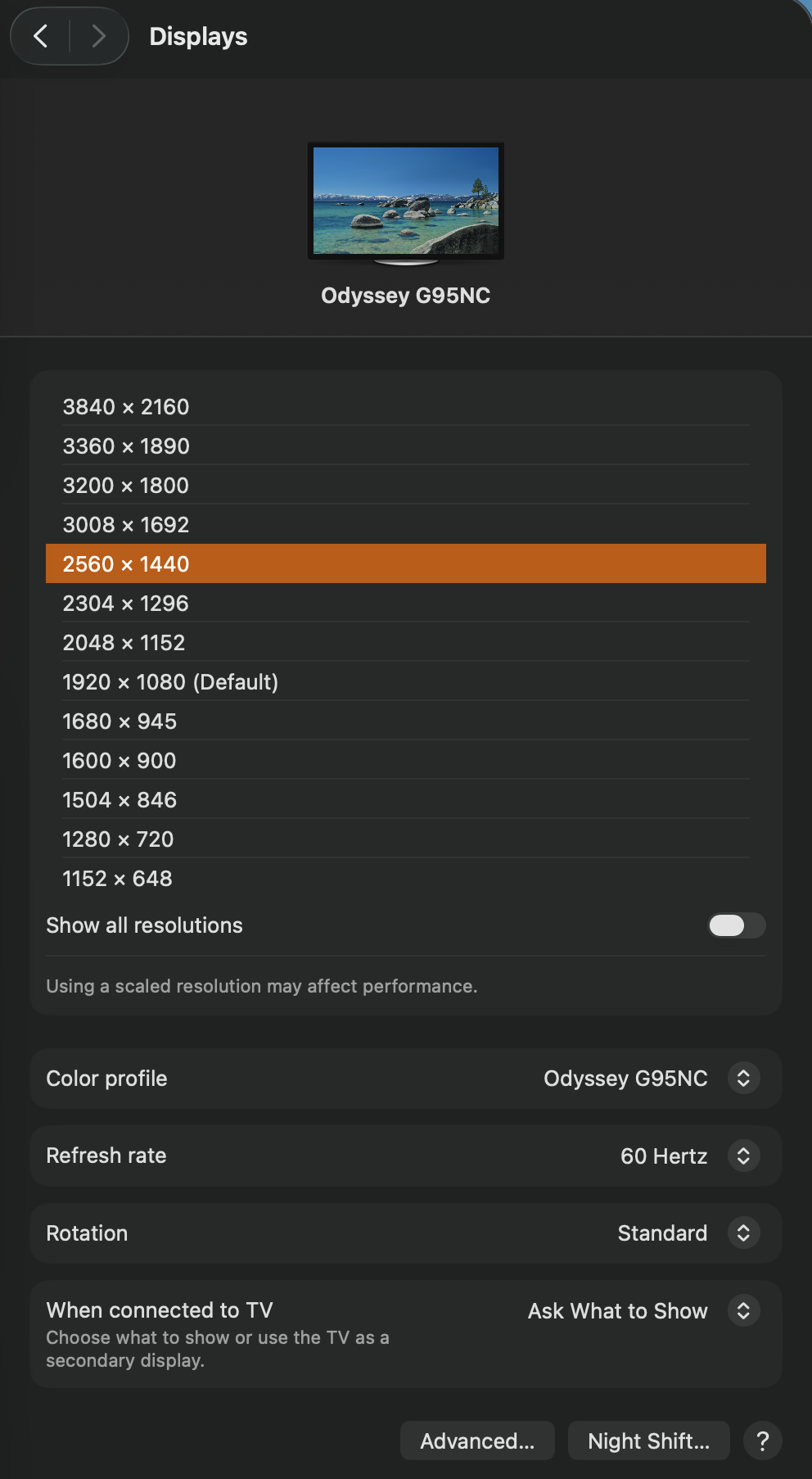
The Displays pane for a detected external
Reference images and diagrams. Click any image to view full resolution.
Related tool/checklist
Use the linked tool when you need a guided plan from your exact symptoms instead of a static checklist.
USB-C dock monitor setup plannerRelated problems
Last reviewed
2026-10-17 · Reviewed by HomeTechOps. Reviewed against Apple's connect-displays and dark/low-resolution guidance plus the macOS 26.4/26.4.1 display/dock regression reports; isolates the signal chain with a power-cycle, Detect Displays, and a direct connection, and flags the per-chip display limit so a third-monitor non-fault isn't mistaken for a bug.
Sources/assumptions
- Assumes a Mac on macOS Tahoe (macOS 26) where an external display stopped being detected after an update; the 26.4/26.4.1 display/dock regressions are based on 2026 reports and should be re-verified against Apple's update notes.
- Cable/dock behaviour follows USB-C/Thunderbolt and DisplayPort Alt Mode norms; a charge-only or low-spec cable won't carry video.
- Per-chip display limits are a separate hardware constraint covered on the dedicated limits page; a dock can't exceed them except via DisplayLink.
- macOS 27.0 Golden Gate (build 26A428) shipped 2026-09-14 and the current stable release is 27.0.1 (build 26A434, 28 September 2026; checked 2026-10-17). It installs on Apple silicon Macs only — Intel Macs stay on Tahoe. The diagnostic sequence on this page is unchanged. Named Tahoe point-release bugs are tagged still-applies / Tahoe-only / unknown, and Time Machine over AFP no longer works on 27 (checked 2026-09-15).
Source-backed checks
HomeTechOps turns official docs and conservative safety rules into a shorter runbook. These links are the source trail for the page direction.
Get the deal & firmware alerts
Home Stack Field Notes: NAS deals, firmware changes worth acting on, restore-test reminders, and new decision guides — plus the capacity & backup sizing cheatsheets from our calculators. Unsubscribe anytime.
Subscribe on beehiiv