
Mac
System Data on Mac: What It Is and How to Clear It
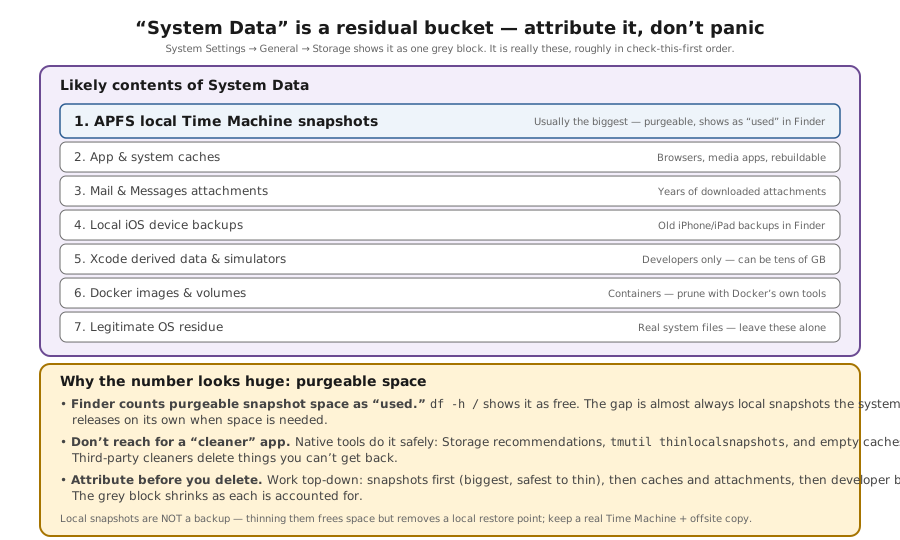
System Data (formerly Other) is the macOS catch-all for caches, logs, VM files and app data. Find what is using space and clear it safely, without a cleaner app.
Start here: Confirm whether space is actually low
Read available space in Storage settings and name the failing task. List snapshots only as context if Time Machine is enabled.
Problem summary
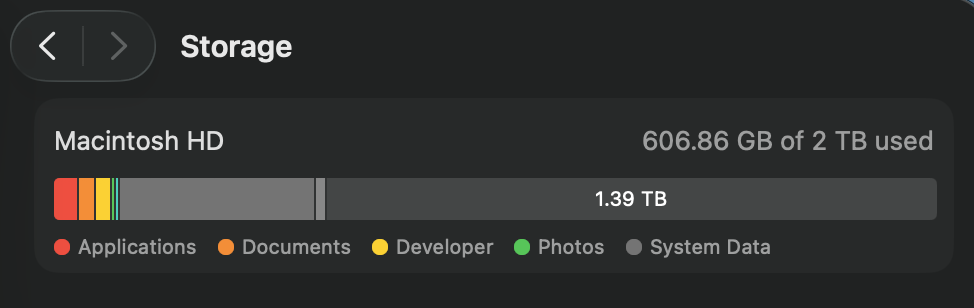
System Data (called Other in older macOS) is the storage category for Apple and third-party files macOS cannot put in a more specific category, such as caches, logs, virtual machine files, temporary files and app support data. It is not a single folder or a safe-to-delete block. If your disk is nearly full, check actual available space in System Settings → General → Storage, then identify large files, old device backups, app data, or developer/container data you own. Time Machine snapshots may also appear in storage accounting, but Apple counts their space as available and removes them when needed. Delete only an identified, unneeded item, then measure again.
Check available space in System Settings → General → Storage and name the task that lacks space.
df -h / ; tmutil listlocalsnapshots /
A specific task fails or available space is genuinely low; Storage shows the category breakdown.
Do not bulk-delete /Library, /System, ~/Library/Application Support, local snapshots, or unknown caches to hit a System Data target.
Layer path
Step-by-step runbook
Start here. Do each check in order, compare it to the expected result, and stop when the evidence explains the failure or the safe stop point applies.
Confirm whether space is actually low
Check: Read available space in Storage settings and name the failing task. List snapshots only as context if Time Machine is enabled.
Expected result: You can distinguish a large category bar from a real lack of available space.
If not: If snapshots exist but space is available, leave them alone.
Read the native breakdown
Check: Open System Settings → General → Storage and let it finish calculating.
Expected result: You can see what the labelled categories claim vs the System Data residual.
If not: Don't act on a half-calculated bar.
Clear the safe big buckets
Check: Review large Documents files, old local device backups in Finder, app-managed downloads, developer data, and Docker usage when applicable.
Expected result: Only identified unneeded files are removed; available space can be measured again.
If not: Never blind-delete `~/Library/Containers` or `Application Support` — those hold real app data.
Hunt anything missed
Check: Measure your own large folders and other user accounts before inspecting protected system locations.
Expected result: You can identify a specific owner and safe removal path for any further cleanup.
If not: If the space is adequate, stop even if the category bar remains large.
Use app-owned controls for identified large data
Check: If Storage or Finder identifies a specific owner, remove an unneeded iPhone/iPad backup through Finder → your device → General → Manage Backups, or remove an unused Xcode simulator runtime through Xcode → Settings → Components (label varies by Xcode version). Save needed device backups or simulator data first. For browser/download data, use that application’s own controls.
Expected result: Only data you recognise and can replace is removed; you can explain what changed and re-measure available space.
If not: A large /Library or ~/Library folder is not itself permission to delete it. If you cannot identify the owner and recovery path, leave it alone.
Safe stop: Do not bulk-delete /Library, /System, ~/Library/Application Support, local snapshots, or unknown caches to hit a System Data target.
Stop when available space is enough
Check: Re-measure with Storage settings and retry the task that needed space.
Expected result: The task succeeds; no System Data size target is required.
If not: Stop deleting — chasing the residue risks removing system files macOS needs.
Did this solve your problem?
Your answer helps us improve this page.
No account or personal details. We store the page, answer, optional reason and day with a 90-day retention period. A random reference in this browser prevents repeat votes. Feedback privacy
Decision tree
If: Local snapshots are listed, but macOS still reports available space.
Then: Snapshots are normally purgeable and their presence alone is not a storage fault.
Action: Keep them; if a real copy or update fails for lack of space, use the snapshot runbook after confirming an off-device backup.
If: One cache folder is several GB.
Then: An app's cache (browser, build tool, streaming) inflating System Data.
Action: Check the owning app's controls and whether offline content would be lost; clear only an identified expendable cache.
Safe stop: Don't clear a cache an app is actively writing — do it when idle.
If: A large measured chunk traces to MobileSync/Backup or Xcode.
Then: Old iOS device backups or Xcode DerivedData/simulators/device-support.
Action: Delete old backups via Finder; clear DerivedData and run `xcrun simctl delete unavailable`.
If: Tens of GB trace to Docker or a VM.
Then: A grown Docker.raw / VM disk holding dead layers and unused images.
Action: Run `docker system df`; after checking what is unused, use `docker system prune` without a volume flag. Treat Docker Desktop Purge data as a destructive reset.
If: The System Data number remains large but available space is adequate.
Then: The category may include legitimate app and OS files or be recalculating.
Action: Stop deleting; a category number alone is not a reason to remove more files.
Evidence table
| Symptom | Evidence to collect | Likely layer | Next action |
|---|---|---|---|
| System Data is large but normal work still succeeds. | Storage settings shows enough available space; `tmutil listlocalsnapshots /` may list snapshots. | Category size alone is not a disk-full diagnosis. | Keep snapshots and measure actual free space only if a task fails. |
| System Data large; df matches Finder. | `du -sh ~/Library/Caches/*` shows multi-GB cache folders. | Oversized app/system caches. | Check the app's cleanup control and offline data before deleting an identified cache. |
| A huge single chunk on a developer's or iPhone-owner's Mac. | Large `MobileSync/Backup` or `Developer/Xcode/DerivedData`. | Old device backups / Xcode data. | Delete old backups; clear DerivedData; remove unavailable simulators. |
| Big, unexplained bucket on a Docker/VM user's Mac. | `Docker.raw` / VM disk image is tens of GB. | Grown container/VM disk image. | Review `docker system df` and unused images or stopped containers; preserve volumes and VM data. |
| Available space is sufficient after cleanup. | The original task now succeeds, even if System Data still looks large. | Remaining app and OS files may be necessary. | Stop; no fixed System Data target is supported by Apple. |
Commands and settings paths
Check disk space and whether snapshots exist
df -h / ; tmutil listlocalsnapshots /Where: Terminal on the Mac.
Expected: Shows filesystem space and any local snapshots; compare with Storage settings.
Failure means: A listed snapshot does not establish that it blocks a task; Apple counts its space as available.
Safe next step: If a task still fails for lack of space, investigate the actual files and follow the snapshot runbook only when justified.
Find the largest caches
du -sh ~/Library/Caches/* | sort -h | tailWhere: Terminal on the Mac.
Expected: Lists the biggest per-app cache folders so you can target them.
Failure means: If all are small, caches aren't the cause.
Safe next step: Use the owning app's controls and verify that needed offline data is preserved.
Find the single biggest directories anywhere
sudo du -x -d1 -h / 2>/dev/null | sort -h | tail -20Where: Terminal on the Mac (admin password required).
Expected: Surfaces the largest top-level directories, catching anything the category view hides.
Failure means: Protected paths may return permission errors, and folder totals cannot map exactly to Storage categories.
Safe next step: Drill into user-owned folders only; grant Full Disk Access if necessary to inspect your own data.
Measure Docker usage before pruning
docker system dfWhere: Terminal on the Mac, with Docker running.
Expected: Shows Docker image, container, and volume usage before any removal.
Failure means: If Docker usage is small, look elsewhere; disk image size alone may be misleading.
Safe next step: Review unused objects, then use `docker system prune` only if you can discard them; do not use Purge data for routine cleanup.
Hardware and platform boundary
Change only when
- Size the internal disk for your workload on your next Mac if you routinely run Docker, VMs, Xcode, or large media — Apple Silicon storage isn't user-upgradeable.
- Maintain an off-device Time Machine or other backup so any cleanup does not remove your only recovery copy.
Evidence that matters
- Internal storage capacity at purchase, because it can't be expanded later.
- Whether your real workload generates large recurring data (containers, simulators, device backups).
- A real off-device backup so local snapshots can be reclaimed safely.
Evidence that does not matter
- The System Data bar alone — compare available space and whether a real task fails.
- A cleaner app's 'junk found' number — it inflates categories and overstates safe-to-delete space.
- A claimed universal System Data baseline — Apple does not publish one.
Avoid
- Cleaner / storage-optimizer apps — they purge managed caches and can delete real data.
- Hand-deleting swap, the sleep image, or the Spotlight index to shrink the number.
- Blindly emptying `~/Library/Containers` or `Application Support` — that erases app settings and documents.
What 'System Data' is actually made of
Reference images and diagrams. Click any image to view full resolution.
Related tool/checklist
Use the linked tool when you need a guided plan from your exact symptoms instead of a static checklist.
Backup plan builderRelated problems
Last reviewed
2026-10-12 · Reviewed by HomeTechOps. Rechecked 2026-09-18 against Apple's System Data, local snapshot, and device-backup documentation plus Docker's pruning guide. Removed unsupported culprit ranking and fixed-size baseline, and made available space and item-level verification the decision points. Reviewed 2026-09-27: added app-owned cleanup examples and an explicit stop when ownership or recoverability is unknown.
Sources/assumptions
- Apple defines System Data as Apple and third-party files without a more specific category; which files it contains varies by Mac and macOS version (checked 2026-09-18).
- Apple's System Information guide lists log files, caches, VM files, temporary files, fonts, app support files and plug-ins as typical System Data (checked 2026-10-12).
- Folder paths follow Apple's standard Library layout; exact sizes vary entirely by usage (developer, heavy mail user, Docker user, etc.).
- Docker cleanup follows Docker's current pruning documentation; Docker Desktop Purge data is a data reset, not a first cleanup step.
Source-backed checks
HomeTechOps turns official docs and conservative safety rules into a shorter runbook. These links are the source trail for the page direction.
Get the deal & firmware alerts
Home Stack Field Notes: NAS deals, firmware changes worth acting on, restore-test reminders, and new decision guides — plus the capacity & backup sizing cheatsheets from our calculators. Unsubscribe anytime.
Subscribe on beehiiv