
NAS
QNAP Snapshots & Storage Pool Health
QTS Storage & Snapshots is QNAP's combined storage + snapshot manager. The defaults give you a working pool with no snapshots — fine for storing files, but with no recovery layer for accidental delete or ransomware. This page walks through enabling snapshots on the right cadence, replicating them with Snapshot Vault, and watching pool health so a snapshot policy doesn't fill the volume.
Best for: QTS operators who have a working storage pool but no snapshot schedule configured (or one that's too aggressive for the change rate), and want both the recovery layer and confidence in pool capacity behavior.
Start here: Verify pool is healthy and has capacity headroom
Storage & Snapshots > Storage > pool > Ready (green); volume usage below 80%; recent disk-health check clean.
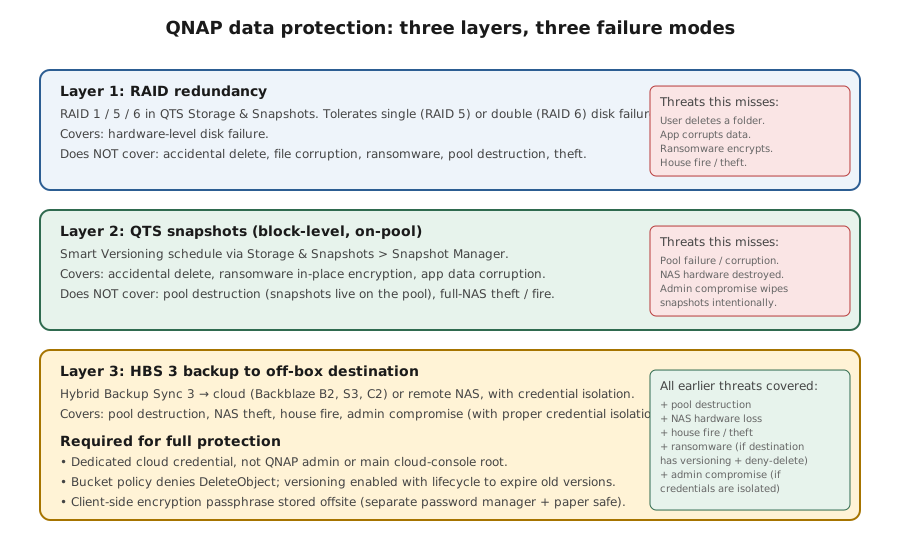
Snapshot vs RAID vs backup (the three-layer model)
- RAID protects against single-disk failure (RAID 1/5) or two-disk failure (RAID 6). Doesn't protect against accidental delete, ransomware, or admin mistakes — all of those happen above the RAID layer.
- Snapshots are QTS's point-in-time recovery layer: instant create, low storage overhead initially, the right tool for accidental delete, ransomware in-place encryption, and rolling back bad config changes.
- Backup (HBS 3 to cloud / remote NAS) is the off-box layer that survives pool loss, theft, fire, or attacker with admin access.
- All three are needed for full protection. RAID alone leaves you exposed to user error and ransomware. Snapshots alone fail when the pool fails.
Enabling snapshots on a volume
- Storage & Snapshots > Snapshot > Snapshot Manager. Select the volume; click Schedule.
- Frequency by workload: Hourly for active edit volumes (Documents, project work); Every 6-12 hours for media volumes; Daily for archive volumes.
- Retention: Smart Versioning is the recommended starting point (hourly-for-24h + daily-for-a-week + weekly-for-a-month, automatic pruning). Or pick fixed retention if you have a specific compliance requirement.
- Enable `Make snapshots accessible via SMB/Windows Previous Versions` if end users should self-restore. They'll see old versions in the file properties > Previous Versions tab on Windows clients.
Retention math against pool capacity
- Snapshot space consumption scales with change rate, not volume size. A 10 TB media volume that rarely changes uses almost no snapshot space; a 100 GB project volume with daily churn can consume significant space over time.
- Storage & Snapshots > Storage > pool > Snapshot Total Capacity shows current snapshot consumption per volume. Watch this for the first two weeks after enabling snapshots — growth above ~15% of volume size on a normal-churn volume = retention too aggressive.
- Snapshot Reserved Space: QTS reserves a configurable % of pool capacity for snapshots (default ~20%). When usage exceeds the reserve, QTS auto-deletes oldest snapshots — a safety net, but you don't want this to trigger silently. Watch the percentage.
- Keep total pool occupancy below ~80% for performance and to give snapshots room to operate. Add disks or trim retention if approaching that line.
Snapshot Vault — replicating off-box
- Snapshot alone doesn't survive pool failure. Snapshot Vault replicates snapshots to a second QNAP or to external storage as the off-box layer.
- Storage & Snapshots > Snapshot Vault > Create. Pick source volume; pick destination type: Second QNAP (over LAN or WAN via Hybrid Backup Sync), External Storage (USB drive plugged into source).
- Schedule replication after the snapshot schedule fires — typically daily. Replicated snapshots have their own retention on the destination, independent of source retention.
- Snapshot Vault destinations are still QNAP-format. For complete protection, also configure HBS 3 to a non-QNAP cloud destination (see `/nas/qnap-first-setup-checklist`).
Pool and volume health checks
- Storage & Snapshots > Storage > the pool > Manage > Health monitors. Confirm pool status is Ready (green); volume statuses are Normal.
- Disk Health: per-disk SMART attributes via Storage > Disks. Look for Reallocated_Sector_Ct, Current_Pending_Sector trending up over time. Single-event flags don't mean disk failure; progression does.
- Schedule monthly RAID scrubs: Storage & Snapshots > Storage > pool > Manage > Disk Scrubbing > Schedule. Scrub catches silent corruption that's invisible until a real read fails.
- Check `Resource Monitor > Disk` for IOPS and latency. Sustained high IOPS + low latency means the workload is fine; high latency means the disk is being stressed and may be approaching capacity limits.
Three-layer QNAP data protection model
Reference images and diagrams. Click any image to view full resolution.
Pool status is Ready and all disks healthy.
Storage & Snapshots > Snapshot > Snapshot Manager > select volume > Schedule > Smart Versioning > Save
Storage & Snapshots > Storage > pool overview shows Ready (green); all disks under Disks view show OK.
Stop before relying on Snapshot Vault as a backup — destination is still QNAP-format and shares failure modes.
Layer path
Step-by-step runbook
Start here. Do each check in order, compare it to the expected result, and stop when the evidence explains the failure or the safe stop point applies.
Verify pool is healthy and has capacity headroom
Check: Storage & Snapshots > Storage > pool > Ready (green); volume usage below 80%; recent disk-health check clean.
Expected result: Both conditions are true.
If not: Free space or add disks BEFORE enabling aggressive snapshot retention.
Configure the first snapshot task on the most-edited volume
Check: Snapshot Manager > volume > Schedule > Smart Versioning > Enable Make snapshots accessible via SMB if end-user recovery is wanted.
Expected result: Schedule active; first snapshots appear in the volume's snapshot list.
If not: Start with one volume to learn capacity behavior before extending.
Watch Snapshot Total Capacity for a week
Check: Storage > pool > Snapshot Total Capacity > per-volume tracking. Note baseline; recheck daily.
Expected result: Growth is stable or slow relative to volume size.
If not: If aggressive growth, trim Snapshot Lifetime; check for app churn; consider excluding noisy paths.
Set up Snapshot Vault to a second destination
Check: Storage & Snapshots > Snapshot Vault > Create > source volume > destination QNAP / USB / remote > schedule. Configure destination first if needed.
Expected result: Replication runs; destination shows replicated snapshots.
If not: Debug SSH / connectivity before troubleshooting the replication task itself.
Safe stop: Stop before relying on Snapshot Vault as a backup — destination is still QNAP-format and shares failure modes.
Practice a self-service restore
Check: Snapshot Manager > volume > snapshot > File Station > pick a known file > Restore to alternate location > verify content.
Expected result: Restore drill succeeds.
If not: Practicing during calm weather prevents fumbling during real incidents.
Schedule monthly disk scrub
Check: Storage > pool > Manage > Disk Scrubbing > Schedule monthly.
Expected result: Monthly scrub appears in schedule.
If not: Without scrub, silent corruption can persist until a real read fails.
Document the policy
Check: Operations doc: snapshot schedule per volume, retention windows, Snapshot Vault destination, scrub schedule, last successful replication.
Expected result: External record exists.
If not: Without documentation, retention drift accumulates silently.
Did this solve your problem?
Your answer helps us improve this page.
No account or personal details. We store the page, answer, optional reason and day with a 90-day retention period. A random reference in this browser prevents repeat votes. Feedback privacy
Decision tree
If: Active edit volume (Documents, project work, app data).
Then: Hourly snapshots for 24 hours catch most accidental-delete cases.
Action: Snapshot Schedule > Hourly + Smart Versioning retention (hourly-for-24h + daily-for-a-week + weekly-for-a-month).
If: Media library volume (rarely changes after initial load).
Then: Daily snapshots are sufficient.
Action: Snapshot Schedule > Daily + 14-day retention.
If: Pool above 75% capacity with no snapshots yet.
Then: Capacity headroom is too tight for aggressive snapshot policy.
Action: Free space or add disks BEFORE enabling hourly snapshots. Start with daily-only schedule until headroom is established.
Safe stop: Stop before enabling hourly snapshots on a pool near capacity — high probability of write-wedge.
If: Second QNAP available on LAN.
Then: Snapshot Vault to the second QNAP is the off-box protection.
Action: Storage & Snapshots > Snapshot Vault > Create > destination QNAP > schedule.
If: Snapshot consumption climbing faster than expected.
Then: Change rate exceeded initial estimate.
Action: Trim Snapshot Lifetime; consider Smart Versioning if currently on fixed retention. Storage > Snapshot Total Capacity shows per-volume consumption.
If: Suspected ransomware encryption on a volume.
Then: Snapshots from before the attack are usually intact.
Action: Disconnect QNAP from network. Snapshot Manager > revert to pre-attack snapshot (after backing up the current state to a different volume). Restore from HBS 3 if both source and snapshots are compromised.
Evidence table
| Symptom | Evidence to collect | Likely layer | Next action |
|---|---|---|---|
| Snapshot Total Capacity climbing 5%+/week on a volume. | Storage & Snapshots > Storage > pool > Snapshot Total Capacity > per-volume. | Retention too aggressive for change rate | Trim Snapshot Lifetime; check for app-data churn; consider excluding noisy subfolders. |
| Snapshot Reserved Space exceeded — oldest snapshots being auto-deleted. | Storage & Snapshots > Snapshot > activity log shows auto-deletion events. | Reserve too small or retention too aggressive | Increase reserve percentage OR trim retention; watch trend for a week. |
| Pool status Warning despite all disks OK. | Storage > pool overview Warning indicator. | Capacity threshold crossed (typically 90% used) | Free space immediately; add disks; or trim retention. Approaching 100% pool used = writes fail. |
| User reports a file accidentally deleted yesterday. | Snapshot Manager > navigate to yesterday's snapshot > File Station view. | Self-service or admin-led snapshot recovery | Restore via Snapshot Manager > File Station; or if Make snapshots accessible via SMB is enabled, user can self-restore via Windows Previous Versions. |
Commands and settings paths
Enable snapshots on a volume
Storage & Snapshots > Snapshot > Snapshot Manager > select volume > Schedule > Smart Versioning > SaveWhere: In the QTS web UI.
Expected: Schedule active; first snapshots appear after the next interval.
Failure means: If snapshots don't appear, check pool capacity (must have reserve room) and that the schedule isn't disabled.
Safe next step: Confirm via Snapshot Manager > volume > snapshot list.
Restore a file from a snapshot
Snapshot Manager > volume > snapshot row > File Station > navigate > right-click file > Restore to (alternate location preferred)Where: In the QTS web UI.
Expected: File restores to chosen location; content matches snapshot version.
Failure means: If restore fails, check destination permissions and free space.
Safe next step: Restore to alternate location first; verify; then optionally move into place.
Create Snapshot Vault replication
Storage & Snapshots > Snapshot Vault > Create > source volume > destination (QNAP or external) > scheduleWhere: In the QTS web UI on source QNAP; destination must be set up first.
Expected: Replication runs successfully; destination shows replicated snapshots.
Failure means: Common failures: destination unreachable, credentials wrong, destination full.
Safe next step: Debug each layer independently before retrying the replication task.
Schedule monthly RAID scrub
Storage & Snapshots > Storage > pool > Manage > Disk Scrubbing > Schedule monthlyWhere: In the QTS web UI.
Expected: Scheduled scrub appears in Storage > Disks > scrub schedule.
Failure means: Scrub catches silent corruption invisible until a real read fails.
Safe next step: Don't skip post-resilver scrubs (after disk replacement) either.
Hardware and platform boundary
Change only when
- Adding a second Snapshot Vault destination (off-site rather than just LAN/USB) is the right next step only after on-LAN replication has been clean for a month.
Evidence that matters
- Pool capacity headroom (20%+ free), retention matched to change rate, and the snapshot-vs-backup distinction matter most.
Evidence that does not matter
- More aggressive snapshot schedules don't help if pool is capacity-tight; less aggressive doesn't help if active volumes lose hours of work between snapshots.
Avoid
- Avoid treating snapshots as a substitute for HBS 3 backup, enabling hourly snapshots on a near-full pool, or deleting snapshots manually that Snapshot Vault references.
Last reviewed
2026-05-18 · Reviewed by HomeTechOps. Reviewed against QNAP's Storage & Snapshots Manager documentation, the snapshots feature article, storage-pool design tutorials, and NIST's conservative-backup framing for the snapshot vs backup boundary.
Source-backed checks
HomeTechOps turns official docs and conservative safety rules into a shorter runbook. These links are the source trail for the page direction.
Planning a purchase?
We keep a source-backed, price-free comparison so you can buy once and right. No star ratings, every spec cited.
Synology vs UGREEN vs DIY NAS in 2026 →Get the deal & firmware alerts
Home Stack Field Notes: NAS deals, firmware changes worth acting on, restore-test reminders, and new decision guides — plus the capacity & backup sizing cheatsheets from our calculators. Unsubscribe anytime.
Subscribe on beehiiv