
NAS
Synology DSM vs self-hosted NAS tradeoffs
Synology DSM is the closest the home-NAS world has to an appliance experience: the OS, the hardware, the app catalog, and the support path all come from one vendor, and most household operators can run it without touching a terminal. Unraid and TrueNAS Scale are materially more powerful but ask more of the operator. The right choice depends on which axis matters most — time-to-running, recovery work, app flexibility, or budget — not on which platform is 'better'.
Best for: Anyone deciding between buying a Synology and building (or repurposing hardware for) Unraid/TrueNAS — and existing Synology owners weighing whether the gap to self-hosted is worth crossing.
Start here: Write the workload list and the household-recovery requirements
Concrete: file backup / photo library / media server / VMs / Docker apps / specific services. Note who else needs to recover data when you're not available.
Synology drive policy state as of DSM 7.3 (the decision changes if you missed the reversal)
- The 2024 announcement of 'verified drives only' on 2025-series Plus (DS725+, DS925+, DS1525+, DS1825+, DS425+) was partially reversed in DSM 7.3 (October 2025). On those models you can now install DSM, create Storage Pools (SHR/RAID/Basic), create Btrfs volumes, run Hyper Backup, Snapshot Replication, and Active Backup for Business with third-party Seagate/WD/Toshiba SATA drives. The drives show as 'Unverified' with a Storage Manager banner and Notification Center entries, but pool creation no longer blocks. (Verify against `kb.synology.com/en-us/DSM/tutorial/Drive_compatibility_policies` before buying — the policy is at Synology's discretion to tighten in a future major.)
- What's still restricted on 2025-series Plus: M.2 NVMe cache/pool creation requires HCL drives (no third-party workaround inside official policy), volume-wide deduplication is disabled for unverified drives, automatic drive firmware updates via DSM are disabled, and the full Drive Health detail panel is degraded — only basic SMART attributes surface for unverified drives.
- What's still unaffected on 2024-and-older Plus (DS923+, DS1522+, DS1821+, DS2422+, RS1221+, etc.): full third-party drive support; warnings are cosmetic; all features work. If you're buying a Synology specifically to use third-party drives, the 2024 models still on sale (or used) are the safer pick than the 2025 line.
- This page's tradeoffs assume DSM 7.3.2-86009 Update 3 (March 2026) — the current stable. Pricing, app catalog parity, and the Synology Photos AI feature set described below all reflect 7.3 capability. If you're comparing pricing tables from 2024-2025 articles, recheck: Synology's commerce + lineup has shifted materially over the past 18 months.
Where Synology DSM clearly wins
- Setup time: out-of-box to running Hyper Backup, Synology Photos, and a working SMB share for the family is realistically a Saturday afternoon. Unraid and TrueNAS need closer to a week of weeknight time to reach equivalent functionality with the same confidence level.
- Update cadence: DSM updates are vendor-tested against the specific hardware models in their support matrix. Unraid plugin updates are community-maintained and can break interactions you didn't plan for; TrueNAS updates between major versions occasionally require manual config migration.
- App ecosystem polish: Synology Photos, Synology Drive, Note Station, MailPlus, Calendar, Office — first-party apps with mobile clients, consistent UI, and family-friendly onboarding. The Unraid Community Apps catalog has more depth but each app's UX and update story is independent.
- Recovery work: when a Synology drive fails, the rebuild process is a single Storage Manager click after replacing the disk. When an Unraid parity disk fails or a TrueNAS pool degrades, the operator needs to understand which disk is which, what the rebuild stress means, and how to verify integrity afterward.
Where Synology DSM has real limits
- RAM and CPU ceiling: most Synology home models cap at 4-8 GB RAM with non-upgradeable boards. Unraid or TrueNAS on commodity hardware can scale to 32-64+ GB for Plex transcoding, virtualization, or heavy Docker workloads.
- Cost per TB: a 4-bay Synology + drives is materially more expensive than a same-spec self-build. The premium pays for the OS and support; the question is whether that's a fair trade for the use case.
- Customization ceiling: DSM is a closed ecosystem. You can run Docker containers and SSH in, but kernel-level changes, custom storage layouts, or third-party file systems are off the table.
- Vendor risk: Synology controls DSM update availability per model. End-of-support means an older NAS stops receiving security patches even if the hardware still works. Unraid and TrueNAS run on any compatible hardware and survive vendor decisions.
Where Unraid wins specifically
- Mixed-drive-size pools: Unraid's array allows different-sized data drives in the same array (parity disk must be the largest), so disks you accumulate over time can be added without rebuilding. Synology SHR handles this too, but TrueNAS RAIDZ does not.
- Per-VM hardware passthrough: Unraid was designed for GPU passthrough to Windows VMs — gaming-on-NAS or workstation-on-NAS workloads work better than on DSM or TrueNAS.
- Cache + array architecture: SSD cache absorbs writes; Mover migrates to the spinning array on a schedule. Easier to reason about than ZFS's ARC + SLOG + L2ARC for most home loads.
- Community Applications: the largest curated catalog of self-hosted container apps for any NAS OS, with one-click install for most popular services.
Where TrueNAS Scale wins specifically
- ZFS: end-to-end checksums, replication primitives, and snapshot semantics that are materially more robust than Btrfs or Unraid's XFS array — at the cost of needing ECC RAM ideally, plenty of memory, and accepting that pool changes (adding drives, changing vdev layout) are deliberately restricted.
- Open source + Linux base: TrueNAS Scale runs on Debian, exposes the full Linux stack for SSH/Docker/K3s, and has no per-seat or per-feature licensing.
- Enterprise heritage: iSCSI, NFS, AD integration, and replication features come from iXsystems' enterprise product line — TrueNAS Enterprise — so they're production-tested.
- Future-proof: ZFS has decades of development and is the default storage layer for major cloud providers. The skills transfer outside the home NAS context in ways DSM and Unraid skills don't.
Picking by situation, not platform marketing
- Family use, partner who needs to recover files when you're not home, no interest in running Docker: Synology. The cost premium buys time you don't have to spend.
- You want to run Plex + Sonarr + Home Assistant + a few VMs on one box, you're comfortable in a terminal, and budget matters: Unraid. The mixed-drive array and cache architecture fit this use case.
- You care about data integrity above all (irreplaceable photos, family archives going back decades), you're willing to read ZFS docs, and you have ECC-capable hardware: TrueNAS Scale.
- You're starting with no hardware and have ~$1k to spend total: Synology DS224+ or DS425+ gets you running fastest. Self-builds at this price point compromise on case quality, drive bays, or RAM headroom.
- You have repurposed hardware (old desktop, retired server): Unraid or TrueNAS — the OS license cost (Unraid) or zero-cost (TrueNAS) plus existing hardware beats buying a Synology you don't need.
What DSM 7.3 actually looks like vs SHR-1 capacity math
Reference images and diagrams. Click any image to view full resolution.
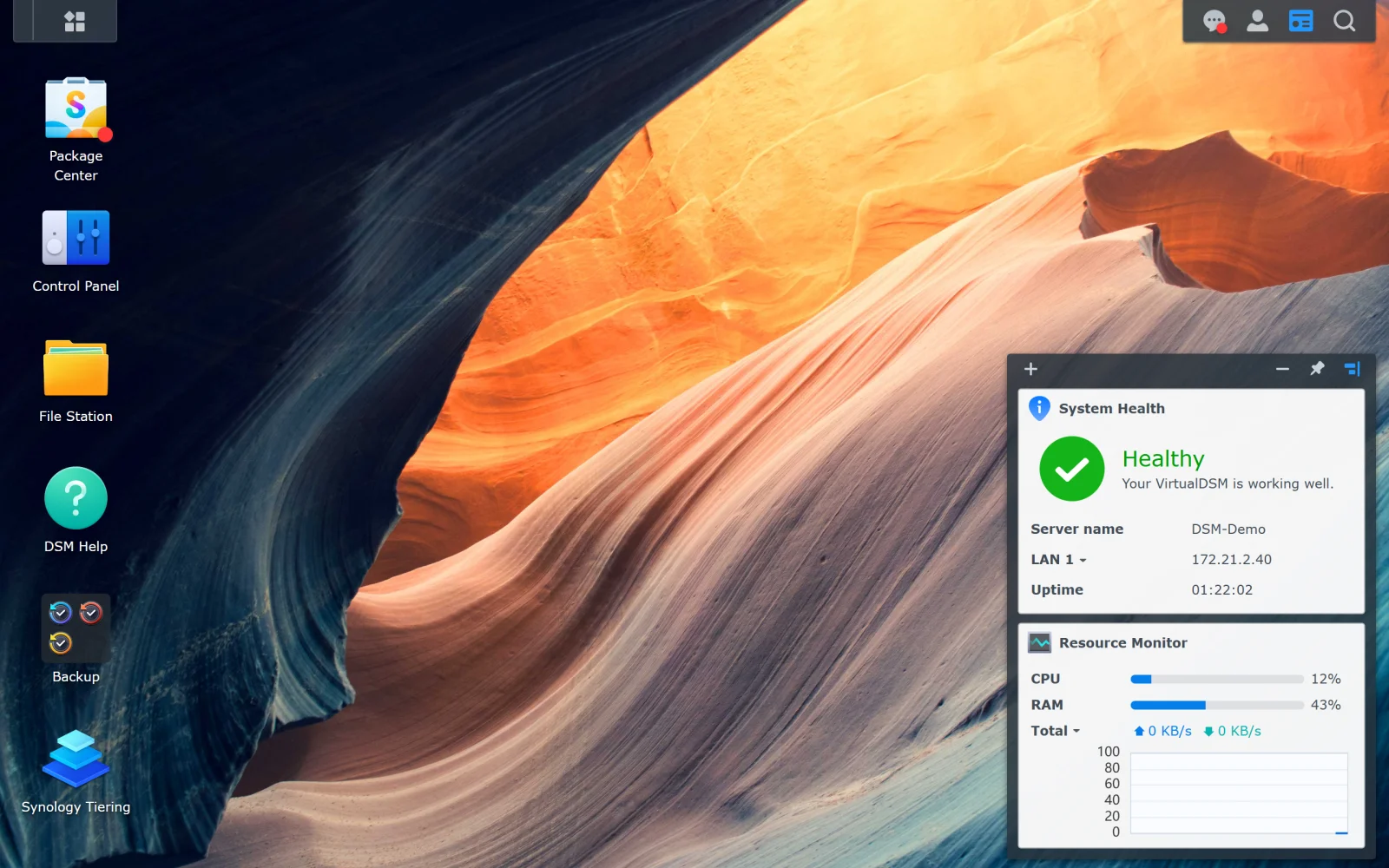
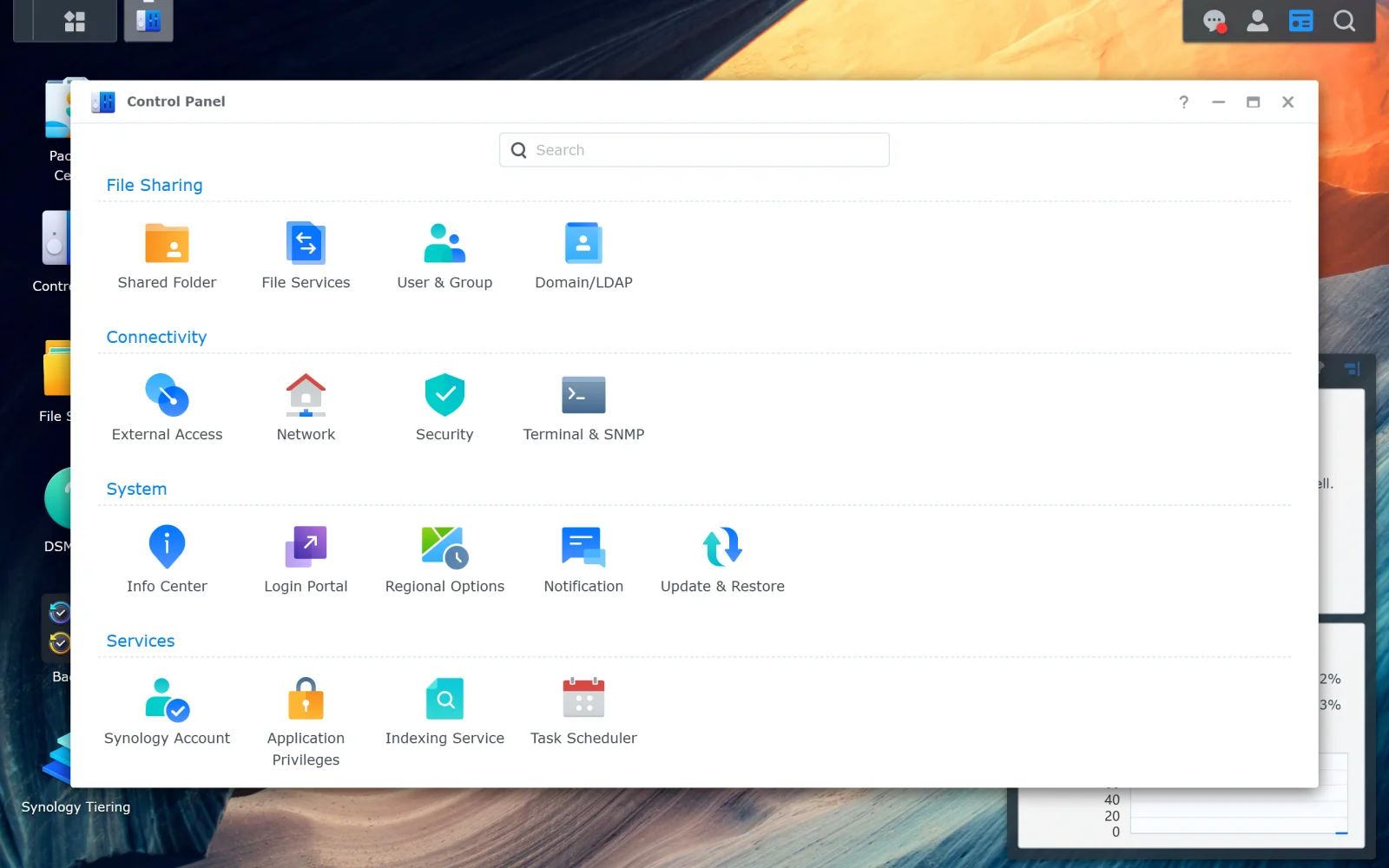
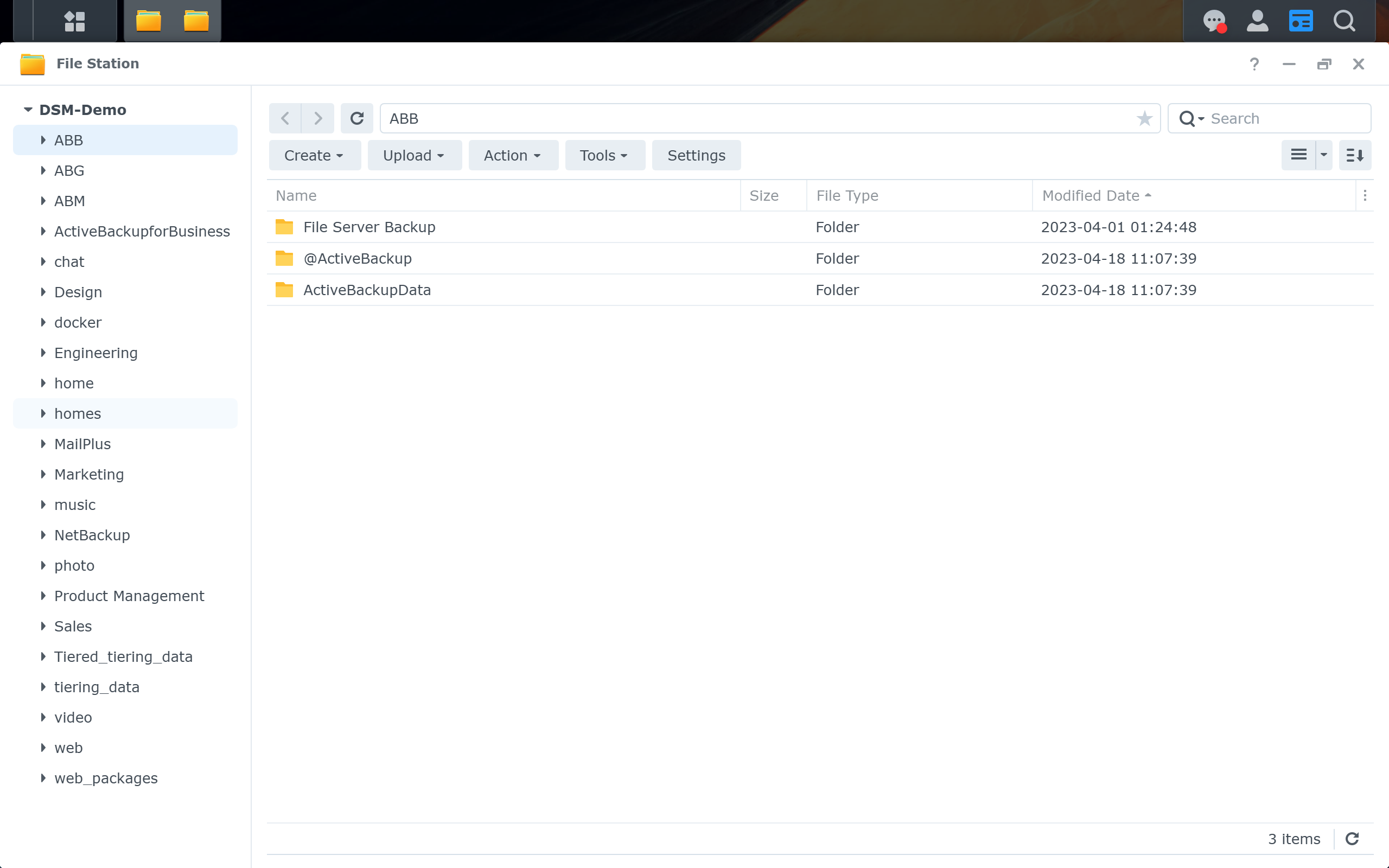
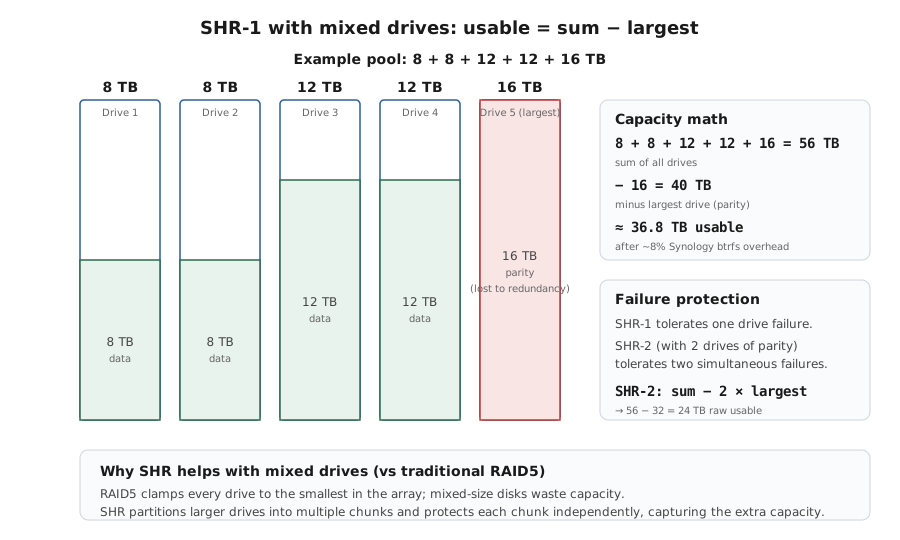
Concrete workload list is written down.
Hyper Backup task targeting an external USB; Synology Photos mobile app on a phone
Specific items: file backup, photo library, media server, VMs, smart-home, Docker apps, specific services.
Stop if the new platform develops issues during the side-by-side window — investigate before relying on it as the only NAS.
Layer path
Step-by-step runbook
Start here. Do each check in order, compare it to the expected result, and stop when the evidence explains the failure or the safe stop point applies.
Write the workload list and the household-recovery requirements
Check: Concrete: file backup / photo library / media server / VMs / Docker apps / specific services. Note who else needs to recover data when you're not available.
Expected result: Both lists exist on paper or in a doc.
If not: Without these, platform choice is decided by marketing rather than fit.
Audit existing hardware and budget
Check: Existing-desktop inventory (RAM, SATA, ECC); honest total budget including drives, UPS, ongoing.
Expected result: You know whether you're starting from scratch or repurposing.
If not: Existing-hardware path materially changes the Unraid/TrueNAS economics.
Trial the leading candidate before committing
Check: Borrow/return a Synology, or run TrueNAS/Unraid as a VM for a week. Set up the actual workloads against fake data.
Expected result: Trial reveals whether the platform's defaults and UX match your patterns.
If not: If the trial is frustrating, the real setup will be too — the trial is the cheapest check available.
Commit hardware and OS choice with an exit plan
Check: Buy or assemble the chosen platform. Confirm the backup chain uses a portable format readable on a non-NAS computer.
Expected result: Platform is running, irreplaceable data is being backed up, and the exit path is documented.
If not: If exit path can't be documented, the platform choice is fragile — revisit before committing more data.
Run side-by-side if migrating (not switching cold)
Check: If migrating from a working Synology to Unraid/TrueNAS (or vice versa), keep both running with real data for at least a month. Verify backups, snapshots, and household-recovery workflows on the new platform.
Expected result: Both platforms are operational; new platform's monthly-restore drill (see /nas/synology-hyper-backup-restore-check) has run cleanly at least once.
If not: Only then retire the original platform; never destroy it during migration.
Safe stop: Stop if the new platform develops issues during the side-by-side window — investigate before relying on it as the only NAS.
Did this help you choose?
Your answer helps us improve this page.
No account or personal details. We store the page, answer, optional reason and day with a 90-day retention period. A random reference in this browser prevents repeat votes. Feedback privacy
Decision tree
If: Family setup; partner needs to find photos; no Docker plans.
Then: Synology DSM is the right pick.
Action: Buy a DS224+ or DS425+ depending on bay count needed; set up Hyper Backup + Synology Photos within a Saturday.
If: Plex + Sonarr + Home Assistant + a few VMs on one box.
Then: Unraid fits the mixed-workload pattern with cache + array + Community Applications.
Action: Either buy an Unraid-ready prebuilt or repurpose a desktop with 16+ GB RAM and 4+ SATA ports.
Safe stop: Stop if you're not comfortable in a terminal — Unraid is more forgiving than TrueNAS but still asks for occasional CLI work.
If: Data integrity above all (irreplaceable family archives).
Then: TrueNAS Scale on ECC-capable hardware is the right pick.
Action: Plan for 16+ GB ECC RAM, multiple equal-size drives for a RAIDZ pool, and budget for cloud replication as the second layer.
Safe stop: Stop if hardware budget doesn't include ECC — running ZFS on non-ECC is a tradeoff that defeats some of ZFS's integrity advantages.
If: Starting with no hardware; ~$1k total budget.
Then: Synology gets running fastest at this price point.
Action: DS224+ with two reasonable drives ($600-800 total) leaves budget for a UPS; self-builds at this price compromise on case, bays, or RAM.
If: Have repurposed hardware (old desktop, retired server).
Then: Unraid (license cost) or TrueNAS (zero cost) beats buying a Synology for the OS alone.
Action: Verify hardware compatibility (SATA controllers, ECC RAM if going TrueNAS) before committing.
If: Existing working Synology; tempted to switch.
Then: Switching cost is real; feature-parity comparisons usually underweight the time and risk.
Action: Run TrueNAS or Unraid as a VM for a week against fake data; if it still feels worth it after the trial, then migrate. If not, the existing setup is the right answer.
Safe stop: Stop before destroying the working Synology setup mid-migration — keep it running until the new system has been verified for at least a month.
Evidence table
| Symptom | Evidence to collect | Likely layer | Next action |
|---|---|---|---|
| Partner can't find photos / can't recover a deleted file. | Watch the household member try; note where they get stuck. | Non-operator UX gap | DSM's Synology Photos UX is materially closer to consumer-grade than Unraid/TrueNAS equivalents — weight DSM heavier when household members need self-service. |
| Need GPU passthrough for Windows VM (gaming, design work). | Workload requires VM with PCIe passthrough. | Unraid-specific strength | TrueNAS Scale supports passthrough too but Unraid's tooling for this is more mature; DSM doesn't compete here. |
| Pool integrity issues (silent corruption suspected on existing setup). | File comparisons show bit-rot; backups also show divergence. | ZFS use case | TrueNAS Scale's end-to-end checksumming catches and corrects silent corruption that other file systems miss; this is ZFS's headline feature. |
| Synology hits RAM ceiling on heavy Plex transcoding + virtualization. | DSM Resource Monitor shows sustained 80%+ memory usage; transcodes failing. | DSM hardware ceiling | If the workload needs more than the model's max RAM, the upgrade path is a different model or a different platform — Synology models don't accept third-party RAM beyond the supported max. |
Commands and settings paths
DSM trial: set up Hyper Backup to USB + Synology Photos within one session
Hyper Backup task targeting an external USB; Synology Photos mobile app on a phoneWhere: On a borrowed/returnable Synology unit, ideally before keeping it.
Expected: Both flows complete without manual intervention or unexpected confusion.
Failure means: If either step required terminal work or third-party docs, DSM's UX advantage is smaller than expected for your level of comfort.
Safe next step: Use the trial to decide whether the platform's defaults match your patterns.
TrueNAS/Unraid VM trial: install, create a pool/array, restore a file from an existing backup
VirtualBox or Hyper-V VM with the target OS; fake data on virtual disksWhere: On your existing desktop/laptop, not the eventual NAS hardware.
Expected: Install completes, pool/array creates, backup-restore succeeds within a week of evenings.
Failure means: If the VM trial is frustrating, the real install will be too — the OS is the OS.
Safe next step: Trial before committing hardware budget; weight the result heavily.
Existing-hardware audit
Inspect: CPU model, RAM (ECC?), SATA ports, network ports, free PCIe slots, case drive baysWhere: On the candidate hardware itself.
Expected: Hardware meets the chosen platform's recommended minimums (16+ GB for TrueNAS, 8+ GB for Unraid, ECC if going TrueNAS).
Failure means: Underspecced hardware turns advantages into liabilities — ZFS on tight RAM is worse than DSM on its native hardware.
Safe next step: Upgrade RAM / add SATA controller if reasonably possible; if not, weight Synology heavier or budget for hardware refresh.
Exit-strategy audit on the current setup
Open the existing backup with a non-NAS tool: Hyper Backup Explorer, restic, borgbackup, plain rsync output, etc.Where: On a non-NAS computer.
Expected: Backups are readable without the source NAS being alive.
Failure means: If a backup can only be read by the same NAS that created it, that's vendor lock-in — fix the backup format before considering a platform migration.
Safe next step: Adjust backup chain to use a portable format; document the exit path.
Hardware and platform boundary
Change only when
- Platform switches are big undertakings; reserve them for genuine gaps the current setup can't fill, not for feature-parity envy.
Evidence that matters
- Total cost of operation (time + drives + recovery work), workload fit, and household-recovery UX matter most.
Evidence that does not matter
- Newer-generation NAS hardware doesn't change platform tradeoffs — DSM stays DSM, Unraid stays Unraid, regardless of CPU.
Avoid
- Avoid migrating without trial, destroying the original during migration, or skipping the backup-format portability check.
Last reviewed
2026-05-18 · Reviewed by HomeTechOps. Reviewed against Synology's DSM Storage Manager specifications, Unraid Docs (security fundamentals as a representative DIY-platform reference), TrueNAS Snapshot Replication docs, and QNAP's security best-practices guidance to ground each platform's claimed strengths in vendor documentation rather than community lore.
Source-backed checks
HomeTechOps turns official docs and conservative safety rules into a shorter runbook. These links are the source trail for the page direction.
Planning a purchase?
We keep a source-backed, price-free comparison so you can buy once and right. No star ratings, every spec cited.
Synology vs UGREEN vs DIY NAS in 2026 →Get the deal & firmware alerts
Home Stack Field Notes: NAS deals, firmware changes worth acting on, restore-test reminders, and new decision guides — plus the capacity & backup sizing cheatsheets from our calculators. Unsubscribe anytime.
Subscribe on beehiiv