
NAS
Synology Hyper Backup restore drill
A Hyper Backup task with a green status icon and a recent timestamp is not a verified backup — it's just a job that finished. The only thing that proves the backup will save you in a real failure is restoring data from it. Synology gives you three tools for this: Backup Explorer (file-level browse + restore), Backup Verification (integrity check on the destination), and Hyper Backup Explorer (standalone Windows/macOS app that opens the destination without DSM). All three should be exercised on a recurring schedule.
Best for: Synology operators with at least one Hyper Backup task running, who haven't restored from it recently (or ever) and want a defendable monthly drill instead of hope.
Start here: Confirm prerequisites
Recent Success status on the task, reachable destination, accessible passphrase, Hyper Backup Explorer installed on a non-NAS computer.
DSM 7.3 status (as of the October 2025 reversal + March 2026 Update 3)
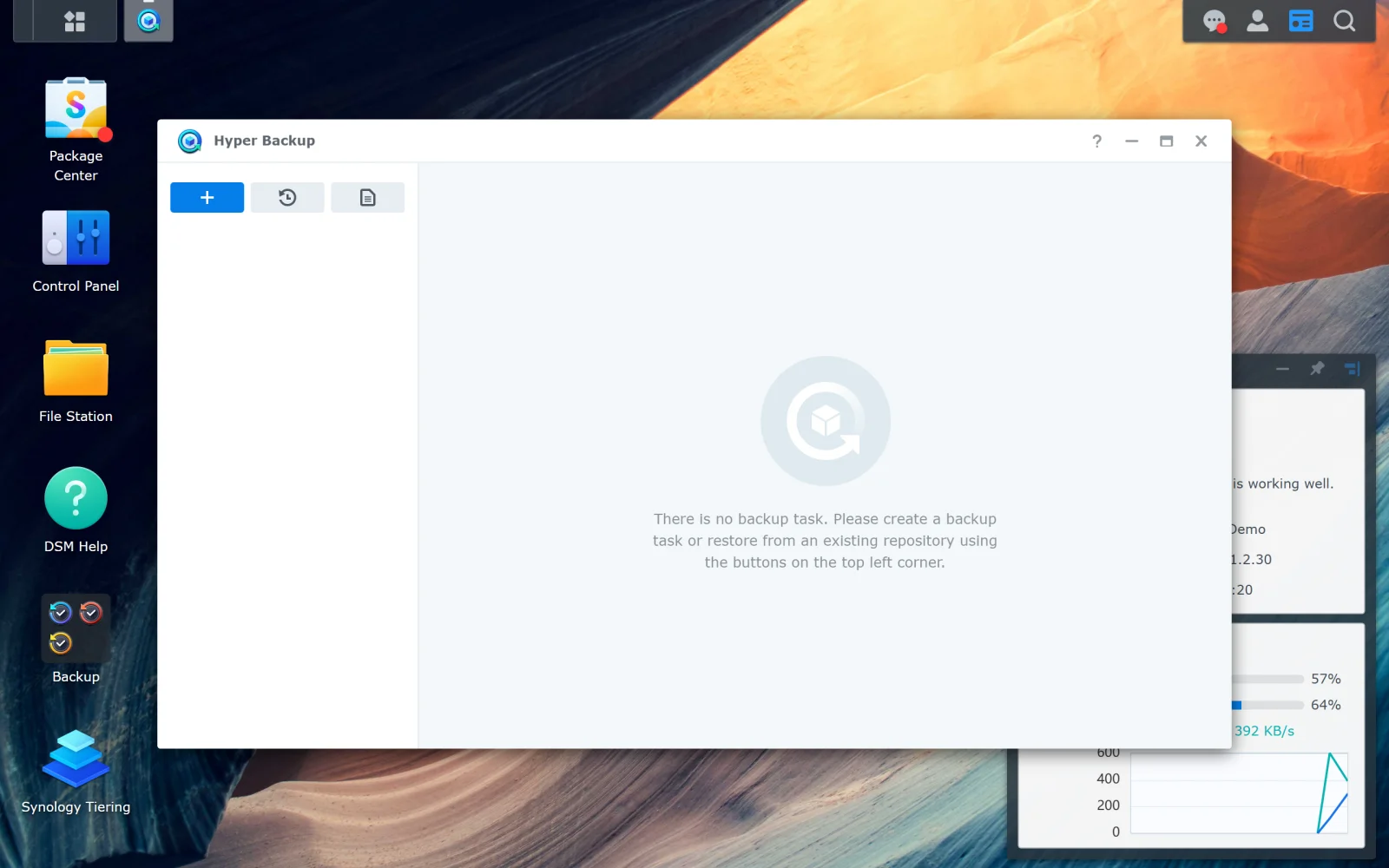
- This page's procedure assumes DSM 7.3.2-86009 Update 3 (March 2026) or later. Hyper Backup itself ships with the DSM update bundle. The Backup Explorer file-tree icon at the top-left of the Hyper Backup window is unchanged from DSM 7.2.x — but the Smart Recycle integrity-check timing and the encryption-key recovery prompts received minor UX changes in DSM 7.3 (the prompt for the `.pem` key file now appears earlier in the wizard).
- The Hyper Backup Explorer standalone app (Windows / macOS) is still the disaster-recovery escape hatch — install it before you need it. It reads the destination bundle without DSM and can run on any Windows/Mac with the encryption passphrase. Current version is downloaded from `synology.com/en-global/support/download` filtered to your NAS model + your DSM version.
- If your DSM is on 7.2.x or earlier and the screenshots on this page don't match what you see, update via Control Panel > Update & Restore before running the drill — older Hyper Backup versions render the Backup Explorer in a separate window with a different toolbar layout.
Why a green status icon is not enough
- Hyper Backup logs job completion based on the source-side write success. If the destination becomes silently unreadable (cloud credentials expire, USB drive develops bad sectors, remote NAS share permissions change), the next attempt will fail — but the existing backup data is what you actually need, and you don't know if that's still readable until you try.
- Encryption passphrases that worked at setup can fail later if the passphrase storage was lost, the original DSM user account was removed, or the key file (`.pem`) is needed and was never exported.
- Backup software versions can diverge: an older DSM-version task may not restore cleanly onto a much newer DSM-version replacement NAS. The Hyper Backup Explorer standalone app exists exactly for this case — it can read older formats off the destination without needing DSM at all.
- Restore behavior under stress (NAS lost in fire, account compromised, ransomware on the source) is materially different from a planned restore drill. Practicing the planned case is the floor; not practicing means the unplanned case has no precedent.
Single-file restore through Backup Explorer (the monthly drill)
- Open Hyper Backup > select the task > Backup Explorer (file-tree icon at top right). The destination is mounted read-only; you can browse without modifying anything.
- Pick a small file that you know the content of — a text document, a single photo, a config file. Right-click > Restore > To a different location > pick a temporary folder on the NAS or on your local computer.
- Open the restored file. Confirm content matches what you remember. This is the gate. If the file opens correctly, the restore path works.
- Use the version-picker (top of Backup Explorer) to step back through previous versions. If the backup has weekly history, pick a version from at least a week ago — this catches the case where recent backups are fine but the rotation/retention has lost older versions.
Destination integrity check
- Hyper Backup > task > More > Settings > Backup Verification > tick Backup Verification > pick a schedule (weekly is the recommended starting point).
- Integrity check walks the destination's hash manifest and verifies bytes against expected checksums. On a typical 1 TB cloud destination this takes hours; on a USB drive it's faster. Schedule it for low-priority hours.
- The check produces a Status report in Hyper Backup > task > Log. Look for any 'Inconsistent' or 'Error' entries — they mean a restore from that point would have failed. Re-running the next scheduled backup usually rewrites the bad blocks.
- If integrity-check failures recur on the same destination, treat that destination as suspect: replace the USB drive, rotate cloud credentials, or rebuild the remote-NAS share.
Disaster-restore via Hyper Backup Explorer (standalone app)
- Hyper Backup Explorer is a separate download from Synology's website — runs on Windows/macOS/Linux. It reads a Hyper Backup destination directly without DSM, which is exactly what you need if the source NAS is dead.
- Point it at the destination (mount the USB, mount the remote share, give it cloud credentials) and the encryption passphrase. The app exposes the same file tree and version history as Backup Explorer.
- Practice this once during a calm month: install the app on your daily laptop, mount the destination, and restore a small file. The 'oh no, my NAS died' moment is the wrong time to learn the app.
- If the passphrase doesn't unlock the destination in Hyper Backup Explorer, the passphrase storage failed. Re-derive it from password manager / backup notes / safe-stored paper before any real disaster forces you to.
DSM 7.3 — where the restore drill happens
Reference images and diagrams. Click any image to view full resolution.
At least one Hyper Backup task has a recent Success status.
Hyper Backup > task > Backup Explorer > navigate to known file > right-click > Restore > To a different location > pick a temp folder > open after restore
Hyper Backup > task list > most recent timestamp within the schedule window.
Stop if the passphrase fails to unlock — fix passphrase storage before continuing.
Layer path
Step-by-step runbook
Start here. Do each check in order, compare it to the expected result, and stop when the evidence explains the failure or the safe stop point applies.
Confirm prerequisites
Check: Recent Success status on the task, reachable destination, accessible passphrase, Hyper Backup Explorer installed on a non-NAS computer.
Expected result: All four prerequisites are true.
If not: Without any one of these, the drill won't be meaningful or won't succeed.
Run the monthly Backup Explorer drill
Check: Pick a small known file in the backup, restore to a different location via Backup Explorer, open and verify content.
Expected result: File opens with expected content; restore log shows Success.
If not: If the file is missing or corrupt, investigate version-picker and verification logs.
Run a Backup Verification if not recent
Check: the "Manual Backup Verification" command below. Wait for completion (hours on large cloud destinations).
Expected result: Verification completes with no errors.
If not: Repeated errors indicate destination problems — escalate to replacing destination.
Quarterly: practice disaster restore via Hyper Backup Explorer
Check: On a non-NAS computer, launch the standalone app, mount the destination, provide passphrase, restore a small file.
Expected result: Restore succeeds on a machine that has no dependency on the source NAS.
If not: Fix any auth/passphrase/connectivity issues here, when there's no real pressure.
Document drill outcomes
Check: Record date, drill type (Backup Explorer / Hyper Backup Explorer), file restored, any issues found, and follow-ups. Store outside the NAS.
Expected result: Recurring record exists; the drill is auditable.
If not: Without the record, drift in destination quality or passphrase storage can go undetected.
Did this solve your problem?
Your answer helps us improve this page.
No account or personal details. We store the page, answer, optional reason and day with a 90-day retention period. A random reference in this browser prevents repeat votes. Feedback privacy
Decision tree
If: Monthly drill: prove a single file restores cleanly.
Then: Backup Explorer is the right tool — fast, in-DSM, no extra setup.
Action: Hyper Backup > task > Backup Explorer > pick a small file > Restore > To a different location > open the restored file.
If: Quarterly drill: prove the disaster path works without DSM.
Then: Hyper Backup Explorer (standalone app) is the right tool.
Action: Launch the app on a non-NAS computer; point at the destination; enter the passphrase; restore a small file.
Safe stop: Stop if the passphrase fails to unlock — fix passphrase storage before continuing.
If: Restore of a known file fails with a corruption error.
Then: Destination has corruption at the block holding that file.
Action: Try an earlier version from the version-picker; if older versions restore cleanly, the corruption is recent. Run full Backup Verification.
Safe stop: Stop using the destination if verification shows recurring errors — replace it before relying on it further.
If: Encryption passphrase no longer unlocks the destination.
Then: Passphrase storage failed; the backup is currently unrecoverable.
Action: Search all password-manager backups, paper-stored notes, and shared-with-partner records. If genuinely lost, this destination is dead — start a fresh backup chain to a new destination immediately.
Safe stop: Stop relying on this backup until a working passphrase is recovered or a new chain is established.
If: Asked to restore on top of live data after a partial loss.
Then: Restoring directly into the live path can collide with files that weren't lost.
Action: Restore to a different location first, diff/cherry-pick what's actually needed, then move into place. This is non-negotiable.
Evidence table
| Symptom | Evidence to collect | Likely layer | Next action |
|---|---|---|---|
| Backup Explorer opens but every file shows '0 bytes' or 'Unable to retrieve'. | Backup Explorer browse view; Hyper Backup task Logs. | Destination-side read failure or block-level corruption | Run Backup Verification; if errors persist, replace destination. |
| Passphrase rejected by Backup Explorer or Hyper Backup Explorer. | Both apps prompt for passphrase; both reject same input. | Passphrase storage failure or copy/paste artifact (extra whitespace, wrong character set) | Try alternate copies of the passphrase; check for hidden characters; if confirmed lost, the destination cannot be recovered. |
| Version-picker shows only the most recent version. | Backup Explorer top-of-screen version dropdown. | Retention policy too aggressive, OR Hyper Backup task was reset/restarted | Review task > Settings > Rotation; consider Smart Recycle if not already enabled; older versions are not recoverable if rotated out. |
| Backup Verification log shows 'Inconsistent' or 'Error' entries. | Task > Logs > Verification entries. | Destination block-level corruption | Re-run verification after next backup completes (which may rewrite bad blocks); if persistent, replace destination. |
Commands and settings paths
Single-file restore via Backup Explorer
Hyper Backup > task > Backup Explorer > navigate to known file > right-click > Restore > To a different location > pick a temp folder > open after restoreWhere: In DSM web UI.
Expected: Restored file opens with matching content; restore log shows Success.
Failure means: Failure means destination integrity is suspect.
Safe next step: Try older version from version-picker; if all versions fail, run Backup Verification.
Manual Backup Verification
Hyper Backup > task > More > Settings > Backup Verification > Verify NowWhere: In DSM web UI.
Expected: Verification completes with no Inconsistent/Error entries in the log.
Failure means: Failures indicate destination corruption that has happened since the last verification.
Safe next step: Replace destination if errors recur; re-run task to write fresh data.
Hyper Backup Explorer disaster drill
Standalone app (Synology download) > File > Open destination > provide credentials + passphrase > navigate file tree > restore one fileWhere: On a non-NAS computer (daily laptop, desktop).
Expected: App opens the destination, lists files, and successfully restores at least one file to local disk.
Failure means: Failure means the disaster-restore path is broken — fix before any real disaster.
Safe next step: If passphrase fails: search passphrase storage; if connectivity fails: check destination URL/credentials; if version mismatch: download newer Hyper Backup Explorer.
Verify scheduled verification is enabled
Hyper Backup > task > More > Settings > Backup Verification > ScheduleWhere: In DSM web UI.
Expected: Verification scheduled at a sensible frequency (weekly is typical).
Failure means: If disabled, destination corruption can go undetected for long periods.
Safe next step: Enable verification on a weekly schedule for first-tier destinations; less often for low-priority destinations.
Hardware and platform boundary
Change only when
- A second backup destination is the right next investment only after monthly drills are clean on the first destination for at least three months running.
Evidence that matters
- Destination reliability, passphrase storage durability, and drill cadence matter most.
Evidence that does not matter
- Faster restore hardware (newer NAS, faster USB drive) doesn't help if the backup chain itself is broken or the passphrase is lost.
Avoid
- Avoid skipping drills 'because the backup is green' — green status is necessary but not sufficient.
Last reviewed
2026-05-18 · Reviewed by HomeTechOps. Reviewed against Synology's Hyper Backup spec for Backup Explorer, Hyper Backup Explorer standalone app, and Backup Verification cadence; against NIST's conservative-backup framing for restore-drill discipline.
Source-backed checks
HomeTechOps turns official docs and conservative safety rules into a shorter runbook. These links are the source trail for the page direction.
Planning a purchase?
We keep a source-backed, price-free comparison so you can buy once and right. No star ratings, every spec cited.
Synology vs UGREEN vs DIY NAS in 2026 →Get the deal & firmware alerts
Home Stack Field Notes: NAS deals, firmware changes worth acting on, restore-test reminders, and new decision guides — plus the capacity & backup sizing cheatsheets from our calculators. Unsubscribe anytime.
Subscribe on beehiiv