
Mac
External Displays per Mac Chip: M1 to M5 Limits
How many external monitors each Apple Silicon chip supports (M1–M5, Pro, Max, Ultra) — the per-chip limits and why a dock can't add more without DisplayLink.
Start here: Identify the chip
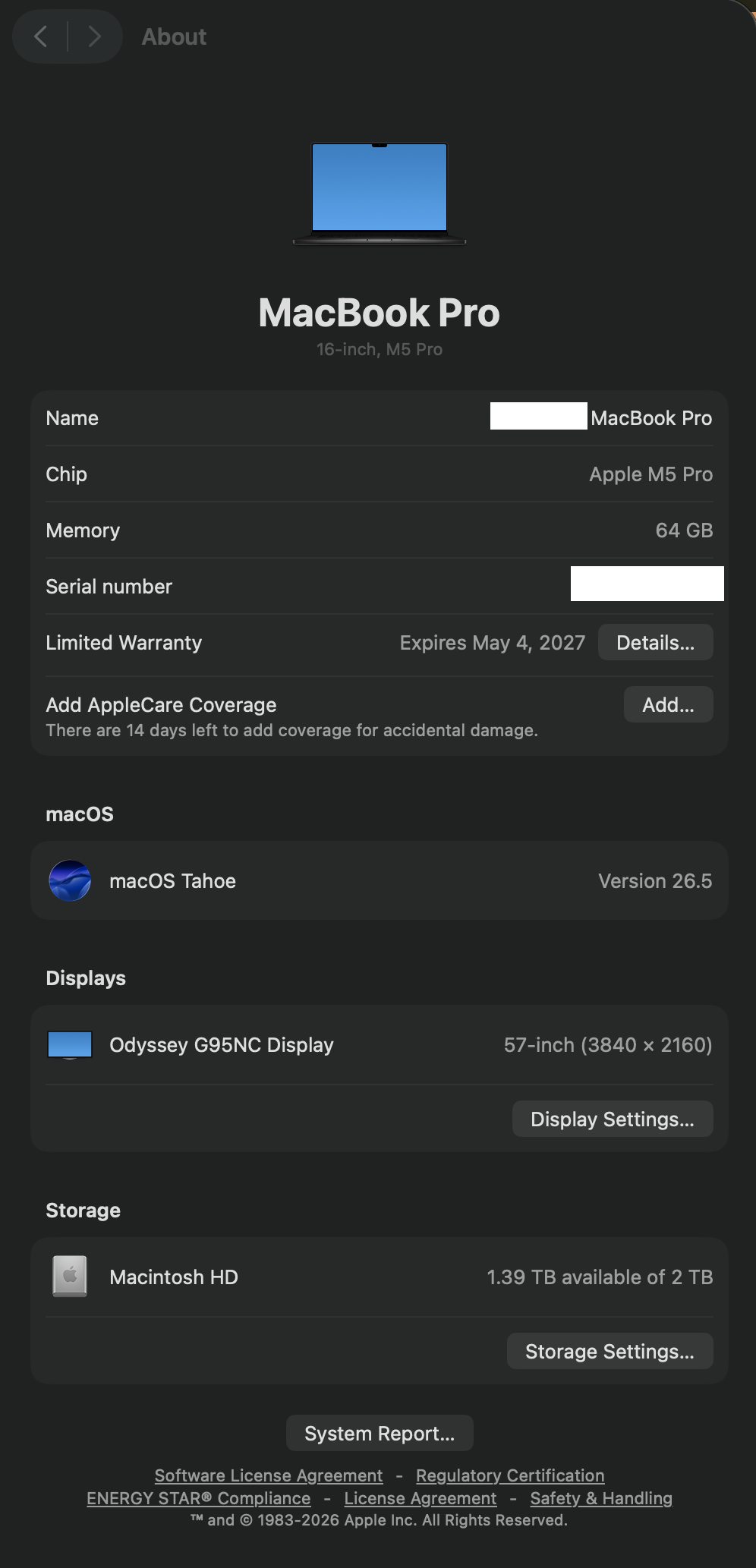
Read → About This Mac.
Problem summary
I'm here because I plugged in a second or third monitor and it won't work — and I want to know whether that's a fault or just my Mac's hardware limit. Apple Silicon caps how many external displays each chip can drive, and a dock or hub can't raise that ceiling. This page gives the per-chip numbers (M1 through M5, and the Pro/Max/Ultra tiers), explains the one clamshell exception, and tells you the only real workaround — DisplayLink — so you know whether to buy a dock, change a setting, or stop trying.
Read the exact chip in → About This Mac.
→ About This Mac (Chip line)
You have the tier (base / Pro / Max / Ultra) that sets the limit.
Buying a bigger dock to exceed the chip's native display limit.
Layer path
Step-by-step runbook
Start here. Do each check in order, compare it to the expected result, and stop when the evidence explains the failure or the safe stop point applies.
Identify the chip
Check: Read → About This Mac.
Expected result: You know the tier that sets the limit.
If not: Use model/year to resolve the chip if the label is generic.
Look up the limit
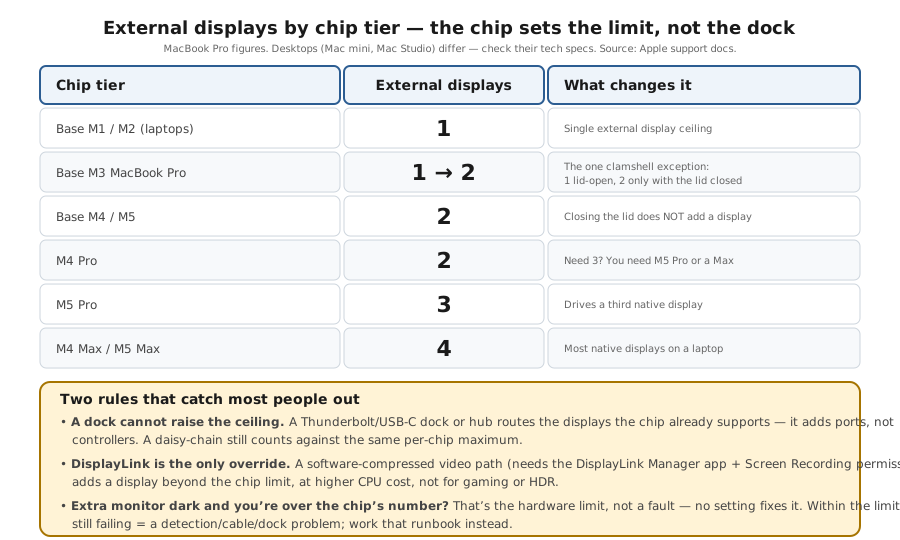
Check: Map the chip: base M4/M5 = 2, M4 Pro = 2, M5 Pro = 3, M4/M5 Max = 4, base M3 = 1 lid-open.
Expected result: You know if you're within or over the ceiling.
If not: Within → troubleshoot detection; over → it's expected.
Apply the clamshell exception
Check: On a base M3 MacBook Pro, close the lid for the second display.
Expected result: The extra display unlocks only on that one model.
If not: On M4/M5+, skip the trick — it does nothing.
Rule out dock myths
Check: Count hub/daisy-chained displays against the same chip limit.
Expected result: You stop expecting a dock to add capacity.
If not: If you need more, plan DisplayLink.
Add DisplayLink only for genuine overflow
Check: Install DisplayLink Manager (Screen Recording permission) for displays beyond the limit.
Expected result: Overflow displays work, with CPU/HDR/latency trade-offs.
If not: Keep gaming/video/HDR on native outputs.
Did this solve your problem?
Your answer helps us improve this page.
No account or personal details. We store the page, answer, optional reason and day with a 90-day retention period. A random reference in this browser prevents repeat votes. Feedback privacy
Decision tree
If: You want 2 displays on a base M4 or M5.
Then: Within the limit — 2 external is supported.
Action: If one fails, it's a detection/cable/dock fault — use the not-detected runbook.
If: You want 3 displays.
Then: Needs M5 Pro (3) or a Max (4); M4 Pro tops out at 2.
Action: On M4 Pro, add the third via DisplayLink, or move to a Pro/Max tier.
If: You want 4 displays.
Then: Needs an M4 Max or M5 Max natively.
Action: Below Max, combine native outputs with DisplayLink for the extras.
If: Second display won't appear on a base M3 MacBook Pro, lid open.
Then: That's the documented limit — base M3 needs the lid closed for display two.
Action: Close the lid (clamshell) to enable the second display.
If: An over-the-limit monitor stays dark no matter what.
Then: The chip's controller ceiling, not a fault.
Action: Accept it, add DisplayLink for overflow, or choose a higher tier.
Evidence table
| Symptom | Evidence to collect | Likely layer | Next action |
|---|---|---|---|
| Third monitor won't work on M4 Pro. | About This Mac shows M4 Pro; two displays already work. | Chip limit (M4 Pro = 2). | Add the third via DisplayLink, or use an M5 Pro/Max. |
| Two displays fine, fourth dark on a Max. | Chip is M4/M5 Max (limit 4); you're attempting five. | At the Max ceiling. | DisplayLink for the fifth, or a Studio/Ultra. |
| Base M3 MacBook Pro drives only one display. | Lid is open; second display absent. | Base-M3 clamshell behaviour. | Close the lid to unlock the second display. |
| Bought a big dock to add a third display; still two. | Dock has many ports but the chip is a 2-display tier. | Dock can't add controllers. | Return the expectation, not the Mac; use DisplayLink for overflow. |
| DisplayLink overflow display stutters in games/video. | That display is a compressed software stream. | DisplayLink path limitation. | Keep gaming/HDR on native outputs; use DisplayLink for static windows. |
Commands and settings paths
Identify the chip tier
→ About This Mac (Chip line)Where: On the Mac.
Expected: Shows the exact chip (e.g. Apple M5 Pro) that sets the display limit.
Failure means: If unclear, use the model name/year to find the chip in tech specs.
Safe next step: Match the chip to its external-display number.
List the displays macOS currently drives
system_profiler SPDisplaysDataTypeWhere: Terminal on the Mac.
Expected: Reports the built-in plus all currently active external displays.
Failure means: If the count is already at the chip's max, an extra monitor won't be added.
Safe next step: Use DisplayLink for overflow or accept the limit.
Check whether a connected output is DisplayLink
ps aux | grep -i displaylinkWhere: Terminal on the Mac.
Expected: Shows whether DisplayLink Manager is running (so an extra display is software-driven).
Failure means: If you expected native but it's DisplayLink, quality/latency will differ.
Safe next step: Reserve DisplayLink for overflow; keep primaries on native ports.
Hardware and platform boundary
Change only when
- Choose the chip tier by display need at purchase: 2 displays → base M4/M5; 3 → M5 Pro; 4 → a Max; beyond → Studio/Ultra or native+DisplayLink.
- Add a DisplayLink adapter/dock only when you genuinely need more displays than your chip drives natively.
Evidence that matters
- The chip tier — it, not ports or docks, sets the native display ceiling.
- Per-display resolution/refresh, which affects how many high-res displays run at once.
- Whether your overflow displays can tolerate DisplayLink's trade-offs.
Evidence that does not matter
- Dock port count — ports aren't display controllers.
- Thunderbolt 5 bandwidth for display count — bandwidth isn't the limiting factor here.
- The clamshell trick on M4/M5 — it doesn't add a display there.
Avoid
- Buying a bigger dock to exceed the chip's native display limit.
- Relying on the lid-closed trick outside the base M3 MacBook Pro.
- Putting gaming/video/HDR on a DisplayLink overflow display.
External displays each chip can drive
Reference images and diagrams. Click any image to view full resolution.
Related tool/checklist
Use the linked tool when you need a guided plan from your exact symptoms instead of a static checklist.
USB-C dock monitor setup plannerRelated problems
Last reviewed
2026-10-17 · Reviewed by HomeTechOps. Reviewed against Apple's MacBook Pro display-support documentation for the exact per-chip external-display counts (base M4/M5 = 2, M4 Pro = 2, M5 Pro = 3, M4/M5 Max = 4, base M3 = 1 lid-open/2 lid-closed); makes clear that a dock can't add controllers and DisplayLink is the only native-limit workaround, with its trade-offs.
Sources/assumptions
- Per-chip numbers follow Apple's MacBook Pro display-support documentation (current to 2026); Mac mini, Mac Studio, and MacBook Air have their own counts on their tech-specs pages.
- Display counts assume each display is within the listed resolution/refresh ceilings; very high resolution or refresh can reduce how many run simultaneously.
- DisplayLink behaviour follows the vendor's documented software-display approach; it's the only way to exceed the native per-chip limit and carries CPU/latency/HDR trade-offs.
Source-backed checks
HomeTechOps turns official docs and conservative safety rules into a shorter runbook. These links are the source trail for the page direction.
Get the deal & firmware alerts
Home Stack Field Notes: NAS deals, firmware changes worth acting on, restore-test reminders, and new decision guides — plus the capacity & backup sizing cheatsheets from our calculators. Unsubscribe anytime.
Subscribe on beehiiv