
Mac
Mac won't boot or is stuck in a boot loop
What to do when an Apple Silicon Mac won't start, loops on restart, or hangs on the Apple logo — enter Recovery, use Safe Mode, and reinstall without erasing.
Start here: Force restart
Hold power ~10s, confirm power/display.
Problem summary
I'm here because my Mac won't start properly — it's stuck on the Apple logo, restarts over and over, shows a question-mark folder, or hangs after a macOS update. On Apple Silicon the recovery tools are different from older Macs (you hold the power button, not key combos), and there's one mistake that turns a recoverable problem into data loss: erasing the disk when you only needed to reinstall. This page walks the safe order — Recovery, Safe Mode, reinstall-without-erase — and the last-resort revive that keeps your data.
Force restart (hold power ~10s) and confirm it's powered, not just dark.
Shut down, then press and hold the power button until 'Loading startup options'
A hung boot sometimes clears; you rule out power/display.
Erasing here is permanent data loss — reinstall first.
Layer path
Step-by-step runbook
Start here. Do each check in order, compare it to the expected result, and stop when the evidence explains the failure or the safe stop point applies.
Force restart
Check: Hold power ~10s, confirm power/display.
Expected result: Clears some hangs; rules out a dark screen.
If not: If still stuck, enter startup options.
Enter Recovery
Check: Hold the power button for startup options → Options → Continue.
Expected result: You have the full Recovery toolkit.
If not: No options at all → firmware/hardware (Revive).
Isolate with Safe Mode + First Aid
Check: Try Safe Mode; run Disk Utility First Aid.
Expected result: Software or filesystem causes are found and fixed.
If not: If neither helps, reinstall (don't erase).
Reinstall non-destructively
Check: Recovery → Reinstall macOS over existing data.
Expected result: The system is repaired with data intact.
If not: Never erase to 'fix' boot; erase is permanent loss.
Credentials or revive
Check: Resolve a FileVault unlock loop, or Revive via Apple Configurator.
Expected result: The Mac boots, or firmware is repaired without data loss.
If not: Restore (erases) only as a last resort with a backup.
Did this solve your problem?
Your answer helps us improve this page.
No account or personal details. We store the page, answer, optional reason and day with a 90-day retention period. A random reference in this browser prevents repeat votes. Feedback privacy
Decision tree
If: Boots in Safe Mode but not normally.
Then: A login item, kext, or cache loaded at normal boot.
Action: Remove recent additions / clear caches, then boot normally.
If: First Aid finds and repairs volume errors.
Then: Filesystem corruption was blocking boot.
Action: Reboot normally after the repair.
If: Won't boot; First Aid can't fully repair.
Then: Corrupt system install (data likely intact).
Action: Reinstall macOS (non-destructive); do NOT erase.
Safe stop: Erasing here is permanent data loss — reinstall first.
If: Loops at the FileVault/login unlock after an update.
Then: Credential/unlock issue, not a disk failure.
Action: Enter password/recovery key; reset via Apple Account in Recovery if needed.
If: No signs of life or a firmware error.
Then: Firmware/recoveryOS damage.
Action: Revive via Apple Configurator from a second Mac (keeps data); Restore only as last resort (erases).
Evidence table
| Symptom | Evidence to collect | Likely layer | Next action |
|---|---|---|---|
| Stuck on Apple logo after an update. | Safe Mode boots; normal boot hangs. | Software loaded at boot. | Remove recent login items/kexts; clear caches. |
| Boot hangs; First Aid reports errors. | Disk Utility finds volume corruption. | Filesystem corruption. | Run First Aid; reboot. |
| Question-mark folder / no startup disk. | System volume damaged or unselected. | Corrupt/missing system install. | Reinstall macOS (non-destructive); never erase first. |
| Loops at unlock after update. | FileVault won't accept/reach credentials. | FileVault unlock loop. | Use password/recovery key; reset via Apple Account. |
| No logo, no startup options, possible firmware error. | Power button shows nothing. | Firmware/recoveryOS damage. | Revive with Apple Configurator (keeps data). |
Commands and settings paths
Enter Recovery / startup options (Apple Silicon)
Shut down, then press and hold the power button until 'Loading startup options'Where: On the Mac (hardware step).
Expected: Reaches Options → Continue → Recovery with First Aid, reinstall, restore.
Failure means: If nothing appears, it's a firmware/hardware issue.
Safe next step: Use Revive via a second Mac if startup options never load.
Boot into Safe Mode
From startup options: select the disk, hold Shift, click Continue in Safe ModeWhere: On the Mac, from the startup-options screen.
Expected: Loads a minimal system and clears some caches.
Failure means: Boots in Safe Mode but not normally = software at fault.
Safe next step: Remove recent login items/kexts and reboot normally.
Repair the disk from Recovery
Recovery → Disk Utility → First Aid (show all devices)Where: In Recovery on the Mac.
Expected: Repairs filesystem errors on the container and volumes.
Failure means: If it can't repair, reinstall (don't erase).
Safe next step: Reinstall macOS non-destructively next.
Reinstall macOS without erasing
Recovery → Reinstall macOS (do NOT use Disk Utility → Erase)Where: In Recovery on the Mac.
Expected: Reinstalls the system over existing data — non-destructive.
Failure means: Choosing Erase wipes all your files.
Safe next step: Only erase + restore from backup if reinstall genuinely fails.
Hardware and platform boundary
Change only when
- Keep a current, verified backup at all times — it's what makes the worst case (erase + restore) survivable; see the 3-2-1 plan.
- Keep a second Mac and a known-good cable available (or access to one) for Apple Configurator Revive on a firmware-bricked Mac.
Evidence that matters
- A verified backup so a destructive recovery is never catastrophic.
- Your FileVault password/recovery key stored off the Mac.
- Knowing the Apple Silicon entry (hold power), not Intel key combos.
Evidence that does not matter
- Third-party 'boot repair' utilities — Recovery's built-in tools are the supported path.
- Old Intel key combinations — they don't apply to Apple Silicon.
- Erasing as a first move — it's last-resort, not a fix.
Avoid
- Erasing the disk to 'fix' boot without a verified backup.
- Choosing Restore over Revive in Apple Configurator (Restore erases).
- Using Intel-era recovery key combos on Apple Silicon.
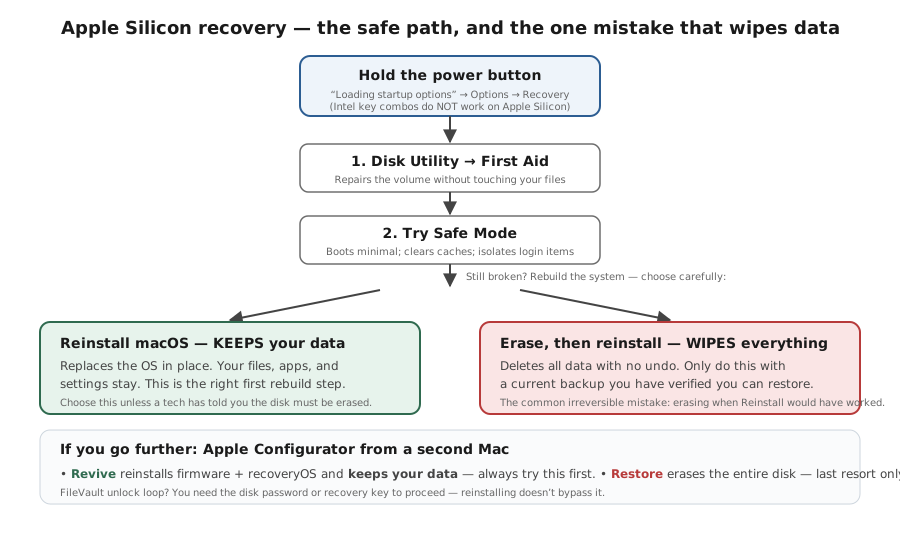
The Apple Silicon recovery path (and the wipe to avoid)
Reference images and diagrams. Click any image to view full resolution.
Related tool/checklist
Use the linked tool when you need a guided plan from your exact symptoms instead of a static checklist.
Backup plan builderRelated problems
Last reviewed
2026-06-02 · Reviewed by HomeTechOps. Reviewed against Apple's Apple-Silicon Recovery and reinstall documentation; gives the graded safe sequence (force restart → hold-power Recovery → Safe Mode → First Aid → non-destructive reinstall → FileVault unlock / Configurator Revive) and is emphatic that reinstall keeps data while erasing wipes it, reserving erase for a last resort behind a verified backup.
Sources/assumptions
- Assumes an Apple Silicon Mac (including macOS Tahoe / macOS 26); Intel-Mac recovery uses different key combinations.
- Recovery, reinstall, and erase behaviour follow Apple's documentation — reinstall is non-destructive, erasing wipes data.
- Apple Configurator Revive/Restore requires a second Mac and a supported cable; Revive preserves data, Restore erases.
Source-backed checks
HomeTechOps turns official docs and conservative safety rules into a shorter runbook. These links are the source trail for the page direction.
Get the deal & firmware alerts
Home Stack Field Notes: NAS deals, firmware changes worth acting on, restore-test reminders, and new decision guides — plus the capacity & backup sizing cheatsheets from our calculators. Unsubscribe anytime.
Subscribe on beehiiv