
Mac
Mac says it's out of application memory on Tahoe or macOS 27
Fix "Your system has run out of application memory" on macOS Tahoe (26) or macOS 27 — the autofill bug, the Electron leak, and how to read Memory Pressure.
Start here: Read the real signal
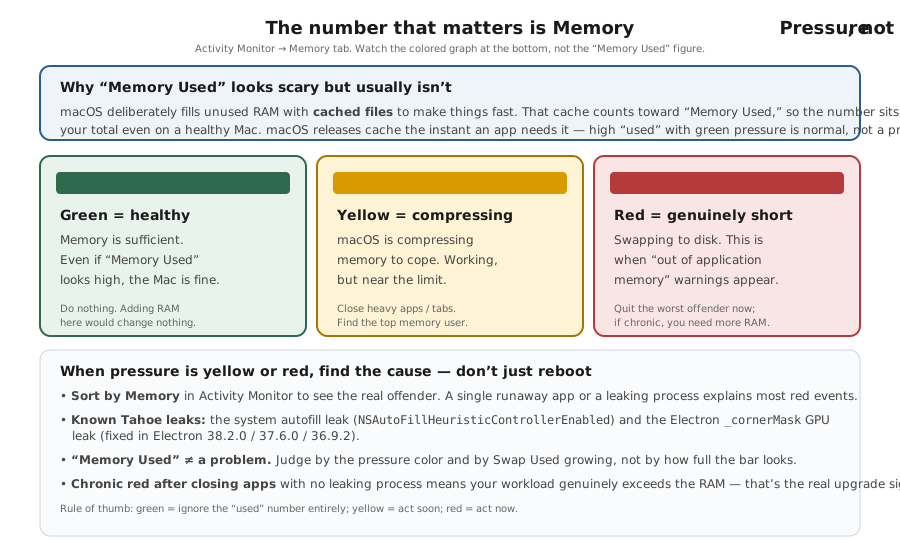
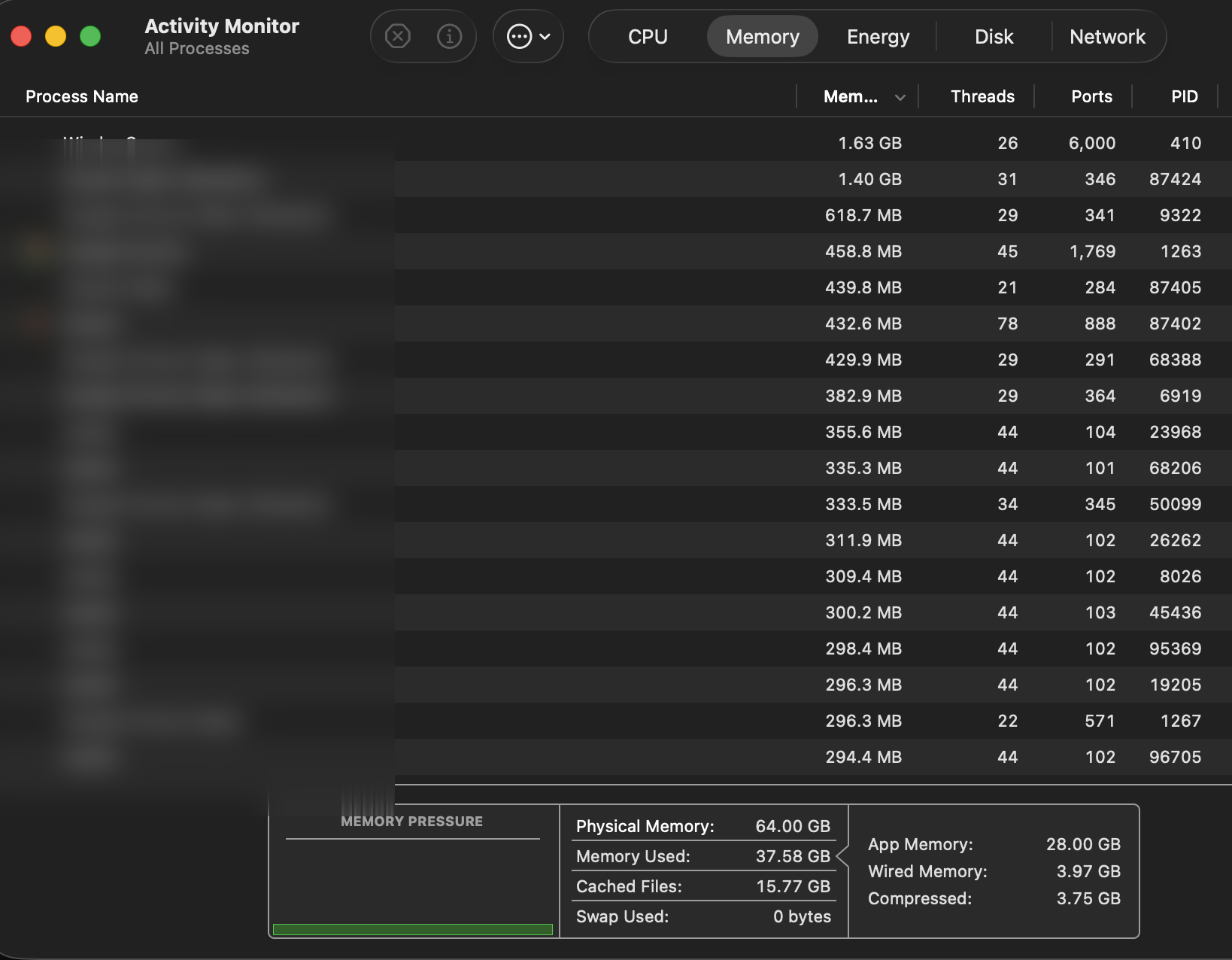
Open Activity Monitor → Memory and note the Memory Pressure colour and swap.
Problem summary
I'm here because my Mac keeps showing "Your system has run out of application memory" on macOS Tahoe (macOS 26) — it tells me to force-quit apps, everything beachballs, and it happens even on a Mac with plenty of RAM. On Tahoe this is usually one of two confirmed software bugs that slowly leak memory, not a sign you're short on RAM. This page shows you how to read the Activity Monitor Memory Pressure graph to confirm what's really happening, then the exact fix for each bug — no "memory cleaner" app required.
Open Activity Monitor → Memory and read the Memory Pressure graph colour.
defaults write -g NSAutoFillHeuristicControllerEnabled -bool false
Green or yellow pressure means macOS is coping, so a plain RAM shortage is unlikely; a leak is the usual suspect but needs a growing process to confirm it.
Revert the default if it changes nothing — don't leave a no-op override in place.
Layer path
Step-by-step runbook
Start here. Do each check in order, compare it to the expected result, and stop when the evidence explains the failure or the safe stop point applies.
Read the real signal
Check: Open Activity Monitor → Memory and note the Memory Pressure colour and swap.
Expected result: You know whether macOS is coping (green/yellow = leak) or genuinely strained (sustained red).
If not: If pressure is green/yellow, ignore the 'Memory Used' number and go leak-hunting.
Pin the culprit
Check: Sort by Memory and watch for a process that grows and never releases.
Expected result: You can tell an Electron-app leak from the system-wide autofill creep.
If not: If no single app grows but the error fires, treat it as the system autofill bug.
Apply the matching fix
Check: Set `NSAutoFillHeuristicControllerEnabled` false for the system creep; update Electron apps for an app leak.
Expected result: The leak source is removed at its actual layer (a macOS default vs an app update).
If not: If the autofill default changes nothing, revert it and focus on the specific app.
Flush with a restart
Check: Restart the Mac rather than force-quitting, so already-leaked memory is released.
Expected result: Memory begins from a clean baseline and stays flat with the fix in place.
If not: If it refills fast post-restart, capture the growing process and treat it as the single culprit.
Confirm, then judge RAM honestly
Check: Watch Memory Pressure over a normal day's real workload.
Expected result: Green/yellow confirms the bug is fixed; sustained red under real work is the only true RAM signal.
If not: If you do hit sustained red, reduce concurrent heavy apps and plan RAM into your next Mac (Apple Silicon RAM isn't upgradeable).
Did this solve your problem?
Your answer helps us improve this page.
No account or personal details. We store the page, answer, optional reason and day with a 90-day retention period. A random reference in this browser prevents repeat votes. Feedback privacy
Decision tree
If: Memory Pressure is green/yellow but the error still fires.
Then: Most likely a leaking process rather than a RAM shortage — confirm it by watching one process's memory keep growing in Activity Monitor before acting.
Action: Identify whether it's the system autofill heuristic or a specific Electron app, then apply the matching fix.
If: One Electron app keeps growing and is on an old Electron build.
Then: The `_cornerMask` private-API GPU/WindowServer leak.
Action: Update the app to a build on Electron 38.2.0 / 37.6.0 / 36.9.2+; quit it when idle until then.
If: No single app stands out, but memory creeps up across the whole system.
Then: The macOS 26 autofill heuristic leak.
Action: Set `NSAutoFillHeuristicControllerEnabled` to false, relaunch apps, and restart to flush what already leaked.
Safe stop: Revert the default if it changes nothing — don't leave a no-op override in place.
If: Memory keeps filling even right after a clean restart with almost nothing open.
Then: An aggressive, specific leak (a single misbehaving app or extension).
Action: Find the growing process in Activity Monitor and update, replace, or remove it.
If: Memory Pressure stays red for long stretches during ordinary real work, with no leak present.
Then: A genuinely RAM-constrained Mac.
Action: Close heavy apps you don't need; since Apple Silicon RAM is on-package, plan it into your next Mac rather than expecting an in-place upgrade.
Evidence table
| Symptom | Evidence to collect | Likely layer | Next action |
|---|---|---|---|
| Error fires on a Mac with plenty of RAM; pressure is green/yellow. | Activity Monitor shows high 'Memory Used' but non-red pressure. | Leak bug, not a shortage (misreading 'Memory Used'). | Judge by pressure; find and fix the leak rather than adding RAM. |
| One Electron app's memory climbs for hours and never falls. | That app is on an Electron build older than 38.2.0 / 37.6.0 / 36.9.2. | Electron `_cornerMask` GPU/WindowServer leak. | Update the app; quit it when idle as a stopgap. |
| Whole-system creep with no obvious single offender. | Memory recovers after setting NSAutoFillHeuristicControllerEnabled false + relaunch. | macOS 26 autofill heuristic leak. | Keep the default set; restart to flush already-leaked memory. |
| Beachballs and the error return minutes after a clean restart. | A specific process is visibly growing from boot. | Aggressive app/extension-level leak. | Identify and update/remove that process; don't just force-quit repeatedly. |
| Pressure pegged red during ordinary tasks even after fixes. | `vm_stat` shows heavy sustained swapping under real (not leaked) demand. | Genuine RAM constraint. | Reduce concurrent heavy apps; factor more RAM into the next Mac. |
Commands and settings paths
Disable the leaking autofill heuristic
defaults write -g NSAutoFillHeuristicControllerEnabled -bool falseWhere: Terminal on the Mac, then fully relaunch apps (or log out/in).
Expected: The system-wide memory creep stops; memory holds steady over time.
Failure means: If memory still climbs, the leak is app-specific, not this heuristic.
Safe next step: Revert with `defaults delete -g NSAutoFillHeuristicControllerEnabled` and hunt the specific app.
Watch memory paging in real time
vm_stat 5Where: Terminal on the Mac, under light load.
Expected: Pageouts and compressions stay low and roughly flat.
Failure means: Steadily rising pageouts under light load indicate a leak, not real demand.
Safe next step: Correlate the rise with a process sorted by size in Activity Monitor.
Identify Electron processes to check for the leak
ps aux | grep -i electronWhere: Terminal on the Mac.
Expected: Lists the running Electron-based apps so you can check each one's version.
Failure means: If a listed app is on an Electron build older than 36.9.2/37.6.0/38.2.0, it's a leak suspect.
Safe next step: Update that app, or quit it when idle until a patched build ships.
Look for low-memory events behind the dialog
log show --predicate 'eventMessage CONTAINS "low swap"' --last 1hWhere: Terminal on the Mac (or filter Console.app for jetsam/low-memory).
Expected: Shows the jetsam/low-memory events that precede the 'out of application memory' dialog.
Failure means: Frequent events tie the dialog to a specific process or a system-wide creep.
Safe next step: Match the timing to the process you flagged, then apply the matching fix.
Hardware and platform boundary
Change only when
- Plan more unified memory into your next Mac only if Memory Pressure stays red under real (non-leaked) work after both Tahoe leaks are fixed.
- If you routinely run many heavy apps (large IDEs, VMs, big creative projects) at once, size memory for that workload at purchase — it can't be added later.
Evidence that matters
- Unified memory capacity at purchase time, because Apple Silicon RAM is on-package and never user-upgradeable.
- Keeping Electron apps current — the framework-level fixes ship in app updates, not in macOS.
- Whether your real workload (judged by Memory Pressure, not 'Memory Used') actually saturates RAM.
Evidence that does not matter
- The 'Memory Used' figure — it includes cache macOS will reclaim on demand.
- Swap existing on its own — some compression and swap is normal and healthy.
- A cleaner app's 'memory freed' number — it's a marketing figure, not a diagnosis.
Avoid
- Installing memory-cleaner / RAM-booster apps — they purge caches macOS manages and tend to worsen performance.
- Buying RAM or a new Mac on the strength of this error before ruling out both leak bugs.
- Force-quitting apps in a loop as a 'fix' — it hides the leak instead of resolving it.
Read Memory Pressure, not Memory Used
Reference images and diagrams. Click any image to view full resolution.
Related problems
Last reviewed
2026-10-17 · Reviewed by HomeTechOps. Reviewed against Apple's Activity Monitor memory documentation and macOS update notes, Electron's release history for the macOS 26 `_cornerMask` GPU-leak fix, and 2026 reports of the two distinct Tahoe memory-leak bugs; centres the fix on reading Memory Pressure rather than 'Memory Used', and separates the system autofill heuristic leak from the Electron app leak so each gets its correct fix.
Sources/assumptions
- Assumes a Mac on macOS Tahoe (macOS 26) showing the 'out of application memory' dialog; the two leak bugs and their fixes are based on 2026 community, Apple, and Electron reports current to mid-2026.
- The Electron fix versions (38.2.0 / 37.6.0 / 36.9.2) are upstream; an individual app ships the fix only once it rebuilds on a patched Electron — verify in the app's release notes.
- Apple Silicon memory is on-package and not user-upgradeable, so 'add RAM' is never an in-place fix; it only informs a future-Mac decision.
- macOS 27.0 Golden Gate (build 26A428) shipped 2026-09-14 and the current stable release is 27.0.1 (build 26A434, 28 September 2026; checked 2026-10-17). It installs on Apple silicon Macs only — Intel Macs stay on Tahoe. The diagnostic sequence on this page is unchanged. Named Tahoe point-release bugs are tagged still-applies / Tahoe-only / unknown, and Time Machine over AFP no longer works on 27 (checked 2026-09-15).
Source-backed checks
HomeTechOps turns official docs and conservative safety rules into a shorter runbook. These links are the source trail for the page direction.
Get the deal & firmware alerts
Home Stack Field Notes: NAS deals, firmware changes worth acting on, restore-test reminders, and new decision guides — plus the capacity & backup sizing cheatsheets from our calculators. Unsubscribe anytime.
Subscribe on beehiiv