
NAS
TrueNAS Scale first backup setup
TrueNAS Scale gives you three backup primitives — Cloud Sync (to S3/B2/Wasabi/etc.), Replication (ZFS snapshots to another ZFS host), and Rsync (file-level mirror to anything). They're not interchangeable, and picking the wrong one for the workload is the most common new-operator mistake. This page walks through which to use when, then through the first-time configuration of the right one.
Best for: TrueNAS Scale 25.x operators (Goldeye 25.10.5 is the vendor's current General release; the 24.10 Electric Eel line is retired) who have a working pool but no real backup configured yet. Comfortable in the web UI; willing to read ZFS terminology.
Start here: Plan destination, encryption, and source-dataset list
Pick destination type (Replication / Cloud Sync / Cloud Backup / Rsync). Acquire credentials. Identify which datasets are irreplaceable. Set up password-manager storage for the encryption passphrase.
Pick the right tool before you click anything
- Cloud Sync — file-level copy to a cloud bucket (Backblaze B2, S3, Wasabi, Google Cloud Storage, Azure, plus restic/rclone-style destinations). Best for off-site backup of irreplaceable data on a home upstream. Supports encryption (rclone-compatible) so the bucket contents are unreadable without the key.
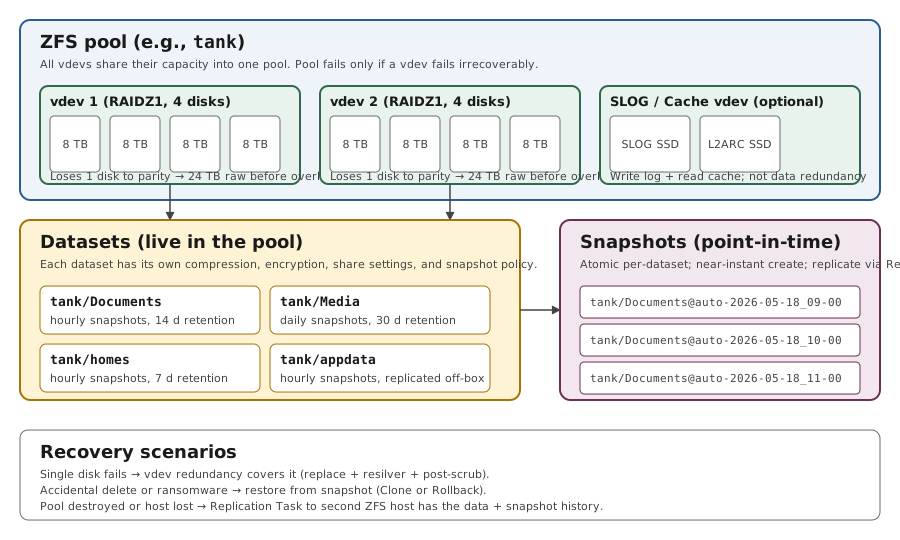
- Replication Task — ZFS-level snapshot stream to another ZFS host (another TrueNAS, a remote zpool over SSH, or even a local pool). Keeps ZFS properties, compression, and incremental snapshot history. Best for a second NAS at a relative's house or in a different room.
- Rsync Task — file-level mirror via rsync to anything that speaks SSH or rsync-daemon. Useful for legacy NAS or one-off file copies; loses ZFS properties and snapshots.
- If you have a second ZFS host available, Replication is the strongest choice — incremental, encrypted in transit, preserves snapshots. If you don't, Cloud Sync is the default off-site path.
Configuring a Cloud Sync task to S3-compatible storage
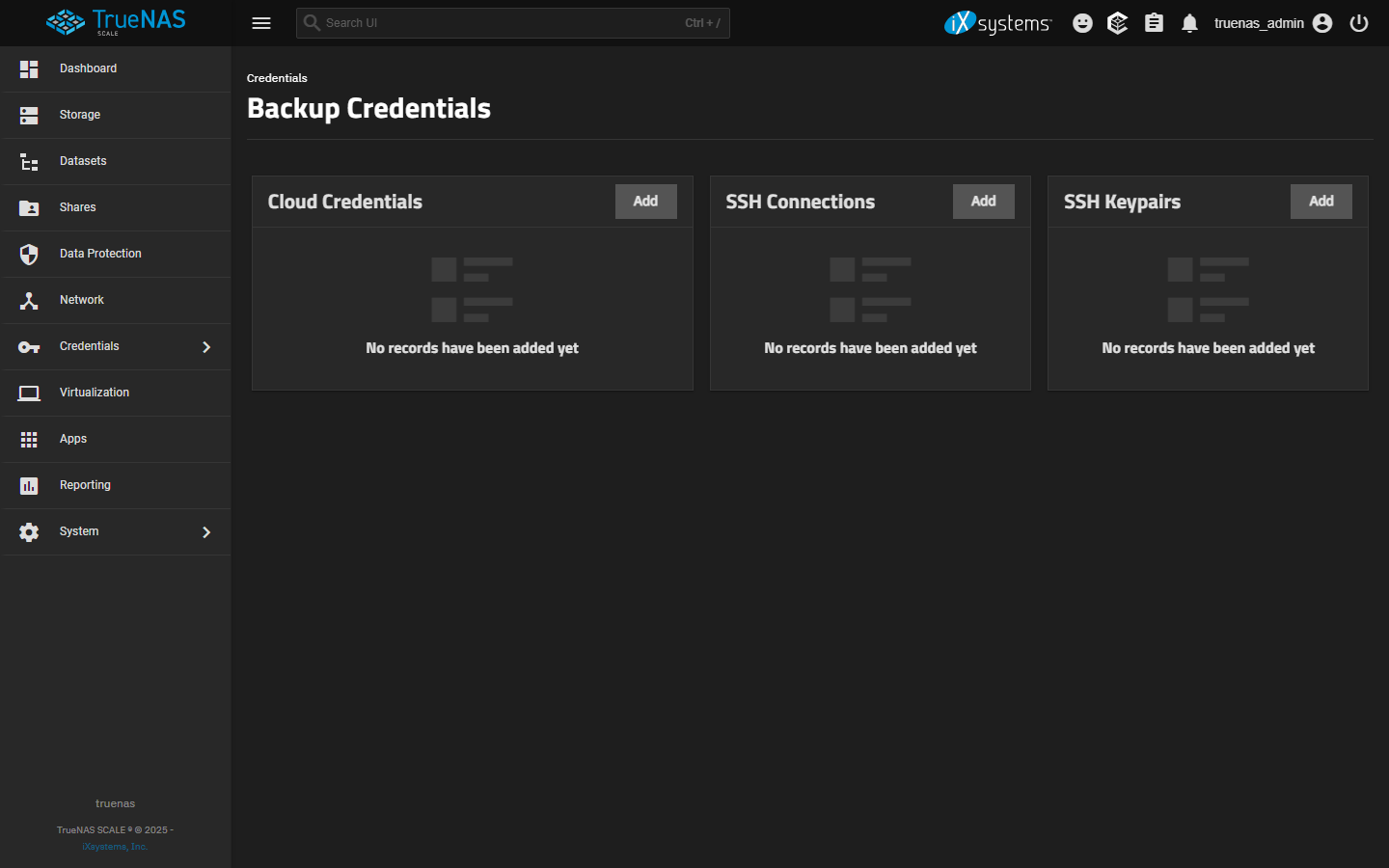
- Open Credentials > Backup Credentials > Add. Select the cloud provider (Backblaze B2 is the most common home pick for cost). Paste keyID + applicationKey from the B2 console.
- Verify the credential immediately via Credentials > Backup Credentials > the row's check-circle button. A failure here is auth or bucket-permission; fix it before scheduling a task.
- Data Protection > Cloud Sync Tasks > Add. Pick the source dataset(s). Set Direction = PUSH (uploading to cloud). Pick the destination bucket. Set Encryption ON with a strong passphrase + salt; store these somewhere the NAS doesn't host.
- Choose Transfer Mode: SYNC (matches source exactly — destination deletions follow source deletions) vs COPY (additive, safer for backup but can grow unbounded) vs MOVE (deletes source after copy — never for backups). For real backup, use COPY with retention managed via bucket lifecycle rules.
- Schedule: Daily off-peak is typical. Tick Pre/Post Script if you want pre-snapshot quiescing (advanced; not needed for most home use).
- Hit Save. Trigger the first run manually: Data Protection > Cloud Sync Tasks > task row > play icon. Watch the log; expect hours on slow upstream for the initial sync.
Configuring a Replication Task to a second ZFS host
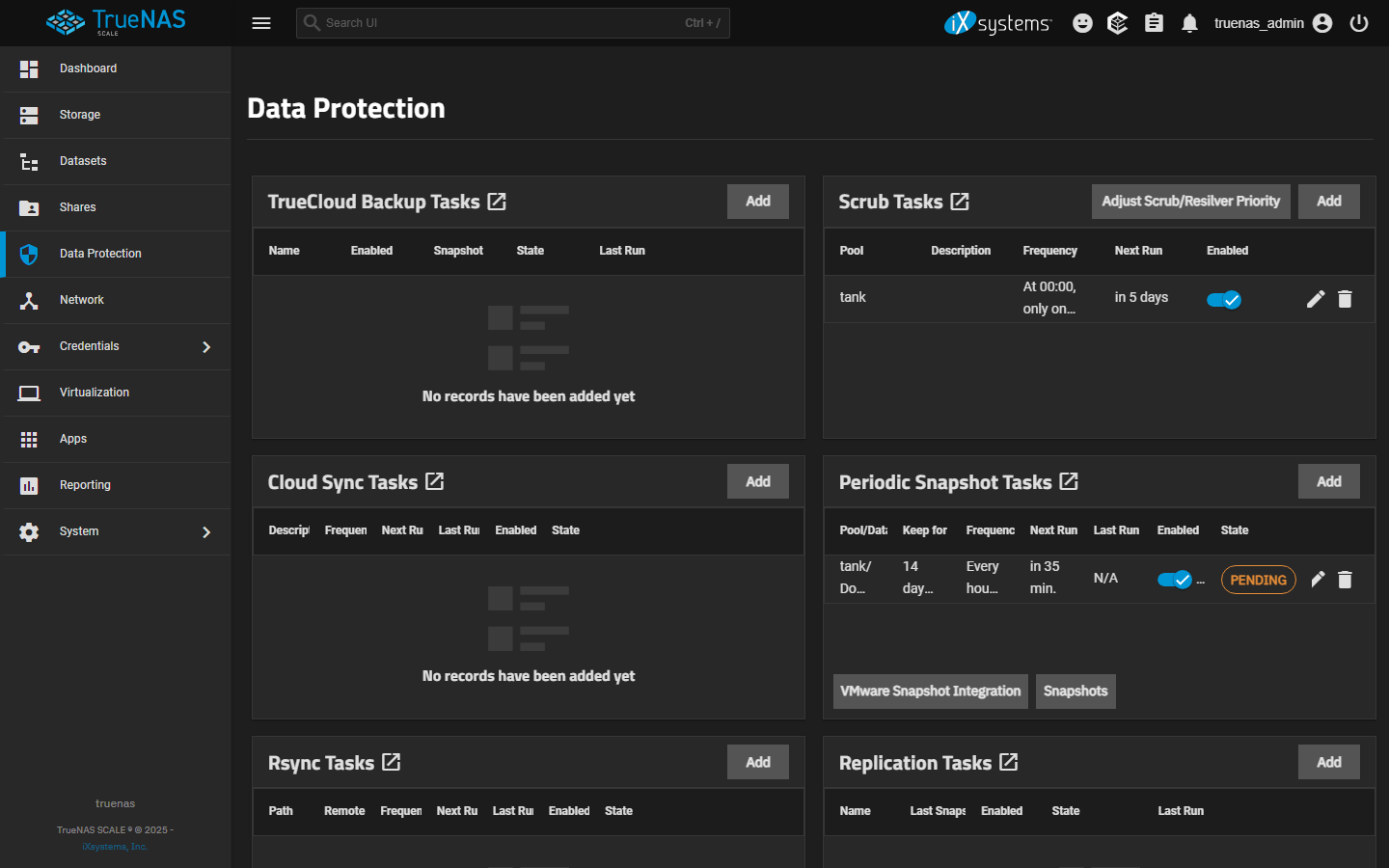
- Prerequisite: a periodic snapshot task already exists for the dataset(s) you want to replicate. Data Protection > Periodic Snapshot Tasks > Add. Pick the dataset, recursive yes if it has children, a daily or hourly schedule, and a sensible naming schema (e.g., `auto-%Y-%m-%d_%H-%M`).
- On the destination TrueNAS, create the parent dataset (or pool) that will receive replicated data. Snapshots replicate INTO this destination as named snapshots.
- Data Protection > Replication Tasks > Add. Source: pick the source dataset. Destination: pick the remote system credentials (SSH connection — set up via Credentials > Backup Credentials > SSH Connection first). Encryption: ON for over-internet replication.
- Schedule replication after the periodic snapshot fires, so you replicate the newest snapshot each cycle.
- Test manually: trigger the snapshot task, wait for it to complete, then trigger the replication task. Check Tasks > Replication on the destination shows the new snapshot.
First-run verification (the part that proves it works)
- After the first run completes, restore one file to a different location: pick a small file you know the content of, restore via the task's restore UI (Cloud Sync: PULL the file back from the bucket to a temp dataset; Replication: clone the snapshot on the destination side and copy the file).
- Open the restored file and confirm content matches. This is the gate. Without it, you have hope, not a backup.
- For Cloud Sync with encryption, intentionally test the restore with NO credentials cached — the rclone passphrase + salt must be re-enterable to decrypt the destination. Practice this once now; the disaster moment is the wrong time to find out the passphrase storage rotted.
- Record the first-success timestamp outside the NAS (calendar reminder, password manager note). Future restore drills compare against this baseline.
ZFS hierarchy diagram + TrueNAS Scale UI
Reference images and diagrams. Click any image to view full resolution.
Pool is ONLINE.
Credentials > Backup Credentials > credential row > Verify button (check-circle icon)
Storage > pool overview shows ONLINE on every vdev, no errors in the latest scrub.
Stop if passphrase storage isn't ready.
Layer path
Step-by-step runbook
Start here. Do each check in order, compare it to the expected result, and stop when the evidence explains the failure or the safe stop point applies.
Plan destination, encryption, and source-dataset list
Check: Pick destination type (Replication / Cloud Sync / Cloud Backup / Rsync). Acquire credentials. Identify which datasets are irreplaceable. Set up password-manager storage for the encryption passphrase.
Expected result: All four decisions are made before configuring anything.
If not: Without these, defaults will pick wrong choices that surface only at restore time.
Verify pool state before adding backup load
Check: Storage > pool > details. ONLINE on every vdev, recent scrub clean.
Expected result: Pool is healthy enough to take on backup workload.
If not: If DEGRADED, fix the pool first (see /nas/truenas-pool-health-before-replacing-disk).
Set up the Backup Credential and verify it
Check: Credentials > Backup Credentials > Add (for cloud) or SSH Connection (for replication). Enter keys; Verify.
Expected result: Credential test passes.
If not: Don't proceed if Verify fails; bad creds mean every scheduled run will fail.
Create the backup task with conservative defaults
Check: Data Protection > the right task type > Add. Source = irreplaceable datasets only. Transfer Mode COPY (for Cloud Sync). Encryption ON. Schedule off-peak.
Expected result: Task appears in the list with the schedule.
If not: If encryption is enabled, the passphrase + salt are stored before saving.
Safe stop: Stop if passphrase storage isn't ready.
Run the first backup manually and verify completion
Check: Task row > Run Now. Wait for completion (hours-to-days on slow upstream for first full upload).
Expected result: Task status = Success; Bytes Transferred matches expected source size roughly.
If not: If failure: check Task Logs; fix the destination/credential/selection issue; re-run.
Restore one file to prove the backup is real
Check: PULL one small file back from the destination to a temp dataset; open it; confirm content.
Expected result: Restored file opens and matches.
If not: If restore fails, the backup isn't real yet.
Document and schedule the recurring restore drill
Check: External record (calendar reminder, password manager note) with: task name, destination, schedule, encryption passphrase storage location, first-success timestamp, next drill date.
Expected result: Recurring monthly restore drill is on the calendar.
If not: Without this, drift in destination reliability goes undetected.
Did this solve your problem?
Your answer helps us improve this page.
No account or personal details. We store the page, answer, optional reason and day with a 90-day retention period. A random reference in this browser prevents repeat votes. Feedback privacy
Decision tree
If: Second ZFS host is available (LAN or remote).
Then: Replication Task is the strongest option.
Action: Set up Periodic Snapshot Task first; then Replication Task pointing at the destination over SSH.
If: Only off-site option is a cloud bucket.
Then: Cloud Sync (older, file-level) or Cloud Backup (newer, restic block-level) — Cloud Backup recommended on 24.10+ for efficiency.
Action: Encrypt the destination; pick COPY mode (not SYNC) so source deletions don't cascade.
Safe stop: Stop if upstream bandwidth can't sustain the first full upload within a reasonable window — consider seed-and-ship.
If: Destination is a generic SSH host (not ZFS).
Then: Rsync Task is the fallback.
Action: Lose ZFS properties; lose snapshot history; gain compatibility with any rsync-capable destination.
If: Destination is a separate local pool on the same TrueNAS.
Then: Useful for fast restore-drill practice but not real off-box backup.
Action: Configure Replication or Rsync to the second pool; still set up an actual off-box destination as the real backup.
If: Transfer Mode question: SYNC vs COPY vs MOVE.
Then: Source-side deletions cascading to the backup is the opposite of backup behavior.
Action: Always use COPY for backup tasks; manage retention via destination-side lifecycle rules (S3) or replication retention (ZFS).
Safe stop: Stop before clicking SYNC or MOVE on a real backup task.
Evidence table
| Symptom | Evidence to collect | Likely layer | Next action |
|---|---|---|---|
| Cloud Sync task shows Success but Bytes Transferred = 0. | Data Protection > Cloud Sync Tasks > task > Logs. | Source selection wrong or filter excluded everything | Recheck source dataset selection and any include/exclude filters; re-run. |
| Cloud Sync first run fails with auth error. | Task Logs show 'unauthorized' or 'invalid key'. | Credential rotated or wrong | Credentials > Backup Credentials > re-enter keys > Verify; re-run task. |
| Replication Task fails with 'snapshot not found' on destination. | Task Logs reference a snapshot name the destination doesn't have. | Source snapshot was pruned before replication ran | Match Replicate Specific Snapshots to the snapshot task's naming schema; lengthen Snapshot Lifetime so snapshots survive long enough to replicate. |
| Cloud Sync growing destination size unbounded over weeks. | Bucket size in cloud provider console. | COPY mode without destination-side retention | Set bucket lifecycle rules (e.g., delete objects older than 90 days), or switch to Cloud Backup which manages retention natively. |
Commands and settings paths
Verify a Backup Credential
Credentials > Backup Credentials > credential row > Verify button (check-circle icon)Where: In the TrueNAS web UI.
Expected: Verify returns success; bucket is reachable with the supplied keys.
Failure means: Failure means wrong key, wrong bucket, or permission scope on the cloud side.
Safe next step: Re-issue keys with the right scope; re-enter; re-verify.
First run a Cloud Sync task in DRY_RUN mode
Data Protection > Cloud Sync Tasks > task Edit > Transfer Mode > tick Dry Run > Save > Run NowWhere: In the TrueNAS web UI.
Expected: Logs show the files that WOULD be transferred without actually transferring.
Failure means: Lets you confirm scope before committing bandwidth.
Safe next step: Untick Dry Run after the preview; re-run the real task.
Manual snapshot then replication test
Data Protection > Periodic Snapshot Tasks > task > Run Now. Then Data Protection > Replication Tasks > task > Run Now.Where: In the TrueNAS web UI.
Expected: Snapshot appears on source; same snapshot appears on destination after replication.
Failure means: Failure here means the SSH path, credentials, or destination dataset path is wrong.
Safe next step: Debug SSH connection independently via Credentials > Backup Credentials > SSH Connection > Verify.
Restore one file from Cloud Sync
Data Protection > Cloud Sync Tasks > task > PULL Direction > restore to a temp dataset > file > openWhere: In the TrueNAS web UI plus a non-NAS device to open the restored file.
Expected: Restored file opens and matches expected content; encryption passphrase unlocks the destination.
Failure means: Failure means the backup is unproven — fix before relying on it.
Safe next step: If the passphrase fails, fix passphrase storage NOW, not during a real disaster.
Hardware and platform boundary
Change only when
- A second cloud destination (for tier-2 backup) is the right next investment only after monthly restore drills are clean on the first destination for at least three months.
Evidence that matters
- Destination reliability, encryption-key storage durability, and drill cadence matter most.
Evidence that does not matter
- Faster TrueNAS hardware doesn't speed up cloud backup on a slow upstream — the bottleneck is bandwidth.
Avoid
- Avoid same-pool destinations, unencrypted cloud destinations, SYNC mode on backup tasks, or tasks without retention limits.
Last reviewed
2026-05-18 · Reviewed by HomeTechOps. Reviewed against the TrueNAS Scale Cloud Sync, Replication, and pool-management docs, NIST's conservative-backup framing, and OpenZFS upstream guidance on snapshot-stream replication.
Source-backed checks
HomeTechOps turns official docs and conservative safety rules into a shorter runbook. These links are the source trail for the page direction.
Planning a purchase?
We keep a source-backed, price-free comparison so you can buy once and right. No star ratings, every spec cited.
Synology vs UGREEN vs DIY NAS in 2026 →Get the deal & firmware alerts
Home Stack Field Notes: NAS deals, firmware changes worth acting on, restore-test reminders, and new decision guides — plus the capacity & backup sizing cheatsheets from our calculators. Unsubscribe anytime.
Subscribe on beehiiv