
NAS
TrueNAS Scale Snapshot & Replication Tasks: Setup
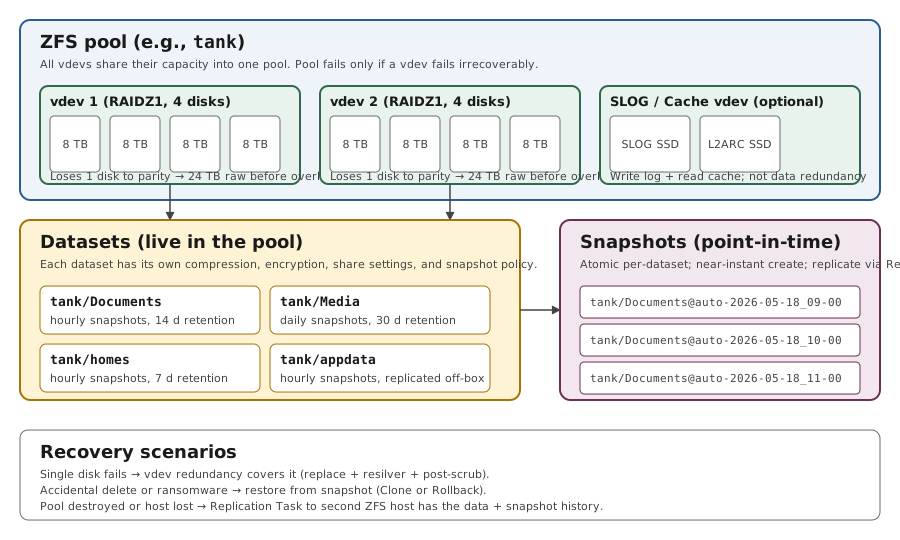
ZFS snapshots are the native recovery layer for TrueNAS — instant to create, atomic per-dataset, and the right tool for accidental delete, ransomware in-place encryption, and pre-upgrade rollback. They're not a backup (they live on the same pool), but combined with Replication Tasks they become the off-box recovery layer that sits in front of cloud backup. This page walks through the snapshot + replication pair end-to-end.
Best for: TrueNAS Scale operators with a working ZFS pool who haven't set up periodic snapshot or replication tasks yet, and want a defendable recovery model before adding more workload.
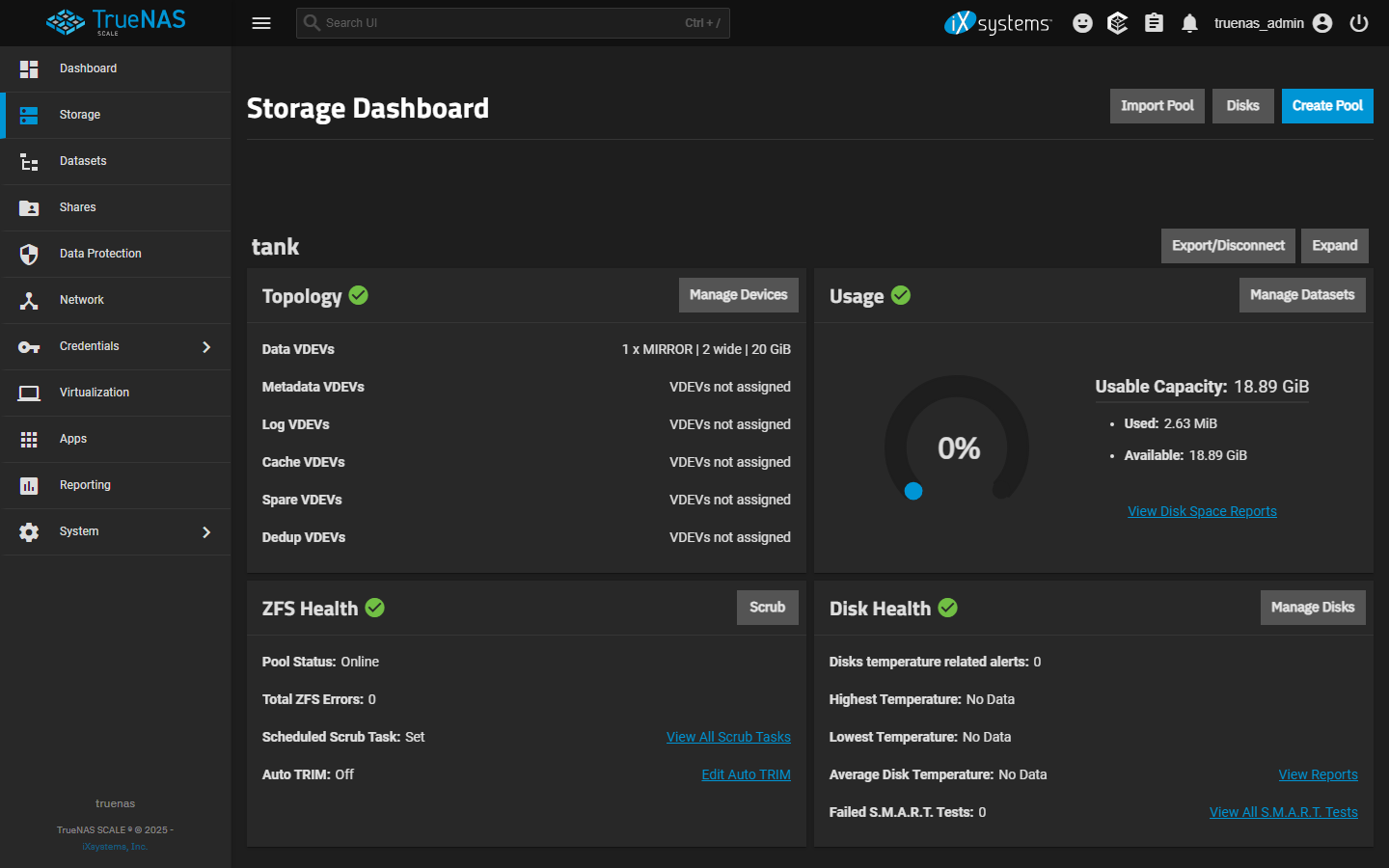
Start here: Verify pool is healthy and has capacity headroom
Storage > pool > ONLINE; scrub recent and clean; capacity below 80%.
I'm here because… (find your section in 30 seconds)
- I just deleted a file by accident → 'Snapshot-based recovery — the actual restore flow' below. Clone (safe — non-destructive) is almost always the right pick over Rollback (destructive).
- I'm setting up snapshots for the first time → 'Configuring a Periodic Snapshot Task' first, then 'Retention math' before you turn it on.
- I'm choosing between rsync and Replication for off-box backup → 'rsync vs Replication — when each is right' has the three-line decision tree.
- I'm replicating to a second TrueNAS / off-site → 'Replication to a second ZFS host'. Start with the destination first, then SSH credentials, then the Replication Task itself.
- My pool feels slow / I'm not sure scrubs are happening → 'Pool scrub schedule'. Default is monthly; un-scrubbed pools can hide silent corruption.
- I'm mid-upgrade from 24.10 / 25.04 to Goldeye and worried about the EFI bug → 'Goldeye 25.10.2 upgrade path' at the bottom. Target 25.10.2 directly, not 25.10.0 or 25.10.1.
Snapshot vs replication vs cloud backup
- Snapshots live on the source pool. Pool fails → snapshots gone. They protect against accidental delete, ransomware encrypting in place, and bad config changes you want to roll back. They don't protect against pool failure, hardware loss, or theft.
- Replication Tasks copy snapshots to a second ZFS host. The destination keeps its own retention; you can have hourly snapshots on the source and weekly on the destination. This is the off-box layer that protects against pool loss.
- Cloud Sync / Cloud Backup (covered in `/nas/truenas-scale-first-backup-setup`) writes to a non-ZFS destination — survives the loss of both TrueNAS hosts but doesn't preserve ZFS properties or snapshot history.
- Layer all three for proper data protection: snapshots for instant recovery → replication for pool-loss survival → cloud backup for home-loss survival.
Configuring a Periodic Snapshot Task
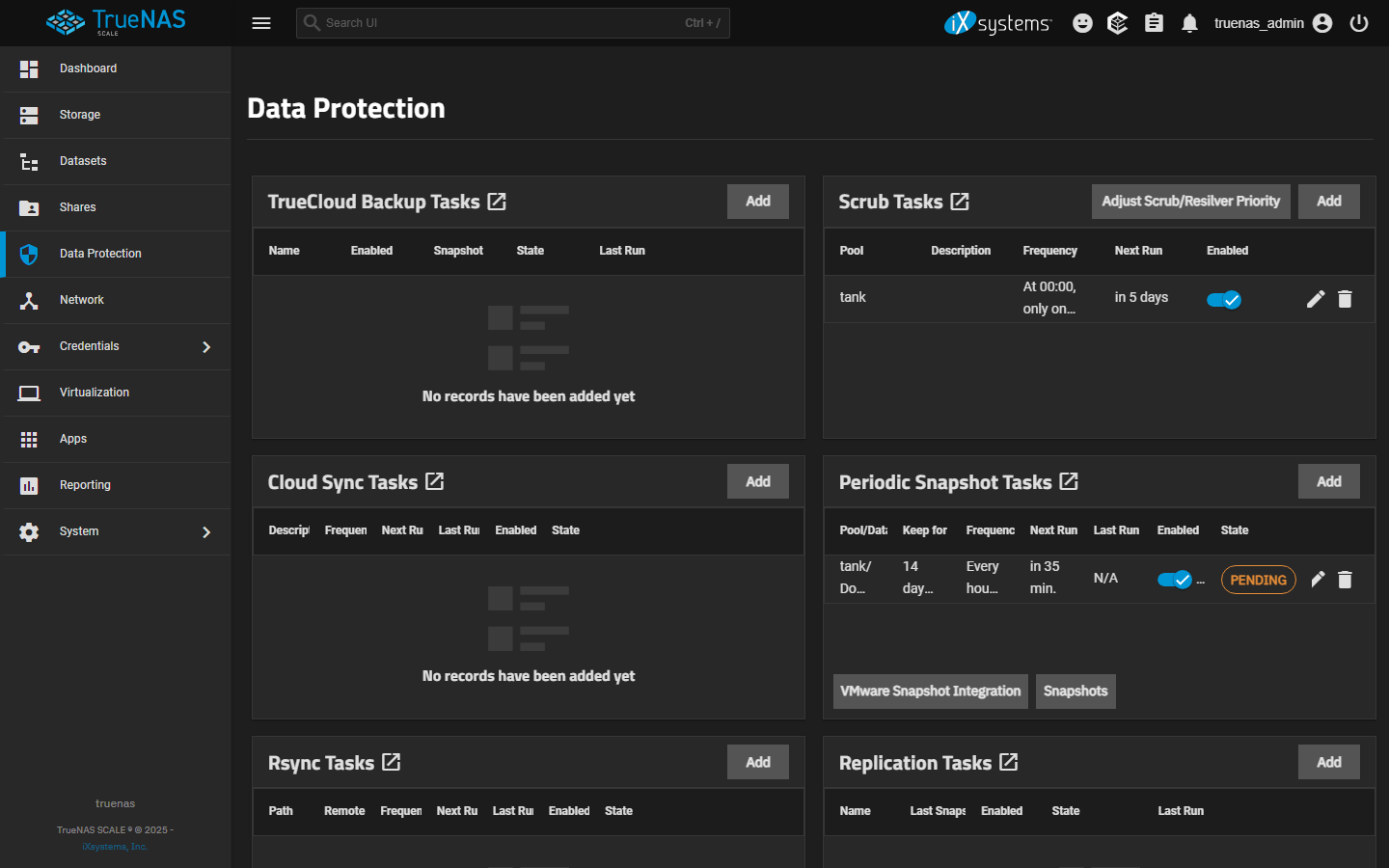
- Data Protection > Periodic Snapshot Tasks > Add. Pick the dataset(s); tick Recursive if you want children snapshotted too (typical for `/mnt/<pool>/data`).
- Naming Schema: TrueNAS's default is fine (`auto-%Y-%m-%d_%H-%M`). The `auto-` prefix matters because Replication Tasks can match on it to know which snapshots to replicate vs ignore.
- Snapshot Lifetime: pick a duration that matches the share's churn — 2 weeks for `Documents`, 1 month for media libraries, longer for archive datasets.
- Schedule: Hourly for active edit shares; Daily for media; pick off-peak times to avoid IO contention.
- Tick Allow taking empty snapshots if you want a snapshot taken even when there's been no change since the last one — useful for keeping a reliable timeline; off by default to save space.
Retention math (the part that fills pools)
- Snapshot storage cost is proportional to the change rate, not the dataset size. A 10 TB media library that rarely changes uses almost no snapshot space; a 100 GB database dataset that churns hourly can fill a pool quickly.
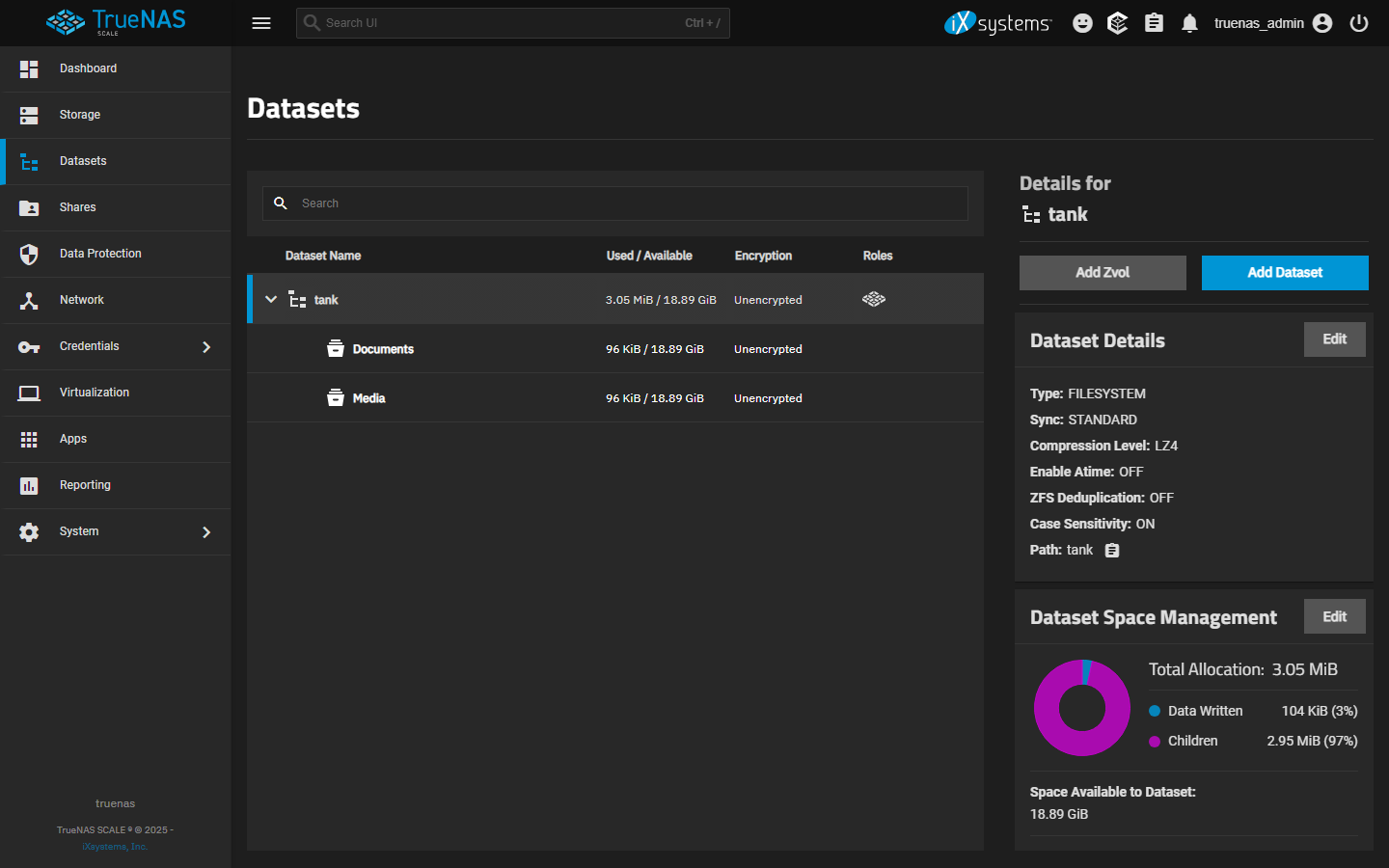
- Storage > pool > Datasets shows USED BY SNAPSHOTS per dataset. Watch this for the first week after enabling snapshots — if any dataset's snapshot-used is climbing toward 20% of the dataset's logical size, the retention is too aggressive for the churn.
- OpenZFS docs recommend keeping pool occupancy below 80% for performance. Combined with snapshot growth, this means: leave headroom. Don't enable hourly snapshots with month-long retention on a pool that's already 70% full.
- Pruning happens automatically based on Snapshot Lifetime + scheduled run. Don't delete snapshots manually unless you understand which ones are referenced by active Replication Tasks (deleting a referenced snapshot breaks replication).
Replication to a second ZFS host
- Set up the destination first: another TrueNAS Scale instance (preferred) or any ZFS host with SSH access. Create the receiving pool/dataset.
- On the source TrueNAS, Credentials > Backup Credentials > Add > SSH Connection. Either use semi-automatic setup (TrueNAS-to-TrueNAS, exchanges keys via the destination's API) or manual SSH key setup. Test the connection before continuing.
- Data Protection > Replication Tasks > Add. Source dataset, destination SSH connection + destination dataset path. Set Replicate Specific Snapshots = `auto-%Y-%m-%d_%H-%M` (or matching your snapshot schema) so only intended snapshots replicate.
- Encryption ON for over-internet replication (LAN-only can be off, but on is safer). Schedule replication after the snapshot schedule so each cycle replicates the latest.
- Test manually: trigger snapshot task, then trigger replication task. On the destination, run `zfs list -t snapshot` on the receive dataset and confirm the new snapshot appears.
Snapshot-based recovery — the actual restore flow
- 1) Storage > pool > dataset > Snapshots. Find the snapshot taken just before the accidental change (timestamps are in the dataset's local timezone).
- 2) Decide Clone or Rollback — see the explicit warning below. Default to Clone for almost every recovery scenario.
- STOP before Rollback. Rollback rolls the dataset back to the snapshot state AND deletes every snapshot taken *after* the target. This is destructive and irreversible — you cannot Ctrl-Z out of it. Use Clone first if you need to keep the dataset's current state (you almost always do). Only Rollback when you're certain you want the entire dataset reverted and you have no other snapshots between then and now that hold anything you'd want back. If unsure, Clone.
- 3a) Clone path (recommended): right-click the snapshot > Clone to New Dataset. Pick a clone name (e.g. `tank/Documents-clone-2026-05-31`). The clone is writable, mounts at `/mnt/<pool>/<clone-name>`, and shares the underlying blocks with the snapshot (near-zero space cost until you write to it).
- 3b) Mount and copy: `cd /mnt/<pool>/<clone-name>`, find the file you need, copy it back to the live dataset with `cp -p /mnt/<pool>/<clone-name>/path/to/file /mnt/<pool>/Documents/path/to/file`. Confirm checksums match if it's critical data.
- 4) Clean up the clone when done: Datasets > select clone > Delete. The clone is independent of the snapshot, so deleting the clone does NOT touch the snapshot.
- Alternative for self-service / casual file recovery: share the `.zfs/snapshot/` hidden directory over SMB (or enable SMB previous-versions on the share), and let users browse old versions and drag files back themselves — no admin step needed for routine 'I deleted a file' recovery.
- Practice this once during calm weather: take a snapshot, modify a file, clone the snapshot, copy the file back from the clone, delete the clone. Five minutes total; saves you in a real incident.
rsync vs Replication — when each is right
- Replication Tasks require ZFS on both ends and stream native snapshot data (`zfs send`/`zfs receive` under the hood). They preserve ZFS properties — compression ratios, snapshot history, dataset-level encryption — and copy only the changed blocks since the last snapshot. Right answer for TrueNAS-to-TrueNAS off-box recovery.
- Rsync Tasks (Data Protection > Rsync Tasks) work file-by-file to anything reachable over SSH (a generic Linux host, a remote bare-metal disk, another vendor's NAS). They don't preserve ZFS-specific metadata and don't carry snapshot history — the destination ends up with the current file state only, not the historical snapshot timeline.
- Three-line decision: destination is another ZFS host → Replication Task. Destination is a non-ZFS box you control and you need a flat file mirror → Rsync Task. Destination is a cloud bucket (S3, B2, Wasabi) → Cloud Sync (covered in `/nas/truenas-scale-first-backup-setup`). Goldeye 25.10 did not deprecate rsync — both options are still shipped and supported.
- Mixing both is common in practice: Replication Task to a second TrueNAS for snapshot-history off-box recovery (fast, ZFS-native), plus a slow Cloud Sync to B2/Wasabi for home-loss survival. Rsync usually only shows up when there's a specific reason — a legacy box, a permission boundary, a script that consumes rsync output.
Pool scrub schedule (the maintenance task most operators skip)
- Scrubs verify every block in the pool against its ZFS checksum and repair any silent corruption. Without scheduled scrubs, bit rot can sit undetected until the affected file is read — which may be never until you actually need it.
- TrueNAS Scale Goldeye creates a Scrub Task automatically when you create a pool — Data Protection > Scrub Tasks. The default is monthly. For pools with infrequent access (cold archives) or older drives, bump to every 2 weeks. For high-write workloads with constantly fresh data, monthly is fine.
- Scrubs are I/O-intensive — expect 50-80% pool throughput reduction during the scrub for large pools. Schedule them at off-peak times (the default 00:00 Sunday is sensible for most home setups). Don't run scrubs and replication at the same time on the same pool.
- Watch the scrub completion times for drift — if a routine monthly scrub starts taking materially longer than usual, the pool either grew significantly or a drive is starting to do more error retries on its way to failure. Storage > pool > Status shows the last scrub duration and any errors found.
Goldeye 25.10.2 upgrade path (the 25.04 → 25.10 boot-variable trap)
- Goldeye 25.10.2 (released 2026-02-19) is the current stable target as of mid-2026. It fixed three things that matter for snapshot/replication operators: encrypted snapshot replication stability (earlier Goldeye builds had intermittent failures on encrypted streams), NFSv4 performance, and a 25.04 → 25.10 upgrade scenario that filled the EFI boot variable space and left the system unbootable with a 'No space left on device' error.
- If you're on 25.04.x and considering Goldeye, target 25.10.2 directly — don't stop at 25.10.0 or 25.10.1, both of which can hit the boot-variable bug during the 25.04 → 25.10 promotion. If you've already upgraded to 25.10.0/.1, hit 25.10.2 next before any other operation.
- 25.10.1 (2025-12-18) added a Final Cut Pro Storage Share SMB preset and tightened SMB audit-log handling: shares now auto-disable when watch/ignore lists reference invalid groups, instead of silently failing the audit-log write. If you run SMB audit-logging on a share, re-verify the watch/ignore group references after upgrade.
- Direct I/O support for VMs landed in 25.10 — useful if you run VMs whose disks live on the same pool as snapshotted datasets. Doesn't change the snapshot/replication flow but reduces the IO-isolation pain when a VM is doing heavy disk work during a snapshot or replication cycle.
ZFS hierarchy diagram + TrueNAS Scale UI
Reference images and diagrams. Click any image to view full resolution.
Pool is ONLINE with at least 20% free capacity.
Data Protection > Periodic Snapshot Tasks > Add > dataset > Recursive (if children matter) > Naming Schema > Snapshot Lifetime > Schedule
Storage > pool overview. ONLINE; capacity below 80%.
Stop before treating replication as a replacement for Cloud Sync / Cloud Backup — destination still shares ZFS-side failure modes with source.
Layer path
Step-by-step runbook
Start here. Do each check in order, compare it to the expected result, and stop when the evidence explains the failure or the safe stop point applies.
Verify pool is healthy and has capacity headroom
Check: Storage > pool > ONLINE; scrub recent and clean; capacity below 80%.
Expected result: Both conditions are true.
If not: Free space or fix pool BEFORE enabling aggressive snapshot retention.
Configure the first periodic snapshot task on one dataset
Check: Data Protection > Periodic Snapshot Tasks > Add. Pick the most-edited dataset. Hourly + 14-day lifetime; default naming schema.
Expected result: Task created; first snapshot appears after next schedule fires.
If not: Start with one dataset to learn capacity behavior before extending.
Watch USED BY SNAPSHOTS for a week
Check: Storage > pool > datasets table > USED BY SNAPSHOTS column. Note baseline; recheck daily.
Expected result: Growth is stable or slow relative to dataset size.
If not: If aggressive growth, trim Snapshot Lifetime; consider excluding noisy paths.
Set up replication to a second ZFS host
Check: Configure SSH Connection in Credentials > Backup Credentials. Create Replication Task pointing at the destination dataset. Match Replicate Specific Snapshots to the snapshot task's schema. Encrypt for over-internet paths.
Expected result: Replication runs successfully; destination shows replicated snapshots.
If not: Debug SSH path independently before troubleshooting the replication task itself.
Safe stop: Stop before treating replication as a replacement for Cloud Sync / Cloud Backup — destination still shares ZFS-side failure modes with source.
Practice a snapshot restore drill
Check: Take a snapshot, modify a known file, restore the file via Clone, verify content matches the snapshot version, delete the clone.
Expected result: Restore drill succeeds; you understand the Clone-then-Rollback flow.
If not: Practicing during calm weather prevents fumbling during real incidents.
Document retention policy and replication schedule
Check: External record (operations doc, calendar): snapshot schedule per dataset, retention windows, replication destination, last successful replication.
Expected result: Recurring monthly review on calendar; written record outside the NAS.
If not: Without documentation, retention drift accumulates silently.
Did this solve your problem?
Your answer helps us improve this page.
No account or personal details. We store the page, answer, optional reason and day with a 90-day retention period. A random reference in this browser prevents repeat votes. Feedback privacy
Decision tree
If: Active edit dataset (Documents, homes, project folders).
Then: Hourly snapshots for 24 hours catch most accidental-delete cases.
Action: Data Protection > Periodic Snapshot Tasks > Add > hourly schedule + 14-day lifetime; layer a daily-for-a-month policy via a second task.
If: Low-churn dataset (media library, archives).
Then: Daily snapshots are sufficient; hourly would burn pool space without benefit.
Action: Daily schedule + 30-day lifetime.
If: Second ZFS host available for replication.
Then: Off-box protection against pool failure.
Action: Replication Task targeting the destination's SSH connection; encrypted; schedule after the snapshot task.
Safe stop: Stop before treating replication as Cloud-Backup-equivalent — destination is still ZFS-format and shares some failure modes with the source.
If: Pool occupancy already above 70% and growing.
Then: Snapshot retention risk is real.
Action: Conservative retention (daily snapshots only, shorter lifetime); or expand pool before enabling more aggressive snapshot policy.
Safe stop: Stop before enabling hourly snapshots on a pool above 75% — high probability of write-wedge during retention growth.
If: Need self-service file recovery for end users.
Then: ZFS snapshot directory `.zfs/snapshot/<snapname>/` is browsable per-dataset.
Action: Enable SMB previous-versions on the share, OR expose `.zfs/snapshot/` directly; users can browse old versions and copy files back.
Evidence table
| Symptom | Evidence to collect | Likely layer | Next action |
|---|---|---|---|
| USED BY SNAPSHOTS climbing 5%+/week on a dataset. | Storage > pool > datasets table USED BY SNAPSHOTS column. | Retention too aggressive for change rate | Trim Snapshot Lifetime; consider excluding noisy subdatasets; watch for app-data churn (databases, logs). |
| Replication task fails with 'no snapshots to replicate'. | Replication Task Logs. | Snapshot naming schema mismatch | Match the Replicate Specific Snapshots filter to the snapshot task's schema (defaults: `auto-%Y-%m-%d_%H-%M`). |
| Snapshot rollback destroyed snapshots newer than the rollback point. | Storage > pool > dataset > Snapshots — fewer rows after rollback. | Rollback semantics surprise | Always Clone first (preserves the current state as a writable clone), then decide whether to Rollback. Documented behavior; not a bug. |
| Replication destination shows snapshots that no longer exist on source. | On destination: `zfs list -t snapshot <dataset>`; on source: same command. | Destination retention longer than source | Intentional — destination's independent retention is the design. Adjust destination retention if it's growing too large; otherwise leave the longer history on the destination as the value-add. |
Commands and settings paths
Create a Periodic Snapshot Task
Data Protection > Periodic Snapshot Tasks > Add > dataset > Recursive (if children matter) > Naming Schema > Snapshot Lifetime > ScheduleWhere: In the TrueNAS web UI.
Expected: Task appears in the list; first snapshot appears under Storage > pool > dataset > Snapshots after the next schedule fires.
Failure means: If no snapshot appears, the schedule didn't fire or the dataset path is wrong.
Safe next step: Trigger Run Now; verify the snapshot appears in the dataset's snapshot list.
Restore a file from a snapshot via Clone
Storage > pool > dataset > Snapshots > the snapshot row > Clone to New Dataset. Mount the clone via SMB or browse in File Manager. Copy the file back to the live dataset.Where: In the TrueNAS web UI.
Expected: File restores cleanly from the clone.
Failure means: If the clone path isn't reachable, check the clone's mount status.
Safe next step: Delete the clone after restore: Storage > pool > dataset > clone > Delete.
Rollback a dataset to a snapshot (with safety clone first)
1) Clone the current state: dataset > Clone to New Dataset (preserves current state). 2) Storage > dataset > Snapshots > target snapshot > Rollback. 3) Confirm rollback (destroys newer snapshots).Where: In the TrueNAS web UI.
Expected: Dataset rolls back to the snapshot state; safety clone preserves the pre-rollback state.
Failure means: Failure to clone first means a wrong rollback is unrecoverable.
Safe next step: Always Clone before Rollback.
Verify a Replication Task end-to-end
Trigger snapshot task: Run Now. Then trigger replication task: Run Now. On destination: `zfs list -t snapshot <dest-dataset>` should show the new snapshot.Where: In the TrueNAS web UI on source; CLI or web UI on destination.
Expected: New snapshot appears on destination with matching name.
Failure means: If not, replication path is broken — check SSH credentials, destination dataset path, and Replicate Specific Snapshots filter.
Safe next step: Debug each layer independently: SSH first, then snapshot match, then replication.
Hardware and platform boundary
Change only when
- A second replication destination (off-site rather than just LAN) is the right next step only after on-LAN replication has been clean for a month.
Evidence that matters
- Pool capacity headroom (20%+ free), retention matched to change rate, and replication-destination independence matter most.
Evidence that does not matter
- More aggressive snapshot schedules don't help if pool is already capacity-tight; less aggressive doesn't help if active datasets lose hours of work between snapshots.
Avoid
- Avoid treating snapshots as a substitute for Cloud Sync / Cloud Backup, enabling hourly snapshots on a near-full pool, or deleting snapshots manually that are referenced by active replication.
Last reviewed
2026-05-18 · Reviewed by HomeTechOps. Reviewed against TrueNAS Scale's Periodic Snapshot Tasks, Replication Tasks, and pool management documentation, plus OpenZFS upstream guidance on snapshot-stream replication semantics.
Source-backed checks
HomeTechOps turns official docs and conservative safety rules into a shorter runbook. These links are the source trail for the page direction.
Planning a purchase?
We keep a source-backed, price-free comparison so you can buy once and right. No star ratings, every spec cited.
Synology vs UGREEN vs DIY NAS in 2026 →Get the deal & firmware alerts
Home Stack Field Notes: NAS deals, firmware changes worth acting on, restore-test reminders, and new decision guides — plus the capacity & backup sizing cheatsheets from our calculators. Unsubscribe anytime.
Subscribe on beehiiv