NAS
Update Unraid safely: when the server won't come back
We updated our own Unraid server from 7.3.2 to 7.3.3 on 17 October 2026. The update itself was clean. Three things around it were not: the Update OS page was blank, the server did not come back after the reboot, and it looked down for longer than it was because our home DNS runs on the same box. This page is Unraid's official update order plus exactly what we saw and what fixed it on our server.
Best for: Unraid 7.x operators about to apply a point release, or whose server has not come back after the update reboot.
Start here: Back up the boot device and read the release notes
Main → boot device → Boot Device Backup; open the 7.3.3 release notes and read Known issues and Rolling back.
I'm here because… (find your section in 30 seconds)
- I'm about to update and want to do it safely → 'Before you press update', then 'The update itself'.
- Tools → Update OS is blank, or the header has no update badge → 'Update OS page is blank (what we saw and what fixed it)'. On our server this was a broken Unraid Connect plugin update, not the OS.
- I rebooted and the server never came back → 'The server did not come back after the reboot'. Do not re-create the boot device yet.
- It's back, but names don't resolve / it still looks down from my Mac → 'It looked down longer than it was (DNS on the NAS)'.
- A parity check started on its own after the reboot → expected after an unclean shutdown. See 'After it boots, and rolling back' and Unraid parity check errors.
- I want to go back to 7.3.2 → 'After it boots, and rolling back'.
Before you press update
- Unraid's own order, from its Updating Unraid page: back up the boot device, read the release notes for the target version, update all plugins, optionally stop the array, update from Tools → Update OS, then reboot.
- Back up the boot device first. Main → select the boot device → Boot Device tab → Boot Device Backup downloads a zip to your computer (on releases before 7.3.0 the same control is labelled Flash). Store it off the server. This zip holds your configuration and licence key; it is what you restore from if the stick dies during the reboot.
- Read the release notes. 7.3.3 (dated 2026-10-08) is a security and fix release: Linux kernel 6.18.54, Docker 29.8.2, ZFS 2.4.4. It lists no new known issues and points to the 7.3.2 notes for rollback limits. It also updates the bundled Unraid API package (dynamix.unraid.net) to 4.37.5-2.
- Update plugins, then check they still work. Unraid's plugin docs warn that plugins can cause instability after OS updates. On our server a plugin update earlier the same day is what broke the Update OS page, so look at the WebGUI after updating plugins and before starting the OS update.
- Note where the boot stick is plugged in (which port, USB 2.0 or 3.x) and whether you can reach the server's console with a monitor and keyboard. You will want both if the reboot goes wrong.
- If your home DNS, DHCP or VPN runs as a container on this server, write down the server's IP address now. During the reboot those services go away with it.
Update OS page is blank (what we saw and what fixed it)
- What we saw: Tools → Update OS showed an empty panel, and the header area where the version and update badge normally appear was empty too. The browser's developer tools showed 404 errors for the page's web-component files.
- Cause on our server: an Unraid Connect / API plugin update (dynamix.unraid.net) earlier that day had left only 9 of the 146 files listed in its component manifest under `/usr/local/emhttp/plugins/dynamix.my.servers/unraid-components/`. The OS was fine; the page that drives the update could not load.
- Safer first option: Plugins tab → check for updates, then update or reinstall the Unraid Connect plugin. That re-installs the same files through the normal plugin path.
- What fixed it on our server: re-extracting only that folder from the plugin package already stored on the boot device. From Tools → Terminal: `ls /boot/config/plugins/dynamix.my.servers/*.txz` to find the package, then `tar -xJf /boot/config/plugins/dynamix.my.servers/dynamix.unraid.net-<version>.txz -C / usr/local/emhttp/plugins/dynamix.my.servers/unraid-components/` (use the exact file name `ls` printed). A browser refresh brought the page back. No restart was needed.
- That folder lives in RAM, not on the boot device, so a reboot also restores it when the plugin is re-installed at boot. Rebooting first is a valid fix; we avoided it only because we were about to reboot for the OS update anyway.
- If the page is still blank after this, boot in Safe Mode (Main → Array Operation → Reboot in safe mode) to rule out other plugins before updating.
The update itself
- Start from the header Update Available badge or Tools → Update OS, then View Changelog to Start Update → read the changelog → Continue.
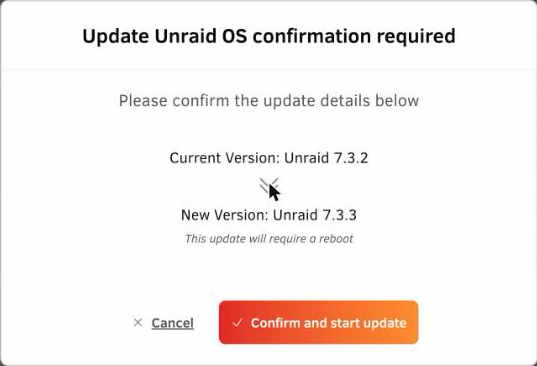
- The confirmation dialog states the current and new versions (ours: Unraid 7.3.2 → Unraid 7.3.3) and that the update will require a reboot. Confirm and start update writes the new release to the boot device.
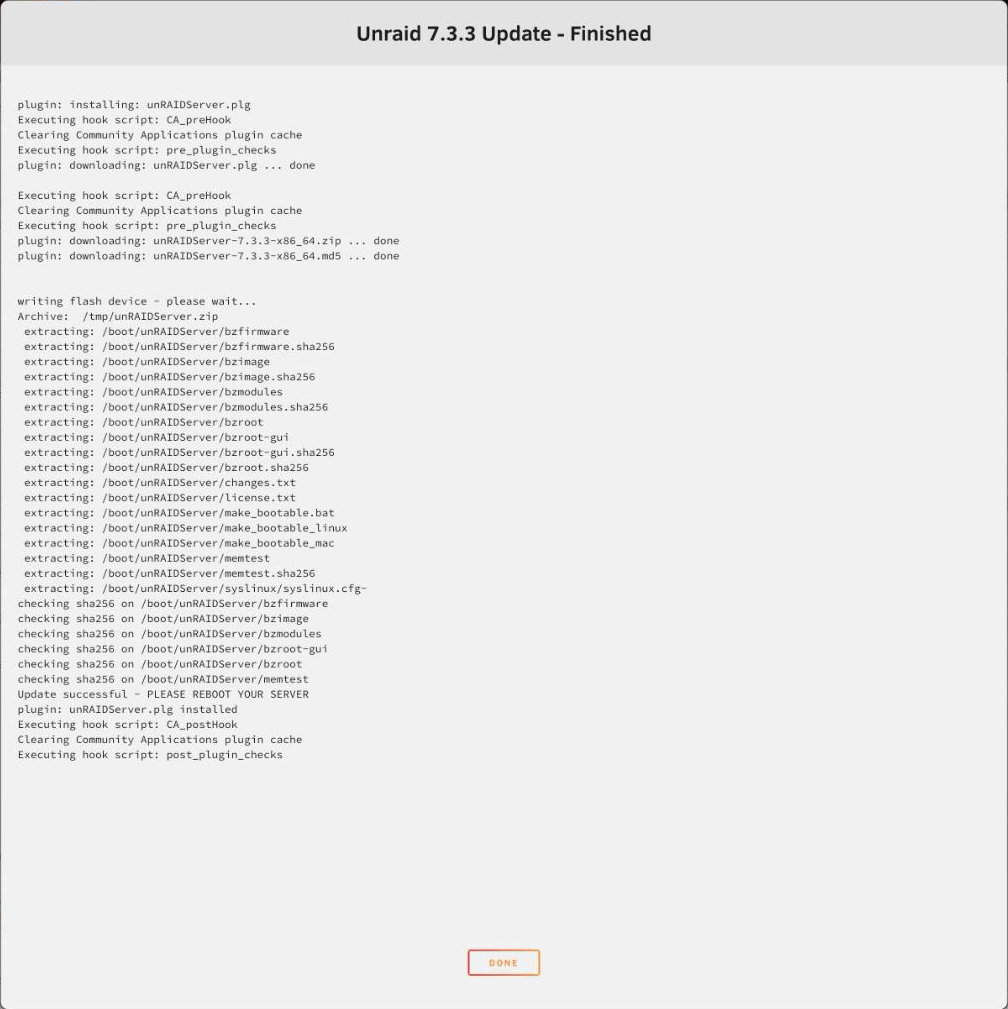
- The log downloads the release zip, extracts it to the boot device and checks the sha256 of each boot image (bzfirmware, bzimage, bzmodules, bzroot, bzroot-gui and memtest on our run). It ends with `Update successful - PLEASE REBOOT YOUR SERVER`. If any check fails, do not reboot; re-run the update.
- Until you reboot, the running system is still the old version; the header shows 'Reboot Required for Update'. On our server the previous release's files were kept in `/boot/previous`, which is what a rollback uses.
- Before rebooting: stop heavy writes, let any running parity check or Mover run finish, and use the WebGUI Reboot button rather than cutting power, so the array stops cleanly.
The server did not come back after the reboot
- What we saw: after the reboot the server dropped off the network and stayed off. No WebGUI, no ping.
- What brought it back: moving the USB boot stick to a different USB 2.0 port and power-cycling the server. It then booted 7.3.3, the array and all containers started, and an unclean-shutdown parity check began.
- We cannot prove the port was the cause, but it is the first item on Unraid's own boot-failure list: use a USB 2.0 port for the boot device if possible, as it is generally more reliable than USB 3.0.
- If yours hangs: connect a monitor if you can and note where boot stops (BIOS, boot menu, loading bz* files, or a login prompt). Unraid's boot-failure steps, in order: USB 2.0 port, BIOS boot order, check the stick on another computer, re-extract the release bz* files, rebuild the boot media from your backup, try Safe Mode.
- A forced power-off during a hung boot is usually unavoidable, but it is an unclean shutdown. Expect a parity check on the next boot.
- Do not reformat or re-create the boot stick as a first step. The `config` folder on it holds your settings and licence; a simple port change fixed ours.
It looked down longer than it was (DNS on the NAS)
- Our home DNS (AdGuard Home) runs as a container on this Unraid server. While the server was down, every device lost name resolution, so the server, the router admin page and the internet all looked broken at once.
- After the server came back, our Mac still failed to resolve names for a while because macOS had cached the failed lookups.
- Use the server's IP address in the browser while you troubleshoot; that skips DNS entirely.
- On a Mac, once the server is back: `sudo dscacheutil -flushcache; sudo killall -HUP mDNSResponder` clears the cached failures.
- Longer term, decide whether your router should hand out a second DNS server that does not live on the NAS. That keeps the house online during NAS maintenance, at the cost of some lookups bypassing your filter. See Pi-hole vs AdGuard Home vs NextDNS.
After it boots, and rolling back
- Confirm the version: the header shows 7.3.3, or run `cat /etc/unraid-version` in Tools → Terminal.
- Let the unclean-shutdown parity check finish. Unraid's docs say an unclean shutdown can trigger an automatic parity check at the next boot. Read Tools → Parity History when it ends; if it reports errors, follow Unraid parity check errors before running a correcting check.
- Check the Docker tab and any VMs. Unraid's update page lists one-time Docker migrations, rebuilding the Docker image, and VM bridge and machine-type fixes as known post-upgrade issues.
- Take a fresh Boot Device Backup now that the new version runs, and keep the pre-update one.
- Rolling back: Unraid's docs point to Tools → Downgrade OS, which returns to the previously installed version still on the boot device. If that option is missing, the previous files are not there; use the manual method in Unraid's docs. Read the 'Rolling back' section of the release notes first. Do not upgrade ZFS pool features until you are sure you will stay on the new version: Unraid warns an upgraded pool may not work with older releases.
Screens from our 7.3.2 to 7.3.3 update
Reference images and diagrams. Click any image to view full resolution.
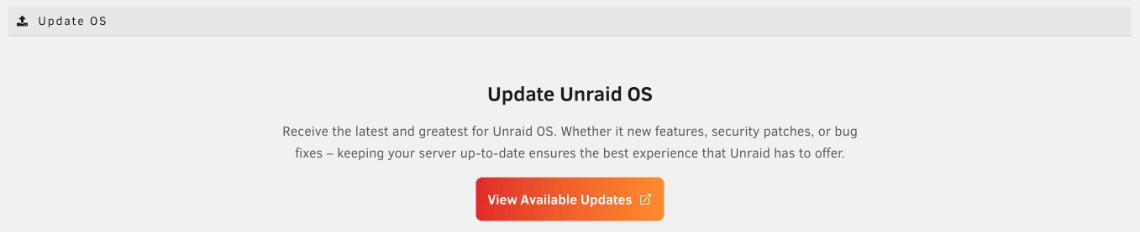
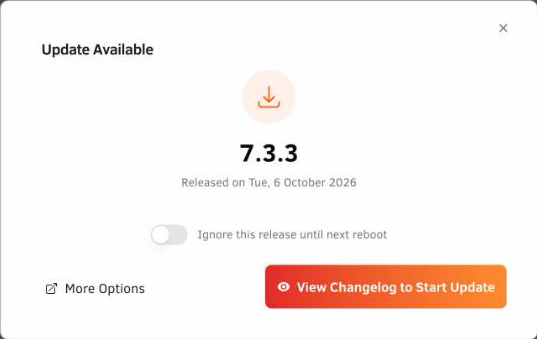
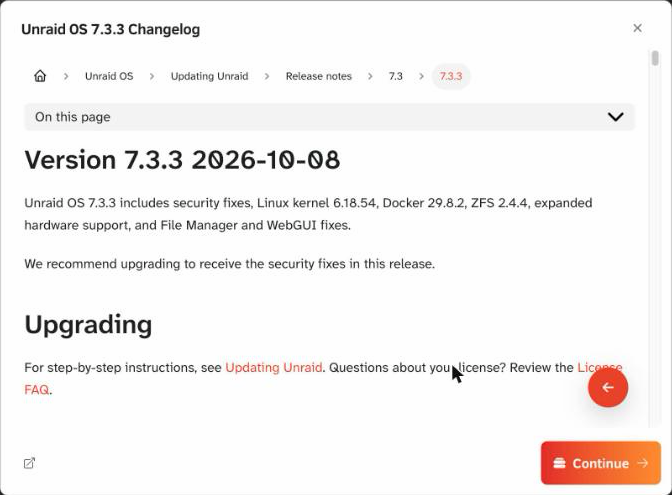

Main → boot device → Boot Device tab → Boot Device Backup.
Main → boot device → Boot Device tab → Boot Device Backup
A zip of the boot device downloads to your computer.
Stop before deleting plugin files from /boot/config/plugins to 'clean up'.
Layer path
Step-by-step runbook
Start here. Do each check in order, compare it to the expected result, and stop when the evidence explains the failure or the safe stop point applies.
Back up the boot device and read the release notes
Check: Main → boot device → Boot Device Backup; open the 7.3.3 release notes and read Known issues and Rolling back.
Expected result: A dated zip is stored off the server and you know the rollback limits.
If not: If the backup fails, fix the boot device first; do not update.
Update plugins and confirm the WebGUI is whole
Check: Plugins → check for updates and apply; then open Tools → Update OS and check the header.
Expected result: The Update Unraid OS panel and the header badge render.
If not: If the panel is blank, update or reinstall the Unraid Connect plugin, or reboot, before continuing.
Safe stop: Stop before deleting plugin files from /boot/config/plugins to 'clean up'.
Prepare for the reboot
Check: Write down the server's IP address and the boot stick's port; let any parity check or Mover run finish; pause heavy copies.
Expected result: No array operation is running and you can reach the server without DNS.
If not: If a parity check is running, wait for it to finish rather than interrupting it.
Run the update
Check: Update Available → View Changelog to Start Update → Continue → Confirm and start update.
Expected result: The log checks sha256 on each boot image and ends 'Update successful - PLEASE REBOOT YOUR SERVER'.
If not: If any check fails or the success line is missing, do not reboot; re-run the update.
Reboot cleanly and wait
Check: Use the WebGUI Reboot button, then ping the server by IP.
Expected result: The server answers by IP and the WebGUI shows the new version.
If not: If it never answers, attach a monitor, move the boot stick to a USB 2.0 port and power-cycle; then follow Unraid's boot-failure steps.
Safe stop: Stop before reformatting the boot stick without a Boot Device Backup.
Verify and record
Check: Check the version (`the "Confirm the running version" command below`), Docker and VMs; let any automatic parity check finish and read Parity History; take a new Boot Device Backup.
Expected result: New version confirmed, containers running, parity result recorded, fresh backup saved.
If not: If parity reports errors, follow the Unraid parity check errors runbook; if something essential is broken, read Rolling back and use Tools → Downgrade OS.
Safe stop: Stop before upgrading ZFS pool features until you are sure you will not roll back.
Did this solve your problem?
Your answer helps us improve this page.
No account or personal details. We store the page, answer, optional reason and day with a 90-day retention period. A random reference in this browser prevents repeat votes. Feedback privacy
Decision tree
If: Tools → Update OS is blank and the browser shows 404s for web-component files.
Then: The Unraid Connect / API plugin's components are missing from RAM; the OS is not the problem.
Action: Update or reinstall the Unraid Connect plugin from Plugins, or reboot. On our server, re-extracting the unraid-components folder from the plugin .txz on the boot device fixed it without a restart.
Safe stop: Stop before editing other plugin folders by hand or deleting plugin files from /boot/config/plugins.
If: Update log ends with 'Update successful', reboot hangs, server never reappears.
Then: Boot-stage failure: boot device port, BIOS boot order, or stick health.
Action: Move the stick to a USB 2.0 port and power-cycle; then follow Unraid's boot-failure steps in order.
Safe stop: Stop before reformatting the stick without a Boot Device Backup or a copy of its config folder.
If: Server answers by IP but names, the internet and the router admin page all fail.
Then: Home DNS runs on the NAS and clients cached the failures while it was down.
Action: Browse by IP; on a Mac run the DNS cache flush; consider a second DNS server that does not live on the NAS.
If: Server is back on the new version and a parity check started on its own.
Then: Unclean-shutdown parity check after a forced power-off.
Action: Let it finish, read Tools → Parity History, and follow the parity triage page if errors are reported.
Safe stop: Stop before running a correcting check until SMART and Parity History are read.
If: Something essential is broken on the new version and you need the old one back.
Then: Rollback case.
Action: Read the release notes' Rolling back section, then use Tools → Downgrade OS; if it is missing, use the manual method from Unraid's Updating Unraid page.
Safe stop: Stop before upgrading ZFS pool features on the new version; an upgraded pool may not work on the older release.
Evidence table
| Symptom | Evidence to collect | Likely layer | Next action |
|---|---|---|---|
| Update OS panel and header are blank. | Browser developer tools show 404s for files under the plugin's unraid-components path; Plugins shows a recent Unraid Connect update. | Unraid Connect / API plugin web components missing (RAM). | Update or reinstall the plugin, or reboot; re-extract the folder from the plugin .txz only if comfortable in the terminal. |
| Server does not come back after the update reboot. | Console output (if a monitor is attached) shows where boot stops; note the boot stick's port. | Boot device port, BIOS boot order, or stick health. | Move to a USB 2.0 port, power-cycle, then work through Unraid's boot-failure list. |
| Everything on the network looks down at once. | The server answers ping by IP; name lookups fail on clients. | DNS service hosted on the NAS, plus client DNS cache. | Use the IP address; flush the client DNS cache once the container is back. |
| Parity check running right after the update. | Syslog or the Main tab shows an unclean shutdown was detected at boot. | Forced power-off during the hung reboot. | Let the check finish; read Parity History and SMART before any correcting check. |
| Tools → Downgrade OS option is missing. | `ls /boot/previous` shows no previous bz* files. | Previous release not kept on the boot device. | Use the manual downgrade method from Unraid's docs, with a Boot Device Backup taken first. |
Commands and settings paths
Boot Device Backup
Main → boot device → Boot Device tab → Boot Device BackupWhere: In the Unraid WebGUI (labelled Flash on releases before 7.3.0).
Expected: A zip of the boot device downloads to your computer.
Failure means: If the download fails, the boot device may be unhealthy; do not start an OS update.
Safe next step: Store the zip off the server, then update.
Find the Unraid Connect plugin package on the boot device
ls /boot/config/plugins/dynamix.my.servers/*.txzWhere: Tools → Terminal (or SSH) on the Unraid server.
Expected: One dynamix.unraid.net-<version>.txz file is listed.
Failure means: No file means the plugin package is not on the boot device; reinstall the plugin from the Plugins tab instead.
Safe next step: Use the exact file name in the next command.
Restore the missing web-component folder (what fixed it on our server)
tar -xJf /boot/config/plugins/dynamix.my.servers/dynamix.unraid.net-<version>.txz -C / usr/local/emhttp/plugins/dynamix.my.servers/unraid-components/Where: Tools → Terminal on the Unraid server, only when Update OS is blank and reinstalling the plugin is not possible.
Expected: The command returns with no output; after a browser refresh, Tools → Update OS and the header render again.
Failure means: An error about the member path means this package lays out files differently; stop and reinstall the plugin from the Plugins tab.
Safe next step: Refresh the WebGUI; the folder is in RAM, so the next reboot re-installs it from the plugin anyway.
Confirm the running version
cat /etc/unraid-versionWhere: Tools → Terminal on the Unraid server after the reboot.
Expected: Prints the running version, e.g. version="7.3.3".
Failure means: The old version means the server booted the previous files; check the update log and the boot device.
Safe next step: Compare with the header and record it with the date.
Check that a rollback copy exists
ls /boot/previousWhere: Tools → Terminal on the Unraid server.
Expected: The previous release's bz* files and changes.txt are listed.
Failure means: An empty or missing folder means Tools → Downgrade OS cannot be used.
Safe next step: Keep your Boot Device Backup and use the manual method from Unraid's docs if a rollback is needed.
Flush the Mac DNS cache after the NAS-hosted DNS returns
sudo dscacheutil -flushcache; sudo killall -HUP mDNSResponderWhere: Terminal on the Mac, after the server and its DNS container are back.
Expected: No output; names resolve again on the next lookup.
Failure means: If names still fail, the DNS container has not started or the Mac uses a different resolver.
Safe next step: Check the container on the Docker tab and the Mac's DNS settings.
Hardware and platform boundary
Change only when
- Replace the boot stick only after it fails Unraid's checks (unreadable on another computer, errors on re-extracting the bz* files), not because one reboot hung; ours booted fine from a USB 2.0 port.
Evidence that matters
- A reliable USB 2.0 port for the boot device, a current Boot Device Backup, console access for the reboot, and a UPS so the array stops cleanly all matter for updates.
Evidence that does not matter
- A faster or larger USB 3 stick does not make updates safer; Unraid loads the OS into RAM and recommends USB 2.0 ports where possible.
Avoid
- Avoid updating without a boot-device backup, rebooting before the log says 'Update successful', and correcting parity straight after an unclean reboot.
Last reviewed
2026-10-17 · Reviewed by HomeTechOps. First-hand: written from our own Unraid 7.3.2 to 7.3.3 update on 17 October 2026 (blank Update OS page, hung reboot fixed by a USB 2.0 port, NAS-hosted DNS outage, unclean-shutdown parity check), checked against Unraid's Updating Unraid, 7.3.3 release notes, boot-failure, unclean-shutdown, boot-device backup and plugin docs.
Source-backed checks
HomeTechOps turns official docs and conservative safety rules into a shorter runbook. These links are the source trail for the page direction.
Planning a purchase?
We keep a source-backed, price-free comparison so you can buy once and right. No star ratings, every spec cited.
Synology vs UGREEN vs DIY NAS in 2026 →Get the deal & firmware alerts
Home Stack Field Notes: NAS deals, firmware changes worth acting on, restore-test reminders, and new decision guides — plus the capacity & backup sizing cheatsheets from our calculators. Unsubscribe anytime.
Subscribe on beehiiv