
Windows
Windows is asking for a BitLocker recovery key
Why Windows demands a 48-digit BitLocker recovery key after an update or firmware change, where to find the key, how to stop it recurring — and how to get past boot error 0xc0210000.
Start here: Get unlocked now
Read the Key ID on the screen, then look the 48-digit key up at account.microsoft.com/devices/recoverykey (personal) or your work account portal (Entra/AD). Enter it.
If no key exists anywhere, the data is unrecoverable — don't wipe until every store is checked.
Evidence from the screen
Reference images and diagrams. Click any image to view full resolution.
Problem summary
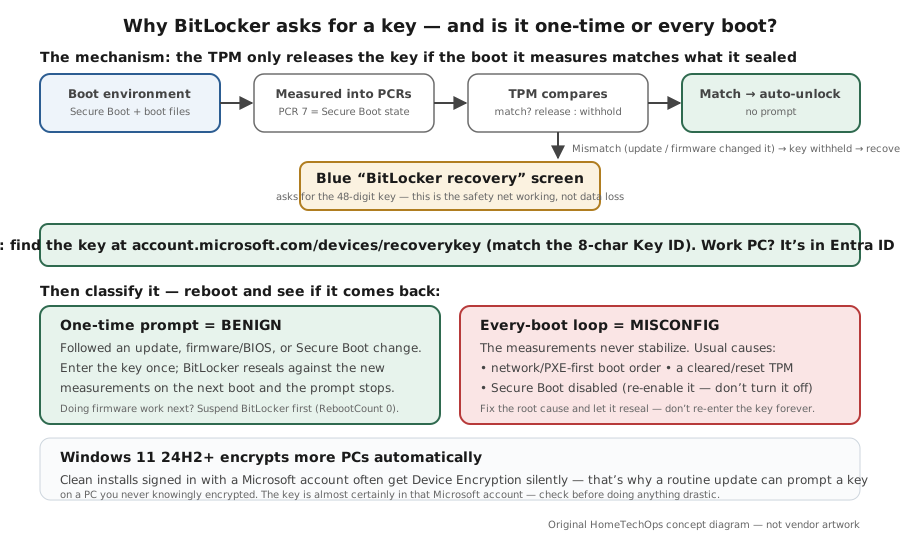
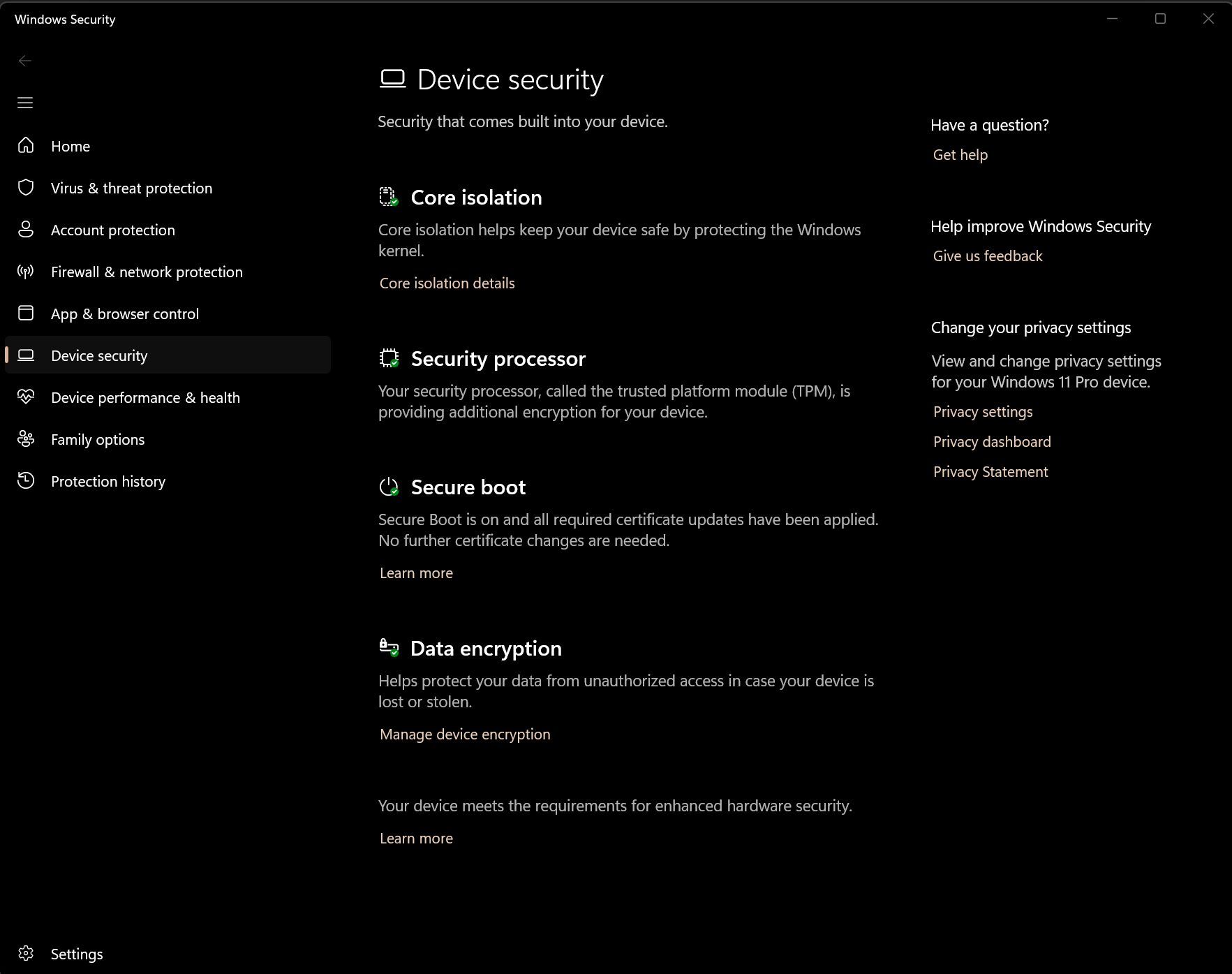
I'm here because Windows is showing a blue BitLocker recovery screen asking for a 48-digit recovery key — usually after an update, a BIOS/firmware change, or out of nowhere on a PC I didn't think was encrypted. First, the reassuring part: a recovery prompt is not data loss. Your drive is intact; BitLocker is just refusing to auto-unlock because the boot environment it measured changed. The job is to (1) find your key, (2) understand why it triggered, and (3) stop it happening again. On Windows 11 24H2 and newer, Device Encryption is on by default for many clean installs signed in with a Microsoft account — which is why people get prompted on a machine they never manually encrypted. If instead of a key prompt you get a blue 'Your PC/Device needs to be repaired' screen with error 0xc0210000 ('BitLocker key wasn't loaded correctly'), that's the same mechanism failing earlier in boot — the FAQ below covers it. If the PC also won't boot for non-BitLocker reasons, see Windows won't boot.
Read the 8-character Key ID shown on the recovery screen.
manage-bde -status
It identifies which stored recovery key matches this drive, so you grab the right one if several are saved.
If no key exists anywhere, the data is unrecoverable — don't wipe until every store is checked.
Layer path
Step-by-step runbook
Start here. Do each check in order, compare it to the expected result, and stop when the evidence explains the failure or the safe stop point applies.
Get unlocked now
Check: Read the Key ID on the screen, then look the 48-digit key up at account.microsoft.com/devices/recoverykey (personal) or your work account portal (Entra/AD). Enter it.
Expected result: Windows unlocks and boots normally — your data was never at risk.
If not: If the key isn't in your Microsoft account, check work accounts, printouts, and USB .BEK files before assuming it's lost.
Safe stop: If no key exists anywhere, the data is unrecoverable — don't wipe until every store is checked.
Classify it: one-time vs every-boot
Check: Reboot. See whether the prompt returns.
Expected result: A one-time prompt after an update/firmware change is benign and won't return once it reseals.
If not: If it returns on every boot, it's a configuration problem — go to the boot-order/Secure-Boot step.
Confirm why it triggered
Check: Match the prompt to a recent Windows update, BIOS/UEFI/TPM firmware change, or a Secure Boot/boot-order change. Run the "Check encryption + protection status" command below to confirm encryption state.
Expected result: You can attribute the prompt to a specific, benign change.
If not: If nothing changed and it loops, suspect PXE boot order, a cleared TPM, or disabled Secure Boot.
Fix a recurring loop at the root
Check: In UEFI, set the Windows disk first in the boot order (not network/PXE), confirm Secure Boot is enabled (don't disable it to 'fix' the prompt), and avoid clearing the TPM.
Expected result: With stable measurements, BitLocker reseals and the loop stops.
If not: If it still loops, capture the preboot error (PCR mismatch vs Secure Boot changed) and treat firmware/TPM as the suspect.
Safe stop: Disabling Secure Boot makes the loop worse, not better.
Prevent the next one
Check: Before any firmware/BIOS/TPM update, suspend BitLocker (manage-bde -protectors -disable C: -RebootCount 0), update, verify with the "Check encryption + protection status" command below, then resume. Confirm your recovery key is saved off the device.
Expected result: Future firmware work completes without a recovery prompt, and you always have the key as a backstop.
If not: If you can't confirm the key is escrowed/saved, back it up before doing any firmware work.
Safe stop: Never start firmware updates on an active BitLocker drive without the key accessible.
Did this solve your problem?
Your answer helps us improve this page.
No account or personal details. We store the page, answer, optional reason and day with a 90-day retention period. A random reference in this browser prevents repeat votes. Feedback privacy
Decision tree
If: One recovery prompt after a Windows/firmware update, then it would boot if you had the key.
Then: Benign Secure Boot / boot-file measurement change — the normal case.
Action: Enter the 48-digit key from your Microsoft account; BitLocker reseals on the next boot and the prompt stops.
If: Recovery prompt on every single boot.
Then: A persistent measurement mismatch — a real misconfiguration.
Action: Set the disk (not network/PXE) first in the UEFI boot order, confirm Secure Boot is enabled, and don't clear the TPM; then let BitLocker reseal.
Safe stop: Don't keep entering the key every boot as a 'solution' — fix the cause.
If: You're about to update BIOS/UEFI/TPM firmware.
Then: Firmware changes reliably change boot measurements and will trigger recovery if BitLocker is active.
Action: Suspend BitLocker first (manage-bde -protectors -disable C: -RebootCount 0, or Control Panel → Suspend protection), update, verify, then resume.
Safe stop: Never run a firmware update on an active BitLocker drive without the key saved off-device.
If: It's an April-2026-update prompt on a managed/work PC.
Then: Likely the KB5083769 known issue with an unrecommended PCR7 Group Policy — a first-restart, one-time prompt.
Action: Enter the key once; ensure KB5089549 (or later) is installed, which improves startup reliability after boot-file updates.
If: You can't find the key anywhere.
Then: If it was never escrowed or saved, the data is unrecoverable — even Microsoft can't regenerate it.
Action: Exhaust every store (Microsoft account, work account, printouts, USB .BEK files) before considering the drive lost.
Safe stop: Do not wipe/reinstall on the assumption the key is gone until you've checked the Microsoft account by Key ID.
Evidence table
| Symptom | Evidence to collect | Likely layer | Next action |
|---|---|---|---|
| Blue 'BitLocker recovery' screen with a Key ID, once after an update. | The Key ID; the recent update/firmware event. | Benign Secure Boot / boot-file measurement change. | Enter the key from account.microsoft.com/devices/recoverykey; it reseals next boot. |
| Recovery prompt on every boot. | UEFI boot order (is network/PXE first?); Secure Boot enabled state; any recent TPM clear. | Persistent mismatch (PXE-first boot order, disabled Secure Boot, or reset TPM). | Fix boot order / re-enable Secure Boot / stop clearing the TPM, then let it reseal. |
| Prompt appeared right after a BIOS/UEFI or TPM firmware update. | Whether BitLocker was suspended before the update. | Firmware change altered boot measurements. | Enter the key; next time, suspend BitLocker before firmware work. |
| Prompt on a PC the owner never knowingly encrypted (Windows 11 24H2+). | Whether the PC was clean-installed with a Microsoft account; manage-bde -status output. | Automatic Device Encryption enabled at setup. | Retrieve the key from the Microsoft account it was escrowed to. |
Commands and settings paths
Check encryption + protection status
manage-bde -statusWhere: Elevated Command Prompt / Terminal (once Windows is running)
Expected: Shows whether the drive is encrypted, the protection status, and the encryption method — confirming BitLocker/Device Encryption is actually on.
Failure means: If it shows 'Protection On' on a drive you didn't encrypt, 24H2 auto-encryption is why you're being prompted.
Safe next step: Use this to confirm state before suspending or changing anything.
Read which PCRs the policy validates
manage-bde -protectors -get C:Where: Elevated Command Prompt
Expected: Lists the protectors and the TPM PCR validation profile — useful to see if PCR 7 is pinned by policy (the April-2026 managed-device case).
Failure means: A pinned PCR7 profile on a managed PC matches the KB5083769 known issue.
Safe next step: On managed devices, removing the unrecommended PCR7 Group Policy is Microsoft's documented workaround.
Suspend BitLocker before firmware/BIOS/TPM updates
manage-bde -protectors -disable C: -RebootCount 0 (resume: manage-bde -protectors -enable C:)Where: Elevated Command Prompt
Expected: BitLocker is suspended (key available, integrity checks skipped) so a measurement change during the update doesn't trigger recovery; -RebootCount 0 keeps it suspended until you resume.
Failure means: A single-reboot suspend can resume mid-update (firmware often needs several reboots) and still trip recovery.
Safe next step: Resume protection (or Resume-BitLocker) right after the update completes; verify with manage-bde -status.
Hardware and platform boundary
Change only when
- There's nothing to buy — the fix is finding the key and stabilizing the boot environment. If anything, a small printed copy of the recovery key stored safely is the only 'purchase' worth making.
Evidence that matters
- The 48-digit recovery key, escrowed to your Microsoft (or work) account and ideally also saved off-device.
- Stable UEFI settings: Windows disk first in the boot order, Secure Boot enabled.
- A habit of suspending BitLocker before firmware/BIOS/TPM updates.
Evidence that does not matter
- Decrypting the whole drive 'to avoid the prompt' — it removes your protection for a problem that's usually a one-time reseal.
- Third-party BitLocker 'unlock' tools — the legitimate key from your account is the only thing that works.
Avoid
- Disabling Secure Boot to stop the prompt (it makes the mismatch permanent).
- Clearing the TPM without the recovery key in hand.
- Running BIOS/TPM firmware updates without suspending BitLocker first.
- Wiping/reinstalling because you 'can't find the key' before checking the Microsoft account by Key ID.
Related tool/checklist
Use the linked tool when you need a guided plan from your exact symptoms instead of a static checklist.
Backup plan builderRelated problems
Last reviewed
2026-06-02 · Reviewed by HomeTechOps. Reviewed against Microsoft's find-your-recovery-key, recovery-process, suspend-BitLocker, Secure Boot troubleshooting, and Device Encryption documentation plus the April/May 2026 KB notes; distinguishes the benign one-time reseal from a real every-boot loop, leads with retrieving the key (not decrypting), and is explicit that disabling Secure Boot is the wrong move.
Sources/assumptions
- Assumes a consumer Windows 11 PC with BitLocker or Device Encryption on the OS drive; work/school (Entra ID / Active Directory) devices escrow the key to the organization instead of a personal Microsoft account.
- The recovery-key location, the PCR/Secure Boot trigger mechanism, the suspend-before-firmware syntax, and the 24H2 auto-encryption behavior follow Microsoft Support and Microsoft Learn current to mid-2026.
- Windows 11 24H2 Home and Pro stopped getting updates after 13 October 2026 (Enterprise and Education run to 12 October 2027). 26H2 became generally available on 29 September 2026 and 25H2 is still supported, so move a 24H2 Home or Pro PC to 26H2 or 25H2 now (checked 2026-10-17).
- The April 2026 KB5083769 BitLocker known issue is, per Microsoft, narrow and mostly affects managed devices with an unrecommended PCR7 Group Policy — a stock consumer recovery prompt is more often the generic one-time Secure Boot measurement change.
Source-backed checks
HomeTechOps turns official docs and conservative safety rules into a shorter runbook. These links are the source trail for the page direction.
Get the deal & firmware alerts
Home Stack Field Notes: NAS deals, firmware changes worth acting on, restore-test reminders, and new decision guides — plus the capacity & backup sizing cheatsheets from our calculators. Unsubscribe anytime.
Subscribe on beehiiv