
Windows
Windows 11 won't boot or is stuck in a boot loop
Recover a Windows 11 PC that won't start: enter WinRE, roll back a bad update, run Startup Repair, and fix the boot files without erasing your files.
Start here: Capture the trigger and protect your key
Write down when it broke and the last change (update/driver/firmware). Confirm you can read your BitLocker recovery key from account.microsoft.com/devices/recoverykey on another device.
Don't start boot-file repairs on a BitLocker drive without the key accessible.
Evidence from the screen
Reference images and diagrams. Click any image to view full resolution.
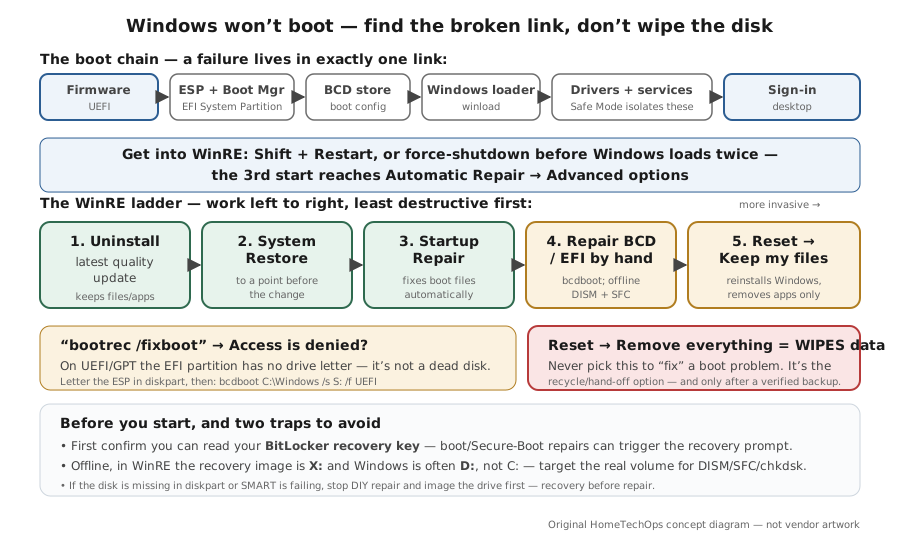
Problem summary
I'm here because my Windows 11 PC won't start — it loops on the spinning dots, drops to Automatic Repair, throws a stop code, or hangs before the sign-in screen. The single most important rule: a PC that won't boot almost never needs to be erased. The right path is to get into the Windows Recovery Environment (WinRE) and work from least-destructive to most — uninstall the last update, System Restore, Startup Repair, then targeted boot-file repair — and only consider Reset this PC with Keep my files as a later step. If this started right after a Patch Tuesday update, that is a strong clue. Before you touch anything boot-related, make sure you can get your BitLocker recovery key — see Windows is asking for a BitLocker recovery key.
Note exactly when it broke and what changed — especially a recent Windows update, a driver install, or a BIOS/firmware change.
WinRE → Troubleshoot → Advanced options → Uninstall Updates → Uninstall latest quality update
You have a 'last known change' to correlate against, which points straight at Uninstall Updates or System Restore.
Don't start boot-file repairs on a BitLocker drive without the key accessible.
Layer path
Step-by-step runbook
Start here. Do each check in order, compare it to the expected result, and stop when the evidence explains the failure or the safe stop point applies.
Capture the trigger and protect your key
Check: Write down when it broke and the last change (update/driver/firmware). Confirm you can read your BitLocker recovery key from account.microsoft.com/devices/recoverykey on another device.
Expected result: You have a likely cause to target and the key in hand if a repair trips a recovery prompt.
If not: If you can't find the key and the drive is encrypted, get the key sorted before any boot/Secure Boot repair.
Safe stop: Don't start boot-file repairs on a BitLocker drive without the key accessible.
Enter WinRE
Check: Shift+Restart from the sign-in screen, or force-shutdown before Windows finishes loading twice so the third start reaches Automatic Repair → Advanced options.
Expected result: You're at the 'Choose an option' recovery menu.
If not: If WinRE never appears, boot Windows install/recovery media and pick 'Repair your computer'.
Undo the recent change
Check: Troubleshoot → Advanced options → Uninstall Updates → Uninstall latest quality update. If it broke after a driver/app, use System Restore instead.
Expected result: Windows removes the change and boots; your files and apps are intact.
If not: If neither helps, move on to Startup Repair.
Safe stop: Re-apply the update only once a fixed build is available; don't leave security updates off.
Run Startup Repair
Check: Advanced options → Startup Repair; let it run to completion.
Expected result: It fixes the boot files automatically and Windows starts.
If not: If it reports it couldn't repair your PC, open Command Prompt for manual boot-file repair.
Repair boot files by hand
Check: In Command Prompt confirm the disk is healthy (diskpart → list disk/volume), back up the BCD (bcdedit /export), then bootrec /rebuildbcd; if /fixboot is denied, letter the ESP and run bcdboot. Run offline DISM+SFC against the real Windows letter if system files are corrupt.
Expected result: The boot store/ESP is rebuilt and Windows boots.
If not: If the disk is missing or failing in diskpart, stop and image it — this is hardware, not config.
Safe stop: Never run repeated rebuilds against a failing disk.
Repair-install only as a last resort, after a backup
Check: If every targeted repair failed but the disk is healthy, use Reset this PC → Keep my files (keeps documents, removes apps). Clean reinstall / Remove everything only after a verified backup.
Expected result: Windows reinstalls cleanly while preserving your personal files.
If not: If you can't back up first, get the drive imaged before any wipe.
Safe stop: Remove everything erases all data — never use it to 'fix' a boot issue.
Did this solve your problem?
Your answer helps us improve this page.
No account or personal details. We store the page, answer, optional reason and day with a 90-day retention period. A random reference in this browser prevents repeat votes. Feedback privacy
Decision tree
If: It started right after a Windows update / Patch Tuesday.
Then: A bad cumulative update is the prime suspect.
Action: WinRE → Uninstall latest quality update (non-destructive), reboot, then pause updates for a week.
Safe stop: Don't Reset or reinstall for a patch problem — rolling back the patch is the fix.
If: It started after a new driver, app, or overclock/BIOS change.
Then: A software/driver or firmware change broke the boot environment.
Action: Use System Restore to the point before the change, or Safe Mode (Startup Settings → 4/5/6) to remove the driver.
If: Startup Repair fails and you see BCD or 'boot configuration' errors.
Then: The Boot Configuration Data store is damaged.
Action: From Command Prompt back up first (`bcdedit /export`), then `bootrec /rebuildbcd`; if `/fixboot` says Access is denied, letter the ESP and run `bcdboot`.
If: bootrec /fixboot returns 'Access is denied' on a UEFI/GPT PC.
Then: The EFI System Partition has no drive letter or its boot files are damaged — not a dead disk.
Action: In diskpart assign the ESP a letter, then `bcdboot C:\Windows /s S: /f UEFI`, then re-run the boot repair.
If: The disk is missing in diskpart, or SMART/POST reports drive errors.
Then: This is a storage hardware failure, not a boot-config issue.
Action: Stop repairing and image the drive (or get it imaged) before anything that writes to it.
Safe stop: Don't run repeated writes/rebuilds against a failing disk — you can lose recoverable data.
If: Everything software-level failed but the disk is healthy.
Then: A repair-install is the next step before a clean wipe.
Action: Reset this PC → Keep my files (reinstalls Windows, keeps documents, removes apps); clean reinstall only as the last resort after a verified backup.
Safe stop: Never pick Remove everything to 'fix' a boot problem — it erases your data.
Evidence table
| Symptom | Evidence to collect | Likely layer | Next action |
|---|---|---|---|
| Spinning dots loop, then 'Automatic Repair' / 'Preparing Automatic Repair'. | When it began vs the last update date; whether Startup Repair completes or fails. | Boot files / recent update. | Uninstall latest quality update, then Startup Repair. |
| Blue BitLocker recovery screen asking for a 48-digit key. | The 8-character Key ID shown; whether you have the key in your Microsoft account. | Secure Boot / TPM measurement change (often after an update or firmware change). | Enter the key from account.microsoft.com/devices/recoverykey; see the BitLocker page for the why and the recurring-loop fix. |
| Stop code (e.g. INACCESSIBLE_BOOT_DEVICE, CRITICAL_PROCESS_DIED) on a blue screen. | The exact stop-code text; recent storage-driver or firmware changes. | Driver / storage controller mode or a corrupt system file. | Safe Mode to roll back the driver; offline SFC/DISM if a system file is corrupt. |
| 'bootrec /fixboot' → Access is denied. | diskpart `list volume` output showing the FAT32 EFI/System partition and its letter (or lack of one). | EFI System Partition (unlettered or damaged boot files). | Assign the ESP a letter and rebuild boot files with bcdboot. |
| Disk not listed in diskpart, or POST/SMART errors. | Whether the drive appears in UEFI/BIOS; SMART status. | Storage hardware failure. | Image the drive before any write; replace the disk. |
Commands and settings paths
Roll back the bad update (non-destructive)
WinRE → Troubleshoot → Advanced options → Uninstall Updates → Uninstall latest quality updateWhere: WinRE recovery menu (no typing needed)
Expected: The most recent cumulative update is removed and the PC boots; personal files, apps, and settings are untouched.
Failure means: If it still won't boot, the cause isn't the latest patch — move to Startup Repair / boot-file repair.
Safe next step: Reboot, confirm, then pause Windows Update for a week before re-applying.
Find the real Windows drive letter offline
bcdedit (read the osdevice value)Where: WinRE → Advanced options → Command Prompt
Expected: You see which volume holds Windows — in WinRE it's usually D:, while X: is the recovery image itself.
Failure means: If you target the wrong letter, offline SFC/DISM/chkdsk repair the wrong (or no) volume.
Safe next step: Use that letter for /offwindir, /image, and chkdsk targets below.
Repair boot files safely (back up the BCD first)
bcdedit /export C:\bcdbackup → bootrec /fixmbr → bootrec /scanos → bootrec /rebuildbcdWhere: WinRE Command Prompt
Expected: The BCD is backed up, then rebuilt; the OS is detected and added back to the boot menu.
Failure means: If /fixboot returns 'Access is denied', the EFI partition needs a letter — use bcdboot instead.
Safe next step: If rebuild fails, restore the backup (ren bcd.old back) and move to bcdboot / Startup Repair.
Rebuild EFI boot files when /fixboot is denied
diskpart → select the EFI volume → assign letter=S: → bcdboot C:\Windows /s S: /f UEFIWhere: WinRE Command Prompt (UEFI/GPT systems)
Expected: Fresh boot files are written to the EFI System Partition and the PC boots.
Failure means: If bcdboot fails, the ESP may be the wrong size/format or the Windows volume letter is wrong — recheck with diskpart.
Safe next step: Re-run bootrec /fixboot afterward; then reboot.
Offline system-file + disk repair (target the real Windows volume)
chkdsk /f D: → DISM /image:D:\ /cleanup-image /restorehealth → sfc /scannow /offbootdir=D:\ /offwindir=D:\windowsWhere: WinRE Command Prompt (replace D: with your osdevice letter)
Expected: Disk errors are fixed and corrupt system files are repaired from the component store.
Failure means: If DISM can't find a source or SFC reports unrepairable files, a repair-install (Reset → Keep my files) is the next step.
Safe next step: Reboot and re-test; only Reset/reinstall after this and a verified backup.
Hardware and platform boundary
Change only when
- Buy a recovery USB (or make one on another PC) before you need it — it's the most reliable way into WinRE when the boot manager is gone.
- Replace the system drive if diskpart/SMART shows it failing — a dying SSD/HDD will keep 'un-fixing' the boot files no matter how many times you repair them.
Evidence that matters
- A real backup with a tested restore (image-level), so a worst-case wipe is an inconvenience, not a loss.
- Your BitLocker recovery key saved off the device (Microsoft account, printout, or USB).
- Knowing your PC is UEFI/GPT vs legacy BIOS/MBR — it changes which boot-repair commands apply.
Evidence that does not matter
- Third-party 'boot repair' / 'one-click fix' tools — WinRE's built-in Startup Repair, bootrec, and bcdboot cover the same ground without the risk.
- Registry 'cleaners' marketed as boot fixes — irrelevant to a boot-file problem.
Avoid
- Choosing Reset → Remove everything (or a clean install) before trying the non-destructive steps.
- Running offline SFC/DISM/chkdsk against the wrong drive letter (X: is WinRE, not Windows).
- Rebuilding the BCD without exporting it first, so you can't roll back a bad rebuild.
- Repeatedly retrying bootrec /fixboot when it's denied instead of fixing the EFI partition.
Related tool/checklist
Use the linked tool when you need a guided plan from your exact symptoms instead of a static checklist.
Backup plan builderRelated problems
Last reviewed
2026-06-02 · Reviewed by HomeTechOps. Reviewed against Microsoft's WinRE, boot-troubleshooting, bcdboot/bcdedit, and push-button-reset documentation; orders recovery from least- to most-destructive (uninstall update → System Restore → Startup Repair → manual BCD/ESP repair → repair-install), pins the WinRE drive-letter and ESP 'access denied' gotchas, and ties boot-file work to having the BitLocker key first.
Sources/assumptions
- Assumes a UEFI/GPT Windows 11 PC (24H2 build 26100.x or 25H2 build 26200.x); legacy BIOS/MBR systems use different boot-repair commands.
- Windows 11 24H2 Home and Pro stopped getting updates after 13 October 2026 (Enterprise and Education run to 12 October 2027). 26H2 became generally available on 29 September 2026 and 25H2 is still supported, so move a 24H2 Home or Pro PC to 26H2 or 25H2 now (checked 2026-10-17).
- WinRE entry, the recovery menu labels, and the bootrec/bcdboot/offline-SFC syntax follow Microsoft Support and Microsoft Learn current to mid-2026; OEM key combos to reach recovery vary by vendor.
- The 2026 Patch Tuesday boot-loop reports (around KB5083769) are a mix of a Microsoft-acknowledged BitLocker/Secure Boot known issue and broader community reports — treat severe reboot loops as 'roll back the update first', not a confirmed universal bug.
Source-backed checks
HomeTechOps turns official docs and conservative safety rules into a shorter runbook. These links are the source trail for the page direction.
Get the deal & firmware alerts
Home Stack Field Notes: NAS deals, firmware changes worth acting on, restore-test reminders, and new decision guides — plus the capacity & backup sizing cheatsheets from our calculators. Unsubscribe anytime.
Subscribe on beehiiv