
Windows
Printer shows offline after a Windows 11 update
A network printer stuck offline on Windows 11 after an update? The real causes: SNMP status polling, a changed printer IP, a spooler glitch, and the fixes.
Start here: Confirm the correct printer endpoint and obvious queue flags
Read the current IP from the printer’s own screen/configuration report. Open its local web/admin page if supported, and compare the IP with the Windows printer port. In the queue check Use Printer Offline / Pause Printing and inspect stuck jobs. Ping is supporting evidence only: printers or firewalls can block ICMP while printing still works.
Do not cancel other people’s jobs without checking them, or change a shared print server just to fix one client.
Evidence from the screen
Reference images and diagrams. Click any image to view full resolution.
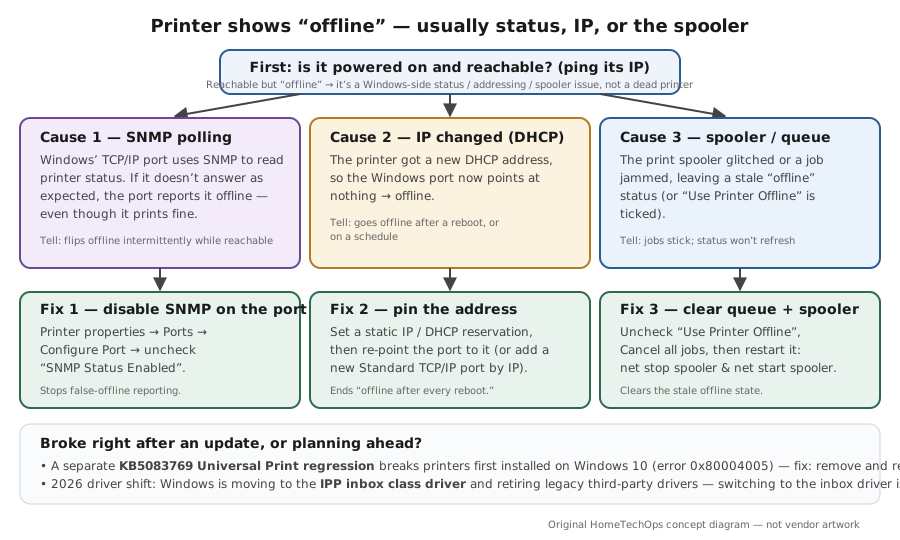
Problem summary
I'm here because my network printer shows 'offline' on Windows 11 even though it's powered on and on the network — often right after an update. The usual culprits aren't the printer being broken: SNMP status polling marks a reachable printer offline when it doesn't answer as expected, the printer's IP changed (DHCP) so the port points nowhere, or the print spooler glitched. The fixes match: uncheck 'Use Printer Offline', restart the Print Spooler, disable SNMP on the printer's TCP/IP port, or set a static IP / re-add the printer by IP. There's also a real 2026 backdrop — Windows is moving to IPP class-driver printing and retiring legacy third-party drivers — which this page puts in context. This page also covers the plain 'printer says offline but it is connected' case, and is the Windows-update angle on printer not found on the network.
Confirm the printer is powered on, not in error/sleep, and on the same network (ping its IP).
net stop spooler then net start spooler
The printer is reachable on the network.
Do not cancel other people’s jobs without checking them, or change a shared print server just to fix one client.
Layer path
Step-by-step runbook
Start here. Do each check in order, compare it to the expected result, and stop when the evidence explains the failure or the safe stop point applies.
Confirm the correct printer endpoint and obvious queue flags
Check: Read the current IP from the printer’s own screen/configuration report. Open its local web/admin page if supported, and compare the IP with the Windows printer port. In the queue check Use Printer Offline / Pause Printing and inspect stuck jobs. Ping is supporting evidence only: printers or firewalls can block ICMP while printing still works.
Expected result: The Windows port targets this printer’s current address and its admin page or configured print service responds.
If not: If the address changed, stabilise it with a DHCP reservation and correct the port. If only ping fails, do not declare the printer unreachable without a service-level test.
Safe stop: Do not cancel other people’s jobs without checking them, or change a shared print server just to fix one client.
Restart the spooler
Check: Run net stop spooler then net start spooler (or Services → Print Spooler → Restart).
Expected result: Stale status clears and the printer shows ready.
If not: If it goes offline again, move to SNMP and IP.
Stop false-offline reporting (SNMP)
Check: Printer properties → Ports → Configure Port → uncheck 'SNMP Status Enabled'.
Expected result: Windows stops marking a reachable printer offline on a failed SNMP poll.
If not: If it still drifts offline after reboots, the IP is changing — fix the address.
Pin the address
Check: Give the printer a static IP or DHCP reservation, then edit the port to that IP or add a new Standard TCP/IP port by IP (re-add the printer if the port is corrupt).
Expected result: The printer keeps a fixed address and stays online across reboots.
If not: If it broke right after an update with a config error, remove and re-add the printer (the KB5083769 Universal Print case).
Run the troubleshooter / re-add as a last step
Check: Run the printer troubleshooter (Get Help). If it still won't come online, remove the printer and add it fresh by IP.
Expected result: A clean re-add clears a corrupt printer/port definition.
If not: If a whole class of printing broke after an update, check release-health and the print-driver guidance.
Safe stop: Switching a misbehaving old vendor driver to the Windows inbox IPP driver is now the better path.
Prove printing from the affected application
Check: Print a Windows test page, then one small document from the application that originally failed. Note printer address, driver, port/protocol and whether both jobs leave the queue.
Expected result: Both pages physically print and the queue clears; “Online” is not the only success criterion.
If not: If only the application document fails, investigate that document/app rather than repeating network resets.
Did this solve your problem?
Your answer helps us improve this page.
No account or personal details. We store the page, answer, optional reason and day with a 90-day retention period. A random reference in this browser prevents repeat votes. Feedback privacy
Decision tree
If: 'Use Printer Offline' is checked or jobs are stuck.
Then: A manual offline flag / jammed queue.
Action: Uncheck 'Use Printer Offline', Cancel all jobs, restart the spooler.
If: Printer flips to offline intermittently though it's reachable.
Then: SNMP status polling marking it offline.
Action: Printer properties → Ports → Configure Port → uncheck 'SNMP Status Enabled'.
If: Offline after a reboot / on a schedule.
Then: The printer's DHCP IP changed; the port is stale.
Action: Set a static IP or DHCP reservation; edit the port to the new IP or add a new Standard TCP/IP port by IP.
If: Offline right after a Windows update, with a config error / greyed Print.
Then: The KB5083769 Universal Print regression (printer first installed on Windows 10).
Action: Remove the printer and re-add it via Settings → Printers & scanners.
If: Spooler keeps crashing or the port is corrupt.
Then: Spooler/port corruption.
Action: Clear the queue, restart the spooler, then remove and re-add the printer by IP.
Evidence table
| Symptom | Evidence to collect | Likely layer | Next action |
|---|---|---|---|
| Printer shows Offline but you can ping it. | Whether 'Use Printer Offline' is set; SNMP status on the port. | Status-reporting (manual flag or SNMP). | Uncheck Use Printer Offline; disable SNMP on the port. |
| Goes offline after every reboot. | Whether the printer's IP changed; the port's configured IP. | DHCP IP drift. | Set static IP/reservation; re-point or re-add the port by IP. |
| Offline with a config error / greyed Print after an update. | Whether the printer was first installed on Windows 10; the error code (0x80004005). | KB5083769 Universal Print regression. | Remove and re-add the printer. |
| Jobs stick, status won't refresh. | Print Spooler service state; queue contents. | Spooler glitch. | Cancel jobs, restart the spooler; re-add the printer if it recurs. |
Commands and settings paths
Restart the Print Spooler
net stop spooler then net start spoolerWhere: Elevated Command Prompt (or Services → Print Spooler → Restart)
Expected: Restarts the print subsystem, clearing a stale offline status and a jammed queue.
Failure means: If it goes offline again immediately, the cause is SNMP/IP or a corrupt port, not just the spooler.
Safe next step: Test a print; if it recurs, move to SNMP/IP fixes.
Disable SNMP status on the printer's port
Printer properties → Ports → (the printer's port) → Configure Port → uncheck 'SNMP Status Enabled'Where: Settings → Printers & scanners → Printer properties (or Control Panel printers)
Expected: Stops Windows from marking a working printer offline when SNMP polling doesn't get the expected reply.
Failure means: If it still goes offline, the IP likely changed — fix the address next.
Safe next step: Apply, then test; combine with a static IP for a durable fix.
Re-point or re-add the printer by IP
Set a static IP/DHCP reservation, then Printer properties → Ports → edit the Standard TCP/IP port to the IP, or Add device → add by IPWhere: On the PC and the router/printer
Expected: Gives the printer a fixed address and points Windows at it, ending the 'offline after reboot' pattern.
Failure means: If the port is corrupt, remove the printer and add a fresh Standard TCP/IP port by IP.
Safe next step: Verify with a test page after re-pointing.
Hardware and platform boundary
Change only when
- Set a DHCP reservation on the router (or a static IP on the printer) so the address never moves — the durable fix for 'offline after reboot'.
- Prefer a Mopria-certified / IPP printer for a new purchase so it uses the Windows inbox class driver and needs no third-party driver.
Evidence that matters
- A fixed printer IP (static or DHCP reservation) matching the Windows port.
- SNMP status disabled on the port if the printer reports offline falsely.
- The Windows inbox IPP driver, or a current vendor driver if the printer needs one.
Evidence that does not matter
- Vendor 'all-in-one suite' bloatware — the inbox driver plus the printer's web page usually suffice.
- Buying a new printer to fix 'offline' — it's almost always status/IP/spooler, not the hardware.
Avoid
- Leaving the printer on DHCP so its IP keeps changing.
- Re-installing the printer repeatedly without fixing the SNMP/IP root cause.
- Assuming 'offline' means the printer is broken.
- Clinging to a legacy third-party driver when the inbox IPP driver works better post-2026.
Related tool/checklist
Use the linked tool when you need a guided plan from your exact symptoms instead of a static checklist.
Device setup troubleshooterRelated problems
Last reviewed
2026-09-27 · Reviewed by HomeTechOps. Reviewed against Microsoft's troubleshooting-offline-printer page, the 'New printer status is Offline' registry KB, the Standard TCP/IP port (SNMP) doc, the third-party printer-driver end-of-servicing plan, and the Universal Print known-issues page; targets the real causes (SNMP polling, DHCP IP drift, spooler), pins the printer's address as the durable fix, and frames the 2026 IPP/driver transition and the KB5083769 Universal Print regression accurately rather than as a generic 'v4 driver bug'. Reviewed 2026-09-27: ping failure is not conclusive, shared jobs have a stop boundary, and physical output from the original app defines success.
Sources/assumptions
- Assumes Windows 11 24H2/25H2 with a network (TCP/IP) printer; the offline-troubleshooting steps, SNMP-on-the-port mechanism, spooler restart, and re-add-by-IP path follow Microsoft Support and Microsoft Learn current to mid-2026.
- The 2026 print-driver changes (no new third-party drivers to Windows Update from Jan 15 2026; IPP class-driver ranking preference from July 1 2026; updates ending July 1 2027) follow Microsoft's end-of-servicing plan; the July 2026 date is upcoming, not yet in effect as of this review.
- The existing KB5083769 Universal Print regression (printers first installed on Windows 10 breaking on Windows 11, error 0x80004005) is a specific documented case, fixed by removing and re-adding the printer — distinct from the generic 'offline' cause.
Source-backed checks
HomeTechOps turns official docs and conservative safety rules into a shorter runbook. These links are the source trail for the page direction.
Get the deal & firmware alerts
Home Stack Field Notes: NAS deals, firmware changes worth acting on, restore-test reminders, and new decision guides — plus the capacity & backup sizing cheatsheets from our calculators. Unsubscribe anytime.
Subscribe on beehiiv