
Windows
Windows 11 can't see your NAS or network share
Windows 11 24H2 hardened SMB: signing is now required and guest access is off by default, breaking many NAS shares. The errors and the right fix.
Start here: Split discovery from access
Find the NAS IP in your router and try \\NAS-IP\share. Note whether it opens, prompts for credentials, or errors.
Evidence from the screen
Reference images and diagrams. Click any image to view full resolution.
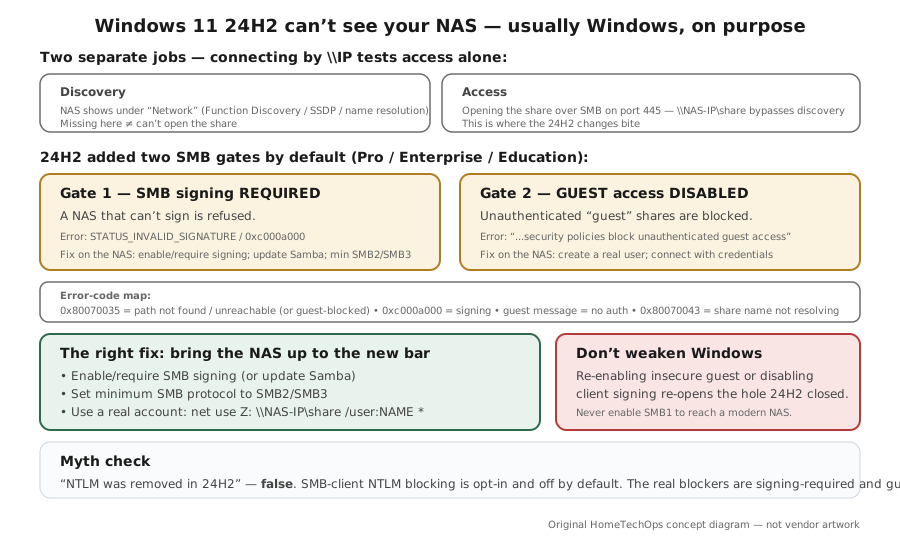
Problem summary
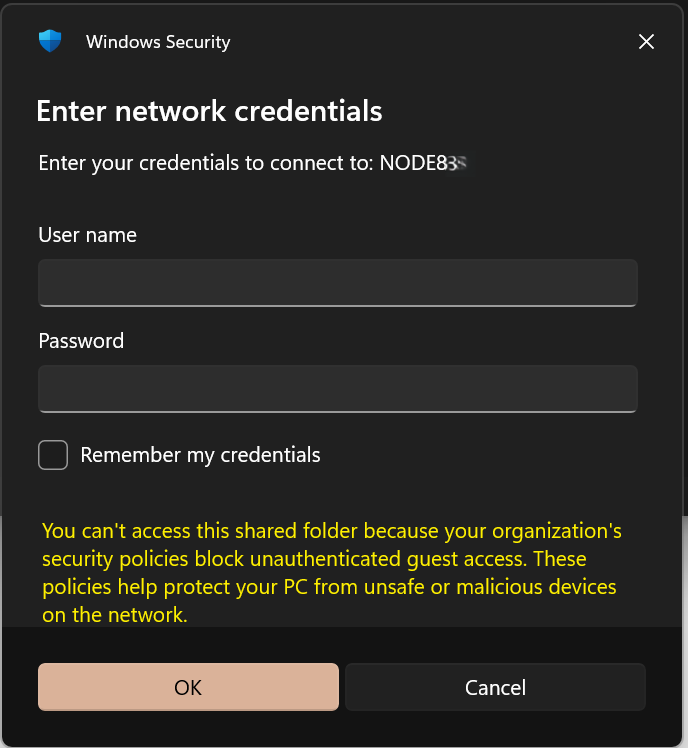
I'm here because Windows 11 can't open my NAS or shared folder — it isn't in Network, or I get 'network path not found', a signature error, or 'your organization's security policies block unauthenticated guest access'. On 24H2 (and 25H2) this is usually Windows, not your NAS, on purpose: Microsoft now requires SMB signing by default and disabled guest access by default (on Pro too, matching Enterprise). Older or consumer NAS that allowed unauthenticated 'guest' shares, or didn't enable signing, suddenly stop working. The right fix is to bring the NAS up to the new bar — enable SMB signing and use a real account — not to weaken Windows. This page also covers the general share checks (path, network profile, credentials, permissions, firewall) and what to do when the NAS itself vanishes from the network; it is the parallel to the Mac issue in Mac can't see NAS or printer.
Try to open the share by IP: \\NAS-IP\share (find the NAS IP in your router's client list).
net use Z: \\NAS-IP\share /user:NASusername *
If it opens by IP but not by name, the access path is fine and the problem is discovery/name resolution.
Don't enable SMB1 or disable the firewall to get there.
Layer path
Step-by-step runbook
Start here. Do each check in order, compare it to the expected result, and stop when the evidence explains the failure or the safe stop point applies.
Split discovery from access
Check: Find the NAS IP in your router and try \\NAS-IP\share. Note whether it opens, prompts for credentials, or errors.
Expected result: You know whether the problem is discovery (works by IP, missing from Network) or access (fails by IP).
If not: If it fails by IP, read the exact error to identify the SMB cause.
Read the error and place the blame correctly
Check: Match the message: guest-blocked (no auth), signature-invalid (signing), 0x80070035 (reachability), 0x80070043 (share name). Confirm the PC is 24H2/25H2 Pro+.
Expected result: You've pinpointed which 24H2 change (or which non-SMB cause) is responsible.
If not: If it's a reachability error, fix connectivity first before SMB settings.
Fix the NAS to meet the new bar
Check: On the NAS: enable/require SMB signing (or update Samba), set minimum SMB protocol to SMB2/SMB3, and create a real user account instead of guest. (Synology: File Services → SMB → Advanced; TrueNAS/Unraid: server signing = mandatory + min protocol.)
Expected result: The NAS now satisfies 24H2's signing requirement and offers authenticated access.
If not: If the NAS truly can't sign and can't be updated, consider the trusted-network client relaxation as a last resort.
Safe stop: Don't enable SMB1 or disable the firewall to get there.
Connect with credentials
Check: Map the drive with a real account: the "Test access by IP (bypass discovery)" command below (or File Explorer → Map network drive → 'Connect using different credentials').
Expected result: The share mounts using authenticated, signed SMB.
If not: If it still fails, re-check the NAS account and that signing is actually enabled on the NAS.
Restore discovery (optional) and document it
Check: If you want the NAS to show in Network: enable Network discovery, ensure Function Discovery/SSDP services run, and allow discovery in the firewall. Save the working \\hostname path and credentials.
Expected result: The NAS appears under Network and reconnects cleanly after reboots.
If not: If discovery stays flaky, rely on the mapped drive / \\hostname path — it's the reliable route.
Did this solve your problem?
Your answer helps us improve this page.
No account or personal details. We store the page, answer, optional reason and day with a 90-day retention period. A random reference in this browser prevents repeat votes. Feedback privacy
Decision tree
If: Opens by \\IP but the NAS isn't in 'Network'.
Then: Discovery/name resolution problem, not access.
Action: Turn on Network discovery, ensure the Function Discovery/SSDP services run and the firewall allows discovery; use \\hostname or a mapped drive for daily use.
If: 'Your organization's security policies block unauthenticated guest access.'
Then: The share uses guest access, which 24H2 disables by default.
Action: Create a real user on the NAS and connect with credentials (net use Z: \\NAS-IP\share /user:NAME *).
Safe stop: Re-enabling insecure guest logons is a trusted-network last resort, not the first fix.
If: Cryptographic-signature error (STATUS_INVALID_SIGNATURE / 0xc000a000).
Then: The NAS can't meet the SMB signing 24H2 now requires.
Action: Enable/require SMB signing on the NAS (or update its Samba) and set min protocol SMB2/SMB3.
Safe stop: Disabling client signing weakens every SMB connection on the PC — avoid unless unavoidable.
If: 0x80070035 'network path not found' even by IP.
Then: The host is unreachable or SMB is blocked (or it's a guest-blocked device under the new defaults).
Action: Ping the NAS IP, confirm it's powered and on the same subnet, and check the firewall; then re-test the share.
If: You enabled SMB-client NTLM blocking and a non-domain NAS stopped working.
Then: Your opt-in NTLM block is hitting a NAS that can't do Kerberos.
Action: Add the NAS to the Block NTLM Server Exception List (or leave NTLM blocking off — it isn't a default).
If: Tempted to enable SMB1 or turn off the firewall to make it work.
Then: Those 'fixes' re-open serious security holes.
Action: Don't — update the NAS to SMB2/SMB3 and fix the specific signing/guest cause instead.
Safe stop: Never enable SMB1 to reach a modern NAS.
Evidence table
| Symptom | Evidence to collect | Likely layer | Next action |
|---|---|---|---|
| NAS missing from Network, but \\IP works. | Whether Network discovery is on; Function Discovery/SSDP service state. | Discovery / name resolution. | Enable discovery + services, or just use \\hostname / a mapped drive. |
| 'block unauthenticated guest access' message. | Whether the share is guest-based; whether a real NAS account exists. | Guest access disabled by default in 24H2. | Create a NAS user and connect with credentials. |
| Signature-invalid / 0xc000a000 error. | NAS SMB signing support; NAS Samba/firmware version and min SMB protocol. | SMB signing now required in 24H2. | Enable signing on the NAS / update Samba; client-side relaxation only as last resort. |
| 0x80070035 even by IP. | Ping result to the NAS IP; same-subnet check; firewall state. | Reachability / SMB blocked. | Restore connectivity and allow SMB (port 445), then re-test. |
Commands and settings paths
Test access by IP (bypass discovery)
net use Z: \\NAS-IP\share /user:NASusername *Where: Command Prompt / Terminal on the PC
Expected: Prompts for the NAS account password and maps the share — proving the access path works with real credentials.
Failure means: If it errors with a signing or guest message, that's your specific cause; if it can't find the host, it's reachability/discovery.
Safe next step: Use \\hostname for the durable mapping once it works (preferred over IP for the hardened path).
Check the client SMB security settings
Get-SmbClientConfiguration | FL RequireSecuritySignature, EnableInsecureGuestLogonsWhere: Elevated PowerShell on the PC
Expected: Shows whether the client requires signing and whether insecure guest logons are allowed — confirming the 24H2 defaults are what's biting.
Failure means: RequireSecuritySignature True + a non-signing NAS explains the signature error; EnableInsecureGuestLogons False + a guest share explains the guest-blocked error.
Safe next step: Fix the NAS to match these defaults rather than flipping them off.
Reachability + discovery sanity check
ping NAS-IP then Test-NetConnection NAS-IP -Port 445Where: Command Prompt / PowerShell on the PC
Expected: Ping confirms the host is up; a successful TCP 445 test confirms SMB is reachable through the firewall.
Failure means: If ping works but 445 fails, SMB is blocked (firewall or NAS service); if ping fails, it's a network/subnet/power problem.
Safe next step: Restore connectivity/allow 445 before chasing signing or guest settings.
Hardware and platform boundary
Change only when
- Update or replace a NAS that genuinely can't do SMB signing or SMB2/SMB3 — an appliance stuck on SMB1-era firmware is a security liability beyond just this error.
- Update the NAS firmware/Samba to a current release before assuming the share is incompatible.
Evidence that matters
- A NAS that supports SMB signing and SMB2/SMB3 with a real user-account model.
- Current NAS firmware / Samba version.
- A wired or stable connection and same-subnet placement for reliable discovery.
Evidence that does not matter
- Vendor 'works with Windows 11' badges — what matters is SMB signing support and a modern SMB dialect, which you can verify directly.
- Re-enabling SMB1 'compatibility' — never the right answer for a modern NAS.
Avoid
- Re-enabling insecure guest logons as the first move (trusted-network last resort only).
- Disabling client SMB signing, which weakens every SMB connection on the PC.
- Enabling SMB1 or turning off the firewall to force a connection.
- Assuming 'NTLM was removed in 24H2' — NTLM blocking is opt-in and off by default.
Related tool/checklist
Use the linked tool when you need a guided plan from your exact symptoms instead of a static checklist.
Device setup troubleshooterRelated problems
Last reviewed
2026-06-02 · Reviewed by HomeTechOps. Reviewed against Microsoft Learn's SMB signing and insecure-guest-logon docs and Ned Pyle's Storage-at-Microsoft NAS-on-24H2 post; separates discovery from access, maps each error code to the responsible 24H2 default, fixes the NAS to the new bar rather than weakening Windows, and corrects the common 'NTLM was removed' and 'just enable SMB1/guest' misconceptions.
Sources/assumptions
- Assumes Windows 11 24H2/25H2 Pro/Enterprise/Education (Home does not require SMB signing by default and still allows guest); a home NAS or router-attached share over SMB.
- Windows 11 24H2 Home and Pro stopped getting updates after 13 October 2026 (Enterprise and Education run to 12 October 2027). 26H2 became generally available on 29 September 2026 and 25H2 is still supported, so move a 24H2 Home or Pro PC to 26H2 or 25H2 now (checked 2026-10-17). The SMB signing and guest defaults described here carry over to 25H2.
- The 24H2 SMB changes (signing required, guest disabled), the error codes, and the registry/Group Policy override paths follow Microsoft Learn and Ned Pyle's Storage-at-Microsoft blog current to mid-2026.
- NTLM is NOT removed in 24H2 — SMB-client NTLM blocking is opt-in and off by default; the actual home-NAS blockers are signing-required and guest-disabled. Per-NAS menu labels vary by firmware.
Source-backed checks
HomeTechOps turns official docs and conservative safety rules into a shorter runbook. These links are the source trail for the page direction.
Get the deal & firmware alerts
Home Stack Field Notes: NAS deals, firmware changes worth acting on, restore-test reminders, and new decision guides — plus the capacity & backup sizing cheatsheets from our calculators. Unsubscribe anytime.
Subscribe on beehiiv