
Windows
Second monitor not detected on Windows 11
A second monitor not showing up on Windows 11 24H2/25H2? Work the layers: Win+P and Detect, the cable, port and input, then roll back the graphics driver.
Start here: Try the instant fixes
Press Win+P → Extend, then Settings → Display → Detect. If the screen was working, press Win+Ctrl+Shift+B.
Evidence from the screen
Reference images and diagrams. Click any image to view full resolution.
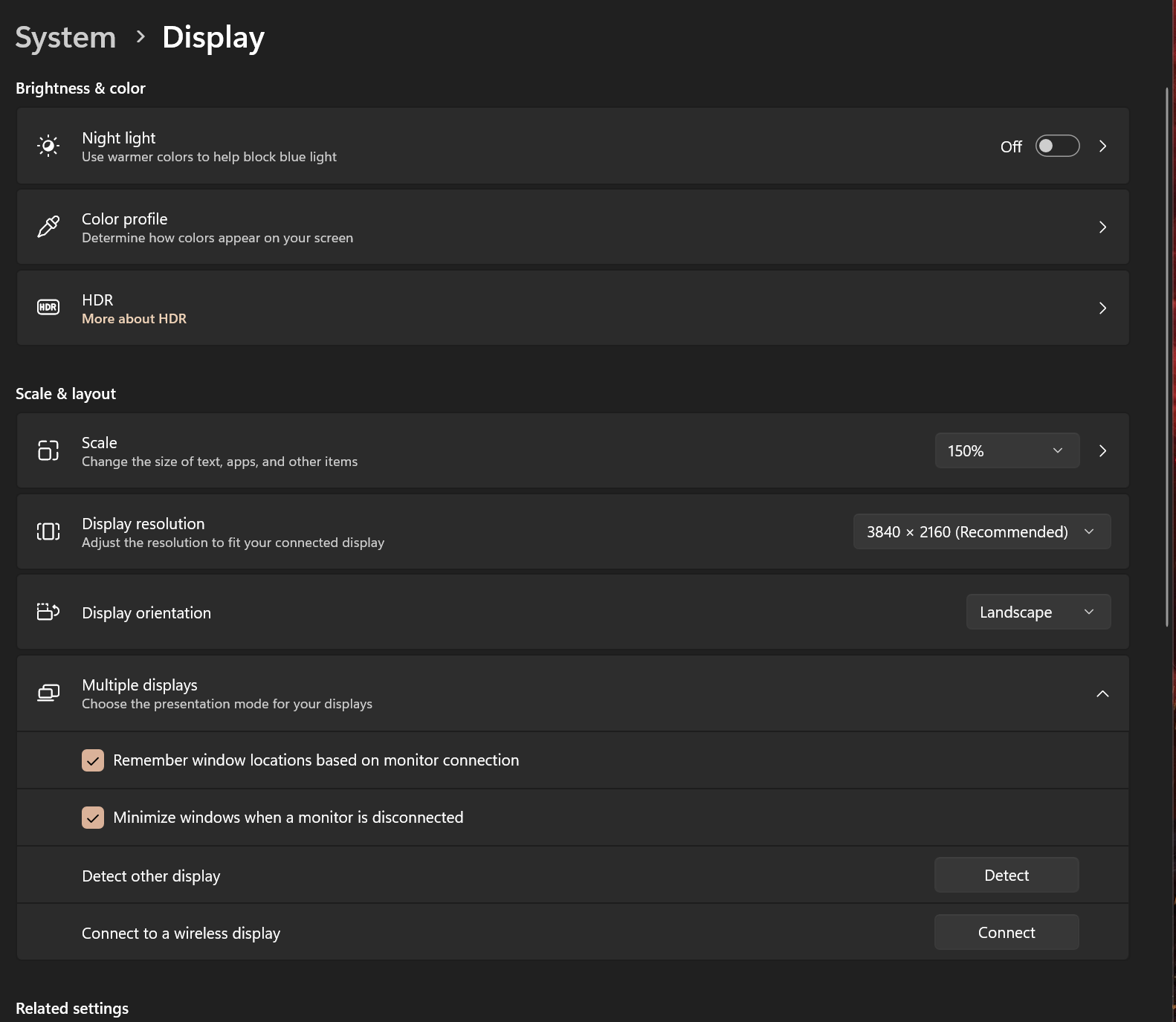
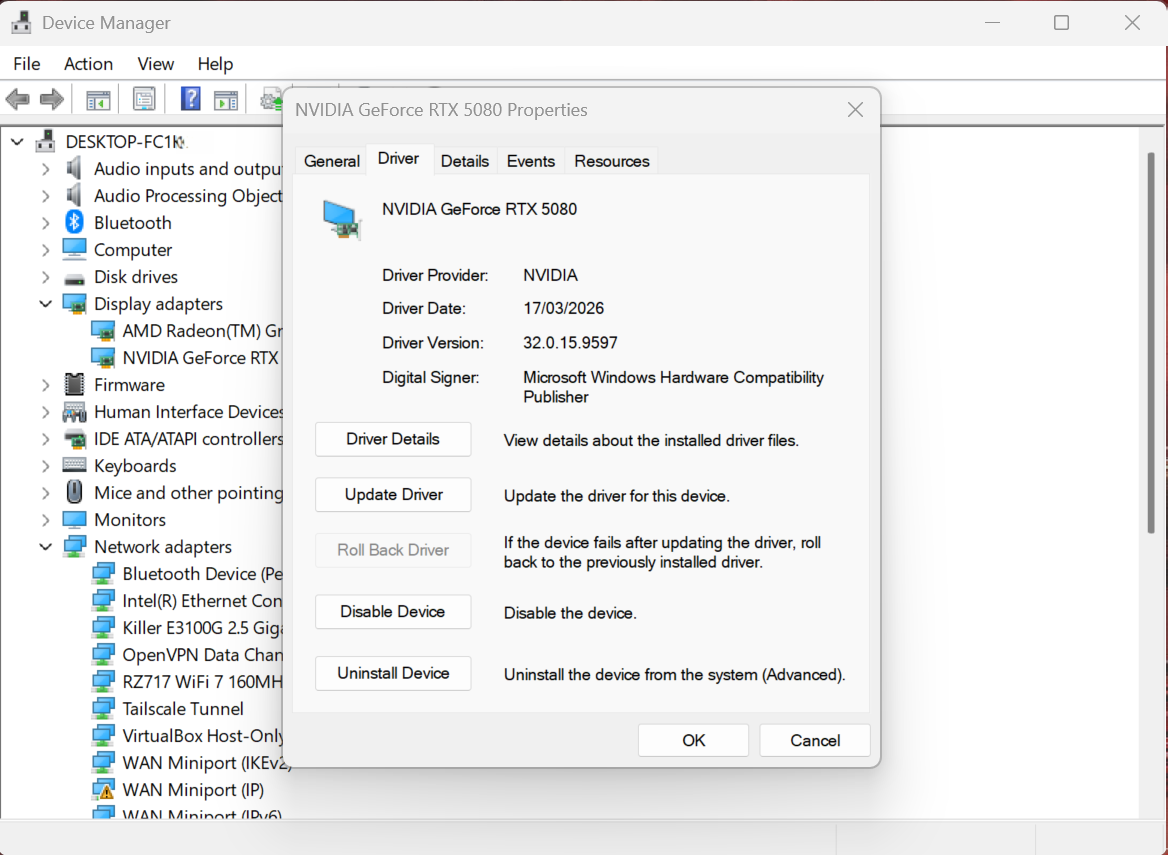
Problem summary
I'm here because Windows 11 won't detect my second monitor — it's not in Display settings, or it's plugged in but black. The key split to make first: is the display not detected at all (Windows doesn't see it) or detected but showing no signal (Windows sees it, the panel is on the wrong input)? That decides where to look. The layered fix: press Win+P and pick Extend, use Settings → System → Display → Detect, then check the cable/port/input source, then the graphics driver (roll back if it broke after an update, or reinstall it). If the monitor hangs off a dock or hub, the dock is its own variable — see USB-C dock not driving a monitor. This is the Windows companion to the device-agnostic dual monitors not working and monitor refresh rate wrong.
Press Win+P and choose Extend (or Duplicate).
Settings → System → Display → Multiple displays → Detect | Win+Ctrl+Shift+B
The second display lights up — it was just set to 'PC screen only'.
Don't assume a fixed monitor count over a dock — that depends on the hardware.
Layer path
Step-by-step runbook
Start here. Do each check in order, compare it to the expected result, and stop when the evidence explains the failure or the safe stop point applies.
Try the instant fixes
Check: Press Win+P → Extend, then Settings → Display → Detect. If the screen was working, press Win+Ctrl+Shift+B.
Expected result: The display lights up or Windows re-detects it.
If not: If nothing, determine whether it appears in settings at all.
Classify: not-detected vs no-signal
Check: Check whether the monitor appears in Display settings. Appears but black = wrong input (fix on the monitor). Doesn't appear = connection/driver.
Expected result: You know which layer to work.
If not: If it's a monitor-input issue, set the correct input and you're done.
Work the cable, port, and dock
Check: Reseat and swap the cable, try a different PC video port, and if a dock/hub is involved, connect the monitor directly to the PC.
Expected result: You confirm whether the cable/port/dock is at fault.
If not: If direct-connect works, troubleshoot the dock; if it still fails, it's the driver.
Fix the graphics driver
Check: In Device Manager, roll back the GPU driver if this started after an update; otherwise uninstall (remove driver) and reinstall the current vendor driver. Reboot.
Expected result: The display is detected with a healthy driver.
If not: If still not detected, retest the cable/port and consider a GPU/port hardware fault.
Set the right mode
Check: With the display detected, set its native resolution and refresh rate (Advanced display). Use a higher-spec cable if high-refresh modes flicker or drop.
Expected result: The second display runs at its correct resolution/refresh, stable.
If not: If high modes still fail, the cable or dock bandwidth is the limit.
Safe stop: Don't assume a fixed monitor count over a dock — that depends on the hardware.
Did this solve your problem?
Your answer helps us improve this page.
No account or personal details. We store the page, answer, optional reason and day with a 90-day retention period. A random reference in this browser prevents repeat votes. Feedback privacy
Decision tree
If: Monitor doesn't appear in Display settings even after Detect.
Then: Windows isn't seeing it — connection or driver.
Action: Swap cable/port, connect directly (bypass dock), then roll back/reinstall the GPU driver.
If: Monitor appears in settings but the panel is black / 'no signal'.
Then: Detected but on the wrong input.
Action: Use the monitor's own menu to select the correct input (HDMI/DisplayPort/USB-C) and check its port-version setting.
If: Worked until a Windows/GPU update, then stopped.
Then: Graphics-driver regression.
Action: Device Manager → Display adapters → Roll Back Driver; if greyed out, uninstall (remove driver) + reinstall the vendor driver.
If: Only fails at high resolution/refresh, or flickers.
Then: Bandwidth/cable or refresh-rate limit.
Action: Set the native resolution/refresh in Advanced display; use a higher-spec cable; reduce refresh to test.
If: Works direct but not through the dock.
Then: It's a dock problem, not the monitor.
Action: Go to the USB-C dock page: power-cycle, approve Thunderbolt, update dock firmware/DisplayLink driver.
Evidence table
| Symptom | Evidence to collect | Likely layer | Next action |
|---|---|---|---|
| Nothing appears after Detect. | Cable/port tested; connection type; whether direct-connect works. | Connection or driver. | Swap cable/port, connect direct, roll back/reinstall the GPU driver. |
| Appears in settings but screen is black. | The monitor's selected input source; its port-version setting. | Wrong monitor input. | Select the correct input on the monitor's menu. |
| Stopped after a Windows/GPU update. | Reliability Monitor timeline; driver version in Device Manager. | Driver regression. | Roll back the GPU driver; reinstall if roll-back is unavailable. |
| Flicker or dropout at high refresh/resolution. | Cable spec; whether lowering refresh stabilizes it. | Bandwidth/cable limit. | Use a higher-spec cable; set native resolution/refresh. |
Commands and settings paths
Re-scan for the display and restart the graphics driver
Settings → System → Display → Multiple displays → Detect | Win+Ctrl+Shift+BWhere: On the PC (no terminal needed)
Expected: Detect forces Windows to re-enumerate displays; Win+Ctrl+Shift+B resets the graphics driver and often restores a dropped signal.
Failure means: If Detect finds nothing and the reset doesn't help, the cause is below Windows (cable/port/driver).
Safe next step: Move to cable/port swaps and the driver steps.
Roll back or reinstall the GPU driver
Device Manager → Display adapters → (GPU) → Properties → Driver → Roll Back Driver; or Uninstall device (remove driver) → restart → reinstall vendor driverWhere: Device Manager (devmgmt.msc)
Expected: Returns the GPU to the pre-update driver, or cleanly reinstalls the current one.
Failure means: If roll-back is greyed out, there's no stored previous driver — uninstall and reinstall instead.
Safe next step: Reboot after; install the vendor's current driver if Windows' is the regression.
Set the native resolution and refresh rate
Settings → System → Display → (display) → Resolution; Advanced display → Refresh rateWhere: On the PC
Expected: Forces the correct resolution/refresh so a mismatch isn't causing a black or flickering screen.
Failure means: If the native refresh isn't selectable, the cable/dock bandwidth or driver is limiting it.
Safe next step: Use a higher-spec cable or a direct connection to reach the native mode.
Hardware and platform boundary
Change only when
- Replace a marginal or wrong-spec video cable when high-refresh/4K modes flicker or drop — the cheapest fix for bandwidth-limited dropouts.
- Add a proper dock or a GPU with more outputs if you genuinely need more displays than the PC's ports provide.
Evidence that matters
- A video-capable port and a cable rated for your resolution/refresh.
- A current GPU driver from the vendor.
- Knowing whether the monitor is connected directly or through a dock/adapter.
Evidence that does not matter
- Vendor 'works with Windows 11' badges — what matters is a video-capable connection and a current driver, which you can verify directly.
- Exact 'this GPU drives N monitors' marketing — confirm against the actual hardware, not the box.
Avoid
- Assuming it's the monitor before ruling out the dock with a direct connection.
- Reinstalling the GPU driver before checking the monitor's input source.
- Forcing a refresh rate the cable/dock can't carry.
- Treating DDU (a third-party tool) as Microsoft's recommended reinstall path.
Related tool/checklist
Use the linked tool when you need a guided plan from your exact symptoms instead of a static checklist.
USB-C dock monitor setup plannerRelated problems
Last reviewed
2026-06-02 · Reviewed by HomeTechOps. Reviewed against Microsoft's multiple-monitors, troubleshoot-external-monitor, refresh-rate, and Device Manager driver pages; splits 'not detected' from 'detected but no signal', leads with Win+P/Detect and the Win+Ctrl+Shift+B graphics-driver reset, isolates docks with a direct connection, and treats DDU as an optional third-party tool rather than the Microsoft path.
Sources/assumptions
- Assumes Windows 11 24H2/25H2 with a directly-connected external display; the Win+P modes, Detect/Identify paths, restart-graphics-driver shortcut, and driver roll-back/reinstall steps follow Microsoft Support current to mid-2026.
- Display Driver Uninstaller (DDU) is noted as an optional third-party clean-reinstall tool, not a Microsoft tool; the documented clean reinstall is the Device Manager uninstall-with-remove-driver flow.
- Per the no-fake-compatibility rule, exact monitor-count limits over a given GPU/dock aren't asserted — those depend on the hardware and are verified, not guessed.
Source-backed checks
HomeTechOps turns official docs and conservative safety rules into a shorter runbook. These links are the source trail for the page direction.
Get the deal & firmware alerts
Home Stack Field Notes: NAS deals, firmware changes worth acting on, restore-test reminders, and new decision guides — plus the capacity & backup sizing cheatsheets from our calculators. Unsubscribe anytime.
Subscribe on beehiiv