
Windows
USB-C dock not driving a monitor on Windows
A USB-C or Thunderbolt dock not driving your monitor on Windows 11? Power-cycle the dock, approve Thunderbolt, check video-capable USB-C and DisplayLink.
Start here: Isolate the dock
Plug the monitor directly into the PC with a known-good cable to see if the dock is the variable.
Evidence from the screen
Reference images and diagrams. Click any image to view full resolution.
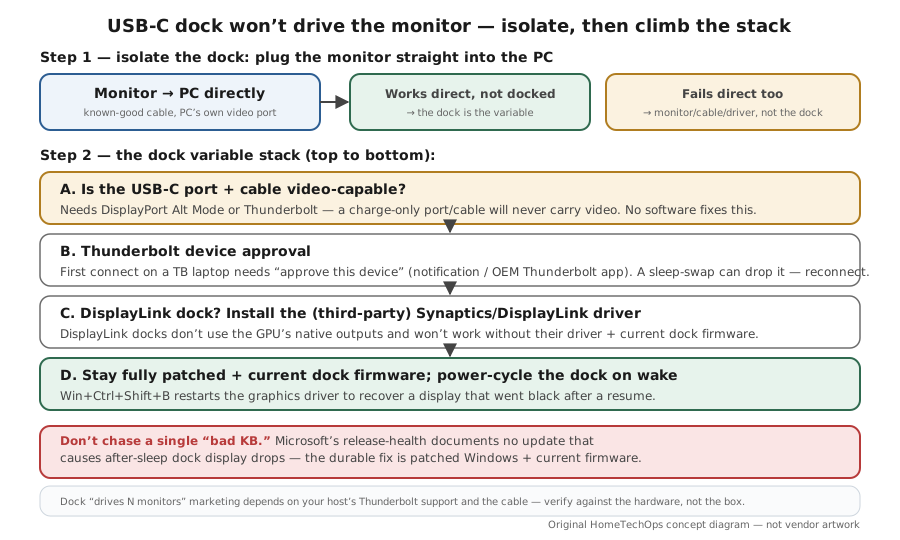
Problem summary
I'm here because my USB-C or Thunderbolt dock won't drive the external monitor on Windows 11 — the laptop screen is fine, but the docked display stays black or drops after sleep. Docks add several independent variables on top of the monitor itself: whether the USB-C port and cable actually carry video, Thunderbolt device approval, the dock firmware / DisplayLink driver, and how the dock behaves resuming from sleep. The operator sequence: prove the monitor works plugged directly into the PC first, then power-cycle the dock, confirm the connection is video-capable, approve the Thunderbolt device if prompted, update the dock firmware / DisplayLink driver, and make sure Windows is fully patched (post-update dock display glitches are best handled by installing the latest cumulative). Cross-links: second monitor not detected, and the device-agnostic USB-C dock monitor not detected and HDMI monitor flickers through a dock.
Plug the monitor directly into the PC's own video port with a known-good cable.
Connect the monitor directly to the PC's video port (known-good cable)
Works direct → the dock is the variable; fails direct → it's a monitor/cable/driver issue.
Don't chase a single 'bad KB' — Microsoft doesn't document one for this.
Layer path
Step-by-step runbook
Start here. Do each check in order, compare it to the expected result, and stop when the evidence explains the failure or the safe stop point applies.
Isolate the dock
Check: Plug the monitor directly into the PC with a known-good cable to see if the dock is the variable.
Expected result: You know whether to troubleshoot the dock or the monitor.
If not: If it fails direct, switch to the second-monitor-not-detected steps.
Power-cycle and check the connection
Check: Unplug the dock for ~30–60s and reconnect; confirm the host USB-C port and cable are video-capable (DP-Alt-Mode/Thunderbolt).
Expected result: A wedged dock recovers, or you find the port/cable can't carry video.
If not: If the path is charge-only, switch to a video-capable port/cable — no setting fixes it.
Approve Thunderbolt and handle DisplayLink
Check: Approve the Thunderbolt device if prompted (Windows notification / OEM app). If it's a DisplayLink dock, install/update the Synaptics DisplayLink driver.
Expected result: The dock is authorized and (for DisplayLink) has its driver.
If not: If a Thunderbolt device was swapped during sleep, reconnect it to re-trigger approval.
Patch Windows and update dock firmware
Check: Install the latest cumulative update and the dock vendor's current firmware/driver, then reboot and power-cycle the dock.
Expected result: Resume/detect behavior is at its best-supported state.
If not: If after-sleep drops persist, try a different dock port and confirm firmware actually applied.
Safe stop: Don't chase a single 'bad KB' — Microsoft doesn't document one for this.
Set the display mode and confirm
Check: With the docked display detected, set its native resolution/refresh; if high modes flicker, use a higher-spec cable or fewer displays than the dock's bandwidth allows.
Expected result: The docked monitor runs stable at the right mode.
If not: If you need more displays than the host/dock supports, that's a hardware limit, not a bug.
Safe stop: Don't assume a fixed monitor count over a given dock — verify against the hardware.
Did this solve your problem?
Your answer helps us improve this page.
No account or personal details. We store the page, answer, optional reason and day with a 90-day retention period. A random reference in this browser prevents repeat votes. Feedback privacy
Decision tree
If: Monitor works plugged directly into the PC but not through the dock.
Then: The dock (or its cable/firmware/driver) is the variable.
Action: Power-cycle the dock, confirm a video-capable connection, approve Thunderbolt, update firmware/DisplayLink driver.
If: Monitor fails even plugged directly.
Then: It's a monitor/cable/driver problem, not the dock.
Action: Use the second-monitor-not-detected steps (cable/port, input source, GPU driver).
If: USB-C port/cable is charge-only or non-Thunderbolt for a Thunderbolt dock.
Then: The connection physically can't carry the video you expect.
Action: Use a DisplayPort-Alt-Mode/Thunderbolt port and a full-feature cable; accept single-display limits on non-Thunderbolt hosts.
Safe stop: No software setting adds video to a charge-only path.
If: It's a DisplayLink dock with a blank/laggy screen.
Then: Missing or stale DisplayLink driver.
Action: Install/reinstall the current DisplayLink (Synaptics) driver and update dock firmware.
If: Display drops every time the PC wakes from sleep.
Then: Resume/detect behavior — handled by servicing + firmware, not one KB.
Action: Install the latest cumulative, update dock firmware, power-cycle the dock on wake.
Safe stop: Don't chase a single 'bad KB' — Microsoft doesn't document one for this.
Evidence table
| Symptom | Evidence to collect | Likely layer | Next action |
|---|---|---|---|
| Works direct, blank through the dock. | Whether the dock was power-cycled; dock firmware version. | Dock state/firmware. | Power-cycle the dock, update its firmware, re-approve Thunderbolt. |
| No video at all over USB-C. | Whether the port supports DP-Alt-Mode/Thunderbolt; cable type. | Non-video-capable port/cable. | Use a video-capable port + full-feature cable (or a Thunderbolt host). |
| DisplayLink dock screen blank/laggy. | DisplayLink (Synaptics) driver presence/version. | Missing/stale DisplayLink driver. | Install/update the DisplayLink driver and dock firmware. |
| Display drops after every sleep/wake. | Windows build (fully patched?); dock firmware; recurrence after power-cycle. | Resume/detect behavior. | Patch Windows, update dock firmware, power-cycle on wake. |
Commands and settings paths
Prove it by bypassing the dock
Connect the monitor directly to the PC's video port (known-good cable)Where: Physical test at the PC
Expected: Isolates the dock: a working direct connection proves the monitor/GPU are fine and the dock is the variable.
Failure means: If it fails direct too, the dock isn't the problem — troubleshoot it as a normal second display.
Safe next step: Then return the dock to the path and fix the dock-specific layer.
Update Windows and the dock firmware/driver
Settings → Windows Update → Check for updates; then the dock vendor's firmware tool and (if DisplayLink) the Synaptics/DisplayLink driverWhere: On the PC
Expected: Brings resume/detect behavior to its best-supported state and gives a DisplayLink dock the driver it needs.
Failure means: If a DisplayLink display still fails, reinstall the DisplayLink driver cleanly after the firmware update.
Safe next step: Reboot after updates; power-cycle the dock.
Restart the graphics driver after reconnecting
Win+Ctrl+Shift+BWhere: On the PC (keyboard shortcut)
Expected: Resets the graphics stack, which can recover a docked display that went black after a resume.
Failure means: If it doesn't recover, power-cycle the dock and re-approve the Thunderbolt device.
Safe next step: Combine with a dock power-cycle for after-sleep drops.
Hardware and platform boundary
Change only when
- Replace a charge-only or low-spec USB-C cable with a full-feature (video-capable) one — the cheapest fix when a dock never drives video.
- Choose a Thunderbolt dock + Thunderbolt host (or a DisplayLink dock with its driver) if you need multiple/high-res displays the plain-USB-C path can't carry.
Evidence that matters
- A host port that supports DisplayPort Alt Mode or Thunderbolt, and a full-feature cable.
- Current dock firmware and (for DisplayLink docks) the current Synaptics/DisplayLink driver.
- A fully patched Windows install for the best resume/detect behavior.
Evidence that does not matter
- Dock marketing claims of N displays — actual capability depends on your host's Thunderbolt support and the cable.
- Assuming any USB-C cable carries video — many are charge/data only.
Avoid
- Troubleshooting the monitor before isolating the dock with a direct connection.
- Expecting video from a charge-only port/cable.
- Running a DisplayLink dock without its (third-party) driver.
- Blaming a specific Windows KB for after-sleep drops instead of patching + updating dock firmware.
Related tool/checklist
Use the linked tool when you need a guided plan from your exact symptoms instead of a static checklist.
USB-C dock monitor setup plannerRelated problems
Last reviewed
2026-06-02 · Reviewed by HomeTechOps. Reviewed against Microsoft's Surface external-display and troubleshoot-external-monitor pages, the Kernel DMA Protection (Thunderbolt SL1) doc, Synaptics' DisplayLink driver page, and release-health; isolates the dock with a direct-connect test, distinguishes video-capable USB-C/Thunderbolt from charge-only, treats DisplayLink as a third-party-driver dock, and frames after-sleep drops as 'stay patched + current firmware' rather than asserting any KB causes the regression.
Sources/assumptions
- Assumes Windows 11 24H2/25H2 with a USB-C/Thunderbolt or DisplayLink dock; the direct-connect test, video-capable-USB-C caveat, Thunderbolt user-authorization model, and patch guidance follow Microsoft Support/Learn current to mid-2026.
- DisplayLink docks need the third-party Synaptics/DisplayLink driver (not a Microsoft driver); the Thunderbolt 'approve device' prompt is an Intel/OEM component, while Microsoft documents the underlying SL1 user-authorization security model.
- Per the no-fake-claims rule, no Windows update is asserted to 'cause' a dock display regression — Microsoft's release-health pages don't document one; the page frames it as 'stay fully patched' and treats after-sleep failures as a community-reported symptom.
Source-backed checks
HomeTechOps turns official docs and conservative safety rules into a shorter runbook. These links are the source trail for the page direction.
Get the deal & firmware alerts
Home Stack Field Notes: NAS deals, firmware changes worth acting on, restore-test reminders, and new decision guides — plus the capacity & backup sizing cheatsheets from our calculators. Unsubscribe anytime.
Subscribe on beehiiv