
Devices & Setup
IoT VLAN segmentation: trusted, IoT, guest networks
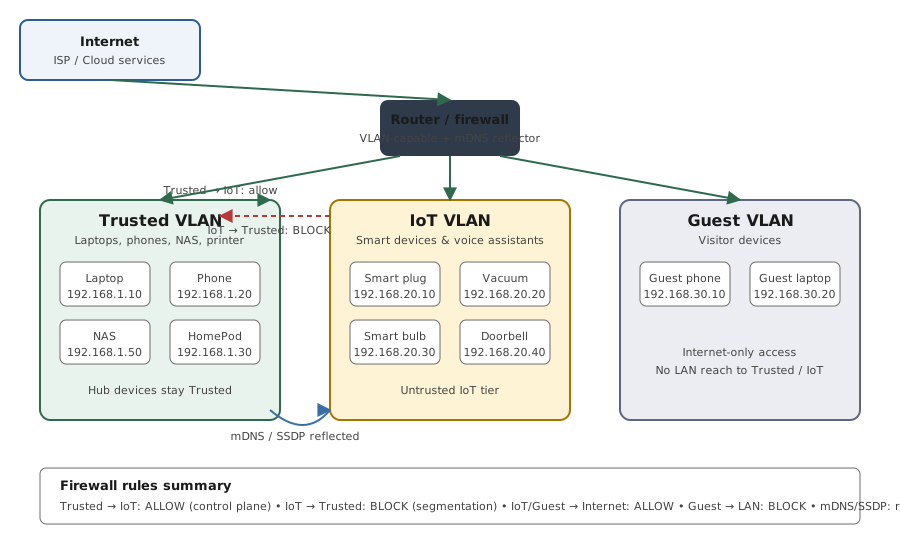
Smart-home devices live on a different security tier than your laptop. Cameras, smart plugs, voice assistants, doorbells, robot vacuums — most of them have minimal security testing, infrequent firmware updates, and direct internet connectivity. The right network design separates them onto an IoT-only VLAN with rules that prevent IoT-to-trusted traffic, while preserving the discovery (mDNS / SSDP / Matter / Thread) that smart-home platforms need.
Three-tier VLAN segmentation model
Reference images and diagrams. Click any image to view full resolution.
Who this is for
Home operators with VLAN-capable routers (UniFi, OPNsense/pfSense, Mikrotik, OpenWrt) who want to isolate IoT/smart-home devices from the trusted home network without breaking Matter / Thread / Apple Home / Google Home / Chromecast discovery.
Outcome
A working three-tier home network: Trusted VLAN for laptops/phones, IoT VLAN for smart devices with blocked egress to Trusted, optional Guest VLAN for visitors. mDNS / SSDP reflection enabled so cross-VLAN discovery works for legitimate platforms.
Required inputs
- VLAN-capable router or firewall (UniFi UDM, OPNsense, pfSense, Mikrotik, or OpenWrt with VLAN support).
- Wi-Fi access points that support per-SSID VLAN tagging (most modern APs).
- List of smart-home devices to move to IoT VLAN.
- Concrete decision on whether cameras get a separate Camera VLAN or share IoT.
Step-by-step procedure
Plan the VLAN layout — and decide where the controllers live — before configuring anything
Do: Decide subnet ranges per tier. The 2026 prosumer layout: Trusted 192.168.10.0/24 (phones, laptops, NAS, AND the smart-home brains — Apple TV, HomePod, Home Assistant, SmartThings hub, Thread border routers), IoT 192.168.20.0/24 (plugs, bulbs, speakers, vacuums, vendor bridges), Cameras 192.168.30.0/24 (cameras + NVR only), optional Services and Guest. Golden rule: controllers go on Trusted with the phone that commands them; only dumb endpoints go on IoT.
Expected result: A written list of devices per VLAN, with every Matter/Thread controller assigned to Trusted — not IoT.
If not: Don't start router config without this — moving devices between VLANs later is disruptive, and putting a controller on the wrong VLAN is the #1 cause of Matter commissioning failures.
Confirm your gear can actually tag per-SSID VLANs
Do: Verify the router/APs support VLAN tagging per SSID. UniFi (Network 10.x, Zone-Based Firewall), TP-Link Omada, Firewalla Gold (unlimited VLANs; Purple SE caps at 5), Asus Guest Network Pro (firmware 3.0.0.6.102_34312+), OPNsense/pfSense, and OpenWrt all qualify. eero and consumer Netgear Orbi do NOT tag VLANs — they only offer a guest network.
Expected result: Confirmation the gear can map a dedicated IoT SSID to an IoT VLAN with an inter-VLAN firewall.
If not: On eero / consumer Orbi you can't do this natively — put a VLAN-aware gateway or managed switch upstream and feed the mesh an untagged access port, or accept guest-network-only isolation (which breaks smart-home discovery).
Create the VLANs on the router
Do: Add the IoT VLAN (and optionally Guest, Cameras) in router admin. Set up DHCP for each. UniFi: Settings > Networks > New > VLAN ID; OPNsense: Interfaces > add VLAN; Mikrotik: /interface vlan add.
Expected result: Each VLAN has a working DHCP range; devices on the right VLAN get IPs in the right range.
If not: If DHCP isn't issuing IPs, check the VLAN is bound to the right interface and DHCP server is enabled on it.
Create the IoT Wi-Fi SSID and assign to IoT VLAN
Do: Wi-Fi controller > new SSID > assign to IoT VLAN. Don't broadcast SSID widely; use a different name from main SSID.
Expected result: Connecting a smart plug to the IoT SSID gives it an IP in the IoT range.
If not: If the device gets a main-LAN IP, the SSID isn't bound to the VLAN correctly.
Configure firewall rules: block IoT → Trusted
Do: Firewall > Rules > IoT or LAN_IN interface > Block IoT to Trusted RFC1918 ranges. Allow IoT → Internet. Allow Trusted → IoT (so phones can control IoT devices).
Expected result: From IoT VLAN: can reach internet but not Trusted LAN. From Trusted: can reach IoT and internet.
If not: If IoT can still reach Trusted, the firewall rule order is wrong (more-specific rules need to come first).
Enable mDNS reflection narrowly — and keep IPv6 on for Matter
Do: Turn on the mDNS reflector for the Trusted↔IoT pair only. UniFi: Settings > enable 'IoT Auto Discovery (mDNS)' / Multicast DNS on both networks. Firewalla: Advanced > mDNS Reflector. OPNsense/Mikrotik: Avahi. mDNS is UDP 5353 (IPv4 224.0.0.251 / IPv6 ff02::fb) — on guest networks the reflected responses are dropped unless you explicitly allow those multicast addresses. Matter additionally REQUIRES IPv6 + mDNS, so enable IPv6 (SLAAC/RA) on both VLANs and don't filter ICMPv6 multicast.
Expected result: From a Trusted phone: Apple Home / Google Home / Chromecast / AirPrint find devices on the IoT VLAN. A DNS-SD browser shows `_matter._udp` and `_meshcop._udp` across the reflected pair.
If not: If discovery fails, confirm mDNS is enabled on BOTH networks (it's per-network), IPv6 is up on both, and IGMP snooping isn't aging out multicast — for Apple/Matter homes the safe default is IGMP snooping OFF (or a working querier). Don't reflect to VLANs that don't need it.
Move the dumb endpoints to the IoT SSID — leave controllers on Trusted
Do: Move plugs, bulbs, speakers, vacuums, and vendor bridges to the IoT SSID (many need a factory reset to change Wi-Fi). Keep Apple TV / HomePod / Home Assistant / SmartThings hubs / Thread border routers on Trusted. Set the IoT SSID to WPA2 or WPA2/WPA3 transition (not WPA3-only), give it a dedicated 2.4 GHz SSID, and disable 802.11r, PMF, MU-MIMO, beamforming, and Multicast-to-Unicast on it.
Expected result: Each endpoint gets an IoT-range IP and still appears/controls normally in its app; controllers stay reachable from the Trusted phone.
If not: If a device won't join, WPA3-only or a hidden/band-steered SSID is the usual culprit — switch to WPA2 transition and a visible 2.4 GHz IoT SSID. If a Matter device won't commission, its controller is probably on a different VLAN — co-locate it on Trusted.
Test the boundaries with real service ports
Do: From a Trusted phone: reach a smart plug on its IoT IP (should work). From an IoT client (reboot it first to clear stateful sessions): `curl`/`telnet` a Trusted host on a real port like 445/22/80 — should fail. Don't rely on ping alone.
Expected result: Trusted → IoT works; IoT → Trusted is refused/timed out on real ports, not just ICMP.
If not: If IoT reaches Trusted, the firewall rule isn't active — recheck rule order and that it's applied in the right direction (LAN_IN / zone policy). If only ping is blocked but service ports work, you tested ICMP only — retest with curl/telnet.
Smart-home VLAN segmentation completeness check
| Item | Status |
|---|---|
| IoT VLAN created with separate subnet | Done / Not done |
| IoT SSID created and assigned to IoT VLAN | Done / Not done |
| Firewall: IoT → Trusted RFC1918 BLOCKED | Done / Not done |
| Firewall: Trusted → IoT ALLOWED | Done / Not done |
| Firewall: IoT → Internet ALLOWED | Done / Not done |
| mDNS / SSDP reflection enabled between VLANs | Done / Not done |
| Smart-home devices moved to IoT SSID | Done / Not done |
| Test: Trusted → IoT ping succeeds | Done / Not done |
| Test: IoT → Trusted ping fails | Done / Not done |
| Test: Apple/Google Home discovery still works | Done / Not done |
Commands and settings paths
Create IoT VLAN (UniFi)
Settings > Networks > New > VLAN ID 20
Where: In the UniFi controller / network application.
Expected: IoT VLAN appears in the network list with a DHCP range distinct from the main LAN.
Failure means: VLAN tag conflict or interface binding error.
Safe next step: Pick a different VLAN ID (any 2-4094); verify it doesn't collide with existing tagged traffic from the ISP modem.
Add firewall rule blocking IoT → Trusted
Firewall > Rules > LAN_IN > Block IoT → 192.168.1.0/24 (and other Trusted RFC1918)
Where: Router/firewall admin UI.
Expected: From an IoT VLAN device, ping to a Trusted LAN IP returns 'Destination Host Unreachable' or times out.
Failure means: Rule order is wrong (allow rules above the block), or interface binding is wrong.
Safe next step: Move the block rule above any broad-allow rules; confirm it's applied to the right interface direction (LAN_IN or equivalent).
Enable mDNS reflector (UniFi)
Settings > Networks > IoT > enable mDNS
Where: UniFi controller / network application.
Expected: From Trusted phone, Apple Home / Google Home / Spotify Connect finds devices on IoT VLAN.
Failure means: Reflector not enabled, or VLAN/SSID mapping wrong.
Safe next step: Verify mDNS is enabled on both Trusted and IoT networks (it's per-network); restart any platform apps to refresh discovery.
Test IoT → Trusted block with a service port, not just ping
From a phone/laptop on the IoT SSID: `curl -m 5 http://192.168.1.10` and `telnet 192.168.1.10 445` (a Trusted host/share)
Where: From an IoT VLAN client, after rebooting it so no stale sessions remain.
Expected: Connection refused/timeout; the Trusted host is unreachable in both directions.
Failure means: Firewall rule isn't actually blocking — or you tested over a pre-established session. Ping alone misleads: some controllers keep allowing established sessions and Windows discovery can still cross.
Safe next step: Recheck rule order/direction; reboot the client; retest with curl/telnet rather than ICMP.
Confirm a device landed on the right VLAN
Check the device pulled a DHCP lease in the IoT scope (e.g. 192.168.20.x), not the Trusted scope. UniFi: client → Network field; Firewalla: Home → Network shows IP range + VLAN ID.
Where: Router/controller client list, or the device's own network settings.
Expected: IoT devices show an IoT-range IP and the IoT VLAN ID; trusted devices show the trusted scope.
Failure means: The SSID isn't bound to the VLAN, or the device cached an old lease.
Safe next step: Rebind the SSID to the IoT VLAN; forget/rejoin the SSID on the device to force a fresh lease.
Confirm Matter/Thread is advertising over mDNS
Use a DNS-SD browser (iOS 'Discovery' / Android 'Service Browser') to look for `_matter._udp` (devices) and `_meshcop._udp` (Thread border router)
Where: From a phone on the VLAN where the controller lives.
Expected: Matter devices advertise `_matter._udp`; a Thread border router advertises `_meshcop._udp`. If reflection works, they appear from the trusted VLAN too.
Failure means: mDNS reflection isn't covering Matter, IPv6/ICMPv6 multicast is blocked, or controller and devices are on different VLANs.
Safe next step: Co-locate the controller with its devices; ensure IPv6 (SLAAC/RA) is enabled on both VLANs and ICMPv6 multicast isn't filtered.
Evidence to record
- Screenshot of router VLAN list showing IoT VLAN created.
- Screenshot of firewall rules confirming IoT → Trusted is blocked.
- Screenshot of mDNS reflection enabled.
- Test results: ping from Trusted to IoT succeeds; ping from IoT to Trusted fails; Apple Home / Google Home discovers IoT devices.
Common mistakes
- Creating the VLAN but no firewall rule — most consumer routers route between VLANs by default, so an 'IoT VLAN' with no explicit block does nothing. The segmentation IS the firewall rule, not the VLAN.
- Block rule placed below an allow-all — firewalls are top-down first-match. The deny-inter-VLAN rule must sit below the specific allows, and no broad allow-all may precede it.
- Putting the Matter/Thread controller (Apple TV, HomePod, Home Assistant, SmartThings Hub) on a different VLAN than the devices it commissions — Matter commissioning consistently fails cross-VLAN. Controllers belong on Trusted with the phone; only the dumb endpoints go on IoT.
- Forgetting to set Trusted → IoT to ALLOW — without it you isolate the IoT VLAN even from the controlling phones.
- Skipping mDNS reflection — Apple Home / Google Home / Chromecast / AirPrint won't work cross-VLAN without it (mDNS is link-local UDP 5353 and does not cross subnets).
- Over-reflecting mDNS across all VLANs and service types — this leaks device inventory across segments and partly defeats the isolation. Reflect only the specific VLAN pairs that need it.
- Forgetting the NVR must reach the cameras, or blocking DHCP/DNS/NTP outbound on the IoT VLAN — over-isolation kills recording, cloud, and time sync. Allow IoT → Internet + DNS + NTP while still blocking IoT → trusted LAN.
- WPA3-only IoT SSID — many cheap or older IoT chips fail to join. Use WPA2, or WPA2/WPA3 transition mode, for the IoT SSID.
- 2.4 GHz-only device on a band-steered combined SSID — the device can't connect. Give IoT a dedicated 2.4 GHz SSID, and don't hide it (many devices can't onboard to hidden SSIDs).
- Leaving advanced Wi-Fi features on for the IoT SSID — 802.11r fast-roaming, PMF/802.11w, MU-MIMO, beamforming, and 'Multicast-to-Unicast' all break cheap IoT or Bonjour discovery. Disable them on the IoT SSID.
- Trusting ping as the isolation test — some controllers keep allowing pre-established sessions and Windows network discovery can still cross. Verify with real service ports (curl/telnet) after rebooting the test client.
- Choosing eero or a consumer Netgear Orbi and then expecting VLANs — they can't tag per-SSID VLANs (eero gives only a guest network, which blocks device-to-device and breaks smart-home discovery). Confirm the gear can tag VLANs before planning.
Stop points
- Stop before opening mDNS / SSDP reflection in both directions across every VLAN — over-broad reflection leaks device inventory and defeats the segmentation. Reflect only the VLAN pairs and service types that genuinely need it.
- Stop before moving cameras to IoT without considering a separate 'Cameras' VLAN with stricter egress — cameras and DVRs are the most-attacked IoT class (the TBK DVR CVE-2024-3721 → Mirai-variant botnets active in 2026) and warrant their own segment.
- Stop before disabling firewall rules to debug — keep the IoT → Trusted block active; if something needs cross-VLAN access, add a specific allow rule instead of dropping the block.
- Stop before putting a Matter controller or Thread border router on a different VLAN than its devices and the commissioning phone — commissioning will fail. Co-locate them on Trusted, or multi-home the controller onto the IoT subnet with a second interface.
- Stop before trusting a single ping test as proof of isolation — reboot the test client to clear stateful sessions, then verify with curl/telnet to real service ports in both directions.
Last reviewed
2026-05-18
Source-backed checks
HomeTechOps turns official docs and conservative safety rules into a shorter runbook. These links are the source trail for the page direction.
Did this solve your problem?
Your answer helps us improve this page.
No account or personal details. We store the page, answer, optional reason and day with a 90-day retention period. A random reference in this browser prevents repeat votes. Feedback privacy
Planning a purchase?
We keep a source-backed, price-free comparison so you can buy once and right. No star ratings, every spec cited.
NAS Drives: WD Red vs IronWolf vs N300 →Get the deal & firmware alerts
Home Stack Field Notes: NAS deals, firmware changes worth acting on, restore-test reminders, and new decision guides — plus the capacity & backup sizing cheatsheets from our calculators. Unsubscribe anytime.
Subscribe on beehiiv