
Mac
Mac dock mirrors instead of extending displays
Why two monitors on a Mac dock mirror instead of extending — the mirror setting to uncheck, and why Apple Silicon's lack of DisplayPort MST is the real cause.
Start here: Check the easy cause
Uncheck Mirror Displays in Displays settings.
Problem summary
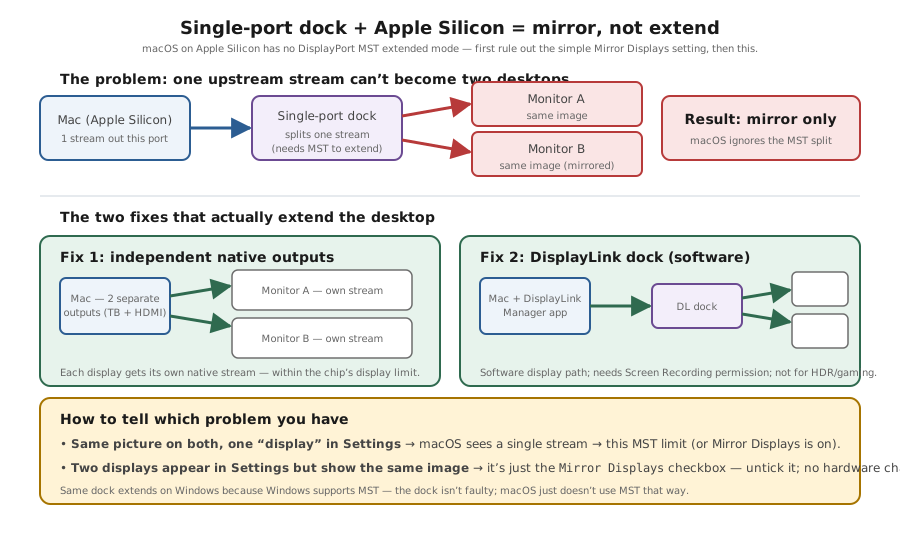
I'm here because I plugged two monitors into a dock and they both show the same thing — I want them to extend into one big desktop, not mirror. There are two completely different causes, and most guides only cover the easy one. Either it's just the Mirror Displays setting (a 10-second fix), or it's the deeper Apple Silicon limitation: macOS doesn't support DisplayPort MST, so a dock that splits a single port into two monitors can only mirror them. This page tells you which one you have and the real fix for each.
Open Displays settings and check whether 'Mirror Displays' is on.
system_profiler SPDisplaysDataType
If it's just the setting, unchecking it extends immediately.
Buying a single-port MST dock for dual extended monitors on Apple Silicon.
Layer path
Step-by-step runbook
Start here. Do each check in order, compare it to the expected result, and stop when the evidence explains the failure or the safe stop point applies.
Check the easy cause
Check: Uncheck Mirror Displays in Displays settings.
Expected result: If it was the setting, the second monitor extends now.
If not: If only one display is listed, it's MST — continue.
Diagnose the dock
Check: Determine if the dock is MST (one stream split) and confirm `system_profiler` shows one display.
Expected result: You know whether the dock relies on MST.
If not: MST on Apple Silicon can't extend — plan a different path.
Pick the right hardware path
Check: Use two independent native outputs, or a DisplayLink dock, to extend.
Expected result: Both monitors become separate desktops.
If not: Grant DisplayLink Screen Recording permission if using it.
Respect the chip limit
Check: Confirm the display count is within your chip's cap.
Expected result: Native extend works within the limit; DisplayLink covers overflow.
If not: If over the cap, only DisplayLink adds more.
Verify the layout
Check: Arrange the displays and drag a window across.
Expected result: Windows move continuously — extending, not mirroring.
If not: If still mirroring, recheck Mirror and that outputs aren't an MST split.
Did this solve your problem?
Your answer helps us improve this page.
No account or personal details. We store the page, answer, optional reason and day with a 90-day retention period. A random reference in this browser prevents repeat votes. Feedback privacy
Decision tree
If: Mac sees two displays but shows the same image.
Then: Mirror Displays is enabled.
Action: Uncheck Mirror / 'Use as Separate Display' in Displays settings.
If: Mac sees only one display while two are on an MST dock.
Then: DisplayPort MST extended mode, unsupported on Apple Silicon.
Action: Switch to two independent native outputs or a DisplayLink dock.
If: Dock provides independent outputs but still mirrors.
Then: Either Mirror is on or you've hit the chip's display limit.
Action: Re-check Mirror; confirm the displays you want are within the chip's cap.
If: DisplayLink dock mirrors or shows nothing.
Then: DisplayLink Manager lacks Screen Recording permission.
Action: Grant Screen Recording to DisplayLink Manager and relaunch.
If: Dock extends on Windows but mirrors on the Mac.
Then: Confirmed MST dock meeting the Apple Silicon limitation.
Action: Don't return it as faulty — use native outputs or DisplayLink for extend.
Evidence table
| Symptom | Evidence to collect | Likely layer | Next action |
|---|---|---|---|
| Both monitors show the same desktop. | Displays settings has Mirror enabled; two displays seen. | Mirror setting. | Uncheck Mirror to extend. |
| Two monitors on a one-cable dock, Mac sees one. | `system_profiler SPDisplaysDataType` lists a single external display. | MST extended unsupported on Apple Silicon. | Use independent outputs or DisplayLink. |
| Dual extended works on Windows, mirrors on Mac. | Dock spec lists MST/'split' multi-monitor. | Apple Silicon MST limitation. | Switch to DisplayLink or two native outputs. |
| DisplayLink dock shows nothing/mirrors. | DisplayLink Manager has no Screen Recording permission. | DisplayLink permission. | Grant Screen Recording; relaunch the manager. |
| Native dual outputs still won't extend the extra monitor. | Chip is at its external-display limit. | Per-chip display ceiling. | See the limits page; DisplayLink for overflow. |
Commands and settings paths
Count the displays macOS actually sees
system_profiler SPDisplaysDataTypeWhere: Terminal on the Mac, with both monitors connected.
Expected: Lists each display macOS recognises (built-in + externals).
Failure means: Two on a one-port MST dock but only one listed confirms the MST limitation.
Safe next step: Switch to independent outputs or DisplayLink to extend.
Toggle mirror/extend
System Settings → Displays → uncheck Mirror Displays / Use as Separate DisplayWhere: Displays settings on the Mac.
Expected: Displays extend into separate desktops if Mirror was the only issue.
Failure means: If only one display exists to arrange, it's MST, not the setting.
Safe next step: Proceed to the MST/DisplayLink fix.
Check for a DisplayLink display path
ps aux | grep -i displaylinkWhere: Terminal on the Mac.
Expected: Shows whether DisplayLink Manager is running for software-driven displays.
Failure means: If you expected DisplayLink to extend but it's not running/permitted, that's why.
Safe next step: Launch DisplayLink Manager and grant Screen Recording permission.
Hardware and platform boundary
Change only when
- Buy a DisplayLink dock (or one with genuinely independent macOS outputs) rather than an MST dock if you need dual extended monitors on Apple Silicon.
- If you want native dual extend, pick a Mac/dock combo that exposes two independent video outputs within the chip's display limit.
Evidence that matters
- Whether the dock provides independent outputs or DisplayLink — not MST — for macOS extend.
- Your chip's external-display limit, which still caps native displays.
- DisplayLink Manager + Screen Recording permission if you go the DisplayLink route.
Evidence that does not matter
- A dock's Windows multi-monitor rating — MST extend doesn't carry to Apple Silicon.
- Port count on the dock — ports via MST don't become extended displays on a Mac.
- Reinstalling drivers to 'enable' MST — macOS doesn't implement it.
Avoid
- Buying a single-port MST dock for dual extended monitors on Apple Silicon.
- Returning a dock as faulty when it's the macOS MST limitation.
- Applying Intel-era MST advice to an M-series Mac.
Why a single-port dock only mirrors
Reference images and diagrams. Click any image to view full resolution.
Related tool/checklist
Use the linked tool when you need a guided plan from your exact symptoms instead of a static checklist.
USB-C dock monitor setup plannerRelated problems
Last reviewed
2026-06-02 · Reviewed by HomeTechOps. Reviewed against Apple's connect-displays/display-count guidance and the documented lack of DisplayPort MST extended support on Apple Silicon (Plugable KB); separates the trivial Mirror-Displays setting from the structural MST limitation using the count of displays macOS actually sees, and routes the real fix to independent native outputs or DisplayLink.
Sources/assumptions
- Assumes an Apple Silicon Mac (including macOS Tahoe / macOS 26); the MST limitation is specific to Apple Silicon and does not necessarily apply to Intel Macs.
- Dock behaviour depends on whether it uses DisplayPort MST (single-stream split) or provides independent outputs / DisplayLink; check the dock's macOS support claims.
- Per-chip display limits follow Apple's documentation; DisplayLink is a software display path with its own trade-offs.
Source-backed checks
HomeTechOps turns official docs and conservative safety rules into a shorter runbook. These links are the source trail for the page direction.
Get the deal & firmware alerts
Home Stack Field Notes: NAS deals, firmware changes worth acting on, restore-test reminders, and new decision guides — plus the capacity & backup sizing cheatsheets from our calculators. Unsubscribe anytime.
Subscribe on beehiiv