
Mac
Set up a Mac mini as an always-on home server
How to run a Mac mini headless as a 24/7 home server on macOS Tahoe (macOS 26) — never-sleep, auto-login, launchd for services, and the FileVault trade-off.
Start here: Never sleep
Energy 'prevent sleep when display off' ON; `sudo pmset -a sleep 0`.
Problem summary
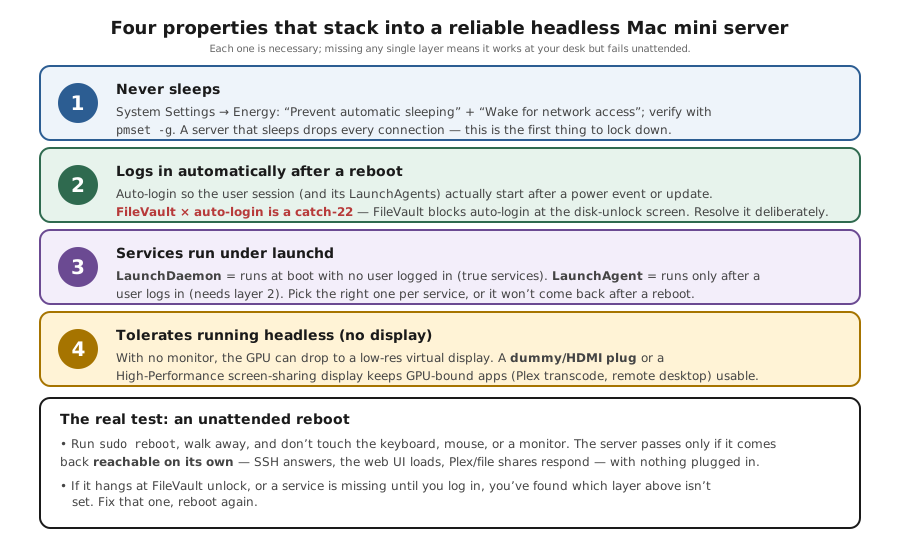
I'm here because I want to run a Mac mini as an always-on home server — Plex/Jellyfin, file sharing, Tailscale, backups — and have it just work without a monitor, keyboard, or me logging in. There are four things to get right: it must never sleep, it must log in automatically so services start, those services must be set up the right way (launchd, not just 'open at login'), and it needs to behave headless. This page is the server-setup hub; it wires all four together and links to the deeper pages for sleep and auto-power-on.
Confirm never-sleep: Energy 'prevent sleep when display off' ON and `pmset -g` sleep 0.
sudo pmset -a sleep 0
The headless mini stays awake to serve.
Decide the encryption trade-off deliberately; see the auto-power-on page.
Layer path
Step-by-step runbook
Start here. Do each check in order, compare it to the expected result, and stop when the evidence explains the failure or the safe stop point applies.
Never sleep
Check: Energy 'prevent sleep when display off' ON; `the "Disable system sleep for an always-on server" command below`.
Expected result: The mini stays awake to serve.
If not: If it still sleeps, use the dedicated sleep runbook.
Auto-login
Check: Enable Automatic login in Users & Groups.
Expected result: Services resume after any reboot without manual sign-in.
If not: If greyed out, weigh the FileVault trade-off (auto-power-on page).
launchd services
Check: Write LaunchDaemons (background) / LaunchAgents (GUI) with RunAtLoad + KeepAlive.
Expected result: Services start at boot and restart on crash.
If not: GUI/media apps need a LaunchAgent + auto-login session.
Headless display
Check: Add a dummy plug or enable the High Performance virtual display.
Expected result: Screen sharing shows a sane resolution; GPU apps behave.
If not: Without it, headless resolution/GPU quirks appear.
Prove it unattended
Check: Power-cycle and confirm login + every service comes back reachable.
Expected result: The mini is a real server: it recovers with nobody at the keyboard.
If not: If services don't return, fix launchd/auto-login; see auto-power-on.
Did this solve your problem?
Your answer helps us improve this page.
No account or personal details. We store the page, answer, optional reason and day with a 90-day retention period. A random reference in this browser prevents repeat votes. Feedback privacy
Decision tree
If: Services don't start after a reboot.
Then: They're login items, or LaunchAgents without an auto-login session.
Action: Use LaunchDaemons for background services, or enable auto-login for GUI/Agent services.
If: Automatic login is greyed out.
Then: FileVault is enabled and blocks auto-login.
Action: Choose: keep FileVault (manual unlock after power cut) or disable it for unattended restart.
Safe stop: Decide the encryption trade-off deliberately; see the auto-power-on page.
If: Screen sharing shows a tiny resolution or GPU apps misbehave headless.
Then: No display attached, so the GPU has no sensible mode.
Action: Add an HDMI dummy plug or enable the High Performance virtual display.
If: A media server in a container has no hardware transcoding.
Then: A Linux container on macOS can't reach the Apple media engine.
Action: Run the media server natively; see the transcoding page.
If: Remote access drops when the mini is idle.
Then: It's sleeping, not a sharing fault.
Action: Fix never-sleep first (Energy + pmset); then re-test remote access.
Evidence table
| Symptom | Evidence to collect | Likely layer | Next action |
|---|---|---|---|
| Mini unreachable after sitting idle. | `pmset -g` shows a non-zero sleep; Energy toggle off. | Headless sleep. | Enable the Energy toggle and `pmset -a sleep 0`. |
| Services missing after a reboot. | They're 'Open at Login' items, no launchd plist. | Login-item fragility. | Convert to LaunchDaemon (background) / LaunchAgent (GUI). |
| Mini stuck at login screen after a power cut. | FileVault on; auto-login unavailable. | FileVault blocking unattended login. | Disable FileVault for unattended restart, or unlock manually. |
| Remote screen tiny; GPU app glitchy headless. | No display attached. | Headless GPU/resolution quirk. | Dummy plug or High Performance virtual display. |
| No hardware transcoding in a Dockerised media server. | Server runs in a Linux container on macOS. | Container can't reach VideoToolbox/media engine. | Run the media server natively. |
Commands and settings paths
Disable system sleep for an always-on server
sudo pmset -a sleep 0Where: Terminal on the Mac.
Expected: `pmset -g` then shows sleep 0 — the system won't idle-sleep.
Failure means: If it still sleeps, an assertion or the Energy toggle is the issue.
Safe next step: Pair with the Energy 'prevent sleep when display off' toggle.
Load a background service as a LaunchDaemon
sudo launchctl load -w /Library/LaunchDaemons/<label>.plistWhere: Terminal on the Mac, after writing the plist (RunAtLoad + KeepAlive).
Expected: The service starts at boot and relaunches on crash, no login needed.
Failure means: If it doesn't run, check `launchctl print system/<label>` for errors.
Safe next step: Fix the plist (paths/permissions) and reload.
Inspect a launchd job's state
launchctl print system/<label>Where: Terminal on the Mac.
Expected: Shows whether the daemon is loaded, its PID, and last exit status.
Failure means: A non-zero last exit or 'not loaded' explains a missing service.
Safe next step: Correct the plist or the program path, then reload.
Enable SSH for headless management
System Settings → General → Sharing → Remote Login (or `sudo systemsetup -setremotelogin on`)Where: Sharing settings or Terminal on the Mac.
Expected: You can SSH into the headless mini to manage it without a monitor.
Failure means: If SSH drops when idle, the mini is sleeping, not a sharing fault.
Safe next step: Fix never-sleep first; prefer Tailscale for off-LAN access.
Hardware and platform boundary
Change only when
- Pick a Mac mini over a spare laptop for an always-on server — no lid means no forced lid-close sleep.
- Add a UPS and enable auto-power-on (Tahoe 26.5) so the mini rides out and recovers from power cuts unattended.
Evidence that matters
- A desktop Mac (mini/Studio) with no lid, so it never force-sleeps.
- Enough RAM/storage for your services plus a real off-device backup of its data.
- A dummy plug or the High Performance virtual display for headless GPU behaviour.
Evidence that does not matter
- Raw CPU benchmark scores — even a base M4 mini idles at a few watts and serves a home fine.
- Wake-on-LAN reliability — for a server you want never-sleep, not sleep-and-wake.
- Top-tier networking specs for a file/media server most clients reach over gigabit.
Avoid
- Relying on 'Open at Login' items for critical services instead of launchd.
- Running a media server in a Linux container and expecting hardware transcoding.
- Disabling FileVault for auto-login without consciously accepting the loss of encryption.
Four properties of a reliable headless mini
Reference images and diagrams. Click any image to view full resolution.
Related tool/checklist
Use the linked tool when you need a guided plan from your exact symptoms instead of a static checklist.
NAS setup plannerRelated problems
Last reviewed
2026-06-02 · Reviewed by HomeTechOps. Reviewed against Apple's launchd (Daemons and Agents), automatic-login, and FileVault documentation; treats an always-on Mac server as four stacked properties (never-sleep, auto-login, launchd services, headless display) and makes the unattended-reboot test the real success criterion, with the FileVault/auto-login catch-22 called out explicitly.
Sources/assumptions
- Assumes a Mac mini (or other desktop Mac) on macOS Tahoe (macOS 26) run as an always-on home server; battery Macs sleep on lid close and are a poorer fit.
- launchd, auto-login, and sharing behaviour follow Apple's documentation; the Tahoe 26.5 auto-power-on option and High Performance virtual display should be re-verified against your point release.
- Hardware-transcoding and headless-display specifics are covered in the dedicated transcoding and sleep pages.
Source-backed checks
HomeTechOps turns official docs and conservative safety rules into a shorter runbook. These links are the source trail for the page direction.
Planning a purchase?
We keep a source-backed, price-free comparison so you can buy once and right. No star ratings, every spec cited.
Mini PC for a Home Server: N150 vs MS-01 vs Tiny →Get the deal & firmware alerts
Home Stack Field Notes: NAS deals, firmware changes worth acting on, restore-test reminders, and new decision guides — plus the capacity & backup sizing cheatsheets from our calculators. Unsubscribe anytime.
Subscribe on beehiiv