
Windows
Windows 11 slow after an update (24H2/25H2)
PC sluggish after a Windows 11 24H2/25H2 update? Separate normal post-update background work from a real regression with Reliability Monitor first.
Start here: Let the dust settle
If the update was recent, leave the PC on and idle for an hour. Check Task Manager — if SearchIndexer/SysMain is the load, that's expected.
Don't change settings or uninstall things during normal post-update indexing.
Evidence from the screen
Reference images and diagrams. Click any image to view full resolution.
Problem summary
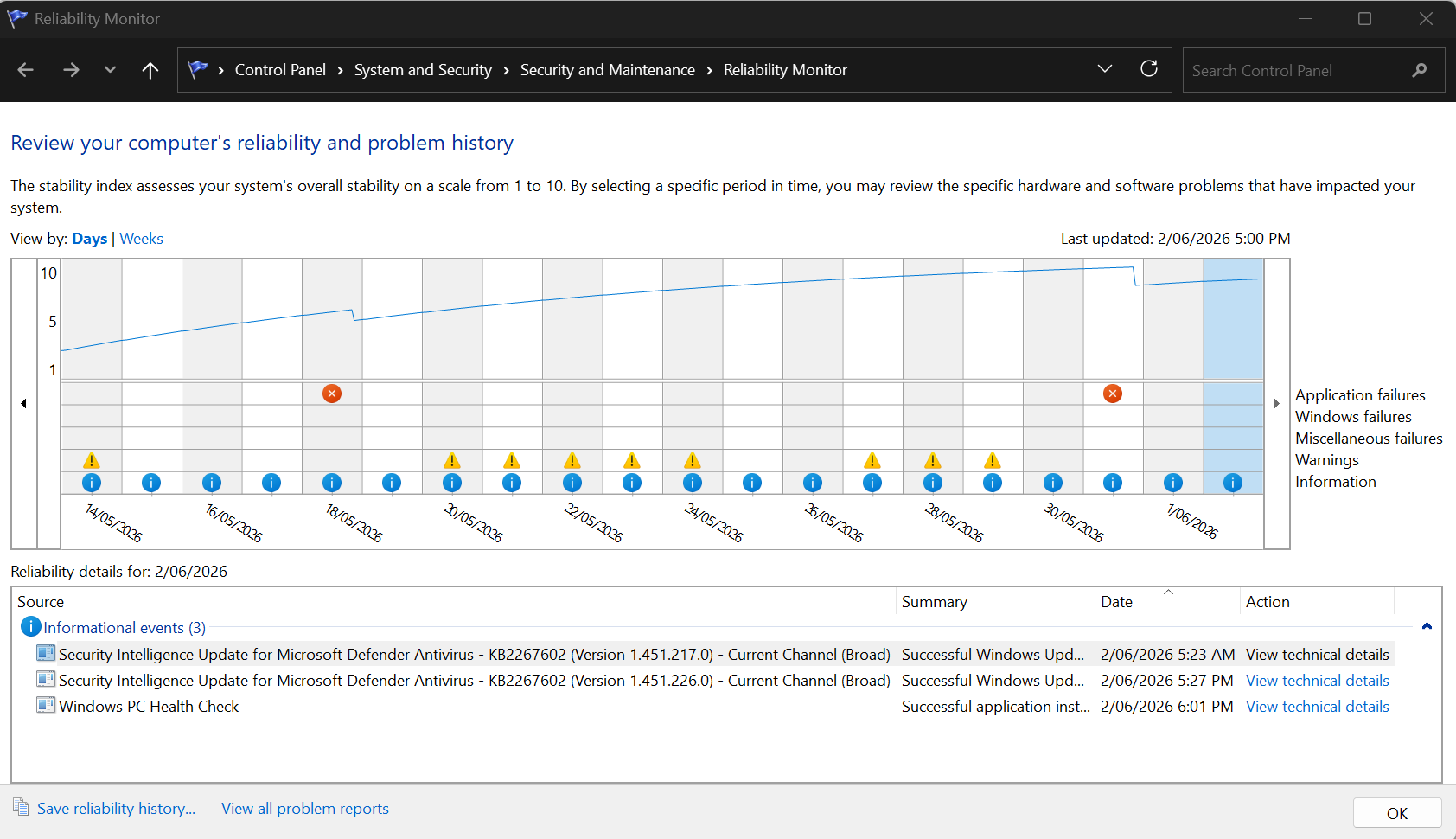
I'm here because my PC got slow right after a Windows 11 update (24H2, build 26100.x, or 25H2, build 26200.x — they share the same code and the same monthly updates). The key move is to not panic and not buy hardware yet. A lot of post-update slowness is expected, temporary background work — Windows re-indexing for Search, SysMain re-profiling, OneDrive re-syncing, drivers reinstalling — that settles within an hour or so if you leave the machine on. The operator path is: let it settle, then diagnose against the update date with Reliability Monitor before blaming hardware, repair system files, and only roll back a specific update if a known regression lines up. If it also won't boot cleanly, see Windows won't boot.
Note how long ago the update installed and leave the PC on and idle for an hour.
perfmon /rel
If it was very recent, post-update indexing/sync explains the slowness and it eases on its own.
Don't change settings or uninstall things during normal post-update indexing.
Layer path
Step-by-step runbook
Start here. Do each check in order, compare it to the expected result, and stop when the evidence explains the failure or the safe stop point applies.
Let the dust settle
Check: If the update was recent, leave the PC on and idle for an hour. Check Task Manager — if SearchIndexer/SysMain is the load, that's expected.
Expected result: The background work finishes and performance returns to normal.
If not: If it's still slow after it settles, move to diagnosis.
Safe stop: Don't change settings or uninstall things during normal post-update indexing.
Find the culprit, dated
Check: Use Task Manager (which process now), Resource Monitor (which file/disk), and Reliability Monitor (`the "Correlate the slowdown with a date" command below`) to line the slowdown up against the update/driver date.
Expected result: You have a specific process or driver, and a date that points at the cause.
If not: If nothing correlates with the update, treat it as a local issue (drivers, storage, startup apps).
Repair and tune the safe stuff
Check: Run DISM then SFC and reboot. Rebuild the Search index if Search is the hog. Update GPU/chipset drivers, set Power mode to Balanced/Best Performance, and trim Startup apps.
Expected result: System files are healthy and the obvious throttles are cleared.
If not: If a driver install caused it, roll the driver back in Device Manager.
Roll back the right update
Check: If a specific KB lines up (check Microsoft's release-health page), uninstall it and Pause updates for a week. Re-apply once a fixed build ships.
Expected result: Performance returns and the bad patch is held off until fixed.
If not: If the feature-update rollback window has closed, use an in-place repair-install instead.
Safe stop: Don't leave security updates off permanently.
Only now suspect hardware
Check: Check system-drive free space (target 20%+), SMART health, and SSD firmware; in Resource Monitor watch hard-faults and pagefile growth to tell a RAM ceiling from a leak.
Expected result: You confirm whether storage or RAM is the real limit rather than the update.
If not: If the SSD is failing or genuinely too small/full, replace or free it; if RAM is genuinely short, reduce load or add memory.
Safe stop: Don't disable the pagefile to save space, and skip 'registry cleaner'/'PC booster' tools.
Did this solve your problem?
Your answer helps us improve this page.
No account or personal details. We store the page, answer, optional reason and day with a 90-day retention period. A random reference in this browser prevents repeat votes. Feedback privacy
Decision tree
If: Slowness started in the last hour or two after the update, disk/CPU high from SearchIndexer/SysMain.
Then: Expected post-update background work.
Action: Leave the PC on and idle; recheck after it settles. Rebuild the Search index only if it never finishes.
Safe stop: Don't start uninstalling updates or drivers during normal post-update indexing.
If: Reliability Monitor shows a driver installed the day it got slow (a .sys fault recurs).
Then: A driver regression, not Windows itself.
Action: Update the GPU/chipset driver, or roll the driver back to the prior version from Device Manager.
If: A specific KB lines up and Microsoft lists a known issue for your build.
Then: A documented update regression.
Action: Apply the fixing KB if available; otherwise uninstall the offending KB and pause updates for a week.
Safe stop: Re-apply security updates once a fixed build ships — don't leave them off permanently.
If: Memory use climbs with uptime and clears on reboot, traced to one process.
Then: A software memory leak (app or a known OS leak fixed by a later KB).
Action: Update the offending app/Windows; restart the process or PC as a stopgap.
If: System drive is near full, or SMART is degraded / the drive drops out under load.
Then: Storage is the bottleneck, not the update.
Action: Free space to 20%+, check SMART, update the SSD firmware; replace the drive if it's failing.
Safe stop: Don't disable the pagefile to free space — move it instead.
If: High hard-faults/sec and a growing pagefile under normal use, persisting after reboot.
Then: Genuinely insufficient RAM for the workload.
Action: Reduce concurrent load or add RAM; confirm it's not actually a leak first.
Evidence table
| Symptom | Evidence to collect | Likely layer | Next action |
|---|---|---|---|
| High disk/CPU for the first hour after an update, then it eases. | Top process in Task Manager (SearchIndexer/SysMain); time since update. | Expected post-update background work. | Leave it to settle; rebuild the Search index only if it never completes. |
| Slow/janky starting the day a driver or KB installed. | Reliability Monitor timeline; recurring .sys faults in Event Viewer. | Driver or specific-update regression. | Roll back the driver, or uninstall the KB and pause updates. |
| Gets slower the longer it's on, fine after a reboot. | Memory column climbing for one process over uptime. | Software memory leak. | Update the app/Windows; restart the process or reboot as a stopgap. |
| Sluggish under load with low CPU but stalled I/O; or the drive vanishes under big writes. | Free space on C:; SMART status; whether it only happens under sustained writes. | Near-full or failing SSD. | Free to 20%+, check SMART/firmware, replace if failing. |
Commands and settings paths
Correlate the slowdown with a date
perfmon /relWhere: Run dialog (Win+R) / Start search
Expected: Reliability Monitor opens with a stability timeline; clicking the day it got slow shows the updates/drivers/failures from that date.
Failure means: If no update/driver lines up with the slowdown date, the update probably isn't the cause.
Safe next step: Use the lined-up event to decide between KB rollback and driver action.
Repair the component store, then system files
DISM /Online /Cleanup-Image /RestoreHealth then sfc /scannowWhere: Elevated Terminal / Command Prompt (Windows running), reboot after
Expected: DISM repairs the component store SFC draws from; SFC then repairs protected system files. Run DISM first, SFC second, then reboot.
Failure means: If DISM can't reach a source or SFC reports unrepairable files, an in-place repair (Reset → Keep my files) is next.
Safe next step: Both are non-destructive; reboot and re-test before anything bigger.
Roll back a bad update and hold it
Settings → Windows Update → Update history → Uninstall updates → (remove the KB) | CLI: wusa /uninstall /kb:NNNNNNNWhere: Settings app or elevated Command Prompt
Expected: The specific cumulative update is removed and the PC returns to its prior behavior.
Failure means: If a feature-update rollback window has expired (~10 days), 'Go back' is gone and you're on a repair-install path instead.
Safe next step: Pause updates for a week after; re-apply the fixed build when available.
Hardware and platform boundary
Change only when
- Add or upgrade the system SSD if it's near full or genuinely failing (target keeping 20%+ free) — that's the most common real hardware cause of post-update sluggishness.
- Add RAM only after confirming a genuine shortage (high hard-faults, growing pagefile under normal load) rather than a software leak that a reboot clears.
Evidence that matters
- A system SSD with healthy SMART and 20%+ free space.
- Current GPU and chipset drivers from the vendor.
- Enough RAM for your real concurrent workload (not headline numbers).
Evidence that does not matter
- Headline CPU/RAM numbers — a post-update slowdown is almost always software, not a too-slow CPU.
- 'Gaming' tweaks and overclocks — irrelevant to update-related slowness and a source of instability.
Avoid
- Registry cleaners and 'PC booster' / 'speed-up' utilities.
- Disabling or shrinking the pagefile to free space (move it instead).
- Blaming the GPU/hardware before checking Reliability Monitor against the update date.
- Reacting to viral 'this update kills SSDs' claims without checking SMART and Microsoft's release-health page.
Related problems
Last reviewed
2026-06-02 · Reviewed by HomeTechOps. Reviewed against Microsoft's Windows Search performance, release-health known-issues, and update-troubleshooting guidance; leads with letting expected post-update background work settle, makes Reliability Monitor the diagnostic spine for correlating against the update date, and orders fixes repair → targeted KB rollback → hardware last, while flagging the unverified 'update kills SSDs' rumor.
Sources/assumptions
- Assumes Windows 11 24H2/25H2; the two versions share a servicing branch, so a regression in a cumulative update hits both and a fix lands in both.
- Windows 11 24H2 Home and Pro reach end of updates on 13 October 2026 (Enterprise and Education run to 12 October 2027). 25H2 is the current release, so move a 24H2 Home or Pro PC to 25H2 before that date (checked 2026-09-15).
- The 'expected background work' timeframes (Search reindexing, SysMain) and the diagnostic ladder (Task Manager → Resource Monitor → Reliability Monitor → Event Viewer) follow Microsoft Learn and Microsoft Support current to mid-2026.
- Viral 'this update kills SSDs' claims (e.g. around KB5063878) are treated as unverified: Microsoft found no evidence and the storage vendor traced reproductions to pre-production firmware — diagnose with SMART and Reliability Monitor rather than reacting to rumor.
Source-backed checks
HomeTechOps turns official docs and conservative safety rules into a shorter runbook. These links are the source trail for the page direction.
Get the deal & firmware alerts
Home Stack Field Notes: NAS deals, firmware changes worth acting on, restore-test reminders, and new decision guides — plus the capacity & backup sizing cheatsheets from our calculators. Unsubscribe anytime.
Subscribe on beehiiv