
Windows
Windows 10 end of support: upgrade, replace, or wait
Windows 10 support ended October 14, 2025. Your options: upgrade to Windows 11, replace the PC, enroll in one year of consumer ESU, or switch OS.
Start here: Check eligibility (the authoritative way)
Run PC Health Check (or read Settings → Windows Update). Record the verdict and, if ineligible, the reason.
Don't decide from the CPU name — let Microsoft's tool rule.
Evidence from the screen
Reference images and diagrams. Click any image to view full resolution.
Problem summary
I'm here because my PC is on Windows 10 and support ended October 14, 2025 — it still boots and runs, but it no longer gets security updates, feature updates, or technical support, so it gets riskier the longer it's online. This is a planning decision, not an emergency. There are four operator paths: upgrade in place to Windows 11 if the PC is eligible, replace the hardware if it isn't and you want a supported machine, enroll in one year of consumer ESU to buy time, or switch OS (Linux / ChromeOS Flex) to keep older hardware patched. Whatever you pick, back up first (image + a tested restore — see the backup plan builder) and check your apps and peripherals. Eligibility is decided by Microsoft's PC Health Check, not by guesswork.
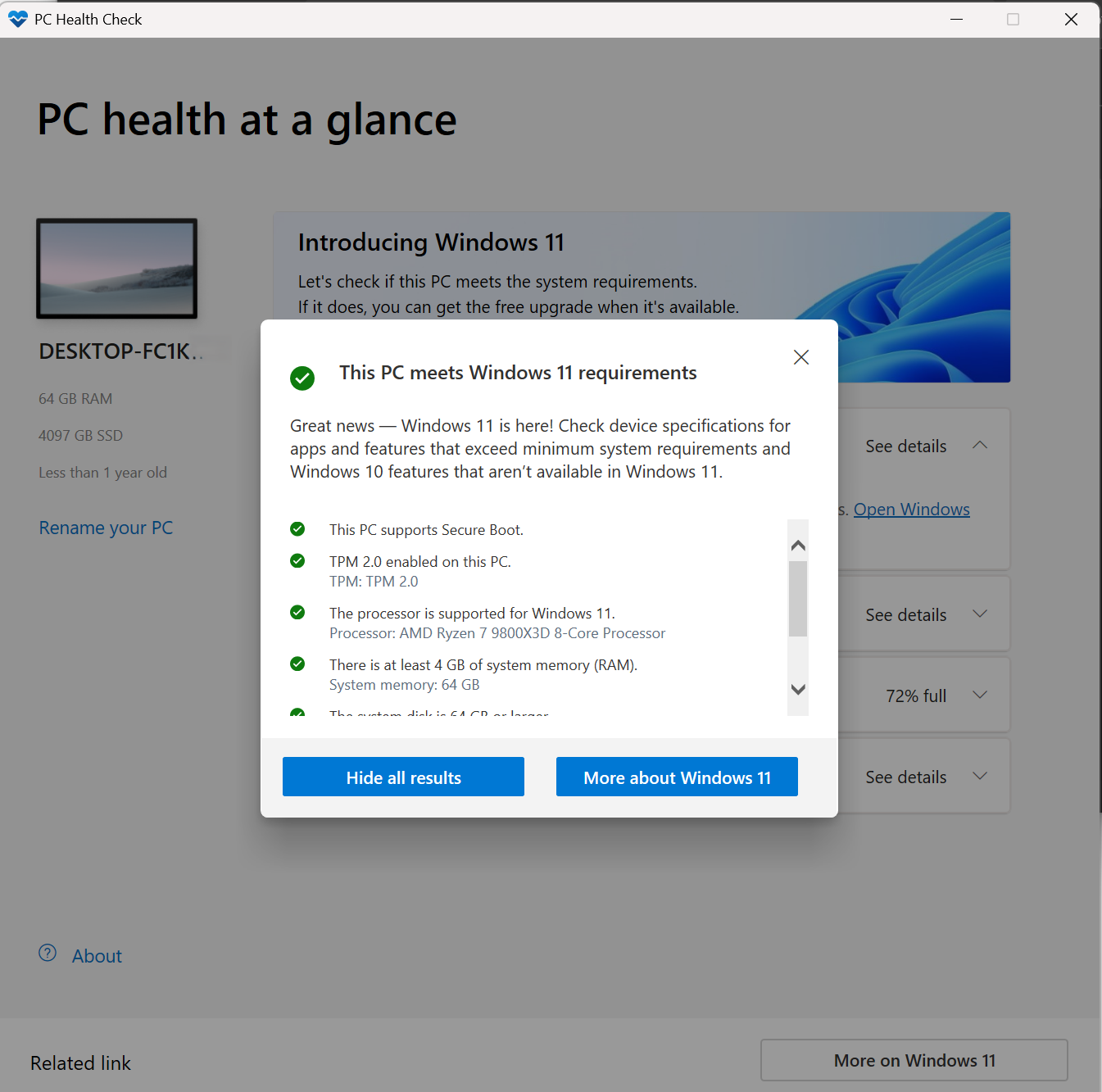
Run Microsoft's PC Health Check app (or read Settings → Windows Update) to see if this PC is eligible for Windows 11.
PC Health Check app (or Settings → Windows Update eligibility message)
You get an authoritative eligible/ineligible answer and, if ineligible, the specific reason (usually TPM or CPU).
Don't decide from the CPU name — let Microsoft's tool rule.
Layer path
Step-by-step runbook
Start here. Do each check in order, compare it to the expected result, and stop when the evidence explains the failure or the safe stop point applies.
Check eligibility (the authoritative way)
Check: Run PC Health Check (or read Settings → Windows Update). Record the verdict and, if ineligible, the reason.
Expected result: You know definitively whether an in-place Windows 11 upgrade is available.
If not: If the only gap is TPM/Secure Boot being off, enable them in UEFI and re-check.
Safe stop: Don't decide from the CPU name — let Microsoft's tool rule.
Back up and inventory before committing
Check: Make an image-level backup with a tested restore (backup plan builder), and list the apps/peripherals you can't live without and confirm their Windows 11 / Linux support.
Expected result: You can recover from any path, and you know what might break.
If not: If a must-have device has no support on the target OS, factor that into the decision.
Safe stop: Don't start any migration without a verified backup.
Pick the path for your timeline
Check: Eligible → upgrade in place. Ineligible + want supported → replace. Not ready / ineligible-but-fine → ESU for a year. Keep old hardware long-term → switch to Linux/ChromeOS Flex.
Expected result: You have a path matched to your eligibility, budget, and how long the PC must stay safely online.
If not: If unsure, ESU buys decision time without leaving the PC unpatched.
Safe stop: Don't simply keep running unsupported Windows 10 indefinitely with no plan.
Execute and verify
Check: Carry out the path (upgrade via Windows Update / set up the new PC / enroll in ESU / install the new OS). Afterward, confirm Windows Update works, apps launch, and printers/docks function.
Expected result: The chosen path is complete and the machine is patched and usable.
If not: If an upgrade went wrong, 'Go back' is available for ~10 days; otherwise restore from your backup.
Set the next reminder
Check: If you chose ESU, mark October 12, 2027 — that's when consumer ESU coverage now ends and you'll need to have upgraded, replaced, or switched by then.
Expected result: You won't be caught unpatched a second time.
If not: If you'll still be on this hardware then, plan the replacement/switch now rather than at the deadline.
Did this solve your problem?
Your answer helps us improve this page.
No account or personal details. We store the page, answer, optional reason and day with a 90-day retention period. A random reference in this browser prevents repeat votes. Feedback privacy
Decision tree
If: PC Health Check says the PC is eligible.
Then: In-place upgrade to Windows 11 is the clean, supported path.
Action: Back up, then upgrade via Windows Update; verify apps/peripherals afterward.
If: Ineligible, and you want a fully supported machine.
Then: Hardware replacement is the long-term answer.
Action: Plan a new Windows 11 PC; migrate data from your verified backup; recycle the old PC responsibly.
If: Ineligible (or not ready to move) but the PC is otherwise fine.
Then: Consumer ESU buys one safe year.
Action: Enroll via Settings → Windows Update (free with Windows Backup sync, 1,000 Rewards points, or $30); treat it as a bridge to Oct 13, 2026.
Safe stop: Don't treat ESU as permanent — it's security-only and ends Oct 13, 2026.
If: Ineligible and you want to keep the hardware out of landfill long-term.
Then: Switching OS (Linux / ChromeOS Flex) keeps older hardware patched.
Action: Back up, confirm app/peripheral compatibility, then install the alternative OS.
Safe stop: Accept the app-compatibility trade-off honestly before switching.
If: Tempted to force Windows 11 onto unsupported hardware.
Then: Microsoft permits but discourages it: no guaranteed updates, a desktop watermark, and damage outside warranty.
Action: Prefer ESU or an OS switch for a supported, updated path; if you proceed anyway, understand 'Go back' only lasts ~10 days.
Safe stop: Don't rely on an unsupported install for a machine that must stay securely patched.
Evidence table
| Symptom | Evidence to collect | Likely layer | Next action |
|---|---|---|---|
| PC Health Check: 'This PC meets Windows 11 requirements.' | The app result; current backup status. | Eligible hardware. | Back up, then upgrade in place via Windows Update. |
| PC Health Check: ineligible (TPM 2.0 / Secure Boot / CPU). | The specific failed requirement; your timeline and budget. | Hardware gap. | Choose replace (long term) vs ESU (one-year bridge) vs OS switch. |
| Want to stay on Windows 10 safely for now. | Whether 'Enroll now' appears in Windows Update; a Microsoft account is available. | ESU eligibility (Windows 10 22H2, consumer). | Enroll in consumer ESU (free via Backup sync / 1,000 points / $30) through Oct 13, 2026. |
| A critical app or peripheral has no Windows 11 / Linux driver. | Vendor support pages for your printer/scanner/dock and key apps. | Compatibility blocker. | Resolve compatibility (or keep that device on an ESU-covered Win10 box) before migrating. |
Commands and settings paths
Check Windows 11 eligibility the official way
PC Health Check app (or Settings → Windows Update eligibility message)Where: On the Windows 10 PC
Expected: A clear eligible/ineligible verdict with the reason — TPM, Secure Boot, or CPU — straight from Microsoft's tool.
Failure means: If it's ineligible, the reason tells you whether a setting (enable TPM/Secure Boot in UEFI) or the hardware itself is the blocker.
Safe next step: Enable TPM/Secure Boot in firmware if that's the only gap; otherwise weigh replace/ESU/switch.
Confirm your current version + build
winverWhere: Run dialog (Win+R) on the PC
Expected: Shows you're on Windows 10 22H2 (the only consumer build ESU covers) and your exact build.
Failure means: If you're not on 22H2, you must update to it first to be ESU-eligible.
Safe next step: Update to 22H2 before enrolling in ESU.
Enroll in consumer ESU
Settings → Update & Security → Windows Update → 'Enroll now'Where: On the Windows 10 22H2 PC, signed in with a Microsoft account
Expected: The enrollment wizard offers three options (free with Windows Backup settings sync, 1,000 Microsoft Rewards points, or one-time $30) and activates security updates through Oct 13, 2026.
Failure means: If 'Enroll now' is missing, install the latest cumulative update and re-check; managed/domain/kiosk devices are excluded from consumer ESU.
Safe next step: Enroll to stay patched while you execute the upgrade/replace plan.
Hardware and platform boundary
Change only when
- Replace the PC when PC Health Check says it's ineligible and you want a supported, updated machine for years — buying a Copilot+/Windows 11 PC beats stacking ESU years.
- Buy a small external/cloud backup target before migrating if you don't already have one — a tested backup is the prerequisite for every path.
Evidence that matters
- Windows 11 eligibility per PC Health Check (TPM 2.0, Secure Boot, supported CPU).
- A verified image-level backup and a known app/peripheral compatibility list.
- A clear timeline for how long the machine must stay safely online.
Evidence that does not matter
- Chasing a specific CPU 'compatibility list' yourself — defer to PC Health Check; the official tool is the only claim that counts.
- Headline specs on a new PC beyond what your real workload needs.
Avoid
- Doing nothing and running unsupported Windows 10 online indefinitely.
- Forcing Windows 11 onto unsupported hardware for a machine that must stay patched (no guaranteed updates, watermark, warranty exclusion).
- Migrating without a verified backup, or before checking app/peripheral support.
- Treating one year of ESU as a permanent solution rather than a bridge to Oct 13, 2026.
Related tool/checklist
Use the linked tool when you need a guided plan from your exact symptoms instead of a static checklist.
Backup plan builderRelated problems
Last reviewed
2026-10-17 · Reviewed by HomeTechOps. Reviewed against Microsoft's Windows 10 end-of-support page, the consumer ESU program page, the Windows 11 specifications, and the unsupported-install KB; presents the four operator paths (upgrade/replace/ESU/switch), defers all eligibility to PC Health Check rather than asserting any CPU works, pins the ESU dates and three enrollment options, and refuses to provide an unsupported-install bypass.
Sources/assumptions
- Assumes a home/consumer Windows 10 22H2 PC; commercial, domain-joined, kiosk, and MDM-managed devices have a separate (paid) ESU track and are out of scope here.
- End-of-support date (Oct 14, 2025), consumer ESU details (through Oct 13, 2026; three enrollment options; Microsoft account required; security-only), and Windows 11 requirements follow Microsoft's official pages current to mid-2026.
- Per the site's trust rules, eligibility is deferred to Microsoft's PC Health Check / Windows Update message — no specific CPU is asserted to 'work', and no unsupported-install bypass is provided.
Source-backed checks
HomeTechOps turns official docs and conservative safety rules into a shorter runbook. These links are the source trail for the page direction.
Get the deal & firmware alerts
Home Stack Field Notes: NAS deals, firmware changes worth acting on, restore-test reminders, and new decision guides — plus the capacity & backup sizing cheatsheets from our calculators. Unsubscribe anytime.
Subscribe on beehiiv