
Windows
Windows update broke Wi-Fi or internet
Wi-Fi or internet stopped after a Windows 11 update? Classify the failure, work the network-reset ladder, roll back the adapter driver, check release-health.
Start here: Classify and check the basics
Decide which of the four failure types you have; confirm airplane mode is off, WLAN AutoConfig is running, and the adapter is present in Device Manager.
Evidence from the screen
Reference images and diagrams. Click any image to view full resolution.
Problem summary
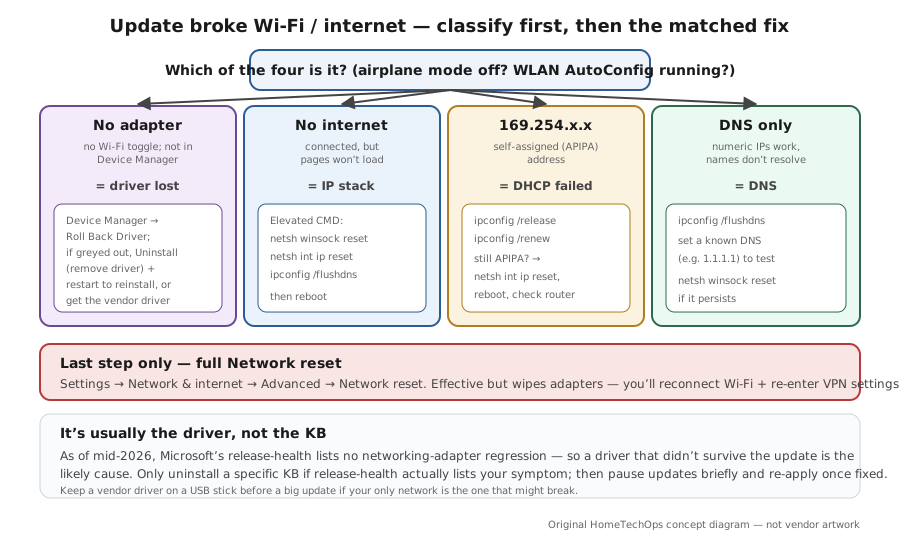
I'm here because Wi-Fi or internet died right after a Windows 11 update and I want it back without thrashing. First, classify what actually broke — the Wi-Fi adapter is gone entirely, you're connected but with no internet, you're stuck on a 169.254 self-assigned address (DHCP failed), or only DNS is failing — because each points to a different fix. Then work the ladder from least to most invasive: the network troubleshooter, then `netsh winsock reset` / `netsh int ip reset` and `ipconfig /release /renew /flushdns`, then roll back the adapter driver (the most likely real cause after an update), and Network reset only as the last step. If a specific KB lines up, check Microsoft's release-health page before assuming it's the update. This is the Windows-update angle on internet works on phone, not laptop; if shares broke too, see can't see your NAS or share.
Classify the failure: no adapter, connected-no-internet, 169.254/DHCP, or DNS-only.
netsh winsock reset → netsh int ip reset → ipconfig /release → ipconfig /renew → ipconfig /flushdns
You know which layer (driver, IP stack, DHCP, DNS) to start with.
Don't leave security updates paused for good.
Layer path
Step-by-step runbook
Start here. Do each check in order, compare it to the expected result, and stop when the evidence explains the failure or the safe stop point applies.
Classify and check the basics
Check: Decide which of the four failure types you have; confirm airplane mode is off, WLAN AutoConfig is running, and the adapter is present in Device Manager.
Expected result: You know the layer to work and have ruled out the trivial causes.
If not: If the adapter is missing, go straight to the driver step.
Run the troubleshooter
Check: Run the Windows network troubleshooter (Get Help app).
Expected result: It clears a common stack/DHCP fault automatically.
If not: If it can't, move to the command-line reset.
Reset the stack / refresh DHCP & DNS
Check: In an elevated prompt run netsh winsock reset, netsh int ip reset, ipconfig /release, /renew, /flushdns, then reboot.
Expected result: Connectivity returns for most connected-no-internet, APIPA, and DNS cases.
If not: If it doesn't, the driver (or router) is the cause.
Fix the adapter driver
Check: In Device Manager roll back the adapter driver if this started after an update; if roll-back is unavailable, uninstall (remove driver) and restart to reinstall, or install the vendor's current driver.
Expected result: The adapter returns with a working driver.
If not: If a specific KB lines up with a release-health known issue, uninstall that KB and pause updates briefly.
Safe stop: Don't leave security updates paused for good.
Full reset only if needed
Check: If nothing above worked, run Network reset, then reconnect Wi-Fi and re-enter any VPN settings.
Expected result: You get a clean networking stack and connectivity is restored.
If not: If it still fails after a reset, suspect the router/ISP or a hardware fault, not Windows.
Safe stop: Expect to re-add Wi-Fi passwords and VPN config after a reset.
Did this solve your problem?
Your answer helps us improve this page.
No account or personal details. We store the page, answer, optional reason and day with a 90-day retention period. A random reference in this browser prevents repeat votes. Feedback privacy
Decision tree
If: No Wi-Fi adapter / no toggle at all.
Then: The driver likely didn't survive the update.
Action: Device Manager → Network adapters: Roll Back Driver; if unavailable, uninstall (remove driver) + restart to reinstall, or install the vendor driver.
If: Connected but no internet.
Then: IP stack / Winsock state.
Action: Elevated CMD: netsh winsock reset, netsh int ip reset, ipconfig /flushdns; reboot.
If: Stuck on 169.254.x.x (APIPA).
Then: DHCP failed to assign an address.
Action: ipconfig /release then /renew; if still APIPA, netsh int ip reset and reboot, then check the router/DHCP.
If: Numeric sites work but names don't resolve.
Then: DNS failure.
Action: ipconfig /flushdns; set a known DNS (e.g. 1.1.1.1) to test; netsh winsock reset if it persists.
If: Nothing above works and you need a clean slate.
Then: Time for the full reset.
Action: Settings → Network & internet → Advanced → Network reset (reconnect Wi-Fi and re-add VPN afterward).
Safe stop: Network reset wipes adapters/VPN config — it's the last step, not the first.
Evidence table
| Symptom | Evidence to collect | Likely layer | Next action |
|---|---|---|---|
| No Wi-Fi option after the update. | Whether the adapter is in Device Manager; driver state. | Adapter driver lost on update. | Roll back or reinstall the adapter driver. |
| Connected, but pages won't load. | Whether numeric IPs respond; Winsock/IP stack state. | Corrupt IP stack / Winsock. | netsh winsock reset + netsh int ip reset, reboot. |
| IP starts with 169.254. | Router/DHCP reachability; whether release/renew helps. | DHCP failure (APIPA). | ipconfig /release + /renew; reset IP stack; check the router. |
| Apps say offline despite a connection. | Release-health for a known connectivity-state issue; recent KB. | Possibly a known issue, possibly local. | Check release-health; if listed, install the resolving KB; else treat as driver/stack. |
Commands and settings paths
Reset the IP stack and refresh DHCP/DNS
netsh winsock reset → netsh int ip reset → ipconfig /release → ipconfig /renew → ipconfig /flushdnsWhere: Elevated Command Prompt (reboot after)
Expected: Rebuilds the Winsock catalog and TCP/IP stack and renews the lease — fixes most 'connected-no-internet' and 169.254 cases.
Failure means: If it still fails, the adapter driver or the router/DHCP is the cause.
Safe next step: Reboot, then move to the driver step if needed.
Roll back or reinstall the adapter driver
Device Manager → Network adapters → (adapter) → Properties → Driver → Roll Back Driver; or Uninstall device (remove driver) → restartWhere: Device Manager (devmgmt.msc)
Expected: Returns the adapter to the pre-update driver, or lets Windows reinstall a clean copy on restart.
Failure means: If roll-back is greyed out, there's no stored previous driver — uninstall/reinstall or get the vendor driver.
Safe next step: Reboot; install the adapter vendor's current driver if the in-box one is the regression.
Full network reset (last resort)
Settings → Network & internet → Advanced network settings → Network reset → Reset nowWhere: Settings app (reboots the PC)
Expected: Removes and reinstalls all network adapters and returns settings to defaults — a clean slate.
Failure means: Afterward you must reconnect Wi-Fi, re-enter VPN settings, and known networks revert to Public.
Safe next step: Use only after the troubleshooter, stack reset, and driver steps have failed.
Hardware and platform boundary
Change only when
- Get the adapter vendor's current driver (Intel/Realtek/MediaTek/Killer) if the in-box driver is the regression — keep a copy on a USB stick before a big update if your only network is the one that broke.
- A cheap USB Wi-Fi/Ethernet adapter as a fallback so a broken built-in adapter doesn't leave you with no way to download a driver.
Evidence that matters
- A known-good adapter driver (in-box or vendor) that survives updates.
- A reachable router/DHCP server on the same network.
- A way to get online to fetch a driver if the main adapter fails (phone tether, USB adapter, another PC).
Evidence that does not matter
- Headline router/Wi-Fi 'speed' upgrades — an update-broke-networking problem is software, not bandwidth.
- Third-party 'network fixer' tools — netsh/ipconfig and a driver roll-back do the same safely.
Avoid
- Jumping to a full Network reset before trying the stack reset and driver roll-back.
- Resetting the IP stack when the adapter is actually missing (a driver problem).
- Blaming a specific KB without checking release-health (mid-2026 lists no adapter regression).
- Leaving Windows Update paused indefinitely after a one-off.
Related tool/checklist
Use the linked tool when you need a guided plan from your exact symptoms instead of a static checklist.
Wi-Fi dead spot troubleshooterRelated problems
Last reviewed
2026-06-02 · Reviewed by HomeTechOps. Reviewed against Microsoft's fix-Wi-Fi and fix-Ethernet pages (the netsh/ipconfig reset block and Network reset path), the Device Manager driver-rollback page, the uninstall-update and pause-updates pages, and release-health; classifies the failure first, orders fixes least-to-most invasive with driver roll-back as the likely real fix, and refuses to name a culprit KB since mid-2026 release-health lists no networking adapter regression.
Sources/assumptions
- Assumes Windows 11 24H2/25H2 with a built-in Wi-Fi or Ethernet adapter; the netsh/ipconfig reset commands, Network reset path, driver roll-back, and adapter power-management steps follow Microsoft Support current to mid-2026.
- Per the no-fake-claims rule, no specific 2026 KB is asserted to have 'broken Wi-Fi' — as of the live release-health pages no networking adapter regression is listed; the page tells the reader to check release-health for their build rather than naming a culprit KB.
- Vendor driver advice (Intel/Realtek/Killer/MediaTek) is generic — Microsoft's first-party path is 'roll back / let Windows reinstall'; a vendor-direct driver is the escalation when the in-box driver is the regression.
Source-backed checks
HomeTechOps turns official docs and conservative safety rules into a shorter runbook. These links are the source trail for the page direction.
Get the deal & firmware alerts
Home Stack Field Notes: NAS deals, firmware changes worth acting on, restore-test reminders, and new decision guides — plus the capacity & backup sizing cheatsheets from our calculators. Unsubscribe anytime.
Subscribe on beehiiv