
Windows
Windows 11 24H2/25H2 known issues — is it the build?
Find out if your Windows 11 problem is a Microsoft-acknowledged known issue: read the release-health list for 24H2/25H2 and find your exact build.
Start here: Pin down your build
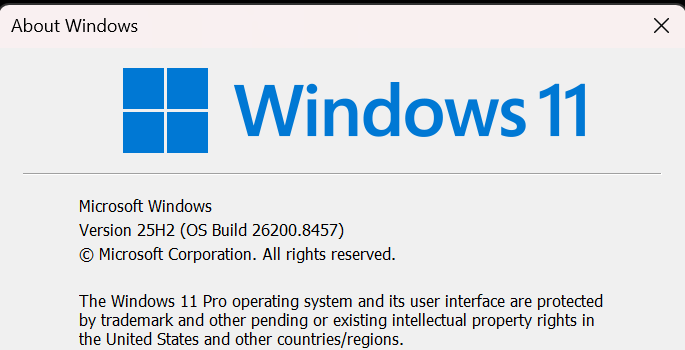
Run winver and note version + OS build.
Evidence from the screen
Reference images and diagrams. Click any image to view full resolution.
Problem summary
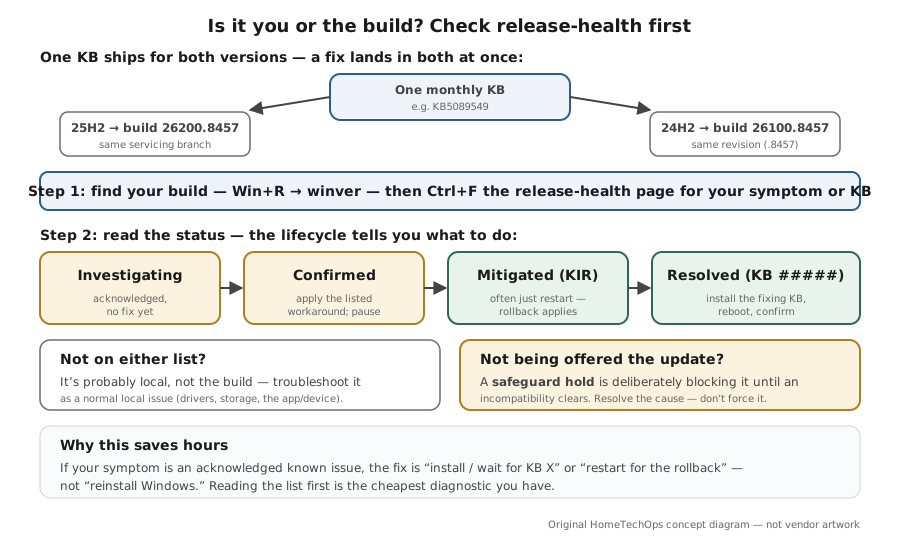
I'm here because something broke after a Windows 11 update and I want to know whether it's me or the build before spending an evening on it. The fastest move an operator can make: check Microsoft's release-health known-issues list for your version, because if your symptom is already acknowledged, the fix is usually 'wait for / install a specific KB,' not 'reinstall Windows.' This page shows how to find your exact build (`winver`), read the 24H2 (26100.x) and 25H2 (26200.x) known-issue lists — they share a servicing branch, so a fix lands in both — and understand the lifecycle: safeguard holds (why an update isn't offered yet), status values (Investigating → Confirmed → Mitigated → Resolved), and Known Issue Rollback (when Microsoft silently undoes a bad change). It's the hub for the rest of the cluster: stuck updates, error codes, slow after update.
Find your exact build: Win+R → winver (or Settings → System → About).
winver
You have the version (24H2/25H2) and OS build to match against the list.
Don't reinstall Windows over an issue with a pending official fix.
Layer path
Step-by-step runbook
Start here. Do each check in order, compare it to the expected result, and stop when the evidence explains the failure or the safe stop point applies.
Pin down your build
Check: Run the "Find your exact version and build" command below and note version + OS build.
Expected result: You can match your machine against the right known-issue list.
If not: If you're behind, install pending updates first — the fix may already exist.
Search the release-health list
Check: Open the 24H2 and/or 25H2 status page and Ctrl+F for your symptom or KB number.
Expected result: You learn whether it's a known issue and its current status.
If not: If it's absent, switch to local troubleshooting.
Act on the status
Check: Resolved → install the fixing KB. Mitigated → restart for the rollback. Confirmed/Investigating → apply the workaround, pause updates if needed.
Expected result: Your action matches where the issue is in its lifecycle.
If not: If a workaround isn't acceptable, pausing buys time until the fix ships.
Safe stop: Don't reinstall Windows over an issue with a pending official fix.
Handle 'not being offered the update'
Check: If you're not offered a feature update, check whether a safeguard hold applies and resolve the flagged driver/app incompatibility.
Expected result: The hold lifts once the incompatibility is cleared and the update is offered normally.
If not: If you force past a safeguard hold, accept that you may hit the bug it guards against.
Safe stop: Forcing past a safeguard hold is the opposite of safe — resolve the cause instead.
Fall back to local troubleshooting
Check: If your symptom is on neither list, diagnose it locally — Reliability Monitor for timing, then the relevant cluster page (slow, 100% disk, Wi-Fi, printer, display).
Expected result: You stop waiting on a fix that isn't coming and fix the actual local cause.
If not: If local steps don't help either, capture logs before escalating.
Did this solve your problem?
Your answer helps us improve this page.
No account or personal details. We store the page, answer, optional reason and day with a 90-day retention period. A random reference in this browser prevents repeat votes. Feedback privacy
Decision tree
If: Your symptom is listed as Resolved with a fixing KB.
Then: It was a build issue, now fixed.
Action: Install the resolving KB (Windows Update → Check for updates), reboot, confirm.
If: Listed as Mitigated (Known Issue Rollback).
Then: Microsoft is rolling back the bad change automatically.
Action: Restart the PC to speed the rollback; confirm the symptom clears.
If: Listed as Confirmed/Investigating with a workaround.
Then: Acknowledged but not yet fixed.
Action: Apply the documented workaround and pause updates if needed until the fix ships.
Safe stop: Don't reinstall Windows for an acknowledged issue with a pending fix.
If: Not offered the feature update at all.
Then: A safeguard hold is likely blocking the offer.
Action: Check for a safeguard hold; resolve the incompatibility (driver/app) rather than forcing the update.
Safe stop: Forcing past a safeguard hold risks the exact incompatibility it guards against.
If: Your symptom isn't on either list.
Then: It's probably local, not the build.
Action: Troubleshoot it as a local problem (drivers, storage, the specific app/device).
Evidence table
| Symptom | Evidence to collect | Likely layer | Next action |
|---|---|---|---|
| Problem began the day a KB installed. | winver build; the KB in Update history; the release-health entry. | Build/update regression. | Find the entry; install the resolving KB or apply the listed workaround. |
| Release-health says 'Resolved KB#####'. | Whether that KB is installed. | Already-fixed known issue. | Install the resolving KB and reboot. |
| Not being offered 25H2. | Whether a safeguard hold ID applies to your device. | Compatibility safeguard hold. | Resolve the flagged incompatibility; don't force the upgrade. |
| Symptom absent from both status pages. | Local logs (Reliability Monitor / Event Viewer); recent local changes. | Local issue, not the build. | Troubleshoot locally (driver/storage/app), not as an update bug. |
Commands and settings paths
Find your exact version and build
winverWhere: Run dialog (Win+R)
Expected: Shows the edition, version (24H2/25H2), and OS build to match against the known-issue list.
Failure means: If the build is older than current, install pending updates first — your issue may already be fixed.
Safe next step: Use the build to pick the right release-health page.
Read the release-health known-issue list
learn.microsoft.com/windows/release-health/status-windows-11-24h2 (and …-25h2)Where: A browser; Ctrl+F to search the page
Expected: Lists each known issue with Summary, originating update, Status, and Last-updated — the authoritative 'is it the build?' source.
Failure means: If your symptom isn't there, treat it as a local issue.
Safe next step: Note any resolving KB or workaround for your symptom.
Apply a Known Issue Rollback / resolving update
Settings → Windows Update → Check for updates, then restartWhere: On the affected PC
Expected: Pulls the resolving KB or lets a Known Issue Rollback apply; a restart finalizes it.
Failure means: If nothing new appears and the issue is 'mitigated', a restart alone often applies the KIR.
Safe next step: Confirm the symptom clears after the reboot.
Hardware and platform boundary
Change only when
- Nothing to buy — this is a reading/decision page. Bookmark the release-health pages so the check is one click next time.
Evidence that matters
- Your exact Windows version and OS build (winver).
- The originating/resolving KB numbers for your symptom.
- Whether a safeguard hold applies if you're not being offered an update.
Evidence that does not matter
- Third-party 'is my Windows broken' scanners — the official release-health list is the authoritative source.
- 'Force the update' tools to push past a safeguard hold.
Avoid
- Reinstalling Windows for a symptom that's an acknowledged known issue with a pending fix.
- Forcing a feature update past a safeguard hold.
- Assuming every post-update problem is the build without checking the list.
- Acting on an 'Investigating' issue as if it were resolved.
Related tool/checklist
Use the linked tool when you need a guided plan from your exact symptoms instead of a static checklist.
Device setup troubleshooterRelated problems
Last reviewed
2026-06-02 · Reviewed by HomeTechOps. Reviewed against Microsoft's Windows 11 24H2 and 25H2 release-health status pages, the safeguard-holds documentation, and the find-your-device-info page; teaches how to match your build and read the known-issue lifecycle (Investigating → Confirmed → Mitigated/KIR → Resolved) rather than freezing a snapshot, and uses the shared 24H2/25H2 servicing branch (one KB, paired builds) as the reason a fix lands in both.
Sources/assumptions
- Assumes Windows 11 24H2 (26100.x) / 25H2 (26200.x); the two share a servicing branch, so one KB is published for both with paired build numbers and a fix lands in both at once.
- Windows 11 24H2 Home and Pro reach end of updates on 13 October 2026 (Enterprise and Education run to 12 October 2027). 25H2 is the current release, so move a 24H2 Home or Pro PC to 25H2 before that date (checked 2026-09-15).
- The release-health pages are live and change continuously — this page teaches how to read them rather than freezing a snapshot of 'current' issues, which would go stale.
- Safeguard holds, the known-issue status lifecycle, and Known Issue Rollback follow Microsoft Learn and Microsoft Support current to mid-2026; managed devices have additional enterprise controls out of scope here.
Source-backed checks
HomeTechOps turns official docs and conservative safety rules into a shorter runbook. These links are the source trail for the page direction.
Get the deal & firmware alerts
Home Stack Field Notes: NAS deals, firmware changes worth acting on, restore-test reminders, and new decision guides — plus the capacity & backup sizing cheatsheets from our calculators. Unsubscribe anytime.
Subscribe on beehiiv