
Windows
This PC can't run Windows 11 (TPM, Secure Boot, CPU)
What "This PC can't run Windows 11" means after Windows 10 end of support: TPM 2.0, Secure Boot, the supported-CPU line, plus enabling the first two in UEFI.
Start here: Get the verdict and back up
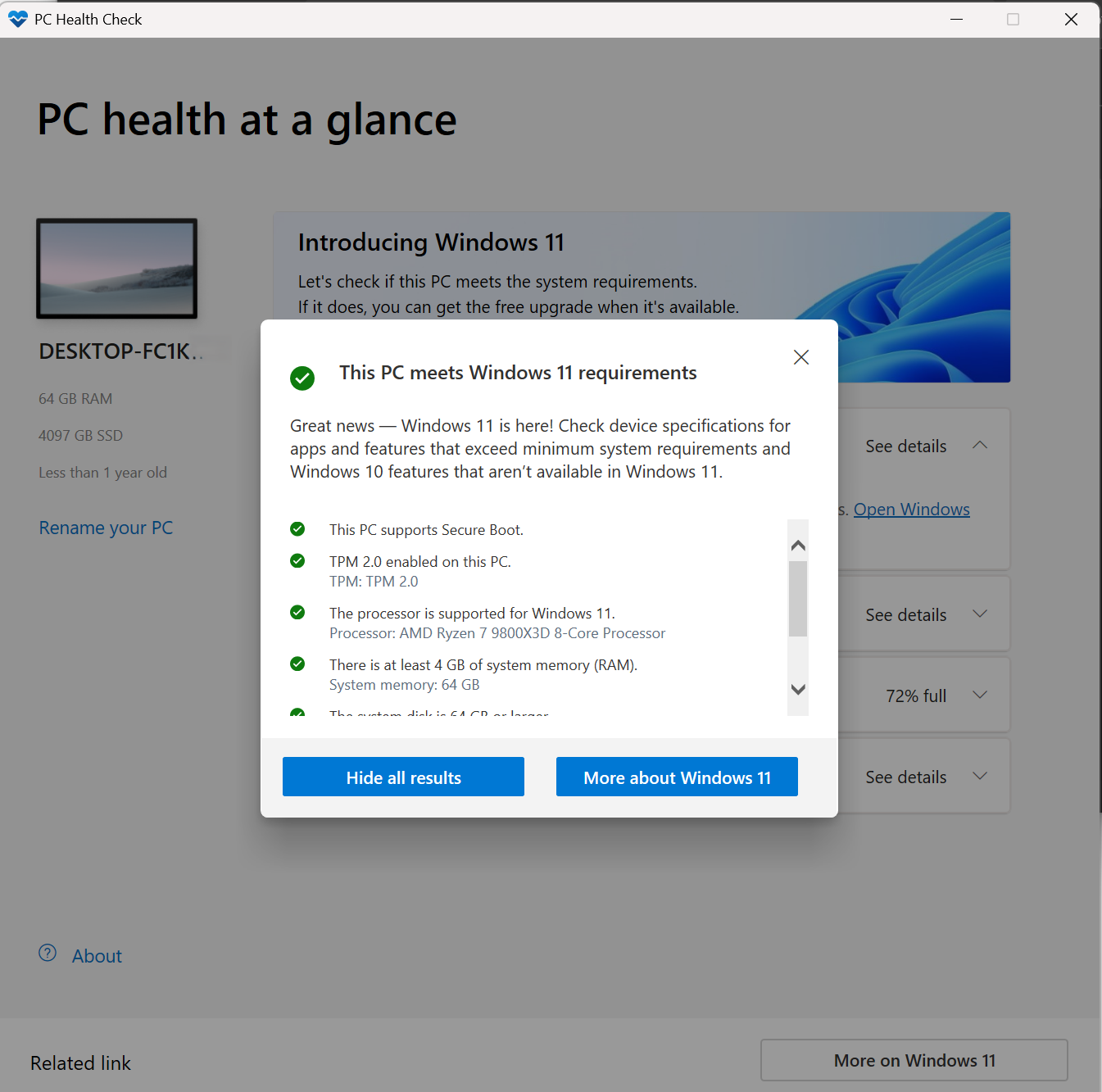
Run PC Health Check and note the specific failed requirement. Make a verified backup before any firmware work.
Don't change firmware/boot mode without a backup.
Evidence from the screen
Reference images and diagrams. Click any image to view full resolution.
Problem summary
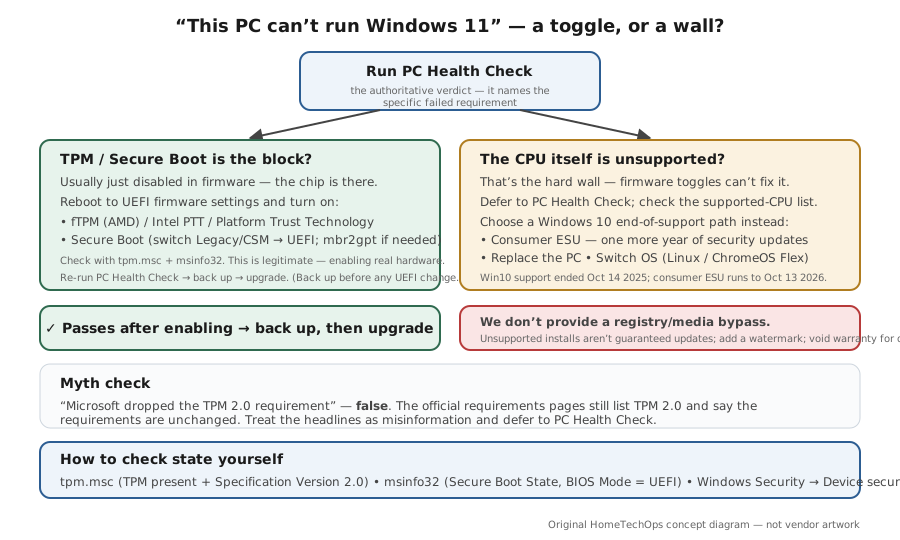
I'm here because PC Health Check (or Windows Update) says 'This PC can't run Windows 11' and I want to understand why — especially now that Windows 10 support has ended. The verdict comes down to three things: TPM 2.0, UEFI with Secure Boot, and a supported 64-bit CPU. The good news is that the most common 'failure' is just TPM or Secure Boot turned off in firmware — genuinely enabling real hardware you already have (fTPM/PTT, Secure Boot, UEFI mode) is legitimate and often flips the verdict to eligible. The honest line: we defer the eligibility verdict to Microsoft's PC Health Check and won't publish a registry bypass — if the CPU itself is unsupported, that's the wall, and the right move is the Windows 10 end-of-support options (ESU, replace, or switch OS). Back up before any firmware or upgrade work with the backup plan builder.
Run PC Health Check and read the specific reason it gives.
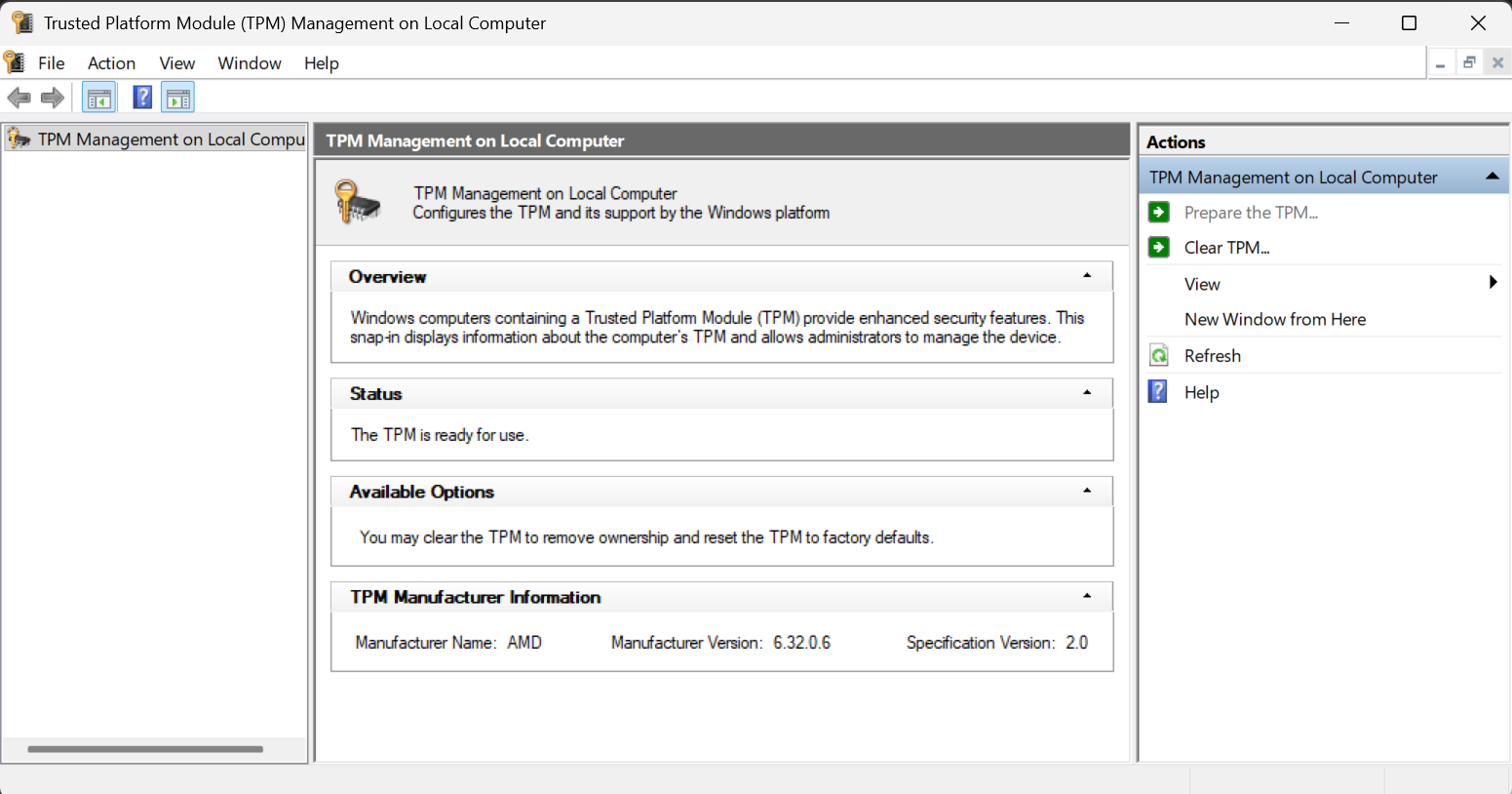
tpm.msc
You get the authoritative verdict and the exact failed requirement (TPM, Secure Boot, or CPU).
Don't change firmware/boot mode without a backup.
Layer path
Step-by-step runbook
Start here. Do each check in order, compare it to the expected result, and stop when the evidence explains the failure or the safe stop point applies.
Get the verdict and back up
Check: Run PC Health Check and note the specific failed requirement. Make a verified backup before any firmware work.
Expected result: You know exactly what's blocking eligibility and can recover from firmware changes.
If not: If the CPU is named as unsupported, skip the firmware steps and go to the EOS decision.
Safe stop: Don't change firmware/boot mode without a backup.
Check TPM and Secure Boot state
Check: Run the "Check TPM presence and version" command below (TPM present + version) and msinfo32 (Secure Boot State, BIOS Mode).
Expected result: You see whether TPM/Secure Boot are merely disabled vs genuinely absent, and whether you're in UEFI or Legacy mode.
If not: If both are present and on, re-run PC Health Check — the block may be the CPU.
Enable the firmware features
Check: Reboot into UEFI (Settings → System → Recovery → Restart now → Troubleshoot → Advanced options → UEFI Firmware Settings). Enable fTPM/Intel PTT and Secure Boot; if in Legacy/CSM, switch to UEFI.
Expected result: TPM and Secure Boot are on and the PC boots normally in UEFI.
If not: If switching to UEFI requires MBR→GPT, run mbr2gpt only after your backup is verified.
Safe stop: Enabling real hardware is legitimate; a checks-bypass is not.
Re-check eligibility
Check: Re-run PC Health Check after enabling firmware.
Expected result: Either it now passes (you were eligible, just disabled in BIOS) or it still names the CPU.
If not: If it passes, back up again and upgrade via Windows Update.
If the CPU is the wall, choose an EOS path
Check: For an unsupported CPU, decide among consumer ESU (one more year of security updates), replacing the PC, or switching OS — see the Windows 10 end-of-support page.
Expected result: You have a supported, patched path instead of an unsupported install.
If not: If you still choose an unsupported install elsewhere, understand it isn't guaranteed updates and adds a watermark.
Safe stop: We won't provide a bypass; the honest paths are ESU / replace / switch.
Did this solve your problem?
Your answer helps us improve this page.
No account or personal details. We store the page, answer, optional reason and day with a 90-day retention period. A random reference in this browser prevents repeat votes. Feedback privacy
Decision tree
If: PC Health Check says TPM is the only problem and tpm.msc shows none.
Then: TPM is almost certainly present but disabled in firmware.
Action: Enable fTPM (AMD) / Intel PTT in UEFI, re-run PC Health Check.
If: Secure Boot is off and/or BIOS Mode is Legacy/CSM.
Then: Secure Boot needs UEFI mode.
Action: Enable Secure Boot; if in Legacy/CSM, switch to UEFI (convert system disk MBR→GPT with mbr2gpt if needed) — back up first.
Safe stop: Don't convert the disk or change boot mode without a verified backup.
If: PC Health Check passes after enabling firmware.
Then: The PC was eligible all along — just disabled in BIOS.
Action: Back up, then upgrade to Windows 11 via Windows Update.
If: The CPU is not on Microsoft's supported list.
Then: Hard hardware wall — firmware can't fix it.
Action: Choose a Windows 10 EOS path: consumer ESU (one year), replace the PC, or switch OS.
Safe stop: Don't rely on an unsupported install for a machine that must stay patched.
If: Tempted to use a registry/media bypass to force the install.
Then: Out of scope here — unsupported installs aren't guaranteed updates.
Action: Use ESU / replace / switch instead; if you proceed anyway, understand the no-updates/watermark/warranty consequences.
Safe stop: We don't provide a bypass — it's against this site's trust rules.
Evidence table
| Symptom | Evidence to collect | Likely layer | Next action |
|---|---|---|---|
| PC Health Check: 'TPM 2.0 must be supported and enabled'. | tpm.msc result; whether fTPM/PTT exists in UEFI. | TPM disabled in firmware (usually). | Enable fTPM/PTT in UEFI, re-check. |
| PC Health Check: 'The PC must support Secure Boot'. | msinfo32 Secure Boot State and BIOS Mode. | Secure Boot off / Legacy boot mode. | Enable Secure Boot; switch to UEFI (convert disk if needed), back up first. |
| PC Health Check: 'The processor isn't supported'. | CPU model vs Microsoft's Intel/AMD supported lists. | Unsupported CPU (hard wall). | Plan ESU / replace / switch OS — not a bypass. |
| Passes after enabling firmware. | Re-run PC Health Check result; backup status. | Was eligible, just disabled in BIOS. | Back up, then upgrade via Windows Update. |
Commands and settings paths
Check TPM presence and version
tpm.mscWhere: Run dialog (Win+R)
Expected: Shows whether a TPM is present and its Specification Version (need 2.0); 'cannot be found' usually means disabled in firmware.
Failure means: If none is found, the chip is likely off in UEFI (fTPM/PTT) rather than absent.
Safe next step: Enable it in firmware and re-run tpm.msc / PC Health Check.
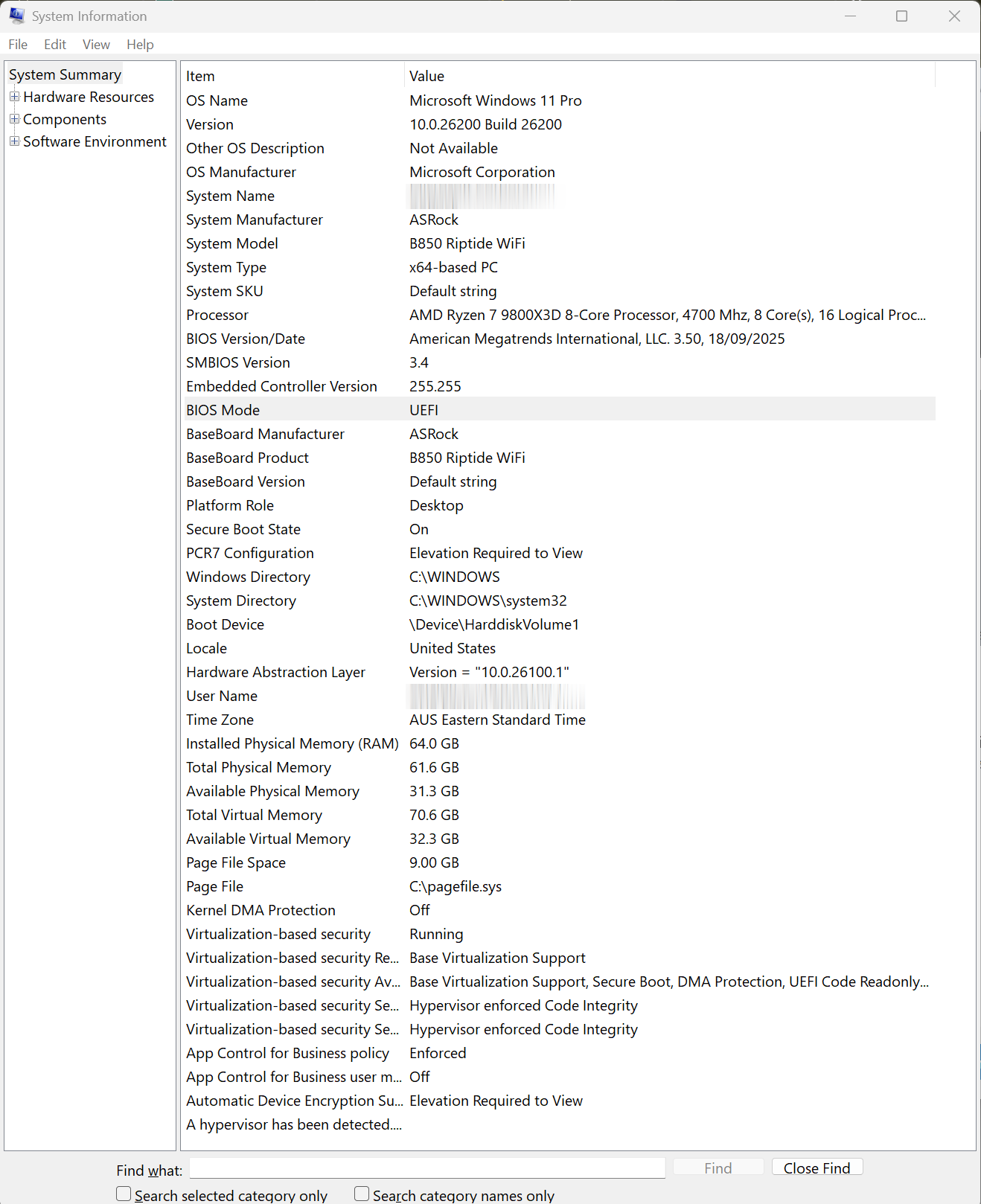
Check Secure Boot state and boot mode
msinfo32 (System Summary → Secure Boot State, BIOS Mode)Where: Run dialog (Win+R)
Expected: Reports whether Secure Boot is On and whether you're booting in UEFI or Legacy mode.
Failure means: BIOS Mode = Legacy/CSM means Secure Boot can't be enabled until you switch to UEFI (may need MBR→GPT).
Safe next step: Enable Secure Boot in UEFI; convert the disk with mbr2gpt only after a backup.
Get the authoritative eligibility verdict
PC Health Check app → Windows 11 → Check nowWhere: On the Windows 10 PC
Expected: Gives a clear eligible/ineligible result and names the specific failed requirement — the source of truth we defer to.
Failure means: If ineligible, the named reason tells you whether it's a firmware toggle (TPM/Secure Boot) or a hardware wall (CPU).
Safe next step: Enable firmware and re-check; if the CPU is the blocker, move to the EOS options.
Hardware and platform boundary
Change only when
- Replace the PC when PC Health Check names the CPU as unsupported and you want a supported machine for years — better than stacking ESU.
- Buy nothing to 'enable' TPM/Secure Boot — they're firmware toggles on hardware you already have; only a backup target is worth buying first.
Evidence that matters
- An authoritative PC Health Check verdict (TPM 2.0, Secure Boot, supported CPU).
- A verified backup before any UEFI/boot-mode/MBR→GPT change.
- Knowing whether your block is a firmware toggle or the CPU.
Evidence that does not matter
- Chasing a CPU 'compatibility list' yourself — defer to PC Health Check; that's the only verdict that counts.
- Third-party 'make any PC Windows 11 compatible' tools — they bypass the checks, which is out of scope.
Avoid
- Using a registry/media bypass to force Windows 11 onto unsupported hardware that must stay patched.
- Switching to UEFI or running mbr2gpt without a verified backup.
- Disabling Secure Boot to 'fix' anything.
- Believing headlines that Microsoft dropped the TPM 2.0 requirement — it didn't.
Related tool/checklist
Use the linked tool when you need a guided plan from your exact symptoms instead of a static checklist.
Backup plan builderRelated problems
Last reviewed
2026-06-02 · Reviewed by HomeTechOps. Reviewed against Microsoft's PC Health Check, Windows 11 system-requirements, Enable-TPM-2.0, Windows-11-and-Secure-Boot, supported Intel/AMD processor lists, and unsupported-install pages; defers the eligibility verdict to PC Health Check, distinguishes legitimately enabling real hardware (fTPM/PTT, Secure Boot, UEFI) from a checks-bypass it refuses to provide, treats an unsupported CPU as the hard line pointing to the Windows 10 EOS options, and rejects the false 'TPM 2.0 no longer required' claim.
Sources/assumptions
- Assumes a consumer Windows 10 PC being assessed for Windows 11; the requirements, the TPM/Secure Boot check-and-enable steps, and the supported-CPU lists follow Microsoft Support and Microsoft Learn current to mid-2026.
- Per the site's trust rules, eligibility is deferred to PC Health Check (no specific CPU is asserted to 'work'), and no unsupported-install registry bypass is provided — only legitimate enabling of hardware that already exists.
- The 'requirements remain unchanged' position is per Microsoft's current pages; third-party claims that Microsoft dropped the TPM 2.0 requirement are treated as false and not repeated.
Source-backed checks
HomeTechOps turns official docs and conservative safety rules into a shorter runbook. These links are the source trail for the page direction.
Get the deal & firmware alerts
Home Stack Field Notes: NAS deals, firmware changes worth acting on, restore-test reminders, and new decision guides — plus the capacity & backup sizing cheatsheets from our calculators. Unsubscribe anytime.
Subscribe on beehiiv