
Windows
Windows 11 at 100% disk or CPU when idle
Find the process before blaming hardware: the Task Manager, Resource Monitor, Reliability Monitor ladder for 100% disk or CPU at idle on Windows 11.
Start here: Name the process
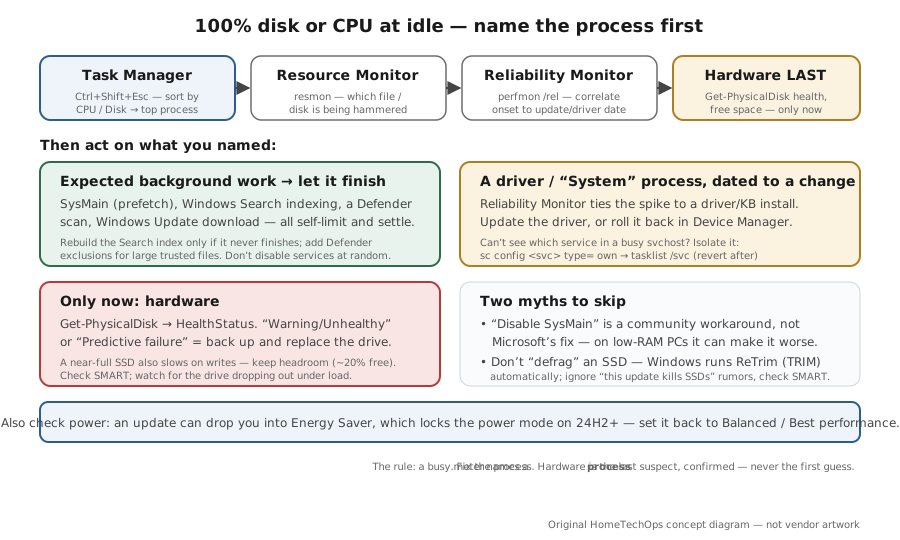
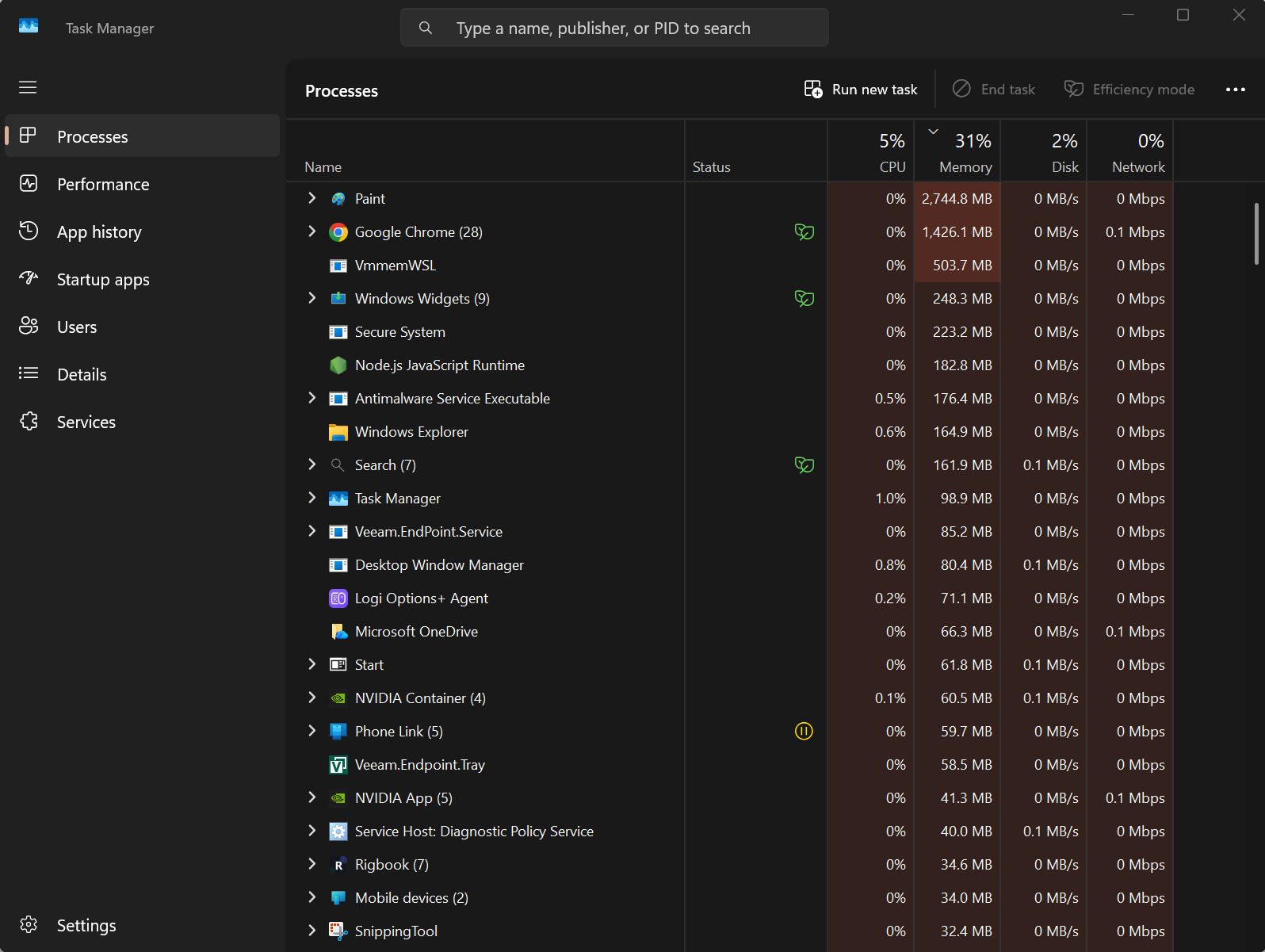
Task Manager → sort by CPU/Disk/Memory; if it's a generic svchost, isolate the service (sc config type= own → tasklist /svc).
Evidence from the screen
Reference images and diagrams. Click any image to view full resolution.
Problem summary
I'm here because Windows 11 is pinned at 100% disk or CPU even when I'm not doing anything, and the fan is loud or everything lags. The operator rule: find the process before you blame the hardware. Most idle-pegging is a known background component doing legitimate work — SysMain (prefetch), Windows Search indexing, Windows Update mid-download, or Defender running a scan — and the fix is to identify it, not to disable services at random. The diagnostic spine is Task Manager → Resource Monitor → Reliability Monitor (to correlate against an update/driver date), and only after that do you check for a genuinely failing or near-full drive. This is the Windows companion to slow after an update; if the drive is also filling up, see C: drive full.
Open Task Manager (Ctrl+Shift+Esc) and sort Processes by CPU, then Disk, then Memory.
resmon (Disk tab) and perfmon /rel
You see the single top consumer right now.
Don't disable SysMain reflexively — it's a workaround, not a fix.
Layer path
Step-by-step runbook
Start here. Do each check in order, compare it to the expected result, and stop when the evidence explains the failure or the safe stop point applies.
Name the process
Check: Task Manager → sort by CPU/Disk/Memory; if it's a generic svchost, isolate the service (sc config type= own → tasklist /svc).
Expected result: You have the specific process or service responsible.
If not: If it's expected background work, move to step 2; if it's a driver/System, plan a driver action.
Let expected work finish, then tune
Check: If it's SysMain/Search/Defender/Update, leave the PC on and idle to let it complete. Rebuild the Search index only if it never finishes; add Defender exclusions for large trusted files.
Expected result: The load subsides as the background task completes.
If not: If it never settles or recurs, treat it as a real issue and continue.
Safe stop: Don't disable SysMain reflexively — it's a workaround, not a fix.
Correlate and fix drivers/updates
Check: Use Reliability Monitor (perfmon /rel) to line the onset up against an update/driver date. Update or roll back the implicated driver; if a KB lines up with a known issue, roll it back.
Expected result: The load tracks to a specific change you can reverse.
If not: If nothing correlates, move to power and storage.
Clear the easy throttles
Check: Set Power mode to Balanced/Best performance (turn off Energy Saver if it's locking it), confirm the SSD isn't near full, and run DISM /RestoreHealth + sfc /scannow if system files look suspect.
Expected result: Obvious throttles and corruption are cleared.
If not: If it's still pegged, check the hardware.
Confirm or rule out hardware last
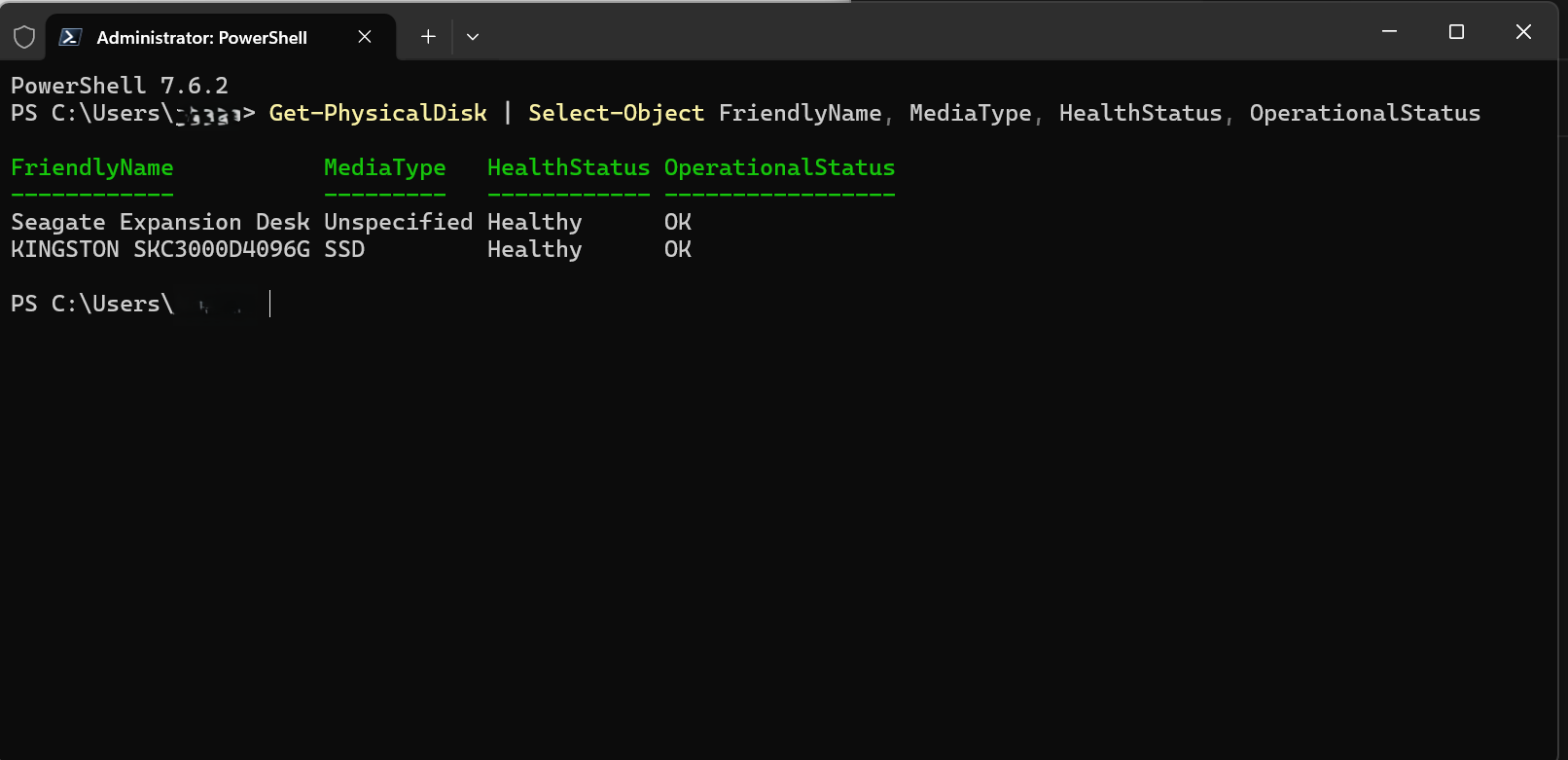
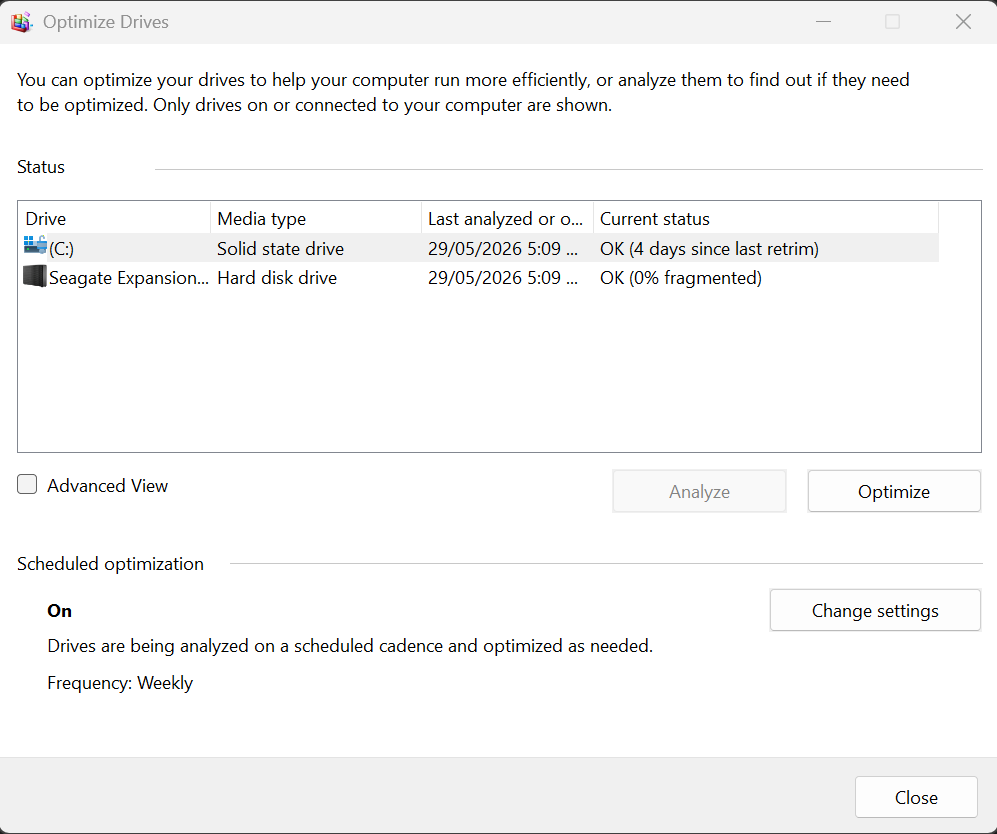
Check: Run Get-PhysicalDisk for health, check SMART, and watch for the drive dropping out under load. For SSDs, let Optimize Drives run ReTrim (don't manually defrag an SSD).
Expected result: You either find a failing/near-full drive or confirm storage is healthy.
If not: Replace a failing drive (after backup); free space on a full one.
Safe stop: Don't manually 'defrag' an SSD or react to 'update kills SSDs' rumors — check SMART instead.
Did this solve your problem?
Your answer helps us improve this page.
No account or personal details. We store the page, answer, optional reason and day with a 90-day retention period. A random reference in this browser prevents repeat votes. Feedback privacy
Decision tree
If: Top process is SysMain/SearchIndexer shortly after boot or an update.
Then: Expected prefetch/indexing background work.
Action: Leave it to settle; rebuild the Search index only if it never finishes. Don't disable SysMain reflexively.
Safe stop: Disabling SysMain is a community workaround, not Microsoft's general fix.
If: Top process is MsMpEng (Defender) or wuauserv (Windows Update).
Then: A scan or update download in progress.
Action: Let it finish; add Defender exclusions for large trusted files; the update download eases on install.
If: A driver/.sys or 'System' process is pegged and Reliability Monitor ties it to a driver date.
Then: A driver regression.
Action: Update the driver, or roll it back in Device Manager to the prior version.
If: Power mode stuck in Energy Saver / battery-saver after an update.
Then: A power setting, not a fault.
Action: Set Power mode to Balanced/Best performance (Energy Saver locks it on 24H2+ — turn it off).
If: Get-PhysicalDisk shows Warning/Unhealthy or predictive failure; or C: is near full.
Then: Storage is the real bottleneck.
Action: Back up and replace a failing drive; free space to ~20% on a full one.
Safe stop: Don't ignore a predictive-failure flag — image the drive now.
If: A generic svchost is hot but you can't see which service.
Then: A shared host process hides the culprit service.
Action: Isolate it: sc config <service> type= own, restart, tasklist /svc; revert type= share after.
Evidence table
| Symptom | Evidence to collect | Likely layer | Next action |
|---|---|---|---|
| 100% disk for the first while after boot/update, then eases. | Top process (SysMain/SearchIndexer); time since boot/update. | Expected background work. | Let it settle; rebuild the index only if it never finishes. |
| CPU pegged by MsMpEng.exe. | Whether a Defender scan/signature update just ran. | Antivirus scan. | Let it finish; add exclusions for large trusted files; tune scan CPU. |
| Choppy with a hot 'System'/driver, started on a driver date. | Reliability Monitor timeline; recurring .sys faults in Event Viewer. | Driver regression. | Update or roll back the driver. |
| Sluggish, low CPU but stalled I/O; or the drive drops out. | Get-PhysicalDisk HealthStatus/OperationalStatus; free space; SMART. | Failing or near-full drive. | Back up and replace if failing; free space to ~20%. |
Commands and settings paths
Find which file/disk and correlate the date
resmon (Disk tab) and perfmon /relWhere: Run dialog (Win+R)
Expected: Resource Monitor shows which file/process is hammering the disk; Reliability Monitor shows whether it lines up with an update/driver date.
Failure means: If nothing correlates with an update, suspect storage, a service, or a driver instead.
Safe next step: Use the findings to choose between rollback, driver action, and hardware checks.
Isolate which service is inside a busy svchost
sc config <service> type= own → restart it → tasklist /svc (revert: sc config <service> type= share)Where: Elevated Command Prompt
Expected: Breaks a shared svchost into its own process so Task Manager shows exactly which service is burning CPU.
Failure means: If you can't tell which service to test, start with SysMain, Windows Search (WSearch), and Windows Update (wuauserv).
Safe next step: Revert type= share afterward so services share a host again.
Check drive health before blaming hardware
Get-PhysicalDisk | select FriendlyName, MediaType, HealthStatus, OperationalStatusWhere: Elevated PowerShell
Expected: Reports each drive as Healthy/Warning/Unhealthy and flags 'Predictive failure' — the first-party signal a drive is dying.
Failure means: A Warning/Unhealthy/Predictive-failure result means the drive, not software, is the problem.
Safe next step: Back up and replace a failing drive; otherwise keep diagnosing the software cause.
Hardware and platform boundary
Change only when
- Replace the system SSD if Get-PhysicalDisk/SMART shows it failing, or upgrade it if it's chronically near-full — the main real hardware cause of idle disk pegging.
- Add RAM only after confirming a genuine shortage (a low-RAM PC leans harder on SysMain and the pagefile), not on a hunch.
Evidence that matters
- A healthy system SSD with headroom (target ~20% free) and current SMART.
- Current GPU/chipset/storage drivers from the vendor.
- A power mode set to Balanced/Best performance, not stuck in Energy Saver.
Evidence that does not matter
- Headline CPU numbers — idle pegging is almost always a specific process or a drive, not a too-slow CPU.
- 'PC booster'/'optimizer' utilities that promise to end 100% disk — they mask, not fix.
Avoid
- Disabling services (SysMain, Search, telemetry) at random without confirming they're the culprit.
- Manually defragmenting an SSD.
- Ignoring a Get-PhysicalDisk 'Predictive failure' or SMART warning.
- Reacting to 'this update kills SSDs' rumors instead of checking drive health.
Related problems
Last reviewed
2026-06-02 · Reviewed by HomeTechOps. Reviewed against Microsoft's high-CPU troubleshooting guidance, the perfmon reference, the SysMain CPU-spike KB, the Defender performance docs, Optimize-Volume, Storage Spaces health states, and the Energy Saver guidance; insists on naming the process (Task Manager → resmon → perfmon /rel, svchost isolation) before blaming hardware, treats disabling SysMain as a community workaround, and checks Get-PhysicalDisk health before declaring a failing drive.
Sources/assumptions
- Assumes Windows 11 24H2/25H2 on a typical consumer SSD/HDD; the diagnostic tools (Task Manager, resmon, perfmon /rel, Get-PhysicalDisk) and the per-culprit behavior follow Microsoft Learn and Microsoft Support current to mid-2026.
- Disabling SysMain is presented as a community workaround, not a Microsoft-sanctioned general fix — Microsoft only documents disabling it for virtual-desktop environments and one narrow legacy CPU case.
- The legacy 'PIO vs DMA mode' 100%-disk fix and any 'this update kills SSDs' claim are treated as unverified for modern Windows 11 and are not asserted; diagnose with SMART/Get-PhysicalDisk instead.
Source-backed checks
HomeTechOps turns official docs and conservative safety rules into a shorter runbook. These links are the source trail for the page direction.
Planning a purchase?
We keep a source-backed, price-free comparison so you can buy once and right. No star ratings, every spec cited.
NAS Drives: WD Red vs IronWolf vs N300 →Get the deal & firmware alerts
Home Stack Field Notes: NAS deals, firmware changes worth acting on, restore-test reminders, and new decision guides — plus the capacity & backup sizing cheatsheets from our calculators. Unsubscribe anytime.
Subscribe on beehiiv