
Windows
Windows C: drive full after an update
Reclaim space safely after a Windows 11 update: remove Windows.old, shrink the WinSxS store with DISM, and use Storage Sense and Disk Cleanup.
Start here: See where the space went
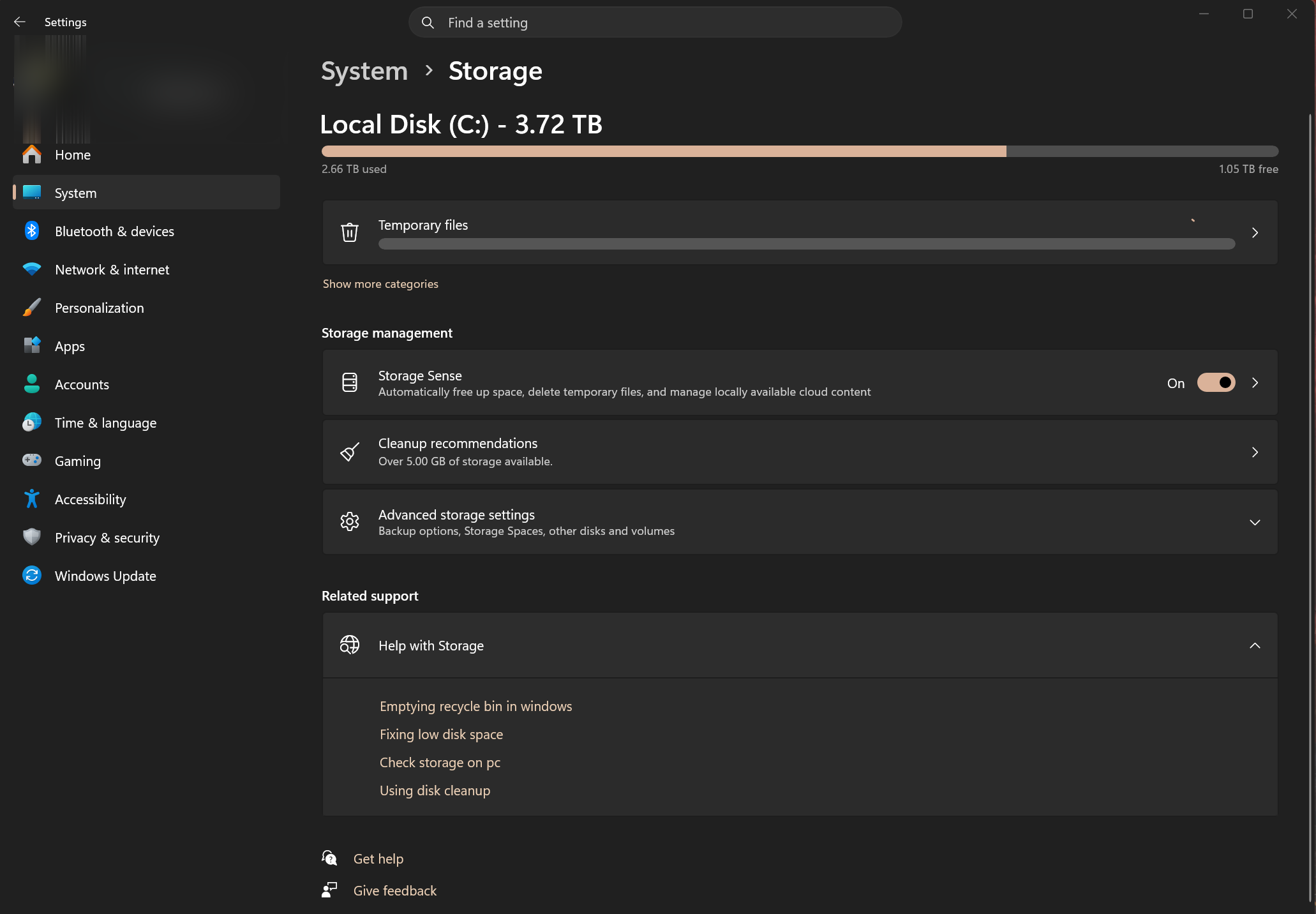
Open Settings → System → Storage and review the breakdown and Cleanup recommendations.
Evidence from the screen
Reference images and diagrams. Click any image to view full resolution.
Problem summary
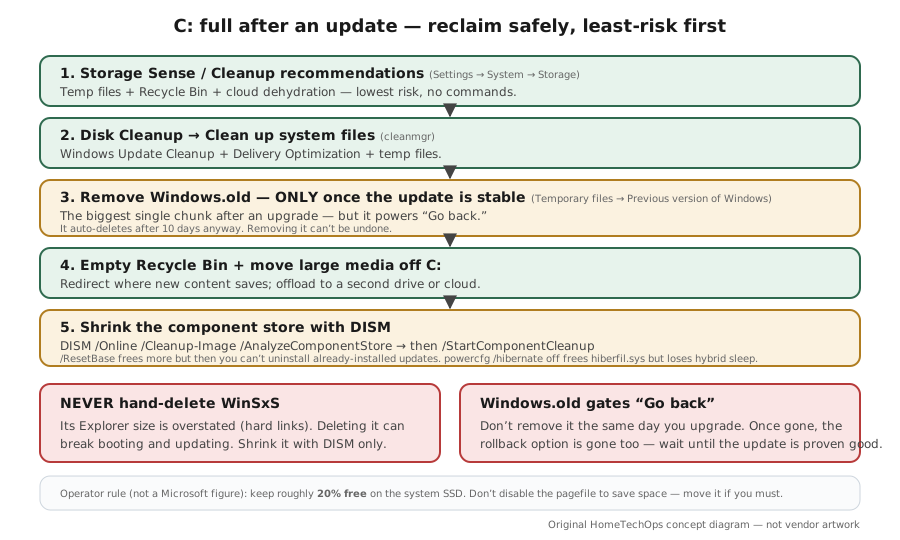
I'm here because my C: drive filled up after a Windows update and now I'm low on space or updates won't install. The reassuring part: a chunk of that is recoverable update leftovers — the `Windows.old` previous-installation folder, superseded packages in the WinSxS component store, and temp/update caches — and Windows has safe, built-in tools to reclaim them. The two rules that keep you out of trouble: never hand-delete the WinSxS folder (it can break booting and updating — shrink it with DISM instead), and only remove `Windows.old` once you're sure the update is stable, because that ends the 10-day 'Go back' option. The safe order is Storage Sense / Cleanup recommendations → Disk Cleanup → Windows.old → DISM component cleanup. If a full drive is why an update is failing, see Windows Update stuck and error codes.
Open Settings → System → Storage and read the category breakdown (and Cleanup recommendations).
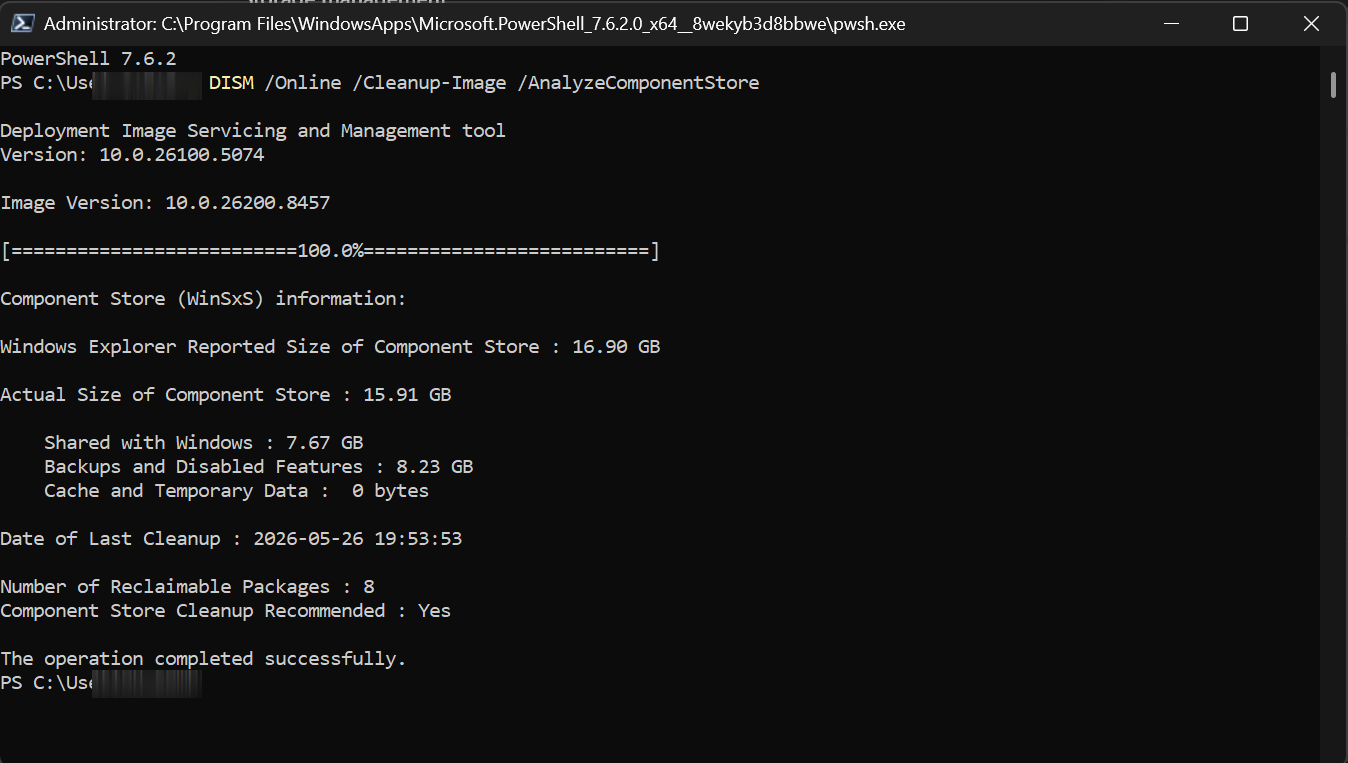
DISM /Online /Cleanup-Image /AnalyzeComponentStore
You see where the space actually went (temp files, previous Windows, system, apps).
Removing Windows.old ends 'Go back' and can't be undone.
Layer path
Step-by-step runbook
Start here. Do each check in order, compare it to the expected result, and stop when the evidence explains the failure or the safe stop point applies.
See where the space went
Check: Open Settings → System → Storage and review the breakdown and Cleanup recommendations.
Expected result: You know the biggest safe targets before deleting anything.
If not: If most space is personal media, plan to move it rather than run system cleanup.
Run the safe reclaim tools
Check: Use Storage Sense / Cleanup recommendations for temp files and Recycle Bin, then Disk Cleanup → Clean up system files for Windows Update Cleanup and Delivery Optimization.
Expected result: You reclaim the low-risk space first.
If not: If that's enough, stop here — no need for the riskier steps.
Remove Windows.old when stable
Check: Once the update has run well for a few days, remove the previous Windows installation via Settings → Temporary files → Previous version of Windows (or Disk Cleanup).
Expected result: You reclaim the largest single chunk after an upgrade.
If not: If you might still roll back, leave it — it auto-deletes at 10 days anyway.
Safe stop: Removing Windows.old ends 'Go back' and can't be undone.
Shrink the component store and move media
Check: Run DISM /AnalyzeComponentStore then /StartComponentCleanup if recommended; empty the Recycle Bin; move large media to another drive and redirect where new content saves.
Expected result: You reclaim the component-store overhead and offload bulky files.
If not: If still tight, weigh the trade-off moves.
Safe stop: Never hand-delete WinSxS.
Use trade-off moves only if needed
Check: If genuinely necessary, consider DISM /ResetBase or powercfg /hibernate off, understanding each trade-off; longer term, schedule Storage Sense and size up the SSD.
Expected result: You free the last few GB or stop the drive refilling.
If not: If you still can't keep ~20% free, the system drive is too small for the workload.
Safe stop: Don't disable the pagefile to free space — move it instead.
Did this solve your problem?
Your answer helps us improve this page.
No account or personal details. We store the page, answer, optional reason and day with a 90-day retention period. A random reference in this browser prevents repeat votes. Feedback privacy
Decision tree
If: Lots of temp/cache space in Storage.
Then: Reclaimable with the safest tools.
Action: Run Storage Sense / Cleanup recommendations, then Disk Cleanup → Clean up system files.
If: A large Windows.old after a recent upgrade, and the update is stable.
Then: Reclaimable, but it ends 'Go back'.
Action: Remove it via Settings → Temporary files → Previous version of Windows (or Disk Cleanup).
Safe stop: Don't remove Windows.old until you're sure you won't roll back.
If: WinSxS looks huge in Explorer.
Then: Its size is overstated (hard links); never hand-delete it.
Action: DISM /Online /Cleanup-Image /AnalyzeComponentStore, then /StartComponentCleanup.
Safe stop: Never delete the WinSxS folder by hand.
If: Still tight after the safe steps.
Then: Time for the trade-off moves.
Action: Consider DISM /ResetBase (loses ability to uninstall current updates) or powercfg /hibernate off (loses hybrid sleep).
Safe stop: Only with the trade-offs understood.
If: Drive fills up again within weeks.
Then: Ongoing inflow, not a one-off.
Action: Enable Storage Sense on a schedule, move large media off C:, and consider a bigger system SSD.
Evidence table
| Symptom | Evidence to collect | Likely layer | Next action |
|---|---|---|---|
| 'Previous version of Windows' shown as a large item. | Whether the update is stable; how many days since upgrade. | Windows.old leftover. | Remove it once stable (it auto-deletes at 10 days regardless). |
| WinSxS appears enormous in File Explorer. | DISM /AnalyzeComponentStore reported size vs Explorer size. | Component store (hard-link inflation). | Shrink with DISM /StartComponentCleanup; never hand-delete. |
| An update fails with a disk-space error. | Free space on C:; size of Windows.old and caches. | Disk full blocking the update. | Free ~20 GB (Storage Sense / Disk Cleanup / Windows.old), retry. |
| Drive refills shortly after cleanup. | What's growing (Downloads, media, app caches, OneDrive). | Ongoing inflow. | Schedule Storage Sense; move media off C:; size up the SSD. |
Commands and settings paths
Read the true component-store size
DISM /Online /Cleanup-Image /AnalyzeComponentStoreWhere: Elevated terminal
Expected: Reports the actual WinSxS size and whether cleanup is recommended — cutting through File Explorer's inflated number.
Failure means: If it recommends cleanup, run StartComponentCleanup next; if not, WinSxS isn't your problem.
Safe next step: Use this before assuming WinSxS is the space hog.
Shrink the component store safely
DISM /Online /Cleanup-Image /StartComponentCleanup (aggressive: add /ResetBase)Where: Elevated terminal
Expected: Removes superseded component versions immediately (the scheduled task waits ~30 days). /ResetBase removes all superseded versions.
Failure means: After /ResetBase you can no longer uninstall already-installed updates (future ones still uninstall).
Safe next step: Use plain StartComponentCleanup first; add /ResetBase only if you accept the trade-off.
Reclaim the hibernation file (trade-off)
powercfg /hibernate off (re-enable: powercfg /hibernate on)Where: Elevated terminal
Expected: Deletes hiberfil.sys (about the size of installed RAM), freeing several GB.
Failure means: This also disables hybrid sleep and the Hibernate option — don't do it on a desktop that relies on hybrid sleep.
Safe next step: Re-enable hibernation later if you miss it.
Hardware and platform boundary
Change only when
- Upgrade to a larger system SSD if C: chronically can't hold ~20% free — the durable fix when cleanup only buys weeks.
- Add a second drive (or use OneDrive Files On-Demand) to offload large media off the system drive.
Evidence that matters
- Enough system-drive headroom (target ~20% free) for updates and normal operation.
- Storage Sense enabled to keep temp files and Recycle Bin in check automatically.
- A plan for where large media lives (a second drive or cloud), not C:.
Evidence that does not matter
- 'PC cleaner'/'registry cleaner' utilities — Storage Sense, Disk Cleanup, and DISM cover real reclaim safely.
- Headline RAM/CPU upgrades — a full C: is a storage problem, not a compute one.
Avoid
- Hand-deleting the WinSxS folder (can break boot/update).
- Removing Windows.old before the update is proven stable.
- Disabling the pagefile to free space (move it instead).
- Running DISM /ResetBase or powercfg /hibernate off without understanding the trade-offs.
Related tool/checklist
Use the linked tool when you need a guided plan from your exact symptoms instead of a static checklist.
Backup plan builderRelated problems
Last reviewed
2026-06-02 · Reviewed by HomeTechOps. Reviewed against Microsoft's free-up-drive-space, delete-previous-version-of-Windows (the 10-day Windows.old window), WinSxS cleanup and actual-size pages, Storage Sense, and disable-hibernation docs; orders reclaim least-risk-first, forbids hand-deleting WinSxS, gates Windows.old removal on the update being stable, and flags the DISM /ResetBase and hibernation trade-offs (the ~20% free guideline is presented as operator guidance, not a Microsoft figure).
Sources/assumptions
- Assumes Windows 11 24H2/25H2 on a single system drive; the Windows.old 10-day window, the WinSxS/DISM cleanup commands, Storage Sense, and Disk Cleanup follow Microsoft Support and Microsoft Learn current to mid-2026.
- The '~20% free' guideline and 'don't disable the pagefile' are presented as HomeTechOps operator guidance, not Microsoft figures — Microsoft documents the cleanup tools, not a specific free-space percentage.
- DISM /ResetBase is flagged with its trade-off (already-installed updates can no longer be uninstalled); the scheduled component-cleanup task's 30-day grace differs from the immediate manual command.
Source-backed checks
HomeTechOps turns official docs and conservative safety rules into a shorter runbook. These links are the source trail for the page direction.
Planning a purchase?
We keep a source-backed, price-free comparison so you can buy once and right. No star ratings, every spec cited.
NAS Drives: WD Red vs IronWolf vs N300 →Get the deal & firmware alerts
Home Stack Field Notes: NAS deals, firmware changes worth acting on, restore-test reminders, and new decision guides — plus the capacity & backup sizing cheatsheets from our calculators. Unsubscribe anytime.
Subscribe on beehiiv