
Windows
Windows Update error codes, decoded
What the common Windows Update error codes mean: 0x80070643, 0x800f0922, 0x80073712, 0x80070003, 0x80070070 and more, mapped to the real cause and the fix.
Start here: Identify the code and its bucket
Record the exact code and map it: corruption, space, cache, or download.
Evidence from the screen
Reference images and diagrams. Click any image to view full resolution.
Problem summary
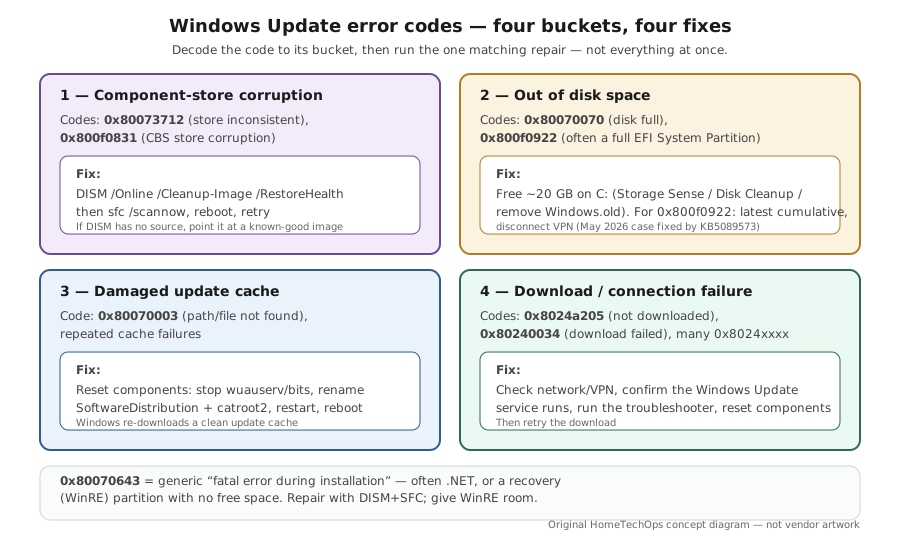
I'm here because Windows Update failed with a hex error code and I want to know what it actually means instead of guessing. Good news: most of these codes map to a small number of real causes — a corrupted component store, not enough disk space (including the tiny EFI System Partition), a damaged update cache, or a download/connection failure — and each has a documented fix. Below, the common codes are decoded to their symbolic name, the real cause, and the next action. The two repairs that resolve the majority are DISM `/RestoreHealth` + `sfc /scannow` (for corruption codes) and freeing disk space (for the space codes). If the update is stuck rather than erroring, see Windows Update stuck; to check whether your code is a known build issue, see is it the build?.
Write down the exact code and where it appeared (Windows Update, a feature upgrade, or a specific component like .NET).
DISM /Online /Cleanup-Image /RestoreHealth → sfc /scannow
You can map the code to its symbolic name and bucket.
Don't manually resize partitions without a backup.
Layer path
Step-by-step runbook
Start here. Do each check in order, compare it to the expected result, and stop when the evidence explains the failure or the safe stop point applies.
Identify the code and its bucket
Check: Record the exact code and map it: corruption, space, cache, or download.
Expected result: You know which single repair to run.
If not: If the code is component-specific (.NET, a driver), repair that component, not Windows.
Run the matching repair
Check: Corruption → DISM+SFC. Space → free disk. Cache → reset components. Download → fix connectivity + reset components.
Expected result: The matched fix clears the error and the update installs.
If not: If the first matched fix doesn't help, the code may have a second cause — try the next most likely bucket.
Handle the space/ESP cases carefully
Check: For 0x80070070 free ~20 GB on C:. For 0x800f0922, check the EFI System Partition specifically and install the latest cumulative (disconnect VPN).
Expected result: The update finalizes once there's room and you're on a fixed build.
If not: If C: is roomy and 0x800f0922 persists, it's the ESP — follow Microsoft's documented fix, don't keep retrying.
Safe stop: Don't manually resize partitions without a backup.
Check release-health for a known issue
Check: Search the 24H2/25H2 release-health page for the code or KB.
Expected result: You find whether a resolving KB exists (e.g. the May 2026 0x800f0922 → KB5089573).
If not: If it's a known issue, install the resolving KB instead of more local repair.
Escalate only if repairs fail
Check: If the matched repair, component reset, and DISM+SFC all fail, install the KB by hand from the Microsoft Update Catalog, or plan an in-place repair-install.
Expected result: The update installs directly or via a repair-install that keeps your files.
If not: If even a manual install fails, recheck disk/ESP space and component-store health.
Safe stop: Reset → Keep my files preserves data; Remove everything erases it.
Did this solve your problem?
Your answer helps us improve this page.
No account or personal details. We store the page, answer, optional reason and day with a 90-day retention period. A random reference in this browser prevents repeat votes. Feedback privacy
Decision tree
If: 0x80073712 or 0x800f0831.
Then: Component-store corruption.
Action: DISM /Online /Cleanup-Image /RestoreHealth, then sfc /scannow, reboot, retry.
If: 0x80070070, or 'we need space'.
Then: Disk full (ERROR_DISK_FULL).
Action: Free ~20 GB on C: (Storage Sense / Disk Cleanup / remove Windows.old), retry.
If: 0x800f0922.
Then: Install couldn't finalize — often a full EFI System Partition, sometimes .NET or a VPN.
Action: Install the latest cumulative (the May 2026 case was fixed by KB5089573), disconnect VPN, run DISM+SFC.
If: 0x80070003, or repeated cache failures.
Then: Damaged update cache / missing path.
Action: Reset the Windows Update components (rename SoftwareDistribution and catroot2), reboot, retry.
If: 0x8024a205 or 0x80240034.
Then: Download didn't complete (download-manager/connection).
Action: Check network/VPN, confirm the Windows Update service runs, run the troubleshooter, reset components.
If: 0x80070643.
Then: Generic 'fatal error during installation' — often .NET or a recovery-partition (WinRE) update with no room.
Action: Repair via DISM+SFC and retry; for the WinRE case, give the recovery partition more space first.
Evidence table
| Symptom | Evidence to collect | Likely layer | Next action |
|---|---|---|---|
| 0x80073712 / 0x800f0831 on a cumulative update. | Whether DISM/SFC report and repair corruption. | Component-store corruption. | DISM /RestoreHealth + sfc /scannow, reboot, retry. |
| 0x80070070 / 'needs space'. | Free space on C:; size of Windows.old. | Disk full. | Free space, then retry; remove Windows.old if stable. |
| 0x800f0922 mid-install, rolls back ~35%. | EFI System Partition free space; VPN state; build vs release-health. | ESP space / finalize failure (a known build case in May 2026). | Install the latest cumulative, disconnect VPN, DISM+SFC. |
| 0x8024a205 / 0x80240034, download never completes. | Network/VPN; Windows Update service state. | Download/connection failure. | Fix connectivity, ensure the service runs, reset components. |
Commands and settings paths
Repair corruption codes
DISM /Online /Cleanup-Image /RestoreHealth → sfc /scannowWhere: Elevated terminal (reboot after)
Expected: Repairs the component store and protected system files, clearing 0x80073712 / 0x800f0831 / many 0x800f0xxx codes.
Failure means: If DISM can't find a source, point it at a mounted known-good image with /Source.
Safe next step: Reboot and retry the update.
Reset components for cache/download codes
net stop wuauserv && net stop bits → ren %systemroot%\SoftwareDistribution SoftwareDistribution.bak → ren %systemroot%\System32\catroot2 catroot2.bak → net start wuauserv && net start bitsWhere: Elevated Command Prompt (reboot after)
Expected: Rebuilds a clean update cache, clearing 0x80070003 and many 0x8024xxxx download/cache codes.
Failure means: If renames fail, the services didn't stop — stop them and retry.
Safe next step: Reboot and retry; the update re-downloads fresh.
Free disk for space codes
cleanmgr → Clean up system files (or Settings → System → Storage → Storage Sense)Where: On the affected PC
Expected: Reclaims space so 0x80070070 / a full-disk 0x800f0922 can complete.
Failure means: If C: is already roomy but 0x800f0922 persists, the EFI System Partition (not C:) is the constraint.
Safe next step: For the ESP case, install the latest cumulative or follow Microsoft's partition fix.
Hardware and platform boundary
Change only when
- Free or add system-drive space if space codes (0x80070070) recur — the cheapest, most common real fix.
- Keep the servicing-stack update current, since SSU problems surface as cryptic install codes.
Evidence that matters
- A healthy component store (DISM /AnalyzeComponentStore clean) and adequate free space on C: and the ESP.
- The latest cumulative installed, since many codes are fixed by a later build.
- A stable connection with VPN paused during updates.
Evidence that does not matter
- 'Error-code fixer' downloads — they don't decode anything Microsoft's reference and DISM/SFC can't.
- Headline hardware upgrades — update error codes are almost never a too-slow CPU.
Avoid
- Applying a random 'fix' for the wrong bucket (e.g. resetting components for a disk-space code).
- Manually resizing the EFI/recovery partition without a backup.
- Disabling the Windows Update service or pagefile to 'clear' an error.
- Repeatedly retrying an update that release-health lists as a known issue.
Related problems
Last reviewed
2026-06-02 · Reviewed by HomeTechOps. Reviewed against Microsoft's Fix Windows Update errors page, the Windows Update error reference (symbolic names), the DISM corruption-repair guidance, and the 0x80070070 disk-space article; groups codes by root cause, maps each to one fix, and uses the first-party May 2026 0x800f0922 → KB5089573 case as the 'known issue, here's the resolving KB' example.
Sources/assumptions
- Assumes Windows 11 24H2/25H2 consumer updates; the symbolic error names and fixes follow Microsoft's Windows Update error reference, the corruption-repair (DISM) guidance, and the disk-space error article current to mid-2026.
- Codes are grouped by root cause (corruption, disk space, cache/download). A given code can occasionally have more than one cause; the page leads with the most common one and the repair that covers it.
- The May 2026 0x800f0922 EFI-System-Partition example (KB5089549 → resolved by KB5089573) is used as a concrete, first-party-documented case and may age out as builds advance.
Source-backed checks
HomeTechOps turns official docs and conservative safety rules into a shorter runbook. These links are the source trail for the page direction.
Get the deal & firmware alerts
Home Stack Field Notes: NAS deals, firmware changes worth acting on, restore-test reminders, and new decision guides — plus the capacity & backup sizing cheatsheets from our calculators. Unsubscribe anytime.
Subscribe on beehiiv