
Windows
Windows Update stuck downloading or won't install
Windows Update frozen at 0% or 100%, or failing on Windows 11 24H2/25H2? The supported fix order: troubleshooter, free space, reset components, DISM and SFC.
Start here: Rule out 'slow, not stuck'
Note the percentage, leave the PC on and connected for up to an hour, and let it complete one restart.
Don't force-shutdown a genuinely-installing update.
Evidence from the screen
Reference images and diagrams. Click any image to view full resolution.
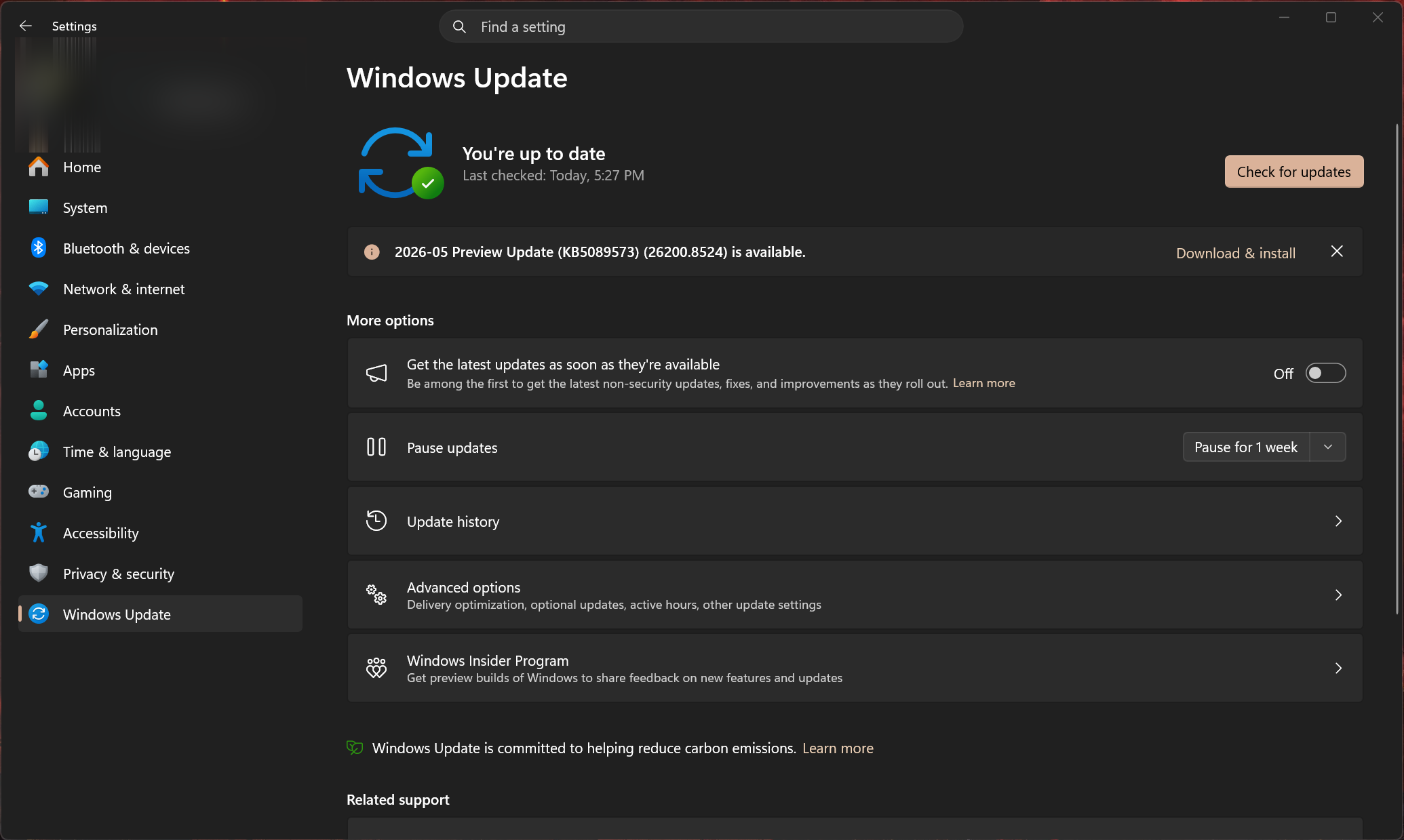
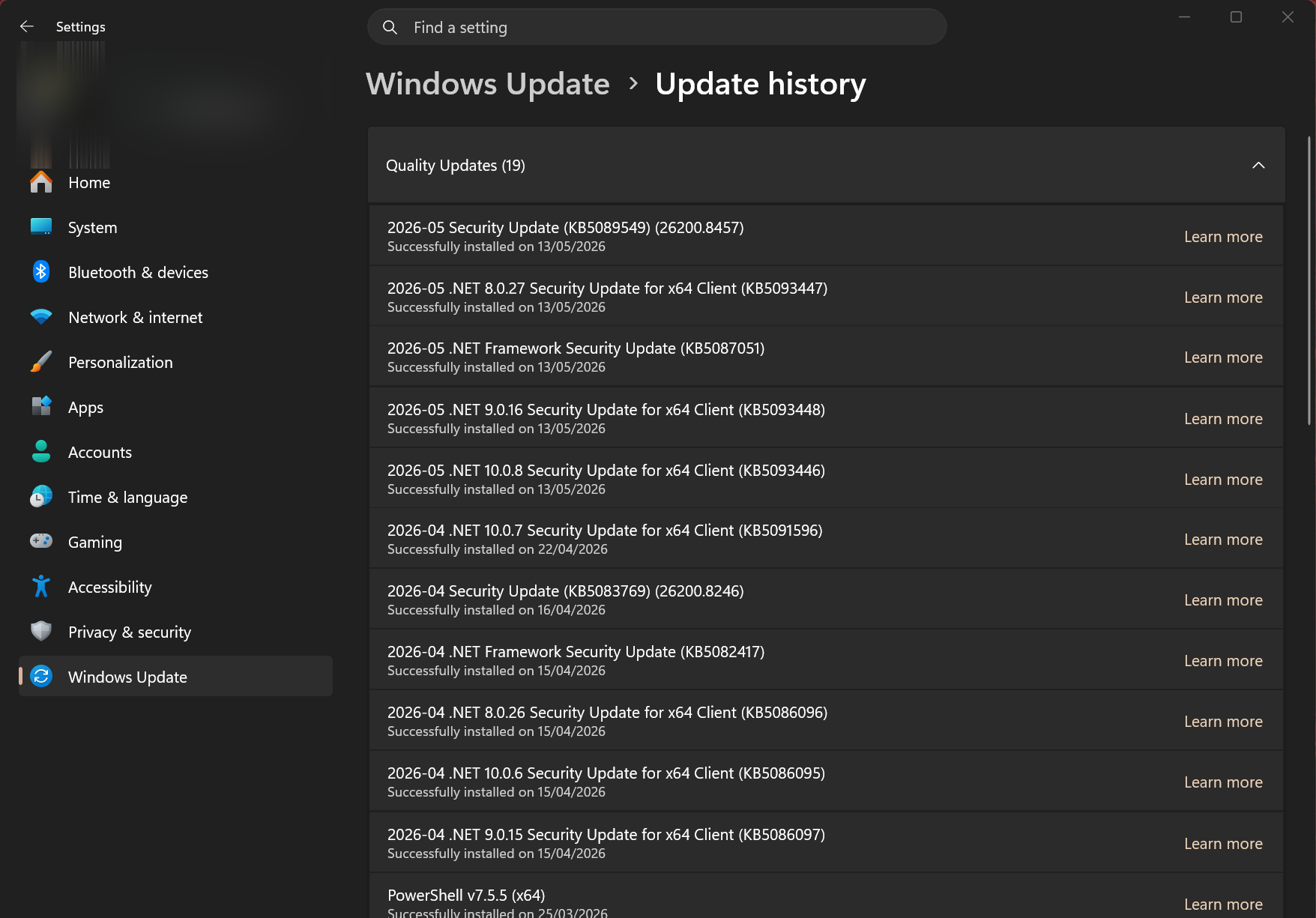
Problem summary
I'm here because Windows Update is stuck — frozen at 0% or 100%, looping on 'downloading', or failing right at install. The calm read: a download that sits for a while can just be a slow connection or a large cumulative update, so give it time first, then work the supported repair order rather than reaching for registry hacks. The ladder is: run the Windows Update troubleshooter, confirm free disk space and a stable connection, reset the Windows Update components (rename `SoftwareDistribution` and `catroot2`), repair system files with DISM then SFC, and only if all that fails, install the update by hand from the Microsoft Update Catalog. If a specific error code is showing, decode it on Windows Update error codes, decoded; if your PC won't restart cleanly mid-update, see Windows won't boot.
Give it real time first — note the percentage, wait, and let it ride through one restart.
net stop wuauserv && net stop bits → ren %systemroot%\SoftwareDistribution SoftwareDistribution.bak → ren %systemroot%\System32\catroot2 catroot2.bak → net start wuauserv && net start bits
A large update finishing on its own; the percentage moves or the install completes after the reboot.
Don't force-shutdown a genuinely-installing update.
Layer path
Step-by-step runbook
Start here. Do each check in order, compare it to the expected result, and stop when the evidence explains the failure or the safe stop point applies.
Rule out 'slow, not stuck'
Check: Note the percentage, leave the PC on and connected for up to an hour, and let it complete one restart.
Expected result: The update finishes on its own — large cumulatives just take time.
If not: If it's still frozen or loops back to the same place, treat it as stuck and continue.
Safe stop: Don't force-shutdown a genuinely-installing update.
Run the troubleshooter and free space
Check: Run the Windows Update troubleshooter, confirm ~20 GB free on C:, and ensure a stable, non-metered connection (pause VPN).
Expected result: The troubleshooter clears a stalled service/cache, or you find and fix a space/connection cause.
If not: If it still stalls, reset the update components.
Reset the Windows Update components
Check: In an elevated prompt stop wuauserv and bits, rename SoftwareDistribution and catroot2, restart the services, and reboot.
Expected result: Windows rebuilds a clean update cache and re-downloads the update.
If not: If it still fails, the component store is likely corrupt — repair it next.
Repair system files
Check: Run DISM /Online /Cleanup-Image /RestoreHealth, then sfc /scannow, reboot, and retry the update.
Expected result: Corruption-type errors clear and the update installs.
If not: If DISM/SFC can't repair, plan an in-place repair-install (Reset → Keep my files keeps your data).
Install by hand or wait for the fix
Check: If Windows Update still won't deliver it, download the KB from the Microsoft Update Catalog and install the .msu. If release-health lists it as a known issue, pause updates and wait for the resolving KB.
Expected result: The update installs directly, or you avoid a known-broken one until it's fixed.
If not: If even the .msu fails, revisit disk space and component-store health before escalating.
Safe stop: Don't leave security updates paused indefinitely — resume once it's resolved.
Did this solve your problem?
Your answer helps us improve this page.
No account or personal details. We store the page, answer, optional reason and day with a 90-day retention period. A random reference in this browser prevents repeat votes. Feedback privacy
Decision tree
If: Stuck at a percentage but recently started, connection is slow.
Then: Likely just a slow/large download, not a fault.
Action: Leave it; check back in an hour. Switch to Ethernet to speed a big cumulative.
Safe stop: Don't reset components on an update that's simply downloading slowly.
If: Troubleshooter didn't help and it still won't download/install.
Then: The local update cache is likely corrupt.
Action: Reset the Windows Update components: stop wuauserv/bits, rename SoftwareDistribution and catroot2, restart the services, reboot.
If: It errors with a corruption-type code (0x80073712 / 0x800f0831).
Then: The component store the update installs into is damaged.
Action: Run DISM /Online /Cleanup-Image /RestoreHealth then sfc /scannow, reboot, retry.
If: It errors with a disk-space code (0x80070070) or 'needs more space'.
Then: Not enough room to download/stage.
Action: Free ~20 GB on C: (Storage Sense / Disk Cleanup / remove Windows.old), then retry.
Safe stop: Don't disable the pagefile to free space.
If: Windows Update simply won't deliver the update after all repairs.
Then: The update client/path is the blocker, not the package.
Action: Download the KB from the Microsoft Update Catalog and install the .msu by hand.
If: Release-health lists your symptom as a known issue.
Then: It's the build, not you.
Action: Apply the resolving KB if available; otherwise pause updates briefly and wait for the fix.
Safe stop: Don't keep retrying a known-broken update — pause and wait for the fix.
Evidence table
| Symptom | Evidence to collect | Likely layer | Next action |
|---|---|---|---|
| Progress bar frozen at the same % for a long time. | Time since it started; connection speed; update size in history. | Slow/large download, or a stalled BITS transfer. | Wait first; if truly stuck, run the troubleshooter then reset components. |
| Repeated 'failed to install', rolls back on restart. | The exact error code; whether it's a corruption or space code. | Corrupt cache/component store, or disk space. | Reset components, then DISM+SFC; free space if it's a space code. |
| 'We need more space' / 0x80070070. | Free space on C:; size of Windows.old and the update. | Insufficient disk space. | Free ~20 GB (Storage Sense / Disk Cleanup / Windows.old), retry. |
| Download never starts or 0x8024xxxx errors. | Network/VPN state; Windows Update service status. | Connection/download-manager failure. | Fix connectivity, ensure the service runs, reset components, retry. |
Commands and settings paths
Reset the Windows Update components
net stop wuauserv && net stop bits → ren %systemroot%\SoftwareDistribution SoftwareDistribution.bak → ren %systemroot%\System32\catroot2 catroot2.bak → net start wuauserv && net start bitsWhere: Elevated Command Prompt
Expected: The download/signature caches are renamed and rebuilt clean; Windows re-downloads the update fresh after a reboot.
Failure means: If a rename fails with 'access denied', the services didn't stop — stop them first (or use Services.msc), then rename.
Safe next step: Reboot and retry the update; delete the .bak folders later once it's working.
Repair the component store, then system files
DISM /Online /Cleanup-Image /RestoreHealth → sfc /scannowWhere: Elevated terminal (reboot after)
Expected: DISM repairs the store SFC draws from; SFC then repairs protected system files, clearing corruption-type update errors.
Failure means: If DISM can't reach a source or SFC reports unrepairable files, an in-place repair-install is the next step.
Safe next step: Reboot and retry the update before anything bigger.
Install the update by hand (bypass the client)
Download the KB from catalog.update.microsoft.com → run the .msuWhere: Microsoft Update Catalog in a browser, then the downloaded file
Expected: The update installs directly, sidestepping a broken Windows Update client/cache.
Failure means: If the .msu also fails, the cause is the component store/disk, not the client — repair those first.
Safe next step: Match the KB number and your architecture (x64/ARM64) exactly.
Hardware and platform boundary
Change only when
- Add or free system-drive space (target ~20 GB headroom) if updates repeatedly stall on space — the most common real 'hardware' cause of stuck updates.
- A wired/Ethernet connection for large feature updates if Wi-Fi keeps interrupting the download.
Evidence that matters
- Enough free space on C: for the update to download and stage.
- A stable, non-metered connection (VPN paused during the update).
- An admin account and the latest servicing-stack update installed.
Evidence that does not matter
- Third-party 'update fixer' / 'Windows repair' utilities — the built-in troubleshooter, component reset, and DISM+SFC cover the same ground without the risk.
- Registry 'tweaks' to force updates — they cause more breakage than they fix.
Avoid
- Force-powering-off a PC that's genuinely installing an update.
- Disabling the pagefile or Windows Update service to 'speed things up'.
- Renaming SoftwareDistribution/catroot2 without stopping the services first.
- Leaving security updates paused long-term after a one-off stuck update.
Related problems
Last reviewed
2026-06-02 · Reviewed by HomeTechOps. Reviewed against Microsoft's troubleshoot-problems-updating-windows page (troubleshooter, the net stop / rename SoftwareDistribution+catroot2 reset, DISM+SFC), the disk-space guidance, and release-health; separates 'slow' from 'stuck', orders repairs gentle-to-firm, and ends with the Microsoft Update Catalog manual install rather than registry hacks.
Sources/assumptions
- Assumes Windows 11 24H2 (build 26100.x) or 25H2 (build 26200.x); the update-component reset and DISM/SFC steps are the same on both since they share a servicing branch.
- The troubleshooter location, the net stop / rename SoftwareDistribution+catroot2 sequence, the DISM-then-SFC order, and the free-space guidance follow Microsoft Support and Microsoft Learn current to mid-2026.
- Manual install from the Microsoft Update Catalog is the documented fallback when Windows Update itself can't deliver the package; managed/domain devices may have update policies that change this.
Source-backed checks
HomeTechOps turns official docs and conservative safety rules into a shorter runbook. These links are the source trail for the page direction.
Get the deal & firmware alerts
Home Stack Field Notes: NAS deals, firmware changes worth acting on, restore-test reminders, and new decision guides — plus the capacity & backup sizing cheatsheets from our calculators. Unsubscribe anytime.
Subscribe on beehiiv